How to Add Subtitles to a Video: 8 Ways, Checked for 2026
How to add subtitles to a video: the short answer
To add subtitles to a video, generate them from the audio, fix the mistakes, then either upload them as a separate file or burn them into the picture. If the video is going to one platform, use that platform’s own captions: YouTube Studio, TikTok and Instagram all write automatic captions for free. If the same video is going to several places, make the subtitles once in an editor (CapCut, Premiere Pro or a subtitle generator such as quso.ai) and export a captioned file.
Every step below was checked against the vendor’s own help page on October 21, 2026. Each section links its source, and menus change, so check that page if a button has moved.
Which method should you use?
Two questions decide it. Where will the video be watched? And do the captions need to be part of the file, or is a track viewers can switch off enough?
| Method | Best for | Burned in or a track? | Cost |
|---|---|---|---|
| YouTube Studio | Videos on YouTube | A track viewers switch on; upload SRT or VTT too | Free |
| TikTok | TikToks | Auto captions viewers can toggle; creator captions sit on the video | Free |
| Instagram Reels | Reels | Closed captions or a captions sticker | Free |
| Clips on iPhone | Quick talking clips you record on iPhone | Burned in (Live Titles) | Free |
| YouTube Create on Android | Clips up to 60 seconds | Burned in | Free |
| CapCut | Editing and captioning in one app | Burned in, or SRT on desktop and web | Auto captions are a Pro feature, per CapCut’s help center |
| Premiere Pro | Professional edits | Either: SRT sidecar or burned in | Adobe subscription |
| quso.ai | The same video going to several platforms, or many clips at once | Burned in; SRT on paid plans | Free plan where offered (720p, watermark); paid plans from $29 a month |
Subtitles and captions get used interchangeably. Strictly, subtitles assume you can hear the audio and captions describe sounds too. Every method here produces the spoken words, so the steps work for either.
Free options cover most cases.
1. Add subtitles in YouTube Studio
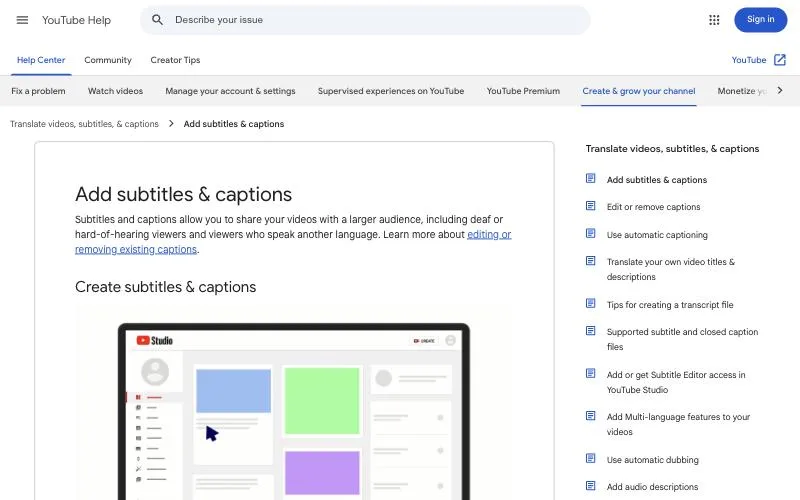
YouTube does most of the work. It writes automatic captions for most uploads, lets you upload or type your own track instead, and its help center lists about 70 languages for automatic captions, from Afrikaans to Zulu.
- Sign in to YouTube Studio and choose Subtitles in the left menu.
- Pick the video.
- Click ADD LANGUAGE, choose the language, then click ADD under Subtitles.
- Choose how to add them: Upload file (an SRT or similar file, with or without timing), Auto-sync (paste a transcript and YouTube times it), or Type manually.
- Save or publish the track.
To fix YouTube’s automatic captions, open the auto track and choose Duplicate and edit. Your edits become a new track. Automatic captions don’t appear straight after upload, and YouTube skips them when the audio is poor, the video is too long, there’s a long silence at the start, or speakers overlap. For upload files it suggests SRT or SBV for beginners. It also takes VTT and a dozen other formats. More detail is in our guide to adding captions to YouTube videos.
2. Add captions on TikTok
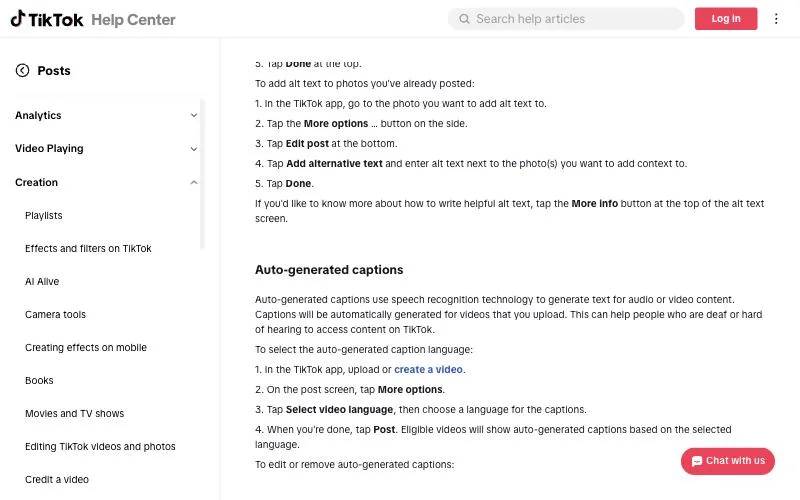
TikTok captions eligible uploads by itself. You only pick the language.
- Upload or create a video in the TikTok app.
- On the post screen, tap More options.
- Tap Select video language and choose the language of the captions.
- Tap Post.
To correct them after posting, tap the caption on your video, tap Edit captions, change or delete lines and tap Save. For captions styled on the video itself, use Captions on the side panel of the preview screen. TikTok calls these creator captions and lets you change their font and color. Viewers turn captions on or off from Share > Captions. TikTok doesn’t define which videos count as eligible. Our TikTok captions guide covers the viewer side.
3. Add captions to Instagram Reels
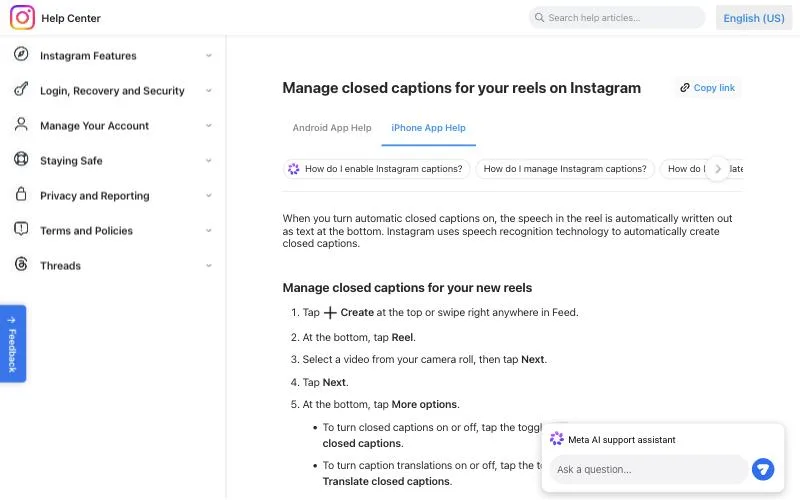
Instagram can write closed captions for a reel with speech recognition, and the captions sticker puts generated text on the video.
- Tap Create, or swipe right in Feed, and choose Reel.
- Pick a video and tap Next twice.
- Tap More options.
- Turn on Enable closed captions. There’s a separate Translate closed captions switch for viewers in other languages.
For captions that sit on the video, tap Stickers, then Captions, before you share. Instagram says the feature works in the iPhone and Android apps only and “may not be available to everyone”, and it doesn’t document editing the automatic caption text. Our Reels captions guide has more. New reels follow your account’s caption setting.
4. Add subtitles on iPhone
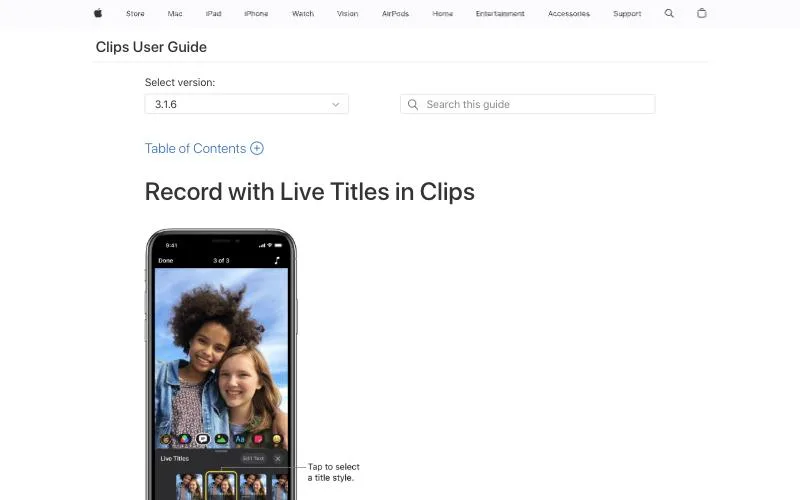
Apple’s free Clips app turns speech into on-screen text as you record, which Apple calls Live Titles, and the text is saved as part of the video, so it shows up wherever you post the clip. No typing.
- Open a video in Clips, tap Effects, then Live Titles.
- Pick a title style and tap Close.
- Touch and hold Record and talk. The words appear in time with your speech.
- To fix a word, tap the clip, then Effects > Live Titles > Edit Text.
Live Titles also work on a clip that already has a voiceover, and Switch Language changes the recognition language. iMovie on iPhone only offers titles you type yourself. The generated subtitles in iOS accessibility settings show on screen while you watch and aren’t saved into the video.
5. Add subtitles on Android
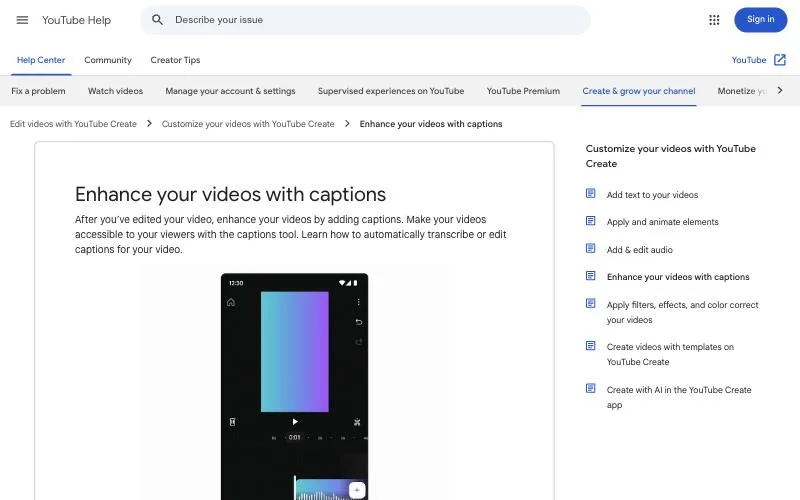
Use YouTube Create. Google’s free editing app generates captions and puts them on the video.
- Open a project and tap Captions in the toolbar.
- Choose All videos or Voiceover, pick the language and tap Generate.
- To fix a word, select the caption layer, tap Edit and retype it.
- Tap Style to change the size, font, color and background.
The catch: YouTube Create can’t generate captions for clips longer than 60 seconds, it needs an Android phone with at least 4 GB of RAM, and it’s available only in some countries. Android’s Live Caption is a different thing. It captions whatever is playing on your phone, but Google says the captions never leave your device, so nothing goes into the file.
6. Add subtitles in CapCut
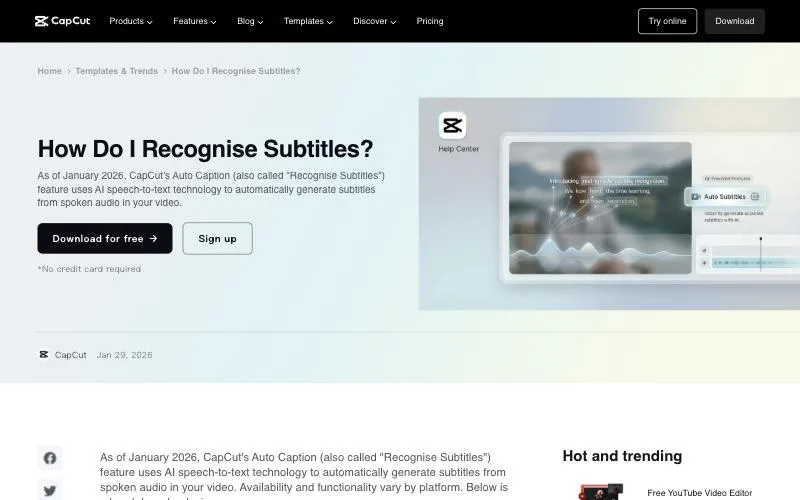
CapCut’s Auto Captions tool, also called Recognise Subtitles, generates timed captions you can restyle on the timeline.
- Open your project.
- Go to Captions (in the bottom menu on mobile, the left toolbar on desktop and web) and choose Auto Captions.
- Pick the audio source and language and tap Generate.
- Edit lines with Edit captions, then export.
Two of CapCut’s own help articles, both from January 2026, disagree on the menu: one goes through Captions and the other through Text > Auto Captions, so check both if your version of the app looks different. CapCut also says availability varies by platform, region and app version. Its Standard vs Pro page lists auto captions under Pro, so expect a paywall. Its help page says batch SRT export may be limited to desktop and web.
7. Add subtitles in Premiere Pro
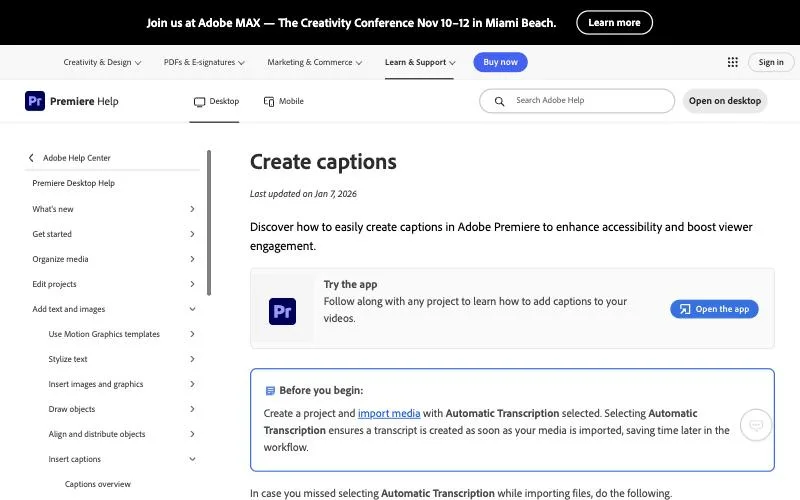
Premiere transcribes the audio first, then turns the transcript into a caption track. Four steps.
- Choose Window > Text. In the Transcript tab, open the options menu, choose Generate static transcript, set the language and click Transcribe.
- Choose Window > Workspaces > Captions and Graphics, then Captions > Create captions from transcript.
- Pick a preset (Subtitle default suits most videos), the line count and length, and click Create captions.
- Click Export. In the Captions section choose Create Sidecar File with SubRip (.srt), or Burn Captions Into Video.
Turning on Automatic Transcription when you import media skips the first step. Our Premiere Pro subtitles guide covers styling and export settings in depth.
8. Add subtitles with quso.ai
quso.ai is our product, so weigh this section accordingly. It earns its place when one video is going to several platforms, or when you’re cutting a long video into many short clips and want every one captioned.
- Upload an MP4, MOV, M4V or WebM file, or paste a YouTube link, in the AI subtitle generator.
- Choose the language the video is spoken in. There are 99, and the choice has to match the audio.
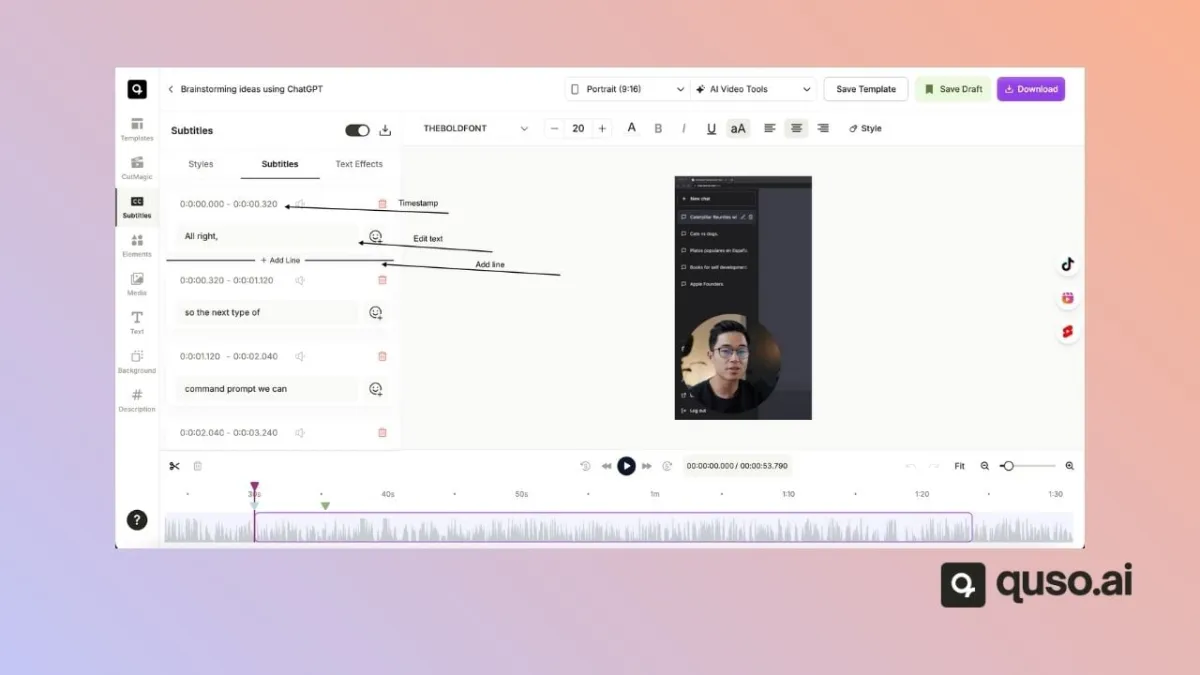
- Correct any line in the Subtitles panel, where each one shows its start and end time.
- Pick one of 10 caption styles, from plain Basic Subtitles to word-by-word styles such as One Word.
- Download the video with the captions burned in, or, on a paid plan, save an SRT file from the Subtitles panel.
The limits, plainly. SRT download is on paid plans only, and there’s no VTT export. quso.ai writes subtitles in the spoken language and doesn’t translate them. Where your country has a free plan, you get 75 minutes of video a month and 720p exports with a quso.ai watermark. Paid plans start at $29 a month and export 1080p without the watermark. Pricing depends on your country.
Burned-in captions or a subtitle file?
Pick by where the video will live. Burned-in (open) captions are part of the picture. They show everywhere the file goes, look the same on every app, and nobody can switch them off. That suits TikTok, Reels and Shorts, where videos often autoplay muted and you want to control the styling.
A subtitle file such as an SRT is a separate track. Viewers can turn it off or pick a language, search engines and players can read it, and you can fix a typo without exporting the video again. That suits YouTube, course platforms and anything that needs several languages. Our guide to burning captions into video covers the trade-offs and safe zones.
Frequently asked questions
Where can I get subtitles for a video for free?
YouTube Studio, TikTok and Instagram write automatic captions for free on videos you post there. On a phone, Apple’s Clips app (iPhone) and Google’s YouTube Create app (Android, clips up to 60 seconds) burn captions into the video at no cost. quso.ai’s free plan, where your country has one, captions 75 minutes of video a month at 720p with a watermark.
Can ChatGPT add subtitles to video?
Not on its own. OpenAI’s help center says ChatGPT may not analyze a whole video or interpret its audio accurately, and it doesn’t describe making subtitle files or putting captions on a video. Developers can get SRT or VTT files from OpenAI’s transcription API, but you still need an editor or a platform upload to show them on the video.
How to get subtitles on a video without subtitles?
Generate them from the audio. Upload the video to YouTube Studio, CapCut, Premiere Pro or a subtitle generator such as quso.ai, let it transcribe the speech, fix any wrong words, and export the subtitles as a file or burned into the video. If you only want to read along yourself, YouTube’s automatic captions or Android’s Live Caption show captions on screen without changing the file.
How can I add subtitles to a video on my phone?
Use the captions built into the app you post with: TikTok and Instagram Reels both have automatic captions. To keep the captions in the video file, use Clips on iPhone, YouTube Create on Android for clips up to 60 seconds, or CapCut’s Auto Captions, which its help center lists as a Pro feature.
What is the best format for a subtitle file?
SRT. It’s plain text with numbered lines and timestamps, and YouTube, Premiere Pro and most players accept it. YouTube recommends SRT or SBV for beginners. VTT adds positioning and basic styling, which some web players use.
Can I edit automatic captions?
Yes on most platforms. YouTube makes an editable copy when you choose Duplicate and edit, TikTok has Edit captions on the posted video, and CapCut, Premiere Pro and quso.ai let you change any line before export. Instagram doesn’t document editing its automatic caption text.