How to Turn on Captions on TikTok: A 2026 Guide
Part of the AI Social Captions guide →
You're probably here because one of two things happened. You opened TikTok in a quiet place, found a video you wanted to watch, and couldn't make out a word without captions. Or you posted a video, turned on auto-captions, and immediately saw misspellings, bad timing, or whole phrases missing.
Both situations are common. TikTok makes captions available for viewers and creators, but the workflow isn't always obvious, and the built-in tools have limits that matter once you're managing content seriously. The good news is that the basics are straightforward once you know where to tap, and the cleanup process gets much easier when you treat captions as part of your publishing workflow, not an afterthought.
Table of Contents
Frequently Asked Questions About TikTok Captions
Why TikTok Captions Matter More Than Ever
Captions change whether a video is usable or frustrating. If the audio is low, the environment is noisy, or you're watching without sound, text on screen is the difference between staying and scrolling away.
They also matter for accessibility in a direct, practical way. TikTok introduced auto captions in its newsroom in 2021 as an accessibility feature for people who are hard of hearing or deaf, which made captions part of a larger platform milestone rather than a hidden convenience setting, as noted in this TikTok captions overview.
That matters because it changes how creators should think about them. Captions aren't decorative. They're part of making the video understandable.
Captions help both sides of the screen
For viewers, captions make content easier to follow in places where sound isn't practical. On TikTok, that often means commuting, sitting in a waiting room, or checking videos between meetings.
For creators, captions make spoken content easier to consume quickly. That's especially important on short-form video, where people decide in seconds whether they'll keep watching.
Practical rule: If your video depends on spoken words and those words don't appear on screen somewhere, you're asking viewers to work harder than they need to.
What works in practice
A clean caption workflow usually does three things well:
It preserves meaning: Names, product terms, and key phrases need to be correct.
It matches pacing: Captions should appear when the speaker says them, not a beat later.
It stays readable: Short lines work better than long blocks of text covering the frame.
If you're trying to learn how to turn on captions on TikTok, it helps to know this upfront. The setting itself is easy. The useful part is knowing when to rely on TikTok's native tools and when to go beyond them.
How to Turn On Captions as a Viewer
If you're watching TikTok and want captions, the first thing to know is simple. There isn't a universal always-on captions switch for every video. Captions are typically something you enable on a video-by-video basis when they're available.
On the TikTok mobile app
For many, this is the fastest path.
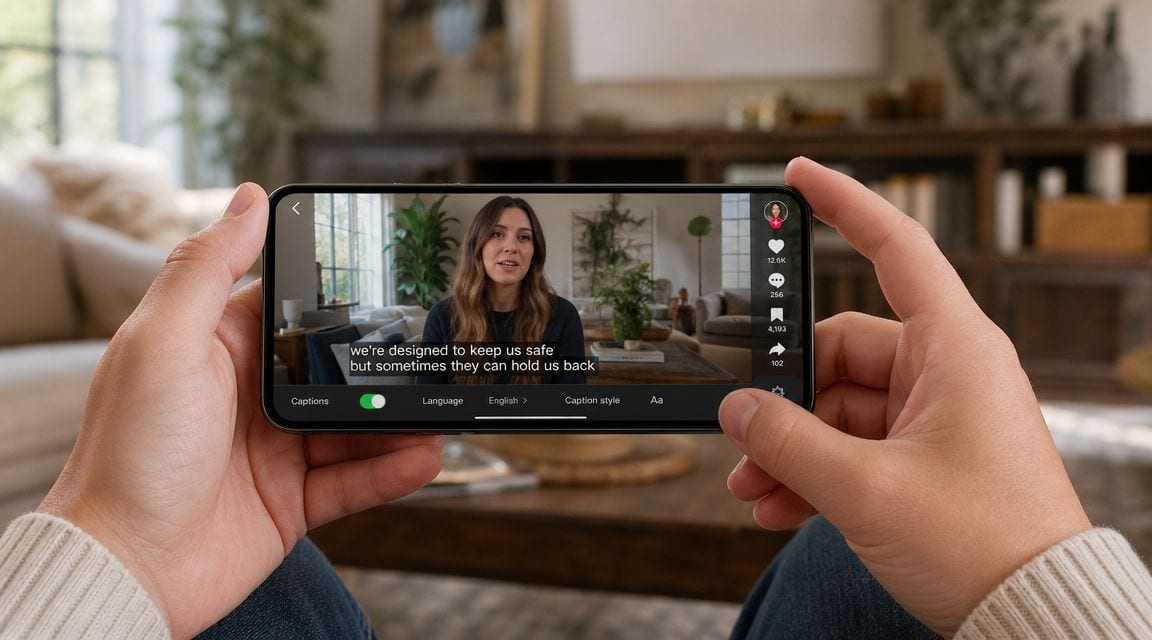
Open the video you want to watch.
Tap the Share icon on the right side of the screen.
Look for Captions in the menu.
Tap Captions to display them, if that video has creator-provided or auto-generated captions available.
The most common mistake is looking through app-wide settings for a master captions control. That usually leads nowhere because TikTok's viewer-side caption access is tied to the individual video.
A few practical notes help here:
If you don't see a captions option, the creator may not have added them, or captions may not be available for that clip.
If text is already on screen, it may be burned into the video itself rather than toggleable captions.
If one video has captions and the next doesn't, that's normal. Availability depends on how the creator posted the clip.
Some viewer frustration comes from expecting Netflix-style subtitle controls. TikTok behaves more like a mixed environment where each post can be configured differently.
On TikTok web
TikTok's web experience can differ from the mobile app depending on the browser and interface version, but the basic principle stays the same. You need to look at the controls on the individual video, not your account's general settings.
Use this approach:
Open the video in your browser
Check the playback controls or video options
Enable captions if the post supports them
If you can't find them on web, test the same video in the mobile app before assuming the feature is unavailable. TikTok often surfaces controls more clearly on mobile.
The practical takeaway for viewers
If you only needed the short answer to how to turn on captions on TikTok as a viewer, it's this: open the video, tap Share, then tap Captions when that option appears.
That solves the majority of viewing cases. If it doesn't, the issue is usually not your settings. It's whether captions exist for that specific post.
A Creator's Guide to Adding Auto-Captions
For creators, captions are added during posting. TikTok's native workflow is built into the editor, so you don't need a separate app just to generate basic auto-captions.
The native TikTok workflow
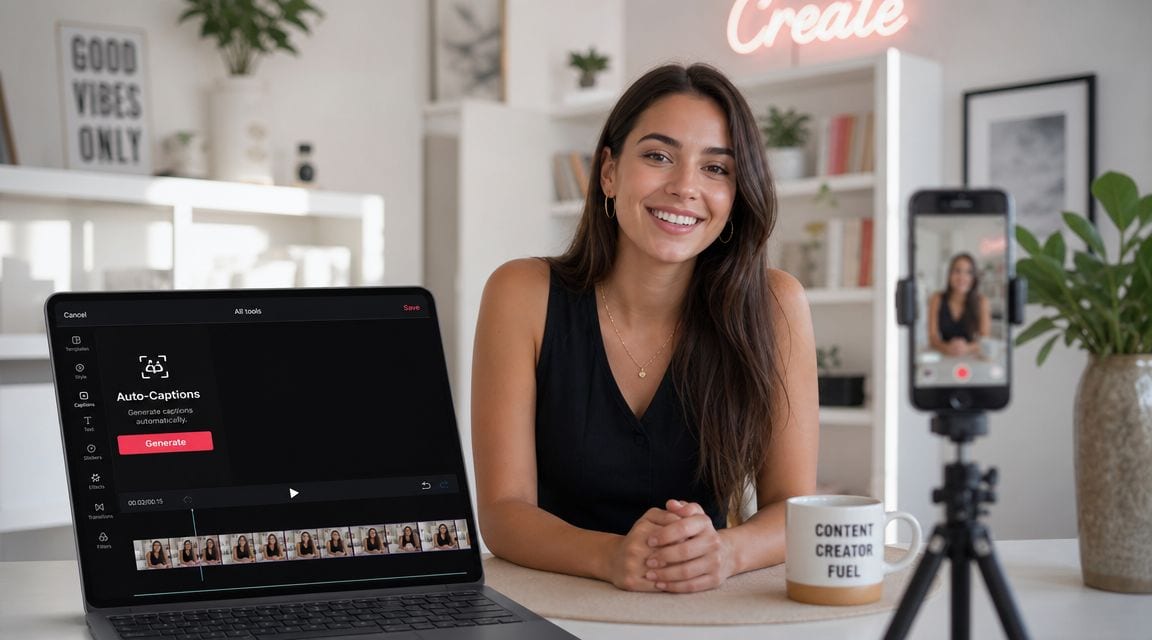
TikTok's support guidance says to enable built-in creator captions by tapping Add post (+), then recording or uploading your video, going to the preview screen, and selecting Captions from the side panel. TikTok then transcribes the speech automatically, and first-time users are prompted to opt in before saving and editing line by line, as shown in TikTok's accessibility instructions.
In practice, the flow looks like this:
Tap Add post (+)
Record or upload your clip
Move to the preview screen
Tap Captions
Let TikTok generate the transcription
Review and edit the lines before posting
That last step matters more than people think. Auto-generation is a draft, not a finished asset.
Set the right language before posting
TikTok also lets you choose the caption language from More options → Select video language before posting. This is one of the most useful controls in the whole workflow, especially if you work with multilingual content, industry terms, or accents that tend to confuse transcription.
If your spoken language and your selected video language don't match, errors pile up fast. The app can only transcribe what it thinks it's hearing.
Pick the language before you generate captions, not after. That one choice often saves more editing time than anything else in the native workflow.
If you're handling interviews, educational clips, or client content, it also helps to build your script and audio process around transcription from the start. A good companion read is ProdShort's guide to transcription, which breaks down how to think about speech-to-text as part of content production rather than a last-minute fix.
For teams that want account-level workflow connections around TikTok publishing, it can also help to review how to connect a TikTok account for content operations.
When you want a cleaner transcription workflow
Native captions are fine for lightweight posting. They're less comfortable when you're producing at volume, trying to maintain brand consistency, or reusing content across channels.
This walkthrough is useful if you want to watch the in-app process before doing it yourself:
Here's where creators usually hit friction:
Fast speech creates messy lines
Names and niche terminology get misheard
Multiple takes create caption clutter
Manual cleanup takes longer than expected
TikTok's built-in captions are still worth using because they're immediate and accessible inside the platform. Just don't mistake “generated” for “ready.”
How to Edit and Perfect Your Captions
Polished TikTok content separates itself from rushed posting. The generation step gets words on screen. Editing is what makes those words readable, accurate, and aligned with your brand.
Fix the text first
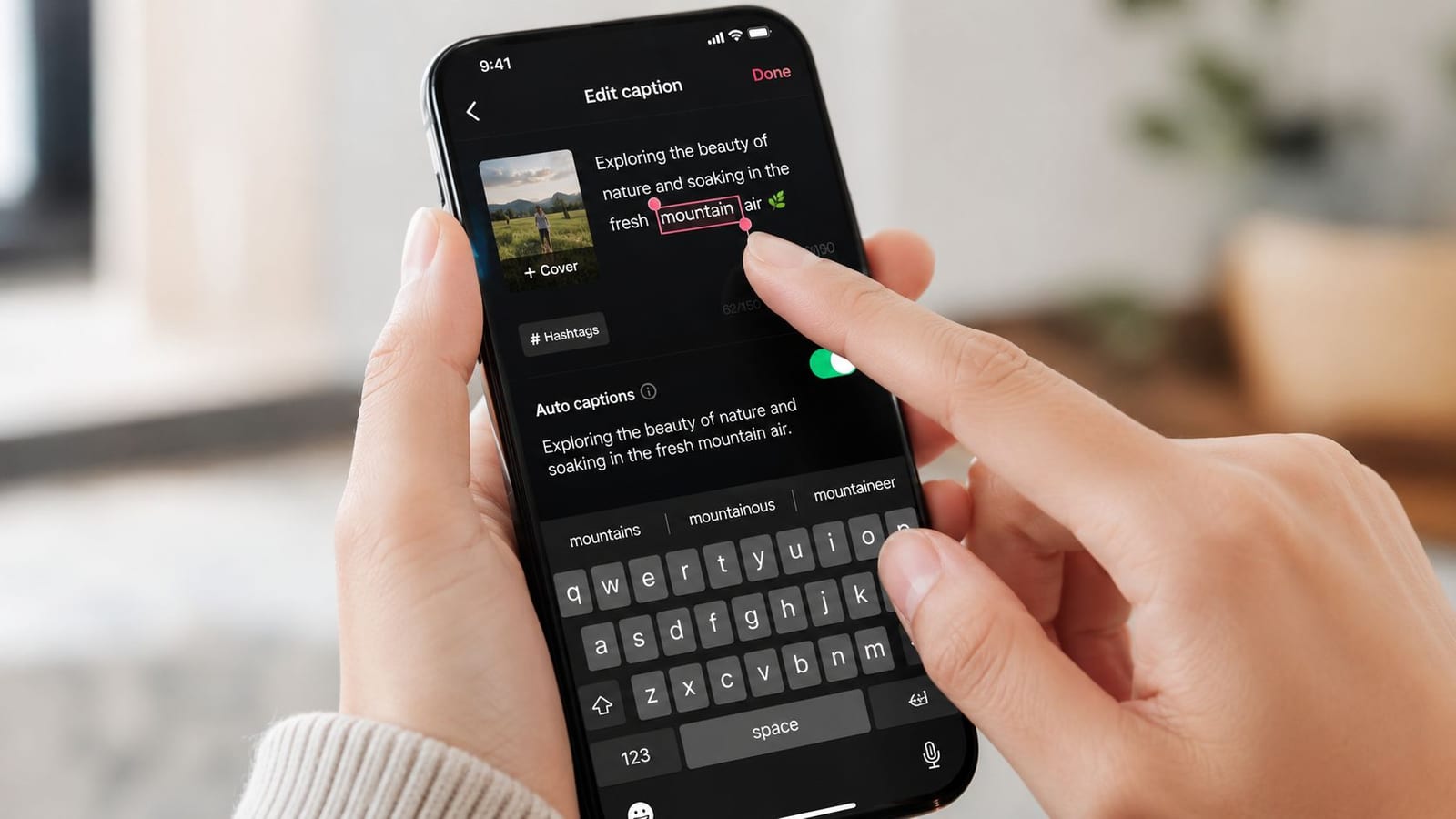
Start with the obvious errors. Correct names, product terms, and any phrase that changes the meaning of what you said. Then clean up punctuation and break long caption chunks into shorter lines.
A practical edit pass usually looks like this:
Correct misheard words: Speech tools often confuse brand names, slang, and technical language.
Trim filler language: Cut repeated “um,” “like,” or half-finished starts when they clutter the screen.
Break lines for readability: Shorter lines are easier to scan while the video keeps moving.
Check the opening hook: The first spoken line often matters most. If that line is wrong, the whole video feels sloppy.
Independent tutorial guidance notes that caption accuracy depends heavily on clean source audio and that speech recognition usually needs review for misheard words, incorrect spellings, or missing phrases. A practical workflow is to record clean audio first, generate captions, then edit before publishing, according to this caption editing guide.
Use manual text when auto-captions are not enough
TikTok's native Text tool is the fallback when you need more control. You can place text manually, change the font and color, and use the duration controls on the timeline to decide exactly when each line appears and disappears.
That's useful in three specific situations:
| Use case | Why manual text helps |
|---|---|
| A key phrase keeps transcribing wrong | You can type it exactly as intended |
| You want stronger visual branding | You get more control over placement and styling |
| Timing feels off | You can drag duration controls to match the speech precisely |
If you want a transcript outside TikTok before building your final caption layer, a dedicated video transcript generator can make the cleanup phase easier, especially when you need to review longer spoken segments first.
Clean captions don't just match the audio. They respect the pace of the video and the viewer's reading speed.
What usually doesn't work
Creators often waste time in two ways.
First, they trust the first auto-generated draft and post it untouched. That's how you end up with the wrong name, broken sentence, or caption line that appears after the speaker finishes talking.
Second, they overdesign captions inside TikTok when the native text tools aren't built for complex branding systems. If your goal is basic accessibility, the app is enough. If your goal is polished visual identity, you'll feel the limit quickly.
Troubleshooting Common TikTok Caption Issues
Caption problems usually come from one of three places. The option isn't visible, the text is inaccurate, or the timing feels wrong. The fix depends on which problem you have.
When the captions option is missing
If you're a viewer and don't see a captions control on a video, the post may not have captions available. That's more common than people assume.
If you're a creator and don't see the Captions tool while posting, check the basics first:
You're on the preview screen: The option appears during the posting flow, not at every editing stage.
Your app is updated: TikTok interface changes can hide features on older versions.
Your video contains spoken audio: If there's little or no detectable speech, there may be nothing useful to transcribe.
When the captions are inaccurate or out of sync
Bad captions usually trace back to audio quality. If the microphone is distant, the room is echoey, or background music competes with speech, the transcription will struggle.
Common symptoms include:
Misheard words
Missing phrases
Incorrect spellings
Timing that lags behind the speaker
When that happens, fix the root cause before blaming the tool. If the source audio is muddy, every caption workflow becomes a cleanup job.
If TikTok captions look wildly wrong, assume the audio needs attention first. Editing can fix a lot, but it can't recover speech that was never clear.
A better recording routine
A simple routine prevents most caption headaches:
Record in a quieter space
Keep the mic closer to the speaker
Lower competing background music
Generate captions after the cleanest take
Review the final text before publishing
This is the practical order that tends to work best: record clean audio first, generate captions next, then edit. If you reverse that logic and hope the software rescues noisy sound, you'll spend more time fixing errors than creating content.
For social teams, this matters even more on recurring series. A weak audio setup doesn't create one bad caption file. It creates repeatable problems across every post.
Level Up Your Content with AI Caption Tools
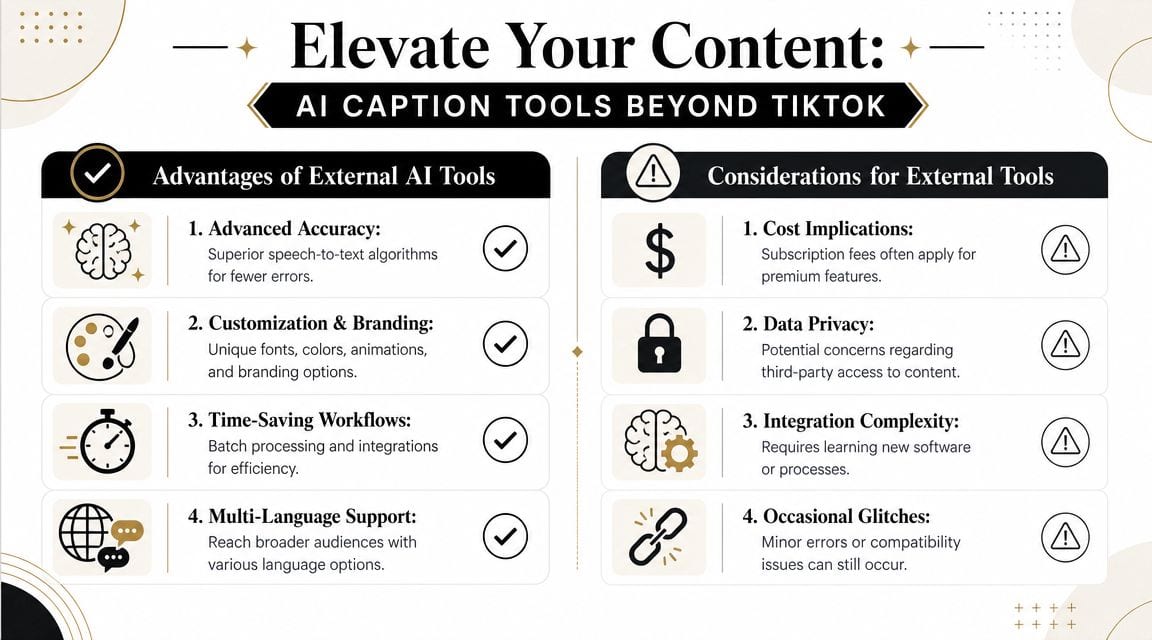
TikTok's native captioning is useful, but it's narrow. It helps you get captions onto a post. It doesn't give you much room for systematized branding, batch workflows, or more advanced subtitle styling.
Where TikTok's native tool starts to feel limiting
If you publish occasionally, TikTok's editor is enough. If you manage content for a coach, educator, podcaster, or brand, a few limitations show up fast:
Styling is basic: You can add text, but building a repeatable brand look inside TikTok gets tedious.
Editing is manual: Fine for one post. Slower across a weekly content calendar.
Cross-platform reuse is awkward: TikTok captions live comfortably on TikTok, not necessarily in a broader repurposing workflow.
That's why many creators move to external subtitle tools after they've outgrown the in-app editor. A helpful companion read on workflow and presentation is Smooth Capture's piece on mastering video subtitles, especially if you're trying to make subtitle design part of your content style rather than just a compliance step.
What advanced tools add
External AI caption tools make sense when you need captions to do more than display words. They can help with branded templates, animated subtitle styles, cleaner editing controls, and workflows built around repurposing.
A tool like quso.ai's AI subtitle generator fits that category. It's designed for generating, editing, and customizing subtitles for short-form content before export, which is useful when TikTok's built-in options feel too limited for a brand workflow.
Here's the trade-off in plain terms:
| Native TikTok captions | External AI caption tools |
|---|---|
| Fast to apply inside TikTok | Better suited for broader editing workflows |
| Good for basic accessibility | Better for branded styling and consistency |
| Convenient for single posts | More useful when producing content in batches |
Native captions are a posting feature. External caption tools are usually a production feature.
That distinction matters. If your only goal is learning how to turn on captions on TikTok, native tools solve the problem. If your goal is to publish polished short-form video repeatedly, advanced subtitle tools become the more practical setup.
Frequently Asked Questions About TikTok Captions
Can I turn on captions for every TikTok automatically?
Usually, you should assume captions are enabled per video when they're available, rather than through a universal account-wide switch. If you keep searching settings for a master control, you'll probably waste time.
Why do some TikTok videos have captions and others don't?
Because captions depend on how the creator posted the video. Some creators enable TikTok's caption tools, some add manual text, and some publish without either.
Can I edit TikTok auto-captions before posting?
Yes. TikTok lets creators review and edit auto-generated captions line by line during the posting flow. That edit pass is worth doing every time spoken clarity matters.
Can I change the look of TikTok auto-captions?
You have more visual control with TikTok's manual text tools than with basic auto-caption output. If you need exact placement, font choices, or more consistent branded styling, manual text or an external subtitle workflow gives you more control.
Why are my captions wrong even when I spoke clearly?
Sometimes the problem is speech pace, accent, overlapping audio, or background sound competing with your voice. Even good speech recognition needs review, especially on short-form videos with fast delivery.
Do captions help my TikTok get more views?
Captions usually make videos easier to follow and easier to watch in more situations, which supports retention and usability. But there isn't a verified number in the source material here that would let me claim a specific lift, so the honest answer is this: they help make the content more accessible and easier to consume, which is usually a smart publishing decision.
What's better, TikTok captions or a separate subtitle tool?
Use TikTok for speed and simplicity. Use a separate tool when you need stronger formatting control, reusable workflows, or captions that match a brand system across multiple platforms.
If you're posting often and want captions that look consistent across TikTok, Reels, Shorts, and client work, it's worth trying quso.ai. It gives you a way to generate, edit, and style subtitles as part of a larger content workflow instead of fixing each post manually inside the TikTok editor.