LinkedIn Video Specs for 2026
MP4 with H.264 video and AAC audio, in 1080p, is the safest baseline for LinkedIn video specs. For feed work, export 9:16 vertical, keep the file under 5 GB, and stay within 3 seconds to 15 minutes on desktop or 10 minutes on mobile.
Many teams still make this mistake. They focus on whether LinkedIn will accept the file, then lose the post because the crop hides the hook, the caption sits in the wrong place, or the clip is longer than people will watch.
Table of Contents
- The LinkedIn Video Specs You Need in 2026
- Supported Video Formats and Codecs
- Aspect Ratios and Resolutions for Feed, Stories, and Ads
- Feed Video Settings at a Glance
- File Size, Duration Limits, and What Length to Cut To
- Captions, Subtitles, and Accessibility Requirements
- Thumbnail Rules and First-Frame Strategy
- Common Upload Errors and How to Fix Them
- Quick Export Presets and a Repurposing Workflow
- LinkedIn Video Specs Cheat Sheet
- Frequently Asked Questions About LinkedIn Video Specs
The LinkedIn Video Specs You Need in 2026
The working baseline is simple, MP4 with H.264 video and AAC audio, 1080p, 9:16 vertical for feed-first clips, 5 GB max file size, and 3 seconds to 15 minutes on desktop or 10 minutes on mobile. That’s the safest export target if you want a clip to survive upload and still look clean in the feed, not just pass the file checker.
LinkedIn’s native video uploads span 3 seconds to 15 minutes, 10 minutes on mobile, up to 5 GB, with resolutions from 256×144 to 4096×2304, frame rates from 10 fps to 60 fps, and bitrates from 192 Kbps to 30 Mbps. Those numbers define the ceiling, but they don’t define the cut that performs well, which is why a repurposed webinar shouldn’t just be trimmed to “fit.” It should be trimmed to fit the feed.
Safe zones matter more than the max
The part most guides skip is the UI. On mobile, LinkedIn overlays reactions, comments, captions, and other interface elements on top of the frame, so the edges are where good clips go to die. Keep faces, hooks, logos, and any on-screen text inside a center-safe area, especially if you’re exporting vertical.
Practical rule: if the main sentence matters, keep it away from the top and bottom edges.
That matters a lot for teams using auto-captions and repurposing long source video. A strong clip can still fail if the first frame is cluttered or the CTA sits under the interface. For a cleaner workflow, short cuts from a long recording should be framed with the feed UI in mind before they’re scheduled.
Supported Video Formats and Codecs
LinkedIn supports a broad mix of containers, but that doesn’t mean they all behave the same. The safest upload baseline for in-feed video is still MP4 with H.264 video and AAC audio because it’s the most predictable across devices and the least likely to trigger a messy transcode on upload, according to the LinkedIn video spec roundup from Linkboost.
What to export, and what to avoid
Use MP4 when you can. MOV can work, but it’s not the default I’d trust for a clip that needs to post cleanly every time. MKV, WebM, AVI, and WMV are the formats that tend to create more friction in real-world workflows, especially when teams export from different tools and assume LinkedIn will normalize everything perfectly.
A few practical checks save time:
- Container check: If the file isn’t MP4, treat it as a risk unless you’ve already tested that exact export path.
- Audio check: Make sure the file has an audio track. Silent exports happen more often than people admit.
- Codec check: If the video was encoded with something odd, re-export to H.264 instead of hoping LinkedIn will clean it up.
- Stability check: If a file looks fine locally but breaks after upload, the issue is often the source encode, not LinkedIn itself.
For repurposed content, codec discipline matters more than squeezing every possible byte out of the allowed file size. A webinar clip that’s technically under the limit can still upload badly if the source format is sloppy. That’s why a clean MP4/H.264/AAC export is the operational default, not a nice-to-have.
Aspect Ratios and Resolutions for Feed, Stories, and Ads
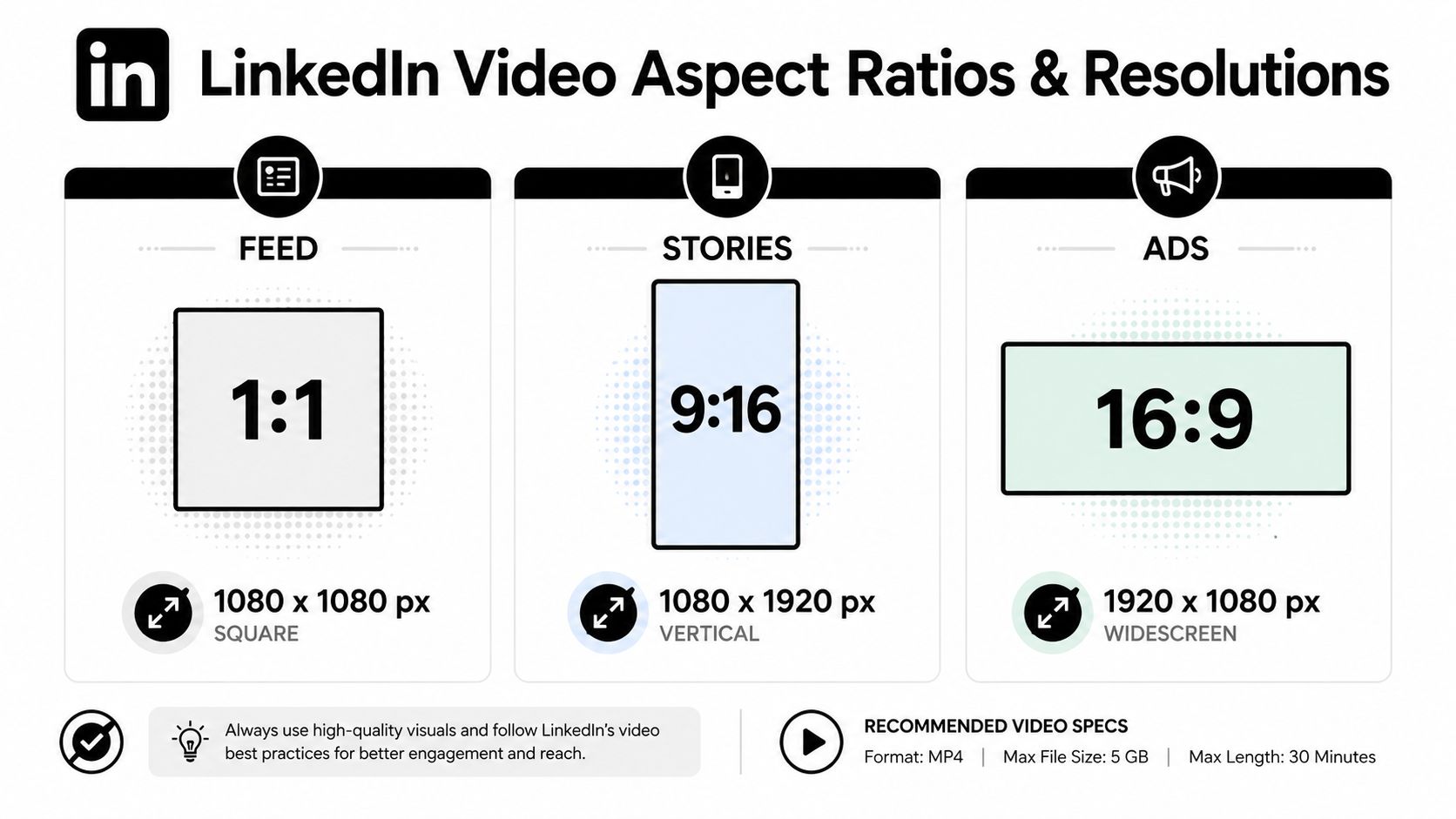
LinkedIn is more forgiving than many assume, but the placement still changes what “looks right.” For feed work, 9:16 vertical is the mobile-first choice, 1:1 square is a safe compromise, 4:5 gives you more screen real estate on mobile, and 16:9 still works well for talking-head clips, webinars, and screen recordings. The common mistake is exporting one version and assuming it will behave the same everywhere.
Feed formats that hold up
For organic feed posts, 9:16 is the most aggressive mobile format because it fills the screen. 1:1 and 4:5 are the more conservative options when your subject needs room for text overlays or a wider composition. 16:9 is still fine, but it tends to feel smaller in the feed and gives mobile viewers less visual punch.
Stories and ads are different jobs
Stories are full-screen vertical, so they reward a cleaner composition and a stronger first frame. Ads are broader in accepted aspect ratios, and many placements accept 1:1, 1.91:1, and 9:16, which gives marketers more room to match the creative to the offer. The trade-off is simple, the more places a file has to work, the more careful you need to be with crop-safe text and framing.
Keep the hook inside the middle of the frame, because the UI is going to steal the edges anyway.
For teams repurposing one source recording into several cuts, a single master edit helps. Build one version for feed-native vertical, one square version for general reuse, and one horizontal cut when the subject needs a wider canvas. That keeps the export queue sane and cuts down on surprises after upload.
Feed Video Settings at a Glance
For feed posts, the safest default is still MP4, H.264, AAC, and 1080p. That gives you a clean baseline for LinkedIn’s upload queue without forcing the file into an unnecessarily heavy export. For a broader workflow note on how video fits into repurposing, Neal Schaffer’s LinkedIn video guidance is useful, but the practical decision here is the export profile you hand to LinkedIn, not just the format name.
What matters in practice
A feed export that survives upload cleanly usually looks like this:
| Setting | Practical baseline |
|---|---|
| Container | MP4 |
| Video codec | H.264 |
| Audio codec | AAC |
| Resolution | 1080p |
| Aspect ratio | 9:16 or 1:1 for feed-first cuts |
| Frame rate | 30 fps as the default, 60 fps for motion-heavy clips |
| Bitrate | Keep it controlled for the frame size, not oversized |
The table is the recap. The decision point is bitrate and profile behavior. A talking-head clip does not need a massive export just because the source camera can produce one, and an oversized file often gets recompressed harder on upload. A steady H.264 export with a sane bitrate usually keeps text sharper, gradients cleaner, and processing headaches lower.
Practical encoding choices
Use 30 fps unless the source needs 60 fps. Screen captures, sports, product motion, and fast camera movement can justify the higher frame rate because they benefit from smoother motion. Most talking-head clips do not, and pushing them through a heavier encode just creates more room for upload processing issues.
The same logic applies to audio. AAC stereo is the safe choice, and the track should be clear without sounding crushed. If the clip is designed for silent viewing first, captions carry more of the load, so the export does not need to compensate with aggressive audio settings.
For teams cutting a single master into several feed versions, the useful move is to keep one clean source export and vary only the framing and crop-safe area. That lets a 9:16 version sit inside mobile safe zones, while a square version keeps the subject centered for broader reuse, and it keeps the repurposing workflow aligned with quso.ai without forcing every cut through the same exact framing.
File Size, Duration Limits, and What Length to Cut To
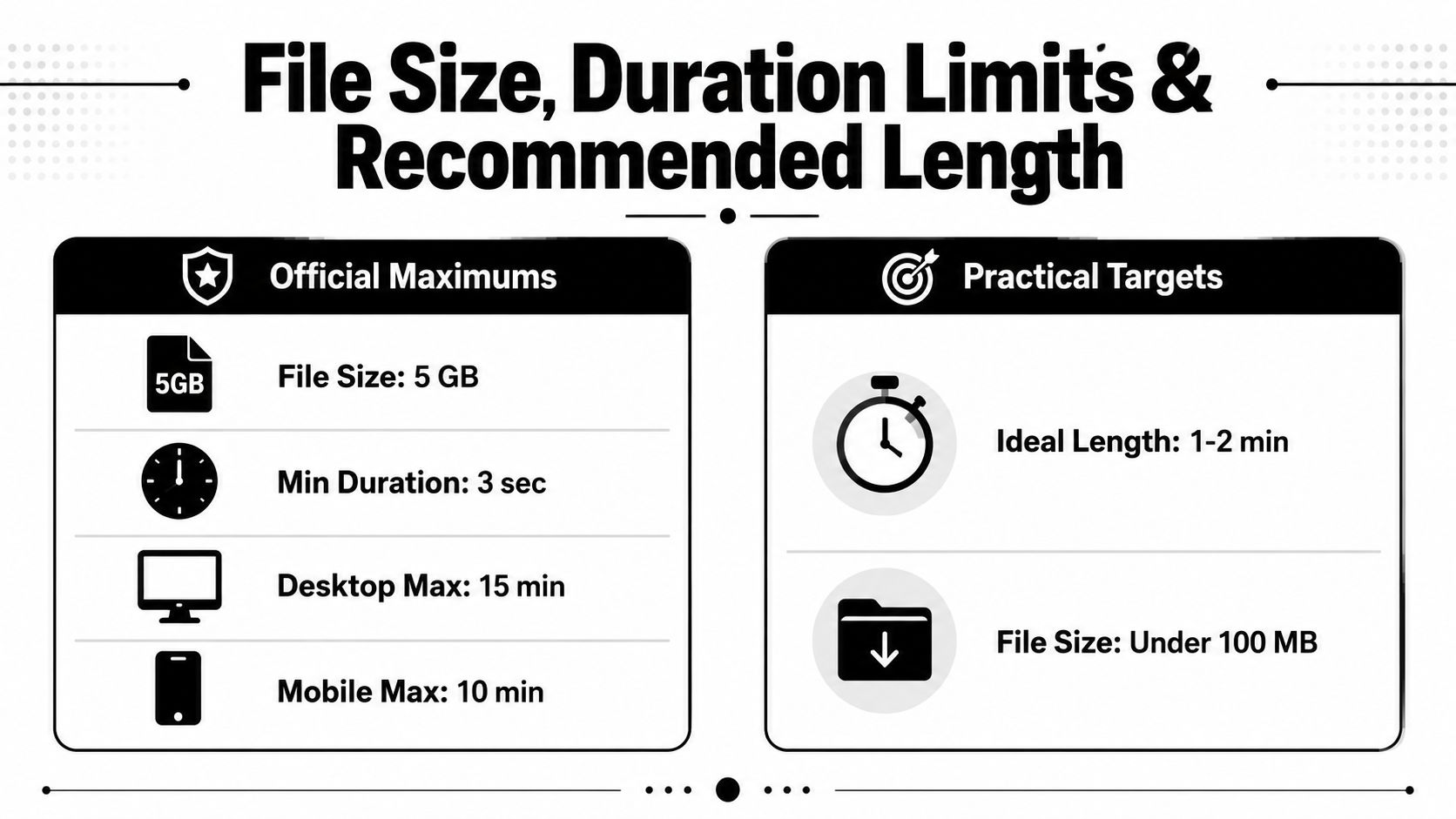
LinkedIn’s hard limits are straightforward. Organic in-feed video supports up to 5 GB, a 3-second minimum, and a 15-minute desktop maximum or 10-minute mobile maximum. The official ceiling is useful, but it’s not the same thing as the length that earns attention.
The useful target is shorter than the ceiling
There’s a real gap between “can upload” and “should upload.” One industry summary says the most effective length is often far below the platform max, with 15 to 30 seconds often described as the sweet spot and under 90 seconds recommended for most content, while another points to a longer 1 to 5 minute band and argues that a median 51-second clip can sit in an underperforming range. That conflict is exactly why blanket advice doesn’t help creators or B2B teams.
For practical editing, use the source recording to make different cuts for different jobs:
- Hooks and product clips: 15 to 30 seconds
- Thought-leadership explainers: 60 to 90 seconds
- Podcast or Q&A cutdowns: 1 to 3 minutes
A long webinar shouldn’t become one default clip. It should become a set of cuts, each one matched to a different level of attention. That’s the smarter workflow because the same recording can support more than one post angle without forcing one length to do everything.
Captions, Subtitles, and Accessibility Requirements
LinkedIn autoplay is often muted, so captions aren’t a nice extra, they’re part of the video itself. The strongest clips are built for sound-off viewing from the start, with readable text that doesn’t fight the frame. If the message depends on audio alone, a big chunk of the feed will miss it.
Use the caption file, not just burned-in text
LinkedIn supports subtitle uploads through standard caption files, and the practical move is to pair those with a clean on-video style when needed. The point is to make the message legible on mobile without stuffing text into the unsafe parts of the frame. Captions should sit inside the center-safe area and avoid small type that disappears once LinkedIn compresses the upload.
The file format and timing matter too. If your subtitles are out of sync, too dense, or too low contrast, the viewer will stop reading and move on. A clean caption workflow is one of the easiest ways to make repurposed clips feel polished without rebuilding the edit.
For teams that want a faster route, this subtitle guide for Premiere Pro users is a useful reference point, even if the export itself comes from a different workflow. Tools like quso.ai can handle auto-captioning for repurposed clips, which is the part most social teams don’t want to do by hand every day.
Thumbnail Rules and First-Frame Strategy
LinkedIn’s thumbnail is the click decision. If it looks busy, gets cropped badly, or reads like a fake screenshot, the post loses trust before the play even starts. A custom thumbnail should stay simple, readable, and built to survive the feed crop and mobile safe zones.
Four rules that keep thumbnails clean
- Minimum 1:1 image area: Don’t force a tiny wide asset into a thumbnail role and expect it to hold up in the feed.
- No text overlays across the top and bottom strip: Those areas get risky fast once the UI and crop are applied.
- No bordering that mimics a video frame: Fake borders can trigger rejection or just make the asset look clumsy.
- Keep the file under 5 MB and use JPG or PNG: That is the cleanest practical file setup for upload.
If the custom still gets rejected, fall back to a clean frame pulled from the timeline and crop it properly. For guidance on sharpening the source asset before thumbnail selection, see our guide to improving video quality. That is usually faster than forcing a design that does not fit. Stories use the first frame instead of a thumbnail, so the opening frame has to do that job too.
A strong first frame reads cleanly without sound, without zooming, and without the viewer already caring.
That is the test. If the clip opens on a face, a product screen, or a statement that lands in a split second, it has a shot. If it opens on a visual mess, the thumbnail will not rescue it.
Common Upload Errors and How to Fix Them
Most LinkedIn upload problems are boring, which is good news. They usually come from the same handful of mistakes, and the fix is usually a re-export instead of a long troubleshooting session.
The failures that waste the most time
- Unsupported codec: The file plays locally, but LinkedIn chokes on it. Re-export to MP4/H.264/AAC.
- Oversized file: The export is technically too large. Lower the bitrate or compress the source again.
- Wrong duration: The clip is shorter than 3 seconds or longer than the desktop or mobile ceiling. Trim it before uploading.
- Missing audio track: The file looks fine, but the track is silent or absent. Re-export with audio enabled.
- Processing failed: The transcode likely didn’t like the encode. A clean re-export usually fixes it.
- Black-frame or color shift issues: Often a source encode problem, especially when HDR metadata or odd color handling sneaks in. Re-export in a standard H.264 profile.
If the video uploads but looks soft, the issue is often not the resolution number. It’s the source file quality, the compression settings, or the crop. A file can technically pass and still look bad if the source was overcompressed before it ever hit LinkedIn.
Before pressing upload, run a fast checklist:
- Container: MP4.
- Codec: H.264 video, AAC audio.
- Duration: Inside the platform limit.
- Frame: Hook and captions inside the safe zone.
- Thumbnail: Clean, readable, and within the file limits.
Quick Export Presets and a Repurposing Workflow
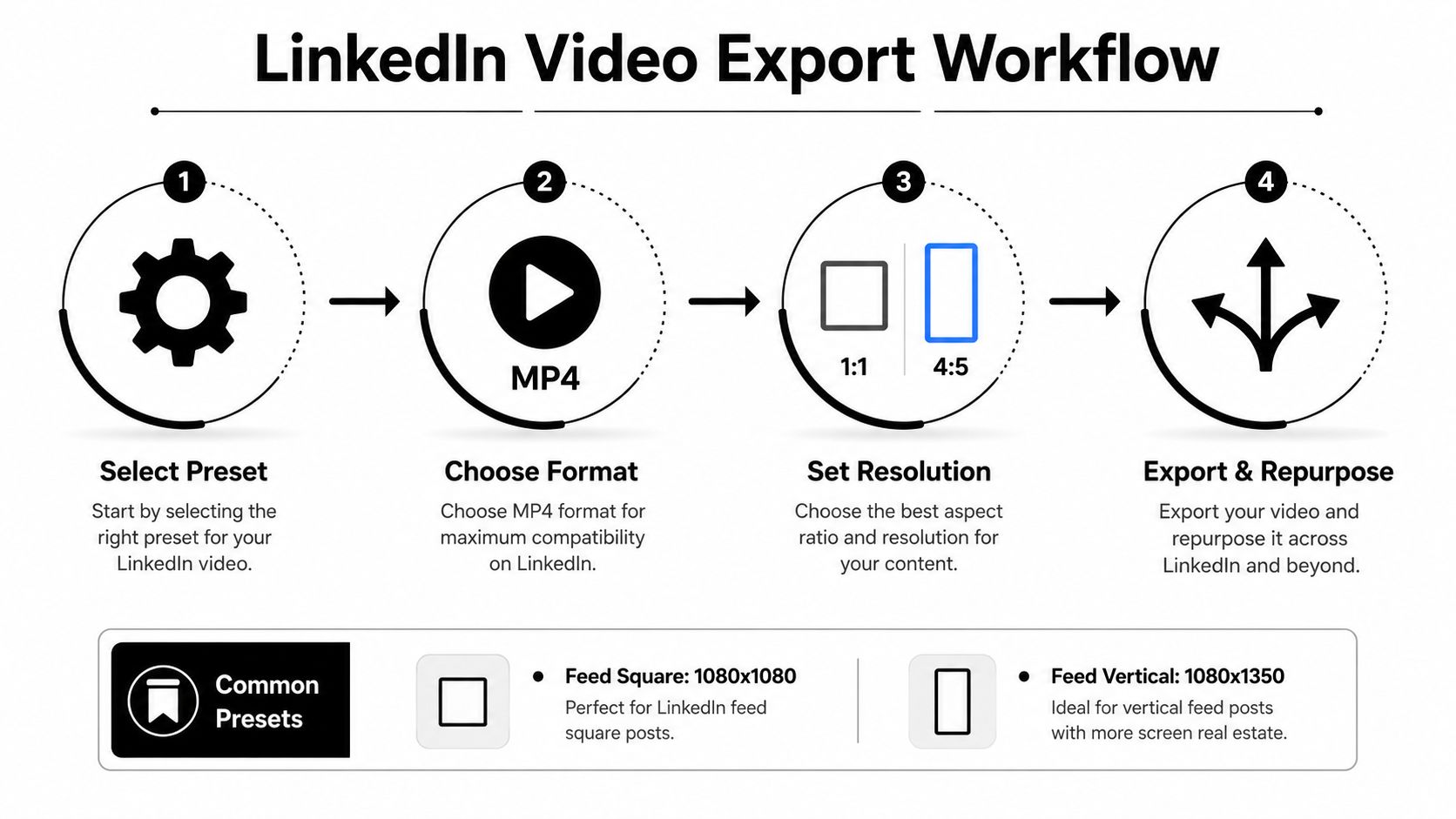
The fastest LinkedIn export is the one your team can repeat without second-guessing. MP4, H.264, AAC, 1080p, and a frame shape that matches the post should be the default. From there, start with a 1080×1080 square preset for general feed reuse, or a 1080×1350 vertical preset if the goal is more mobile screen coverage.
Export presets that stay practical
A small set of presets covers most social workflows:
- Feed Square: 1080×1080, MP4, H.264, AAC
- Feed Vertical: 1080×1350, MP4, H.264, AAC
- Feed Full Vertical: 1080×1920, MP4, H.264, AAC
- Horizontal Webinar Cut: 1920×1080, MP4, H.264, AAC
Choose the preset from the source material, not from habit. A talking-head clip usually works in square or vertical. A screen-heavy demo needs horizontal space if you want text and UI to stay readable. Forcing one format onto every recording usually creates cropping problems or tiny on-screen details that don’t survive the upload.
A repurposing workflow that doesn’t waste footage
Start with the full recording, then cut it into multiple versions with different jobs. Pull one version at 15 to 30 seconds for a hook, another at 60 to 90 seconds for an explain-and-teach post, and keep a longer cut for deeper context if the topic supports it. Add captions, pick the thumbnail or first frame, and schedule the post natively so the file stays in the right place instead of getting bounced through extra exports.
For teams that want a cleaner way to turn one recording into multiple LinkedIn-ready clips, see our repurposing workflow guide. quso.ai also handles repurposing, auto-captions, and scheduling in one place, which keeps the workflow tight when the goal is to get more usable cuts from the same source without rebuilding everything by hand.
LinkedIn Video Specs Cheat Sheet
| Placement | Aspect Ratio | Resolution | Codec | Container | Max Duration | Max File Size |
|---|---|---|---|---|---|---|
| Feed | 9:16, 1:1, or 4:5 | 1080p baseline | H.264 | MP4 | 15 minutes desktop, 10 minutes mobile | 5 GB |
| Stories | 9:16 | 1080×1920 | H.264 | MP4 | Use the shortest clean cut | Keep it lean |
| Ads | 1:1, 1.91:1, or 9:16 | 1080p baseline | H.264 | MP4 | Match campaign needs | Follow ad workflow |
If you only remember one thing, remember this. Export for the placement, not for the maximum. A file that’s technically allowed can still be the wrong shape for the feed, the wrong length for attention, or the wrong crop for mobile.
Frequently Asked Questions About LinkedIn Video Specs
Should LinkedIn video be vertical or square
Vertical is the stronger mobile-first option, especially for feed-native clips built for quick viewing. Square is the safer compromise when you want one file to hold up across more contexts without feeling too narrow.
What is the best vertical LinkedIn video format
The safest vertical setup is MP4 with H.264 video and AAC audio, exported at 1080p. For the feed, 9:16 is the clearest mobile-first choice, and it’s the format that gives your clip the most screen space.
Are captions required for LinkedIn videos
They’re not mandatory, but they’re close to mandatory in practice if you want the message to land on mute. Captions make the clip understandable in the feed, especially when the first few seconds are doing the heavy lifting.
Why will my LinkedIn video not upload
The usual causes are a bad codec, an oversized file, the wrong duration, or a missing audio track. Re-export in MP4/H.264/AAC, check the length against the desktop or mobile ceiling, and make sure the file isn’t fighting the platform on crop or safe-zone placement.
What’s the safest LinkedIn export preset for repurposed clips
Start with MP4, H.264, AAC, and 1080p. Then choose 9:16 for mobile-first feed clips or 1:1 if you want a more universal square version that’s easier to reuse across posts.
If you’re turning webinars, interviews, or podcast episodes into LinkedIn clips, export one clean master, cut a few length variants, add captions, and schedule them from a single workflow. That’s the fastest way to keep the feed moving without re-editing the same source three times.