How to Save Stories on Instagram: A Complete 2026 Guide
To save your own Instagram Stories reliably, enable both Save to Archive and Save Story to Camera Roll/Gallery in Instagram settings. That two-setting setup is the only native way to achieve 100% success in permanently preserving your own Stories, and if local save is off, the 24-hour expiration can remove the file from your device storage while leaving it only in Instagram’s archive (YouTube walkthrough of the settings path).
If you’re reading this after posting a Story you need for later, start with Archive. If you’re trying to build a repeatable content workflow, treat Story saving as more than backup. It’s the first step in turning short-lived posts into reusable video assets for Reels, Shorts, LinkedIn clips, sales follow-ups, and campaign libraries.
Table of Contents
- How to Save Stories on Instagram The Complete 2026 Guide
- The Automated Method Saving Your Own Instagram Stories
- Manual Saves and Saving Before You Post
- Saving Other Peoples Instagram Stories The Right Way
- From Saved Story to Repurposed Content
- Troubleshooting Common Story Saving Issues
- FAQ Saving Instagram Stories
How to Save Stories on Instagram The Complete 2026 Guide
How to save stories on Instagram comes down to one rule first. Turn on Story Archive before you need it.
Instagram Stories launched globally on August 2, 2016, and within the first year reached over 150 million daily users, shaping the platform around a 24-hour lifecycle that changed how people engage with temporary content (Elfsight overview of Instagram Story analytics history). That short lifespan is exactly why saving matters. Stories disappear fast, but the footage often has a longer job to do.
Most tutorials stop at “save it to your camera roll.” That misses the operational reason creators and social teams save Stories in the first place. You’re not just archiving. You’re preserving source files for later editing, clipping, captioning, and redistribution.
Practical rule: If a Story is worth posting, it’s usually worth keeping outside Instagram too.
That matters even more because some coverage has started connecting Story-saving to repurposing workflows. One published guide notes that short-form content drives 47% more engagement than static posts, based on analysis of 170K+ posts across 1,100+ creators, and points to the key workflow question: how to auto-save Story assets into a library ready for TikToks, Reels, or YouTube Shorts (Business Insider reference guide).
Here’s the practical split:
- Use Archive when you need a safety net inside Instagram.
- Use Camera Roll/Gallery save when you need files you can move, edit, and upload elsewhere.
- Use manual download before posting when quality matters most.
The Automated Method Saving Your Own Instagram Stories
A Story goes live, performs well, and someone asks for the clip two days later for a Reel cutdown or client recap. If auto-save is off, you are digging through Instagram instead of working from files that are already where your team needs them.
Turn on both settings
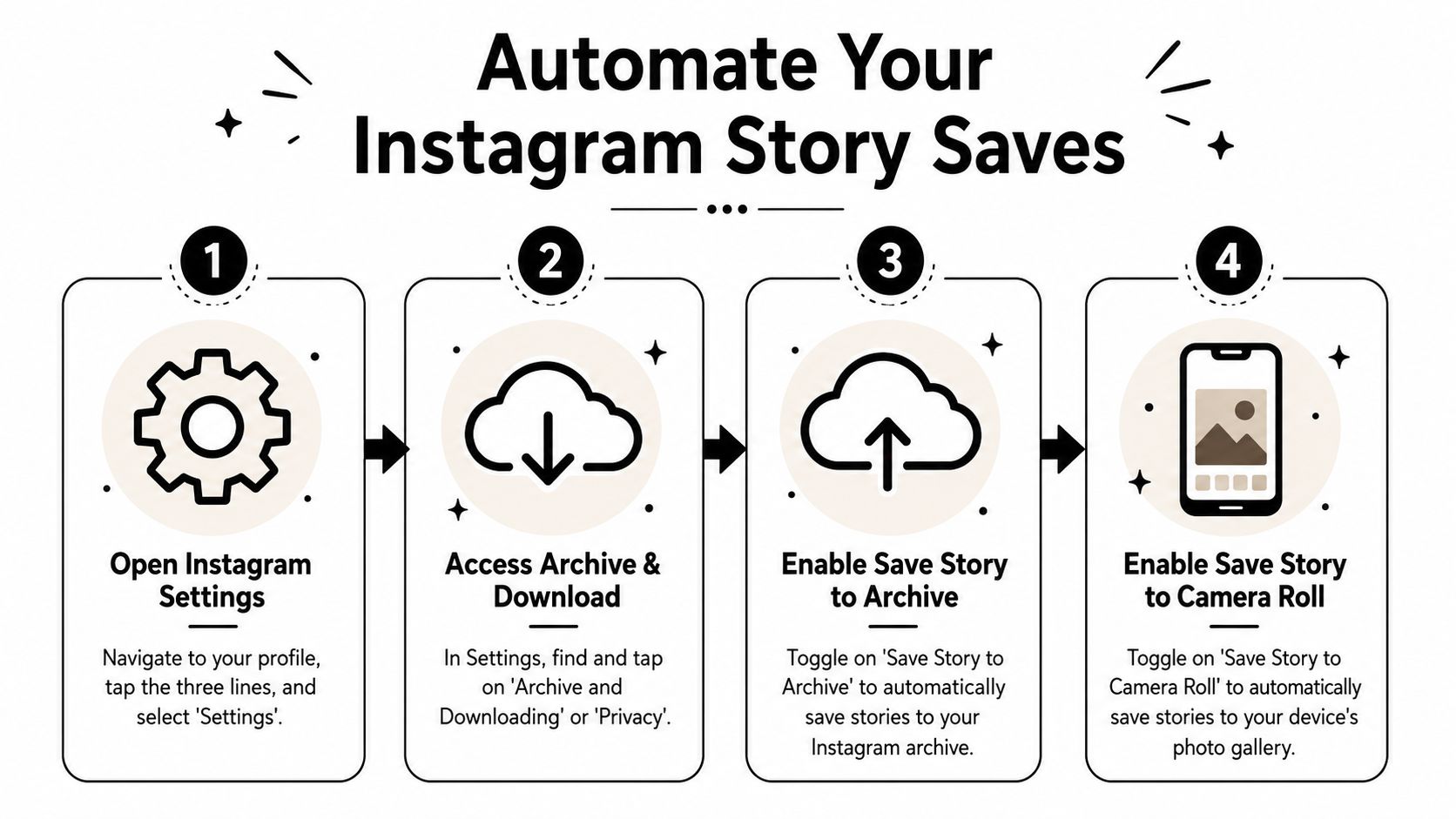
Open Instagram, go to your profile, tap the menu, and follow Settings > Privacy > Story. Then enable Save to Archive and Save Story to Gallery on Android or Save Story to Camera Roll on iPhone.
Run both settings together. Archive keeps a recoverable version inside Instagram. Camera Roll or Gallery puts a usable file on the device, which is what matters when the Story is headed into editing, captioning, or reposting outside the app.
If you publish often, this setup saves time every week. It removes the need to remember individual downloads and gives you a cleaner starting point for repurposing. Teams that batch content usually pair this with social media planner software so saved Story assets stay connected to campaigns instead of disappearing into a phone gallery. When a saved Story becomes a feed post or Reel, you can schedule Instagram posts ahead of time.
Why Archive and Camera Roll are not the same
Archive helps with retrieval inside Instagram. Camera Roll or Gallery helps with production.
That distinction affects file access, speed, and handoff. A clip sitting only in Archive is still trapped in platform workflow. A clip saved locally can be dropped into a shared folder, trimmed for Shorts, sent to an editor, or reused in a case study montage without anyone reopening Instagram to fetch it.
I treat Archive as insurance and local save as the actual system. Insurance helps when something gets missed. The system is what keeps repurposing fast and repeatable.
Use this method if Stories are part of your regular publishing mix, if more than one person touches your content, or if you want every Story to become a reusable asset by default.
Manual Saves and Saving Before You Post
Automation covers the baseline. Manual saves are for moments when you need one file now, or when quality matters more than convenience.
Save a live Story manually
If your Story is already live, open it, tap the menu, and use the save option available for your own post. You can also go into your Archive later and save from there if needed.
For Highlights, open the Highlight, access the menu, and save the specific Story or video you want. This works, but it’s still reactive. You’re retrieving after the fact instead of keeping a clean source file from the start.
Why pre-post download is the best file
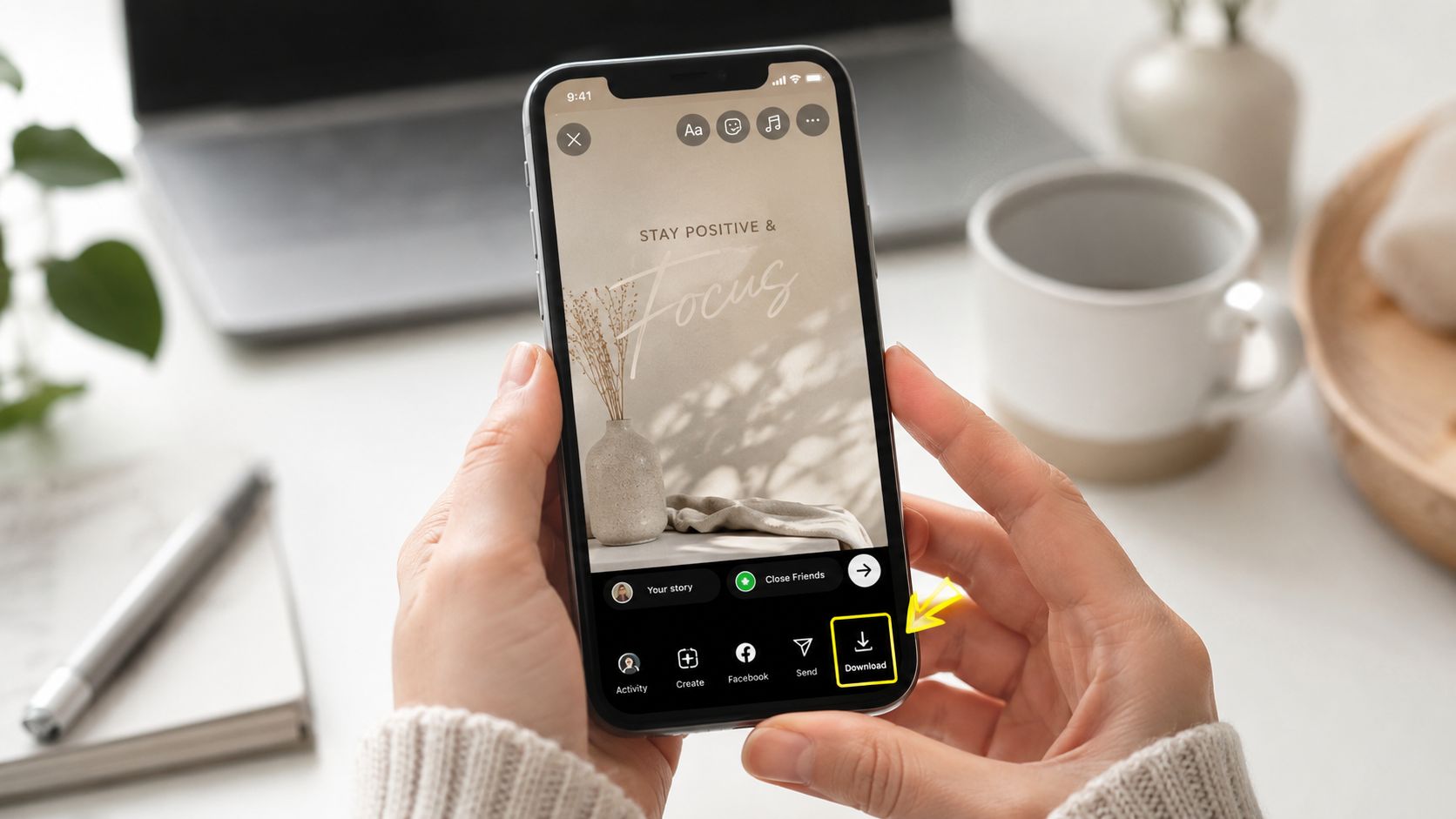
The best operator habit is simpler. Before you publish, tap the download icon (⬇️) in the Story editor.
According to the verified guidance, saving before posting stores the asset in your gallery in its original resolution, bypasses the need to hunt through Archive later, and preserves the version with your captions and effects intact, which is especially useful for AI captioning tools (EmbedSocial explanation of the pre-post workflow).
That’s the version you want if you’re going to crop it again, stack captions, or reuse it across platforms. Re-downloaded files often create avoidable quality issues in real workflows.
A related practical mistake is thumbnail and framing inconsistency after repurposing. If you’re pulling Story footage into other placements, it helps to understand Instagram thumbnail size so your cover image and crop don’t fight the composition of the original Story.
Save before posting when the Story contains text overlays, stickers, or talking-head clips you may want to reuse later.
Saving Other Peoples Instagram Stories The Right Way
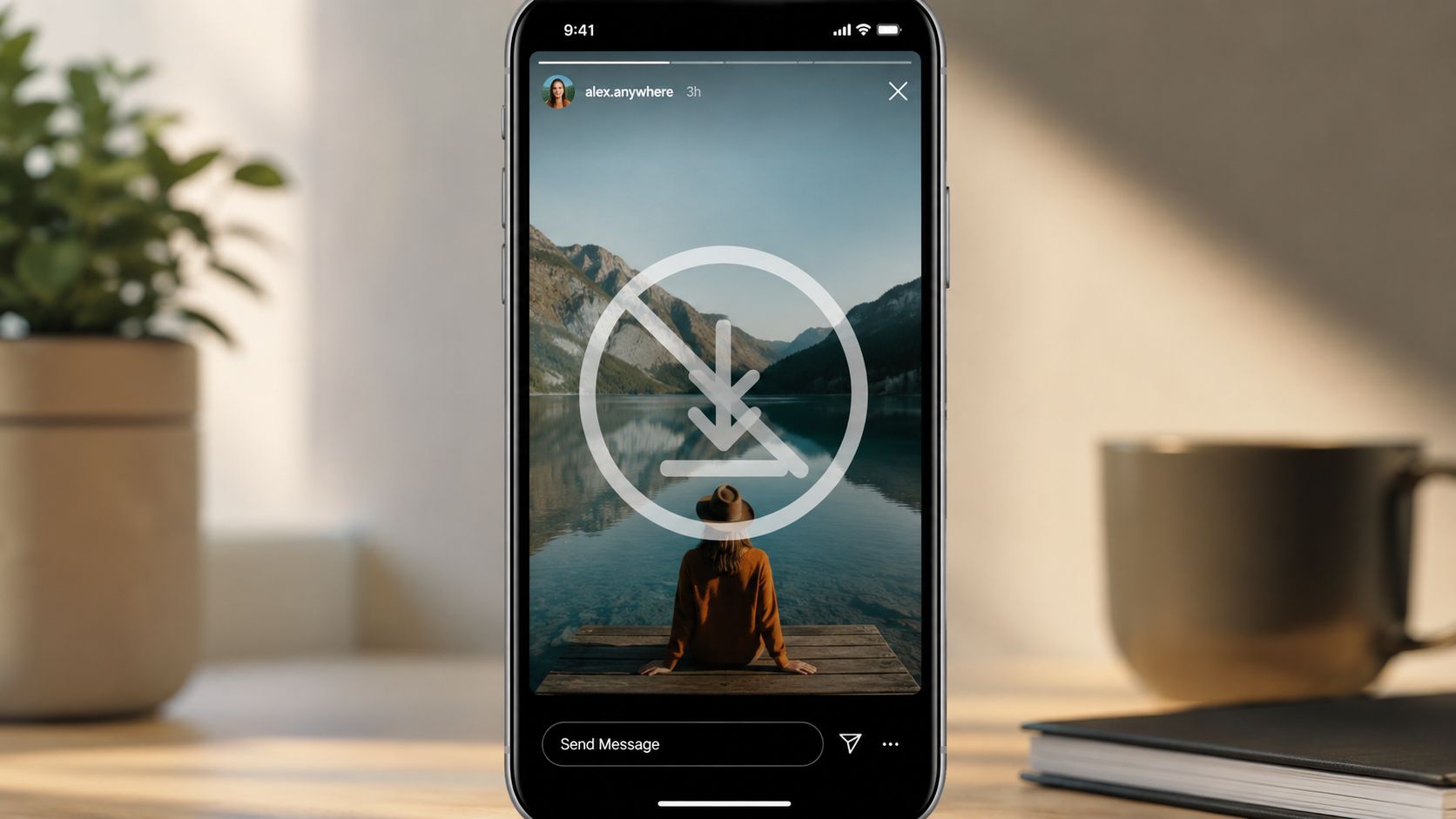
Here’s the blunt answer. Instagram doesn’t give you an official native save button for other people’s Stories.
Why Instagram blocks native saving
Instagram restricts this because of privacy. A verified source states that Instagram does not provide an official native feature to save other people’s Stories directly to your gallery, so users who capture them have to rely on third-party tools or screen recording instead (BrandMentions summary of the limitation).
That design choice makes sense. Stories are often personal, time-sensitive, or shared with limited intent. As a social manager, the clean rule is simple: if it’s someone else’s Story, assume you don’t own the file and don’t have reuse rights unless they’ve explicitly given them to you.
There’s also a practical distinction between saving for reference and republishing. The first may be fine internally. The second needs permission.
The safe workaround is screen recording
If you need to retain a Story from another account for internal review, inspiration, or a client approval thread, screen recording is the lowest-risk method.
On iPhone, open Control Center, start screen recording, then view the Story full screen. On Android, use the built-in screen recorder if your device has one, then play the Story and trim the recording afterward in your gallery app.
Use this carefully:
- Keep it internal: Save for notes, reporting, or examples, not for reposting without permission.
- Trim immediately: Cut out notifications, UI overlays, and dead time at the beginning and end.
- Mute distractions: Turn on Do Not Disturb before recording.
- Ask before reuse: If you want to repost or edit someone else’s Story into your content, get written approval.
A quick visual walkthrough helps if you’ve never done this on mobile:
Third-party scrapers and downloader apps are where people get sloppy. They’re unreliable, they create privacy issues, and they’re not the kind of workflow any brand, agency, or creator should normalize.
From Saved Story to Repurposed Content
Saving the file is only useful if you can find it, edit it, and publish it again with intent.
Build a usable content library
The simplest system is a folder structure you’ll maintain. These groups typically don’t require anything elaborate. They need consistency.
A workable setup looks like this:
| Folder | What goes in it | Why it helps |
|---|---|---|
| Raw Stories | Pre-post downloads and auto-saved Story files | Keeps your cleanest source files in one place |
| Published Stories | Files already used on Instagram | Prevents duplicate reposts |
| Repurpose Queue | Clips worth turning into Reels, Shorts, or sales content | Gives you a working backlog |
| Campaign Assets | Stories tied to launches, webinars, or promos | Makes later retrieval much faster |
Once you save Stories this way, they stop being disposable. They become inputs for a broader content engine.
Watch the safe zones before you reuse Story footage
People often make ugly edits. Story footage is designed for Instagram’s interface, not every other placement.
When reusing Story video:
- Keep text away from top and bottom UI zones: Story elements often sit too close to areas where other platforms place buttons, captions, or profile overlays.
- Check sticker placement: Polls, links, and GIFs can land in awkward spots when reframed elsewhere.
- Review burned-in captions: If the original Story already has on-screen text, make sure new captions don’t stack directly on top of it.
- Preview vertical crops before publishing: A clip that looked fine in Stories can feel cramped as a Reel cover, ad, or Short.
The biggest repurposing mistake isn’t saving too little. It’s saving a file you can’t cleanly reuse.
If you want to turn saved Story clips or the original long-form source into a usable short-form pipeline, it helps to pair your archive with a workflow for content repurposing, social media scheduling, and creating social media videos. That’s how a camera roll stops being a graveyard and starts becoming inventory.
Troubleshooting Common Story Saving Issues
A few issues come up repeatedly.
Saved Story has no music
This usually comes down to licensing limitations on downloaded files. The version you save may not carry over the same music behavior you heard inside Instagram.
Video quality looks worse than expected
The cleanest fix is to save before posting next time. That preserves the best working file. Archive retrieval is useful, but it’s not the quality-first method.
Can’t find Story Archive
Go back through Instagram settings and confirm Archive is enabled. If it was off when you posted, Instagram may not have stored that Story there.
Phone says there isn’t enough storage
Archive and local device storage are different. Archive can hold your Story inside Instagram, but saving to Camera Roll still needs available space on your phone.
FAQ Saving Instagram Stories
Can you save your own Instagram Stories after they expire?
Yes, if Archive was enabled before posting. You can open Archive and save eligible Stories from there.
Can you save someone else’s Instagram Story without an app?
Yes, by screen recording. Instagram doesn’t provide an official native save feature for other people’s Stories, so screen recording is the safest practical workaround for personal reference.
Does Instagram notify someone if you screen record their Story?
No notification is typically shown for that workflow. Still, recording doesn’t equal permission to repost or repurpose someone else’s content.
What’s the best format for repurposing saved Stories?
Use the highest-quality video file you can keep, ideally the original saved version from before posting. In practice, that usually means keeping the native video file from your phone and avoiding repeated downloads.
Why should I save Stories if they only last 24 hours?
Because the post may be temporary, but the asset doesn’t have to be. A Story can become a Reel, Short, sales clip, testimonial montage, onboarding asset, or campaign creative later.
If you want to turn saved Story clips or long-form videos into usable short-form content without manually trimming, captioning, and scheduling each piece, quso.ai is built for that workflow. It’s a practical next step once your Instagram saving process is under control.