Youtube Video to Facebook How to Repurpose Natively
If you’re trying to move a YouTube video to Facebook, don’t start by pasting the link. Start by republishing a native Facebook video, because that’s what fits the feed, captions, and autoplay behavior people respond to. The link is fine when you want clicks back to YouTube, but if your goal is reach on Facebook, the upload has to be built for Facebook first.
That difference isn’t theoretical. Facebook’s distribution has long favored native video over link sharing, and the shift away from YouTube links is part of why a bare URL usually underperforms in the feed. If you treat the task like republishing instead of sharing, the same source video can do useful work on both platforms. For a deeper read on how distribution behavior changes on the platform, see quso.ai’s guide to the Facebook algorithm.
Table of Contents
- Why Pasting a YouTube Video to Facebook Link Hurts Reach
- Link Share Versus Native Upload on Facebook
- How to Convert a YouTube Video for Facebook Without Quality Loss
- Captions Thumbnails and Safe Zones That Actually Get Watched
- Repurpose Schedule and Publish With a Lightweight Workflow
- Quick Checklist and Answers Before You Publish
Why Pasting a YouTube Video to Facebook Link Hurts Reach
Pasting a YouTube link into Facebook makes the post work against the feed. The post has to earn attention, push the viewer off Facebook, and hope the preview card does enough to carry the click. A native upload removes that extra step and gives Facebook a file it can play in-feed.
Practical rule: If the goal is Facebook reach, publish a Facebook-native video. If the goal is YouTube sessions, share the link and accept the trade-off.
The distribution shift is visible in the sharing patterns. In an early analysis of Facebook video sharing, nearly 2/3 of all video shares on Facebook were YouTube links in 2013, but YouTube’s share had dropped to 11% by 2016 as Facebook-native distribution took over SlopeFillers. A separate sample from the same period found 3,648 YouTube links and only 458 videos uploaded directly to Facebook, which shows how quickly link sharing lost ground.
A YouTube link still has a place. Use it when you want viewers to finish on YouTube, build channel watch time, or send subscribers back to the original upload. Use native upload when you want Facebook to keep people in the feed long enough to react, comment, share, and keep watching. For a closer look at how Facebook ranks video behavior, see quso.ai’s guide to the Facebook algorithm.
The format choice is the point. A link and a native upload can promote the same source video, but they do not ask the platform to do the same job.
Link Share Versus Native Upload on Facebook
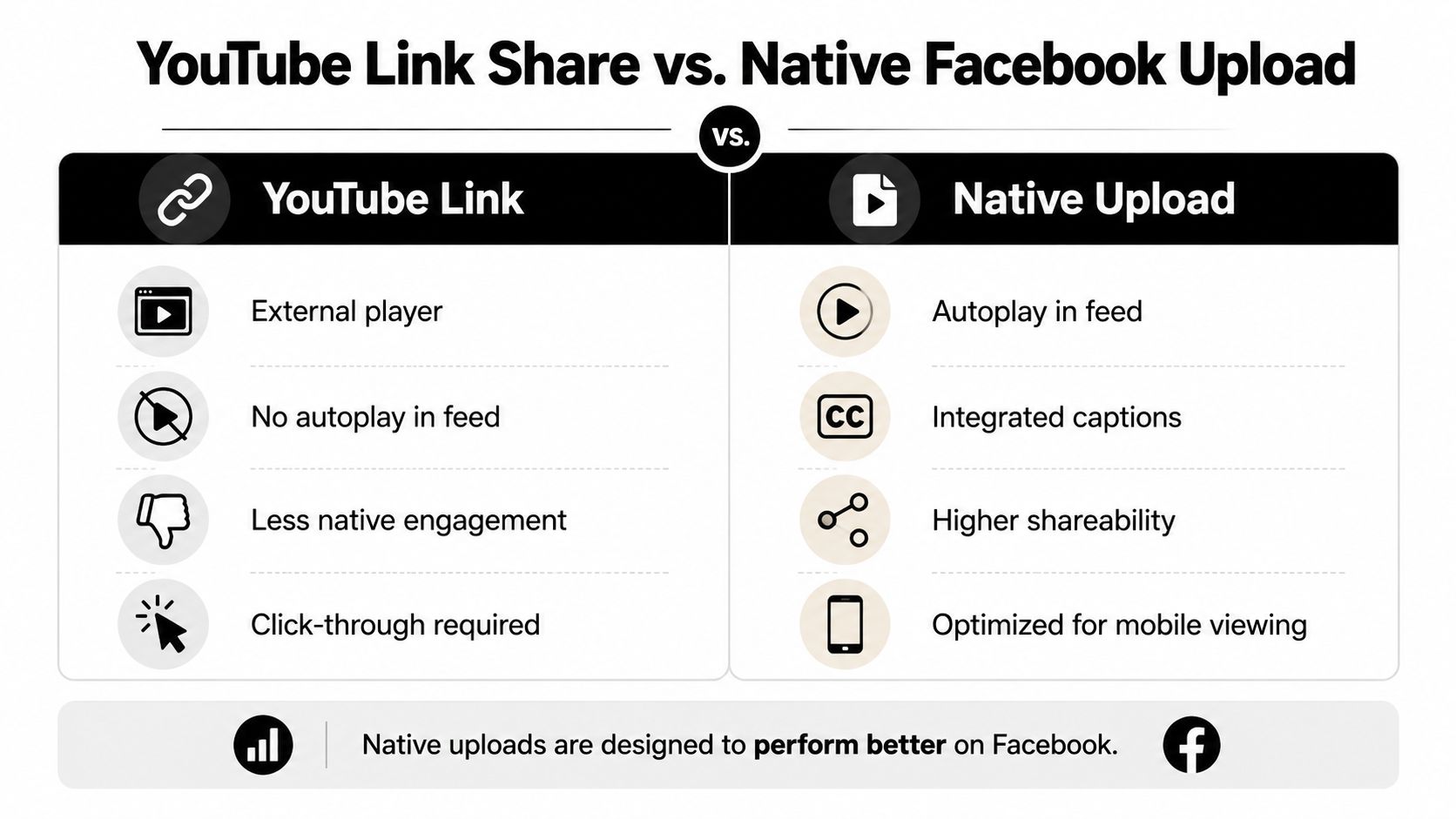
A shared YouTube link and a native Facebook upload can promote the same source video, but they don’t create the same viewing experience. A link relies on a click, an external player, and a lot of viewer intent. A native file starts playing in the feed, which is much closer to how people browse Facebook on mobile.
What changes for the viewer
The biggest difference is friction. A link post depends on the preview card doing enough to earn the tap, while a native video can catch the scroll before the viewer even decides to interact. That matters because Facebook’s public video benchmarks continue to point toward short-form, native viewing behavior, with platform video shares and engagement patterns favoring clips that fit the feed Sprout Social.
A link can still be the right choice if referral traffic is the goal. But if you’re optimizing for comments, reactions, or watch behavior on Facebook itself, a native upload usually gives you the cleaner path. I’ve seen teams blame the hook, the thumbnail, and even the topic when the issue was format. The asset wasn’t wrong, the distribution choice was.
When each format makes sense
A simple way to consider it:
- Use a YouTube link when the full video belongs on YouTube and Facebook is just the discovery layer.
- Use a native Facebook upload when the feed itself is the primary distribution target.
- Use both by publishing a native teaser on Facebook and directing interested viewers to the full YouTube version in the caption or comments.
That split is the practical answer for most creators and B2B teams. You don’t have to choose one platform forever, you just need to stop forcing one post to serve two opposing distribution goals.
How to Convert a YouTube Video for Facebook Without Quality Loss
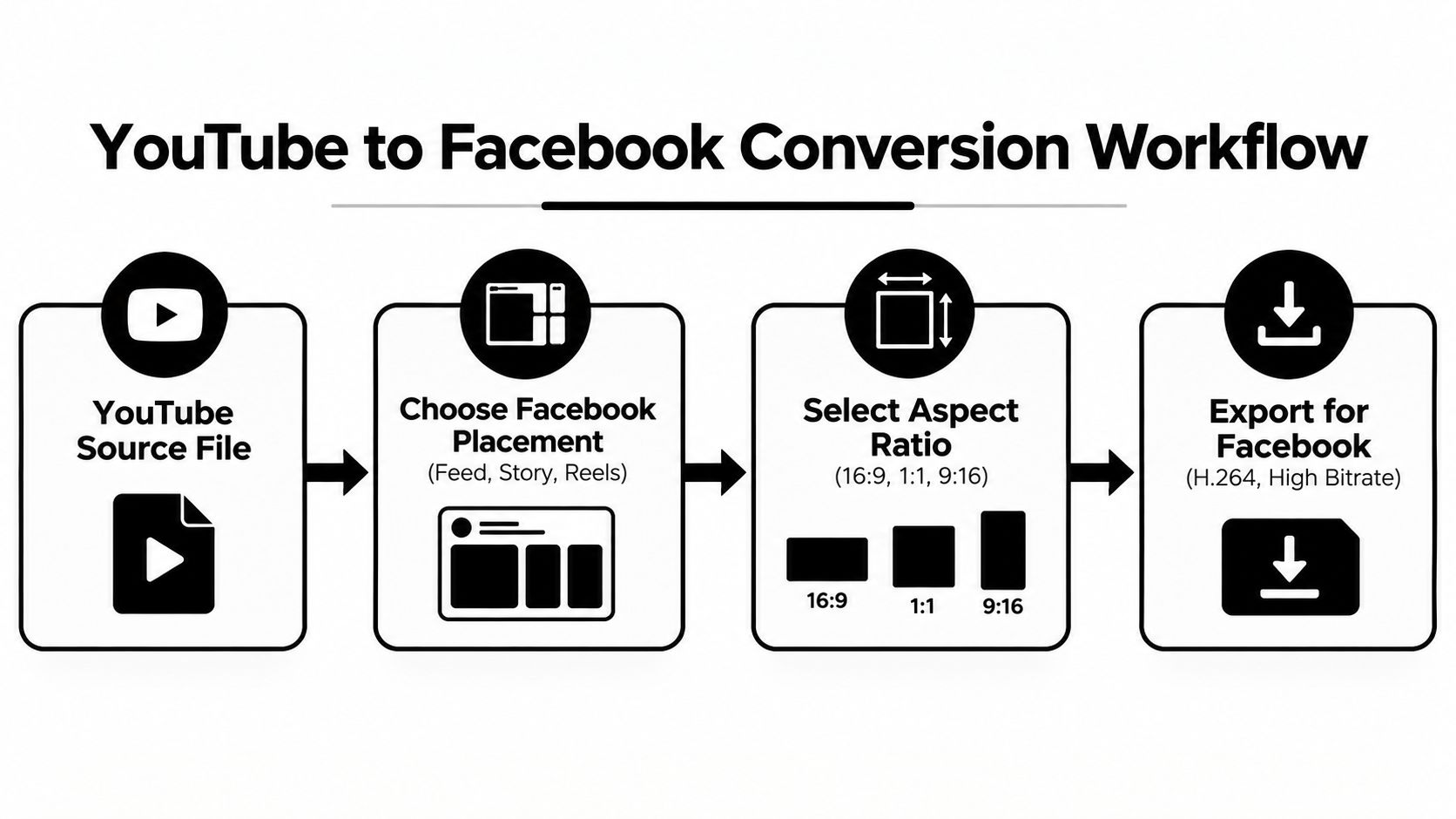
Start with the source file, not the link. The practical move is to re-encode the YouTube recording into Facebook-friendly settings before you publish, because a clip edited for YouTube’s default widescreen layout often needs different treatment for Facebook feed, square, portrait, and Reels placements. Use the placement first, then shape the file to fit it.
Match the file to the placement
For feed posts, 16:9 still works well, but Facebook also supports 1:1, 4:5, and 9:16 depending on where the post will live. If you are moving a YouTube interview or webinar into Facebook, the original frame will not fit every surface cleanly, so reframe the subject instead of only resizing the canvas Facebook video requirements.
Operator note: The fastest way to make a long YouTube clip feel native on Facebook is to choose the placement first, then crop for that surface.
Export in Facebook-friendly settings
Use an MP4 or MOV container with H.264 video and AAC audio. The sourced specs document 1280×720 as a minimum and 1920×1080 as recommended, while the feed guidance also points to up to 4 hours and a 30 fps maximum. Those limits matter because raw exports often break on codec mismatch, aspect ratio mismatch, or file size bloat Facebook video specs.
Long-form source clips often need to be compressed, cut, or both. A practical upload guide also notes a Facebook video ceiling of 240 minutes and 10 GB, with 1080p or lower recommended WikiHow. That does not mean every video has to be short. It means the file has to fit the platform’s delivery rules before you expect it to perform.
If you want a wider publishing frame for why short-form cuts often outperform long uploads in social distribution, driving conversions with short video is a useful companion read.
For a related reference on specs across platforms, keep quso.ai’s social media video specs guide handy before you export.
Captions Thumbnails and Safe Zones That Actually Get Watched
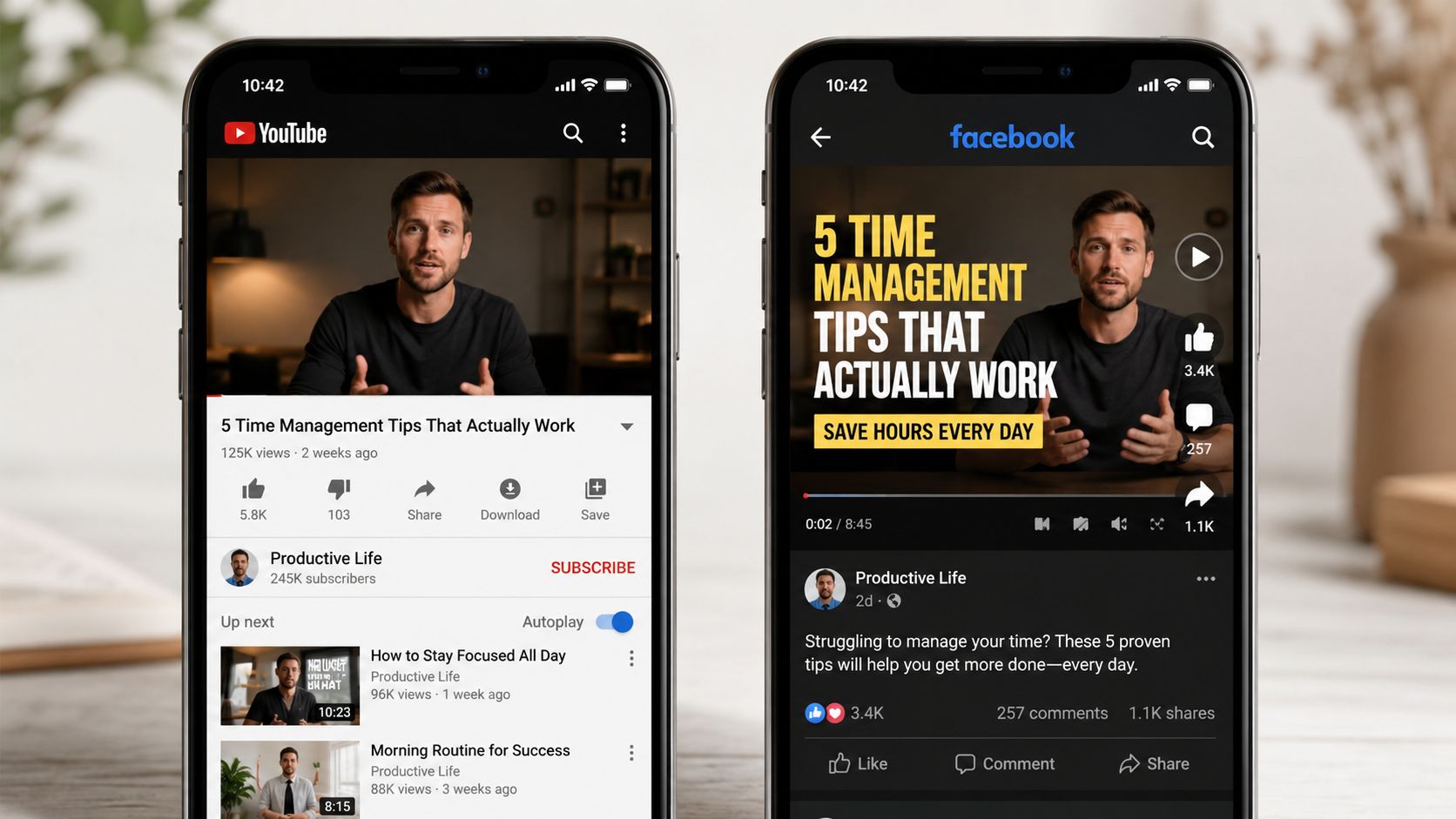
Most Facebook videos lose attention before the first sentence lands. Silent autoplay is the reason. If the clip doesn’t make sense without audio, it’s already behind, which is why burned-in captions are essential for repurposed YouTube content.
Put text where Facebook won’t cover it
Safe zones matter more than many realize. Facebook overlays buttons, reaction controls, and interface elements in the frame, especially on mobile. Keep the most important words away from the edges, and don’t park a headline, speaker name, or CTA right where the UI will sit on top of it. That mistake is easy to miss in desktop review and obvious only after publishing.
Keep the subject’s face, the main headline, and any CTA inside the middle of the frame. The margins are where Facebook UI likes to live.
Make captions readable on a phone
Captions need contrast, not decoration. Use a font size that survives mobile compression, and avoid squeezing too many words into a single line. If the original YouTube video depended on spoken context, trim the clip so the captioned version can stand alone in the feed.
Thumbnails deserve the same treatment. On Facebook, a thumbnail is not a miniature poster, it’s a small decision point. Pick a frame with clear subject matter, limited clutter, and enough contrast to read at a glance. If the video is going to Reels, think even more aggressively about vertical framing and on-screen text placement.
For a focused walkthrough on readable caption styling, use quso.ai’s guide to burning captions into video. It’s the quickest way to avoid the “looks fine in preview, broken in feed” problem.
Repurpose Schedule and Publish With a Lightweight Workflow
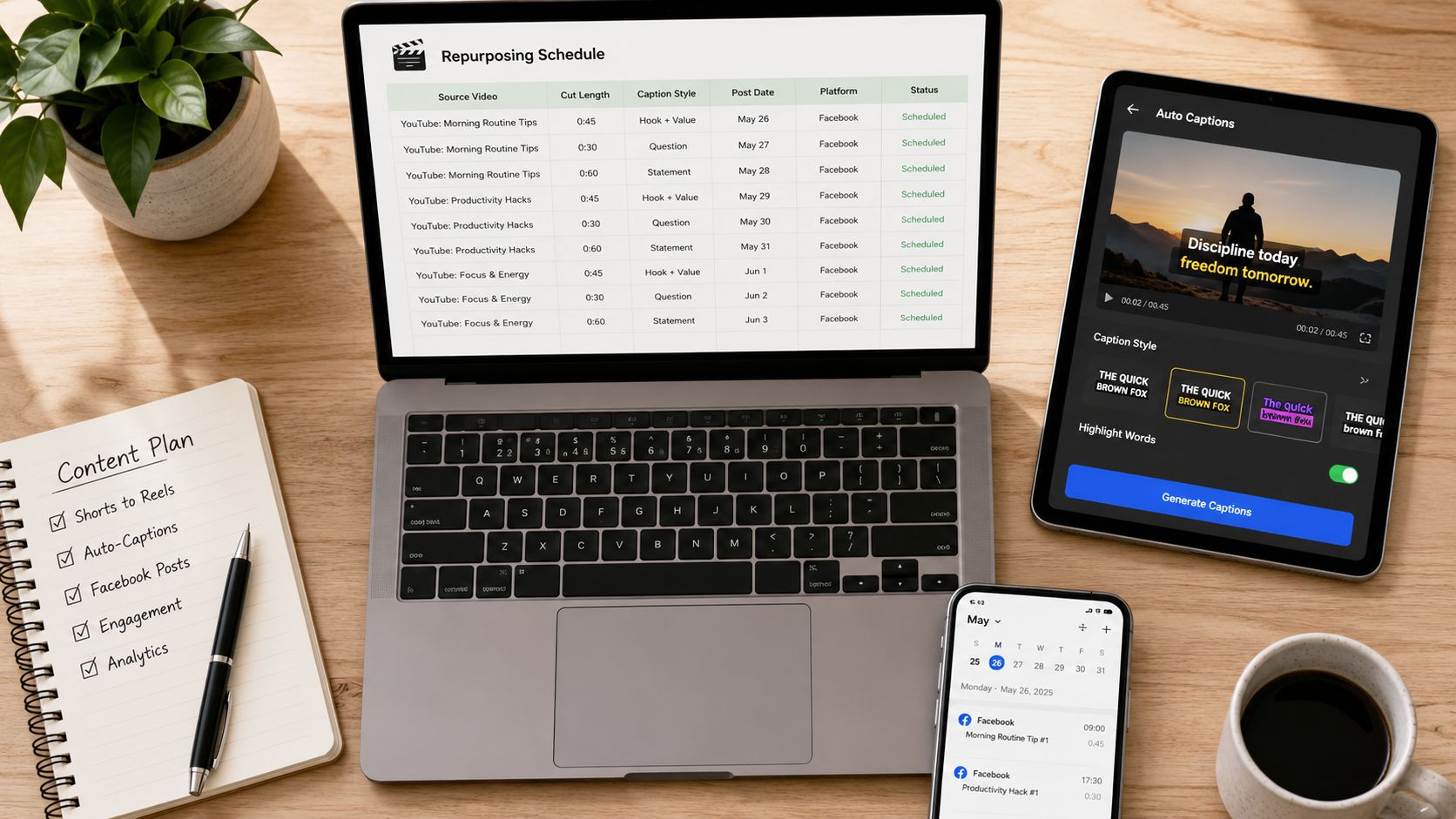
The cleanest workflow is to make one source video do several jobs. Cut a long YouTube recording into a few Facebook-ready clips, caption them, reframe them for the right surface, and schedule the post instead of exporting everything by hand. That keeps the process repeatable, which matters more than clever editing when you’re publishing every week.
Build one source into multiple Facebook outputs
A webinar, interview, or product demo doesn’t need a single final version. One cut can become a feed post, another can become a short teaser, and another can be saved for Reels or a second wave of publishing. That’s the practical value of repurposing, not just reuse, but format-specific publishing.
If you’re mapping content output to ROI, the framing in measuring ROI on social media is worth a look before you decide which clip format deserves the most attention.
Use a scheduler to keep the process moving
A tool like quso.ai fits naturally here. It can turn a long YouTube recording into Facebook-ready clips, add captions, and schedule the posts so you’re not manually exporting every variation. That’s useful when the same asset needs to move across feed and short-form placements without losing the native feel.
The point isn’t to automate judgment. It’s to automate the repetitive pieces, clip selection, captioning, aspect ratio changes, and scheduling, so the team can spend more time deciding which moments are worth publishing. For creators and B2B marketers, that usually means less copy-paste work and fewer posts that feel like obvious repacks.
Quick Checklist and Answers Before You Publish
Before you post, check the file format, the aspect ratio, the captions, the safe zones, the thumbnail, and the schedule. If the goal is Facebook reach, publish the native version. If the goal is YouTube traffic, use the link on purpose, not by default.
FAQ
Should I post the YouTube link or upload natively to Facebook?
Upload natively if you want Facebook reach. Use the link if driving viewers back to YouTube is the main goal.
What’s the best length for a Facebook video from YouTube?
Use the length that matches the message and placement. Shorter clips usually fit the feed better, especially when you want the post to earn attention fast.
Do captions matter if the video has good audio?
Yes. Many people scroll with the sound off, so captions help the video work before audio turns on.
Should I delete the YouTube link after posting the native version?
Not if the link is useful for the audience. Keep it when you want to send viewers to the full video, but don’t rely on the link as the only Facebook version.
What should I fix first if the post looks bad on mobile?
Check safe zones and text size first, then review the thumbnail and crop before republishing.
If you want a faster way to turn one YouTube recording into Facebook-ready clips, captions, and scheduled posts, quso.ai can handle the repurposing step without turning your workflow into manual export work. Start with one long video, make the native Facebook version clean, and use the same asset across feed and short-form placements with far less friction.