10 Subtitle Generator Online Tools for Social Video
The best subtitle generator online is the one that matches the job. If you need fast burned-in captions, editable transcripts, multilingual subtitle files, human review, or a full path from long video to scheduled short clips, the workflow choice matters more than the sticker price. That’s why this comparison starts with the captioning decision itself, not a feature dump, and why the exact-match slug subtitle-generator-online fits a practical search intent.
Before publishing, it’s smart to check whether quso already has a near-duplicate post on this topic, since the wrong overlap can create competing URLs. For teams turning webinars, podcasts, or long videos into social clips, the baseline isn’t transcription anymore. It’s repurposing, captioning, and scheduling in one pass, and that’s where one platform can replace several separate steps without turning the process into tool hopping.
The criteria below are the ones operators feel in the workflow, transcription accuracy, language coverage, SRT/VTT export, caption styling, review controls, collaboration, limits, and platform safe zones. The last one gets missed constantly, even though captions and UI overlays can collide with the frame edge on Reels, Shorts, and TikTok. If you’re looking for the end-to-end option, quso.ai is the one tool in this list built around turning long video into short clips, adding captions, and scheduling them out without breaking the workflow.
Table of Contents
- 1. quso.ai
- 2. VEED Auto Subtitle Generator
- 3. Kapwing Auto Subtitle Generator
- 4. Descript Subtitles Inside a Full Editor
- 5. Rev AI and Human-Quality Captions
- 6. Happy Scribe AI Subtitles with Optional Human Review
- 7. Submagic Animated Captions for Short-Form Video
- 8. Zubtitle Quick Captions for Social Video
- 9. Flixier Online Editor with AI Auto-Subtitles
- 10. Microsoft Clipchamp Auto-Captions
- Top 10 Online Subtitle Generators, Quick Comparison
- Build a Caption Workflow That Ships
1. quso.ai
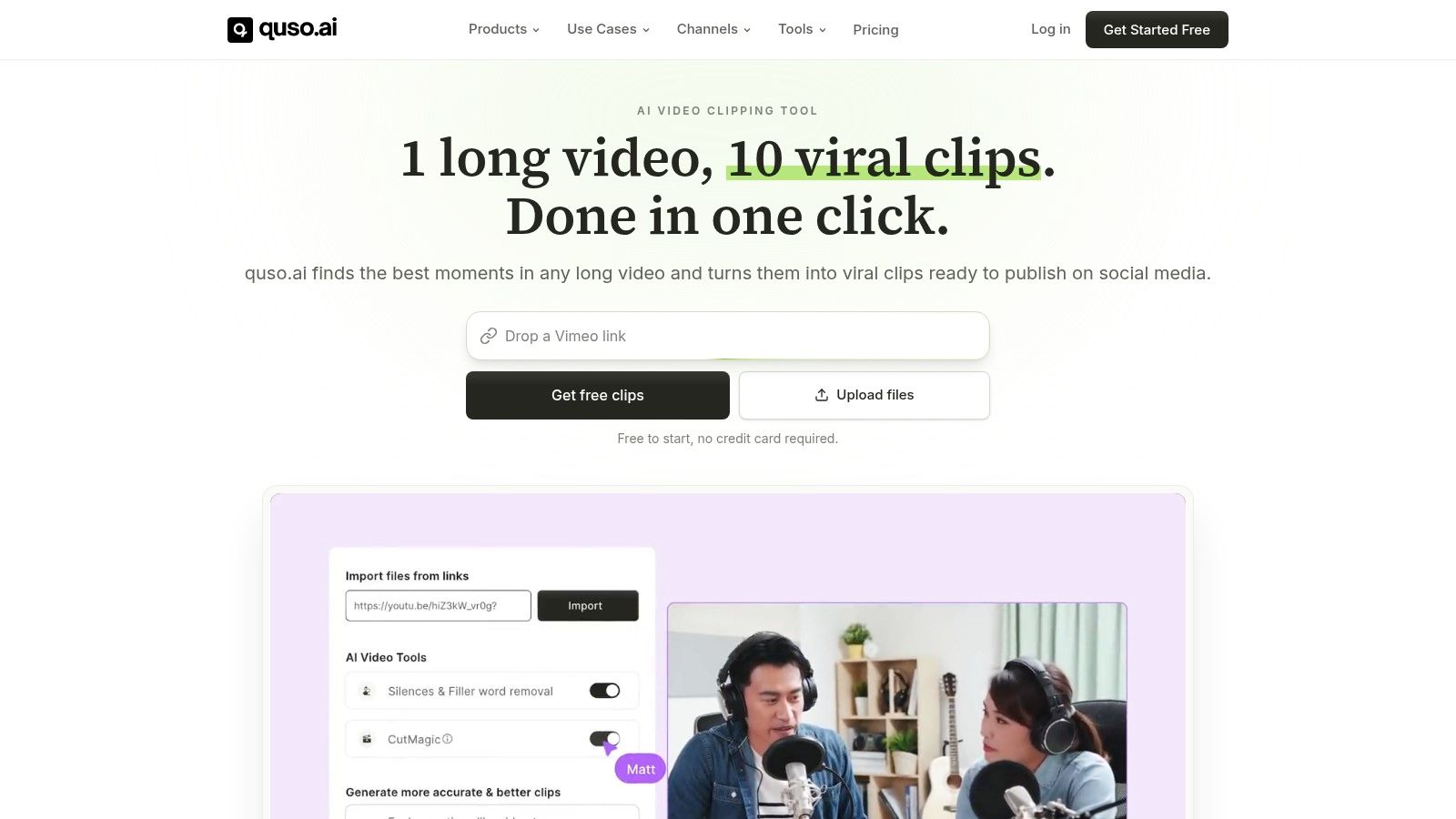
quso.ai makes sense when the job is not just captioning, it’s getting a long recording ready to publish. It imports source material from tools like YouTube, Zoom, and Dropbox, then automates clipping, captioning, resizing, and scheduling so a single recording can become a batch of social posts. The practical win is less tool switching, fewer exports, and fewer places for text timing or framing to slip.
The captioning side is strong for social distribution because it combines word-level animated captions, 100+ languages, and filler-word removal with vertical reframing and brand kit controls. That matters when the clip needs to look intentional in-feed, not like a raw transcript laid over video. The social scheduler then takes the finished asset and pushes it toward TikTok, Reels, Shorts, LinkedIn, Facebook, and X from one calendar.
Practical rule: use a repurposing tool when your bottleneck is distribution, not transcription alone. If you still need to clip, caption, resize, and schedule somewhere else, the process is too fragmented.
There’s also a quality-control angle that matters for teams. The platform’s AI virality score is designed to help pick moments worth publishing, and the product is positioned around a large creator base with customer stories from working creators and marketers. That doesn’t remove review, but it does change the first pass from manual hunting to guided selection, which is where most of the time goes.
- Best for: creators, podcasters, social teams, and B2B marketers turning long video into short-form assets.
- Watch for: automated picks still need a quick human check for nuance, brand risk, or compliance-sensitive wording.
- Why it wins here: it closes the loop from upload to publish instead of stopping at subtitles.
If your workflow includes repurposing, try starting from one episode and scheduling a week of clips. That’s the type of caption workflow that ships. Visit quso.ai for the end-to-end path, and use the product pages for a closer look at repurposing tools, pricing, and customer stories.
Where it fits in a real workflow
A social media manager can drop in a webinar recording, let the system surface likely clips, make quick edits to the captions, then queue the assets for the week. A creator can do the same with a podcast or livestream replay. That’s the right shape when you care about publishing cadence more than hand-tweaking every frame.
The fastest workflow is rarely the most manual one. For repurposing, the fastest workflow is the one that produces something reviewable in minutes and schedulable without another export round.
2. VEED Auto Subtitle Generator
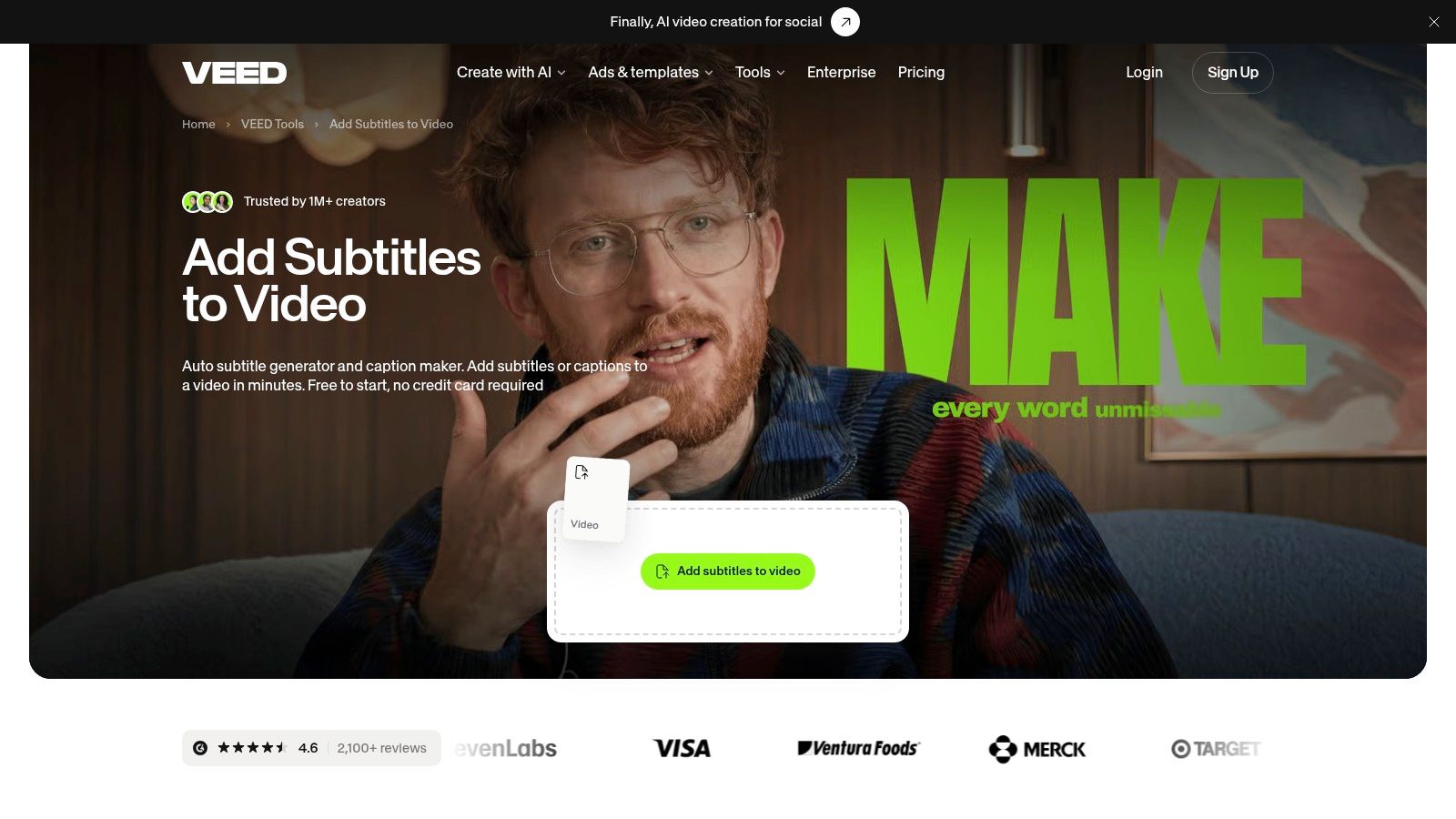
VEED is the fit when you want a browser-based editor that handles subtitling and styling together. It’s built for the person who wants to upload a clip, generate captions quickly, and then make the result look branded without jumping into another app. The interface is heavier than a barebones caption tool, but that’s part of the trade, since you get an editor rather than only a subtitle layer.
The most useful part is that it supports caption translation into 125+ languages, burned-in exports, and downloadable subtitle files. That gives you a workable bridge between social publishing and reusable caption assets. If a team needs one video to become a localized version plus a version with hardcoded captions, VEED fits that handoff cleanly.
What to review before publishing
The editor is fast, but it still needs an operator watching for timing drift, line breaks, and brand-safe phrasing. Advanced exports and some styled outputs are often tied to paid tiers, so the plan check has to happen before a production workflow depends on it. VEED is a solid middle ground for creators and marketers who want a mix of speed and styling without moving into a full post-production stack.
- Best for: branded social clips and quick localization.
- Watch for: plan-gated exports and heavier browser performance on long sessions.
- Website: VEED subtitle tool
3. Kapwing Auto Subtitle Generator
Kapwing works well when the transcript itself is part of the editing workflow. Its transcript panel lets you adjust timing and text without treating captions as a separate afterthought, which is useful for Shorts, Reels, and YouTube clips where the spoken line and on-screen timing have to match tightly. The interface is built for social teams that need a quick path from rough cut to published clip.
The translation step is straightforward, and the word-by-word style options make it useful for creators who want motion in the caption layer without going into a more specialized animation tool. That said, the value is in editing flexibility, not just auto-generation. If the team is already making cuts, reframing, and trimming pauses, Kapwing keeps the subtitle task close to the video task.
For practical use, the main question is whether you need subtitle files for reuse or just a polished social export. Some export formats and higher usage limits can depend on the plan, so teams should confirm the exact delivery needs before standardizing on it. That matters if one channel requires file handoff while another only needs a burned-in clip.
Practical rule: use transcript editing when you expect to correct names, tighten wording, or remove filler before publish. It’s faster than trying to fix caption text after the video is already styled.
The tool page is here, and if you’re optimizing Shorts, the internal guide on adding subtitles to YouTube Shorts is the natural companion reference.
4. Descript Subtitles Inside a Full Editor
Descript is strongest when captioning sits inside a larger editing job. Its editable transcript stays synced with the media, so removing or adjusting text also changes the cut. That makes it a good fit for teams that script, edit, and caption in the same place rather than treating subtitles as the final layer.
The burn-in styles are useful when the project needs a more designed look, and the export support for SRT and VTT matters if the same asset has to move into other players or publishing systems. Translation support rounds out the package, which helps when a team wants one editor to cover both rough assembly and final subtitle delivery.
The trade-off operators should expect
Descript can replace multiple steps, but it’s still a full editor, not a lightweight caption widget. That means there’s more capability, more interface, and more things to keep track of. If your team only needs quick social captions, it may feel heavier than necessary. If you’re cutting interviews, removing filler, and preparing a publish-ready transcript, it starts to make sense fast.
For teams already building around captioning as part of content production, the internal guides on burning captions into video and AI content creation for marketers fit this workflow well.
- Best for: editing and captions in one pass.
- Watch for: credit or minute-based usage models and plan changes.
- Website: Descript subtitles
5. Rev AI and Human-Quality Captions
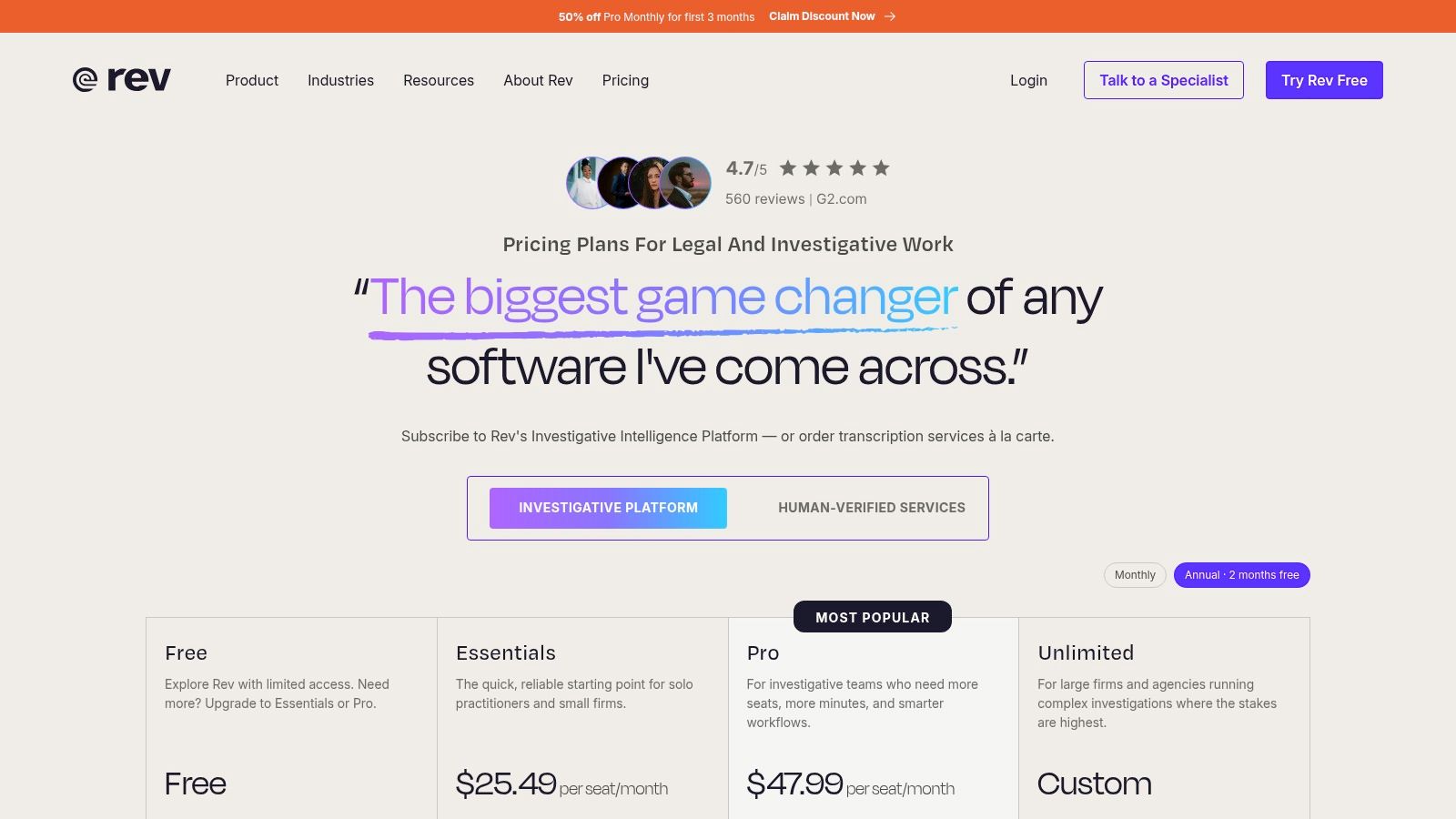
Rev is built for teams that care more about caption quality than raw speed. It offers AI captions for fast turnaround and human-made captions for higher-stakes work, so you can match the service to the project instead of forcing every video through the same process. That matters when proper nouns, technical terms, or compliance-sensitive wording need a careful pass.
The split is useful in practice. AI works for rough drafts and lighter social assets. Human captions fit interviews, training videos, and client-facing content where the text has to hold up after review and outside distribution. If the transcript has names or jargon that would look wrong on screen, the human path avoids rework later.
Pick the caption path by delivery risk
For a quick social post, AI captions may be enough once someone checks timing and obvious errors. For archived content, reused assets, or anything that needs signoff, the human service is the safer choice. Trade-off is cost and turnaround against the risk of publishing captions that damage trust or force a correction.
That makes Rev a quality tier, not just a subtitle generator online. Teams that compare workflows should use the same checklist every time, accuracy checks, language coverage, file exports, safe zones, review effort, and scheduling. The pricing page is the place to confirm current options, and the guide on best audio subtitle generators helps with broader audio-to-text comparisons.
- Best for: accuracy-sensitive or compliance-sensitive captioning.
- Watch for: higher cost and slower turnaround for human services.
- Website: Rev pricing
6. Happy Scribe AI Subtitles with Optional Human Review
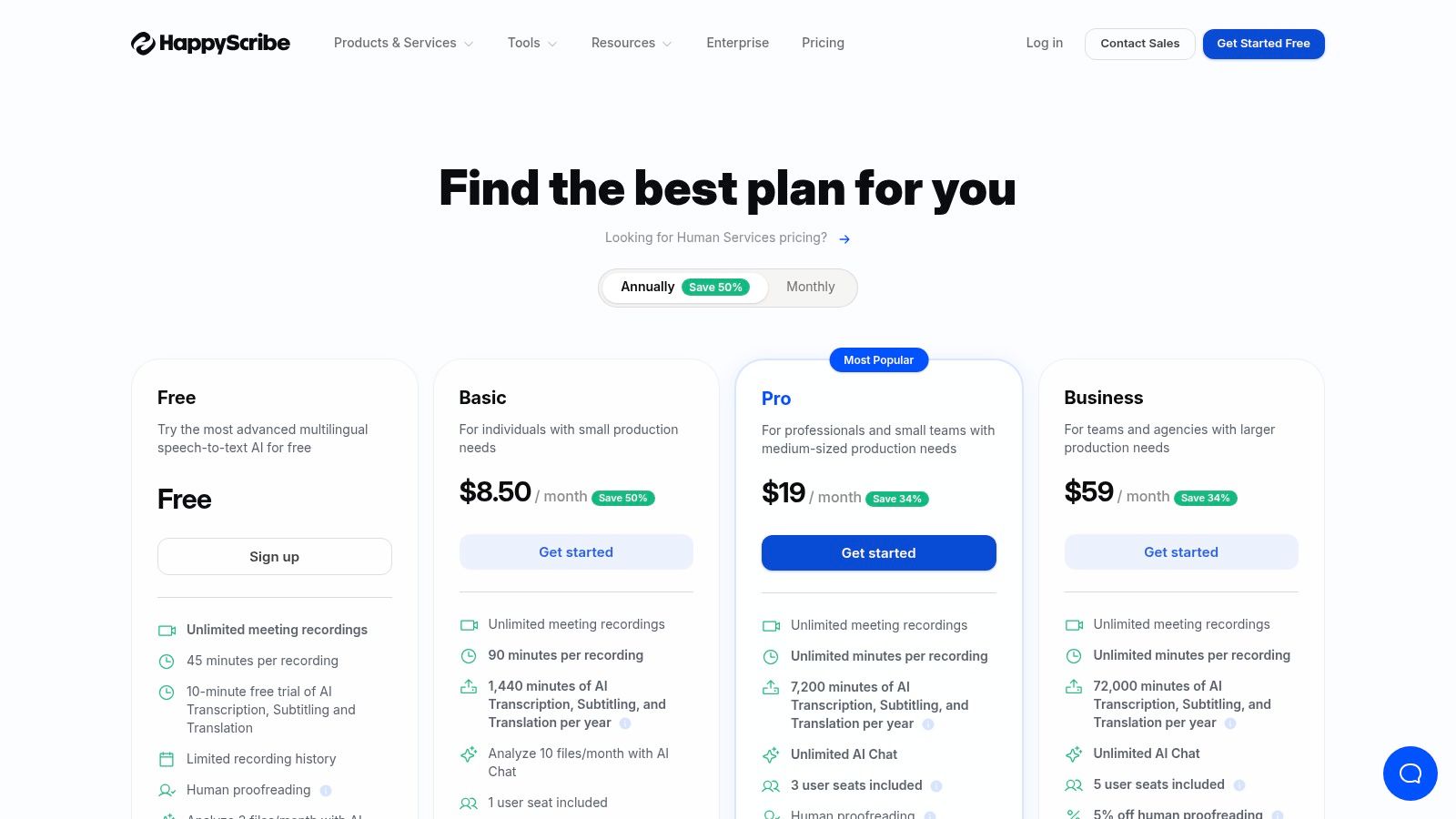
Happy Scribe fits teams that need multilingual subtitle work and still want a human pass available when the draft is too risky to publish. It handles transcription, subtitling, and translation across a broad language set, and it supports export formats that matter for publishing, including SRT and other common deliverables. That matters when one project starts as a quick AI draft and later needs cleaner output for clients or broadcast-adjacent use.
The practical value is control over the handoff. A webinar clip with clear speech can move through AI, timing checks, and export quickly. A client interview with jargon, names, or on-screen text can go through human review before anyone burns captions into the video or sends the file out for approval.
Where Happy Scribe fits in a workflow
For content teams batching files from Drive, Dropbox, or YouTube, Happy Scribe cuts down on upload friction and keeps the process centered on the transcript. That works well for turning source recordings into SRT files for edit systems, then into burned-in captions for short-form cuts that need social-safe presentation. Teams should still check accuracy, language coverage, file export needs, safe zones, review effort, and scheduling before they commit to a workflow.
The Happy Scribe pricing page is the place to confirm current plan limits and the split between AI and human review. If the project only needs a fast subtitle pass, AI is enough. If the file will be reused, signed off, or published across markets, the review path is the safer choice.
- Best for: multilingual captioning with an optional human review step.
- Watch for: plan limits and separate pricing for human subtitling.
- Website: Happy Scribe pricing
7. Submagic Animated Captions for Short-Form Video
Submagic fits creators who want the caption layer to carry motion, not just text. Its animated, word-by-word styles work well for TikTok, Reels, and Shorts, where the caption design is part of the hook. That makes sense for clips that need fast social styling and a strong first impression.
The workflow stays focused on short-form output. You upload a clip, choose a social-ready template, and move toward publishable video without building a larger subtitle system around it. For creators and content teams, the trade-off is clear, speed and style are strong, but the tool is less useful if the job starts with editable transcripts, multilingual delivery, or clean SRT and VTT files for later reuse.
Before you commit, check the practical details that affect publishing. Review accuracy on names and on-screen text, confirm language coverage, verify export options, and make sure the caption layout stays inside safe zones on mobile. If the clip needs approval, the human review step still matters, especially before you batch content or schedule posts across channels.
Where it fits in a workflow
Submagic works well after transcription, when the goal is to turn a usable transcript into a short clip that is ready for social posting. It does not replace a full repurposing workflow, but it can reduce the time between edit and publish.
- Best for: animated captions on short clips.
- Watch for: subscription limits and the lack of depth for longer file-based subtitling.
- Website: Submagic AI captions
8. Zubtitle Quick Captions for Social Video
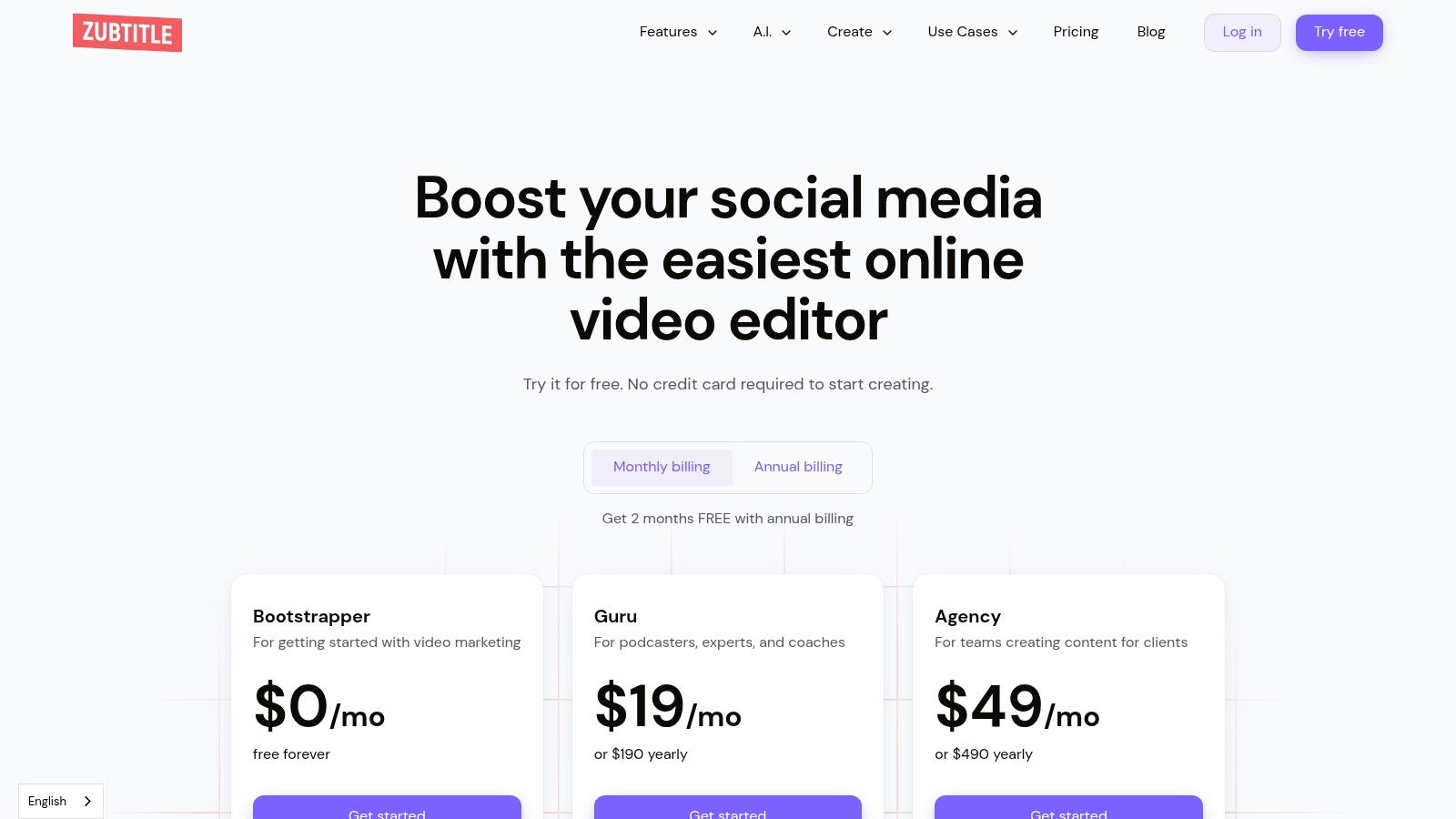
Zubtitle fits teams that need quick social captioning with a simple brand template workflow. Upload the clip, auto-caption it, adjust the style, and export. That path works well when the job is to get a clean, on-brand short out the door without turning captioning into a larger editing project.
The limits show up when the workflow gets wider. Zubtitle handles social-ready output and basic exports well, but it is not built as a full production suite. For vertical or square clips, that trade-off is practical. For multilingual delivery, deeper editing, or heavier transcript work, it can feel narrow.
The question is whether you need speed or flexibility. If the team is batching branded posts and wants captions to stay consistent across a set, Zubtitle keeps the process tight. Credit-based billing can also make sense for teams with uneven posting volume, as long as usage is tracked before processing starts at scale.
- Best for: lightweight social captioning and branded exports.
- Watch for: limited translation support and fewer advanced editing features.
- Website: Zubtitle pricing
9. Flixier Online Editor with AI Auto-Subtitles
Flixier fits teams that need a browser editor for captioning, resizing, and quick versioning in one place. The AI subtitle layer helps get a draft on screen fast, then translation and social-format resizing make it easier to turn one cut into several publishable variants. For content teams, the practical value is speed without handing the project off to a desktop tool.
The workflow works well if the decision is how much review time you can afford. Flixier gives you editable subtitles inside the editor, so a producer can fix transcription errors, check wording for each language, and adjust placement before export. That matters for agencies and distributed teams that want one shared workspace instead of passing files around.
What operators should check
Accuracy still needs a human pass, especially on names, jargon, and translated captions. Check safe zones for vertical and square outputs, then confirm whether the caption styling holds up on the devices where the video will be published. Plan limits on minutes and exports also matter, because batch work slows down fast if the account cap gets hit mid-project.
- Best for: browser-first teams that need subtitles, translation, and social resizing in one editor.
- Watch for: plan-dependent minutes, export caps, and limited motion-caption styling.
- Website: Flixier subtitle tool
10. Microsoft Clipchamp Auto-Captions
Clipchamp suits teams already inside Microsoft’s stack who need captions without adding another editor to the workflow. Auto-captions through Clipchamp auto-captions and transcript editing inside the timeline make it practical for quick subtitle cleanup, especially when the first pass only needs to get a draft on screen.
The trade-off is control. Clipchamp is fine for straightforward captioning, but it gives you less room for detailed styling, file handling, and export management than dedicated subtitle tools. It also depends on tenant settings, so availability can vary across Microsoft 365 environments.
For operators, the question is simple: do you need publishable captions fast, or do you need a fuller subtitle workflow with more review points? Clipchamp works for the first case. If you need tighter SRT or VTT handling, more design control, or a more reliable handoff between transcription and final delivery, another tool usually fits better.
- Best for: Microsoft 365 users who want quick browser-based captions.
- Watch for: tenant restrictions, lighter styling, and limited export workflow control.
- Website: Clipchamp auto-captions
Top 10 Online Subtitle Generators, Quick Comparison
| Tool | Best for / Audience | Core features | Strengths | Limitations & pricing |
|---|---|---|---|---|
| quso.ai | Solo creators, social managers, podcasters, B2B content teams | Auto-clip long video → multi short clips; AI virality scoring (based on analysis of 170K+ posts across 1,100+ creators); word-level animated captions (100+ languages); reframing & scheduling | End-to-end repurposing, built-in scheduler & brand kit; consolidates multiple tools; trusted by 4M+ creators | Fast automation may need quick human review; paid plans from $29/mo (free start). Try repurposing an episode into a week of clips, get started free: https://quso.ai (products: https://quso.ai/products, pricing: https://quso.ai/pricing) |
| VEED, Auto Subtitle Generator | Creators who want fast styling and resizes | One-click auto-subtitles; 125+ language translation; burn-in or subtitle file export; subtitle API | Rapid from upload→styled captions; good resize/templates | Advanced exports/features behind paid tiers; heavier web UI; paid plans |
| Kapwing, Auto-Subtitle Generator | Social creators needing transcript edits & animations | Transcript panel editing, one-step translation, word-by-word styles, social resizing | Clean, fast interface; good if you need more editing tools | Some exports and higher limits require paid plans |
| Descript, Subtitles/Captions Inside a Full Editor | Podcasters and editors combining cuts + captions | Editable synced transcript, one-click captions, “Fancy Captions”, SRT/VTT export, translation | Strong integrated editing + caption workflow; frequent updates | Usage is credit/minute-based; validate current pricing tiers |
| Rev, AI and Human-Quality Captions/Subtitles | Broadcast/compliance use, high-accuracy needs | Instant AI captions; human-made captions (~99% target); multi-language subtitles; clear per-minute pricing | Clear upgrade path AI→human; trusted for compliance | Human services costly; AI billed per minute can add up |
| Happy Scribe, AI Subtitles with Optional Human Review | Teams needing many languages + optional human polish | AI transcription/subtitles (150+ languages), editor, multiple export formats, human subtitling option | Flexible AI vs human choice; solid integrations | Plan minutes/limits vary; human subtitling adds cost |
| Submagic, Animated Captions for Short-Form Video | Short-form creators focused on viral-style captions | 12+ animated caption styles, 123 languages, burn-in animated captions, social templates | Quick path to on-brand motion captions for Shorts/Reels/TikTok | Subscription video caps; less suited for long-form or large subtitle workflows |
| Zubtitle, Quick Captions for Social Video | Solo creators batching square/vertical videos | Auto-caption, style, export social-optimized videos; credit-based billing; TXT/SRT downloads | Lightweight, easy styling and bulk exports | Limited translation; fewer advanced editing features |
| Flixier, Online Editor with AI Auto-Subtitles | Teams needing fast cloud collaboration and variants | Auto-subtitles with language detect, translate, instant resize, team cloud editing | Fast browser workflow, good team features | Subtitle minutes/exports limited by plan; fewer motion-caption styles |
| Microsoft Clipchamp, Auto-Captions | Users in Microsoft ecosystem seeking no-cost captioning | Azure-powered auto-captions, transcript editing, MS account/cloud integration | Free option, integrates with Microsoft cloud | Caption styling and export depth limited vs pro tools; tenant settings may restrict features |
Build a Caption Workflow That Ships
The right workflow depends on the job. Use a lightweight social caption tool when you only need a few clips, use an editor with transcript control when captions are part of ongoing content production, use a multilingual or human-review service when accuracy matters most, and use quso.ai when the work includes turning long video into short clips, adding captions, resizing for platform formats, and scheduling distribution in one place.
A practical review checklist keeps teams from publishing avoidable mistakes. Test names and technical terms before export, review timing and line breaks, confirm the required SRT or VTT file format if the platform needs it, and keep text inside platform safe zones where UI elements overlap the frame. If you’re translating, check the translated captions manually, because machine output still needs human judgment on tone and context. Preview every platform variant before you publish, especially if the same clip is going to multiple feeds.
Practical rule: if a caption looks fine in the editor but sits under a platform button or timestamp in the final feed, it’s not publish-ready.
That’s the decision tree that matters for creators, social managers, and B2B teams. Fast styling is good, editable transcripts are good, file export is good, but the best workflow is the one that gets reviewed, repurposed, and posted without extra handoffs. If you want to move from transcription to publishable short-form video without stitching together multiple tools, start with the repurposing path and see whether it cuts your production time.
FAQ
How do subtitle generators work online?
They transcribe spoken audio into timed text, then let you style, export, or burn the captions into the video. Better tools also support translation, review, and file exports for publishing.
Which subtitle generator online tools export SRT files?
Tools in this list that support subtitle file export include Descript, Happy Scribe, and Zubtitle, and some others can export caption files or downloadable subtitles depending on the plan. Always verify the exact export format before a workflow depends on it.
How accurate are AI subtitles?
Accuracy varies by tool, audio quality, speaker overlap, accents, and background noise. Human review still matters for names, jargon, and anything public-facing.
How do I add subtitles to short-form videos?
Upload the clip, generate captions, check timing and line breaks, style the text for mobile viewing, and make sure the captions stay inside safe zones. Then export the version sized for the target platform.
Are burned-in captions better than subtitle files?
Burned-in captions are easier for social feeds because they always display with the video, while subtitle files give you more flexibility across players and platforms. If you plan to reuse the asset widely, keep both when the tool allows it.
Try the workflow that matches how you publish. If your team needs quicker clip creation, cleaner captions, and a path to scheduled distribution, start with a repurposing-first setup and make the caption step part of the publishing system instead of a separate chore.