How to Schedule LinkedIn Posts: B2B Success 2026
You can schedule LinkedIn posts directly inside LinkedIn. Click Start a post, write your post, then click the clock icon in the lower-right corner to choose a publish time from 10 minutes to 3 months in advance.
Most guides stop there. The actual work starts when you need to manage posts across a founder profile and a company page, adjust scheduled content without missing the publish window, and choose timing that matches LinkedIn’s narrow workday rhythm. That’s where scheduling stops being a button and becomes an operating system.
If you’re trying to learn How to Schedule LinkedIn Posts, the cleanest workflow is: schedule natively when you need simple, free publishing inside LinkedIn, then move to a third-party tool when your team is juggling multiple profiles, repurposed assets, and a real content calendar.
Table of Contents
- How to Schedule LinkedIn Posts with the Native Tool
- Viewing and Editing Your Scheduled Posts
- When to Use a Third-Party Scheduling Tool
- Your LinkedIn Scheduling Strategy Timing Cadence and Content
- Best Practices for Scheduled Posts
- Frequently Asked Questions
How to Schedule LinkedIn Posts with the Native Tool
Need to queue content on LinkedIn without adding another tool to your stack? The native scheduler handles the job well if you know its limits, especially when you’re posting across both a personal profile and a company page.
Desktop steps
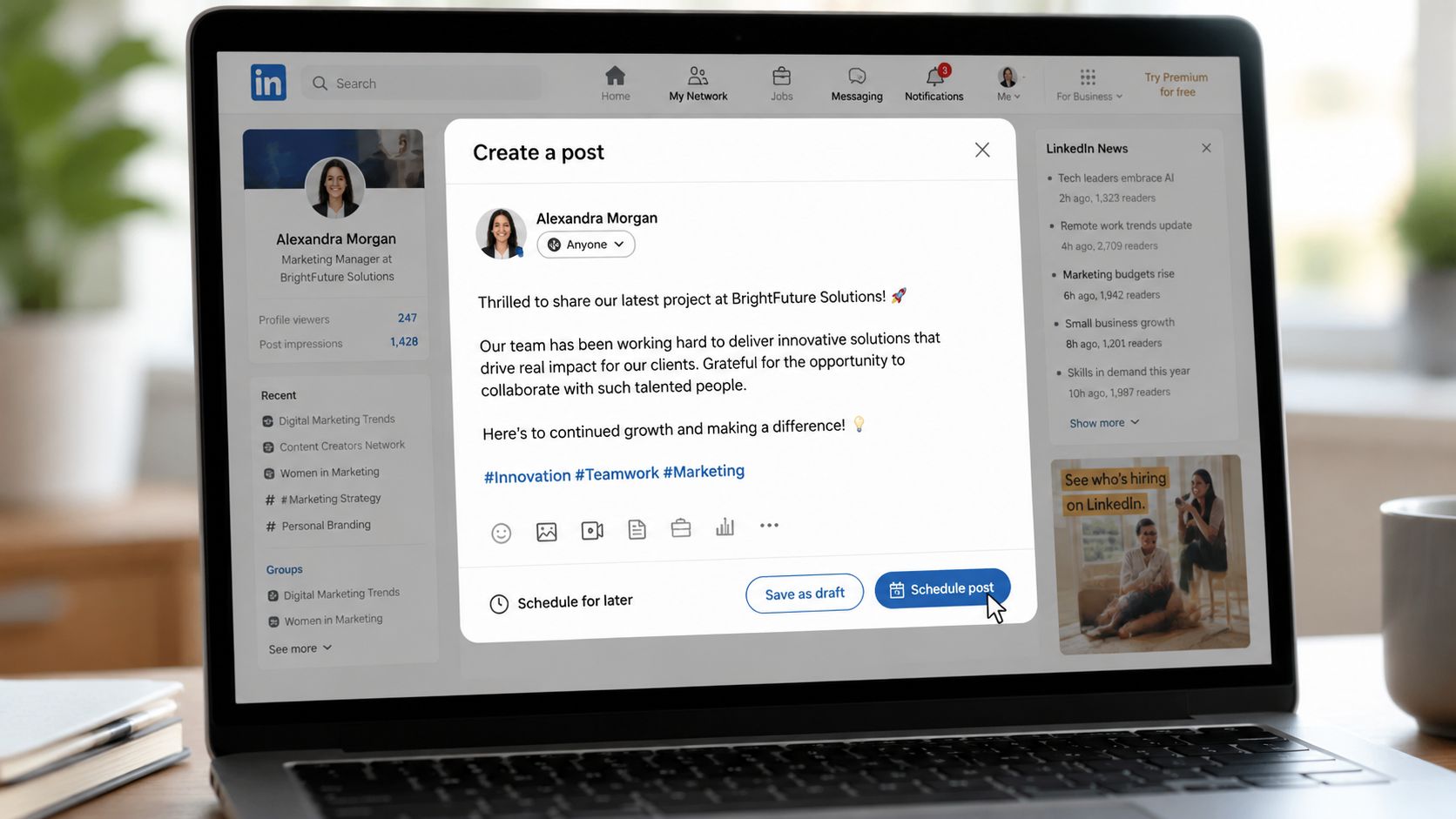
On desktop, the workflow is simple:
- Click Start a post from the LinkedIn home feed.
- Draft the post and add any image, document, or video.
- Click the clock icon in the composer.
- Pick the publish date and time.
- Confirm the schedule.
LinkedIn supports advance scheduling inside the post composer itself, so you do not need a separate publishing tool for basic queueing. For many solo operators, founders, and lean marketing teams, that is enough.
The operational catch is account context. If you manage both a personal profile and a company page, make sure you’re posting from the right identity before you schedule. That sounds obvious until you batch six posts and realize half were queued under the wrong account.
One more point that gets overstated in scheduling advice. There is no proven “native scheduler penalty” for using LinkedIn’s own scheduling feature. Post performance usually comes down to the post itself, the timing, the audience fit, and whether someone is ready to engage after it goes live.
If you’re building a broader publishing system beyond LinkedIn, compare this with a social media scheduling workflow across platforms.
Practical rule: Schedule ahead, but check the post again before it publishes. A strong post on Monday can feel off-brand or outdated by Wednesday.
Mobile workflow
The mobile flow follows the same logic. Open the LinkedIn app, start a post, write the draft, tap the scheduling option, then choose the publish time.
I use mobile scheduling for fast, low-risk posts. Founder updates, event reminders, quick hiring announcements, or a simple text post pulled from a note on my phone. It works well when the content is already approved in your head and you just need to get it queued.
It is less reliable for heavier production work. If the post needs careful formatting, multiple assets, link checks, or coordination between a personal voice and a company message, desktop is safer.
What the native scheduler handles well
The native tool works best for direct publishing, light planning, and last-mile scheduling. It keeps the process close to the platform, which reduces setup time and makes quick edits easier before publish.
It also helps teams avoid a common mistake. Overcomplicating LinkedIn scheduling before they need a more advanced workflow.
Use the native scheduler when you need:
- Simple publishing from one account at a time
- A free way to queue posts without extra software
- Fast scheduling for personal posts or single-page company content
- A clean final step after the copy and creative are already approved
The trade-off shows up fast when one person manages multiple voices. Scheduling a post for a company page, then switching back to a personal profile, then checking what is queued in each place adds friction. The native tool can handle the publishing step, but it does not solve cross-account visibility or approval flow on its own.
That is the key line to watch. If your work is mostly “write post, pick time, publish,” the native scheduler is usually enough. If your work is “coordinate calendars across a founder profile and brand page without mixing them up,” the process gets harder long before the posting itself does.
Viewing and Editing Your Scheduled Posts
Where to find the queue
Need to check what is scheduled before a post goes live. Open the LinkedIn post composer for the profile or company page you are using, then go to View all scheduled posts. That screen is your live queue for that specific account.
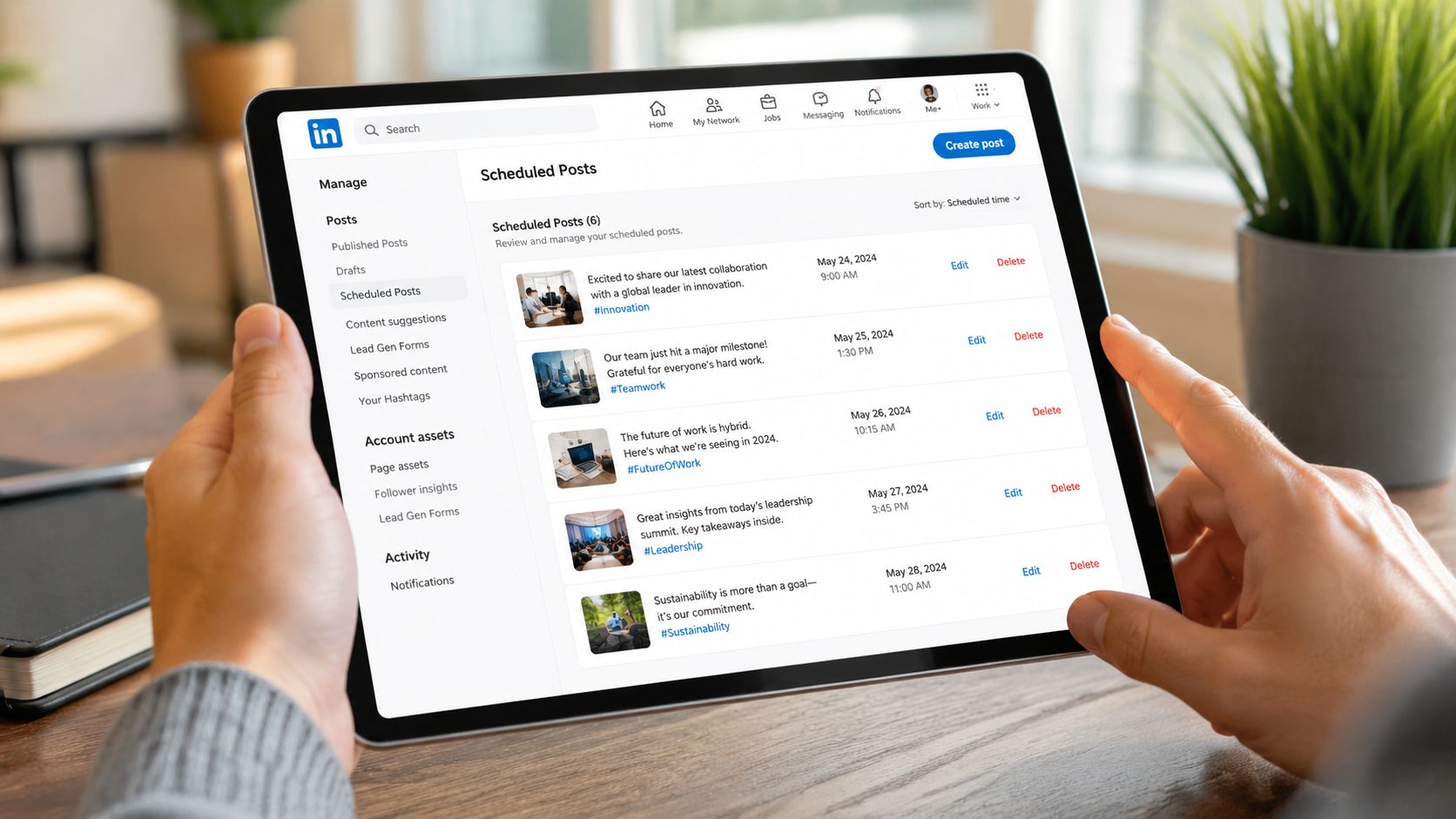
This is the part many guides skip. LinkedIn shows scheduled posts separately for each publishing identity. Your personal profile has its own queue. Your company page has a different one. If you manage both, there is no shared calendar inside the native tool, so you have to check each queue on purpose or keep an external publishing tracker.
LinkedIn also limits how much of that queue you can manage in the native view at one time. For light use, that is fine. For a weekly workflow across a founder account and brand page, it gets harder to spot collisions, repeated topics, or two posts going out too close together. That is one reason teams start comparing the native setup with social media scheduling tools built for multi-account planning.
What you can change before publish
Scheduled posts stay editable until they publish, which is exactly how the workflow should work. A scheduled time is a placeholder, not a promise.
Before a post goes live, you can usually:
- Edit the copy to fix wording, update a mention, or sharpen the opening
- Change the publish time if a better slot opens up or another post needs priority
- Delete the post if the message is outdated, duplicated, or no longer approved
I treat scheduled posts as queued drafts with a timestamp. That matters on LinkedIn because relevance shifts fast. A company update can become stale in a day. A founder may post a similar opinion manually. A product announcement may need to wait because support or sales is not ready for replies yet.
There is also no native scheduler penalty to work around. LinkedIn does not downgrade a post just because you scheduled it in advance. The primary risk is operational. Posts underperform when the timing is off, the angle overlaps with another account, or the final version goes out without a last check.
A practical review pass solves most of that. Check the queue by account, confirm the right voice is attached to the right post, and review links, creative, and timing before publish. If your LinkedIn work feeds larger campaign systems, that review habit becomes even more useful alongside tools and processes covered in MarTech Do’s B2B Salesforce Marketing Cloud guide.
When to Use a Third-Party Scheduling Tool
The native tool breaks down when the workflow gets bigger than one person and one queue.
The real friction is profile switching
Most tutorials show you how to schedule for a personal profile or a company page. They rarely deal with the messier reality: B2B teams often need both. Founders build trust on personal profiles. Brand teams need consistency on the company page. Those are two separate engines.
As highlighted in this YouTube breakdown of LinkedIn scheduling workflows, tutorials often ignore the operational problem of managing scheduled content across both profiles in one workflow. LinkedIn’s native tool only shows scheduled posts per profile, which forces manual tracking.
That’s the primary reason teams graduate to third-party tools. Not because the native tool is bad, but because it’s isolated.
If your content operation already touches CRM, email, and campaign automation, resources like MarTech Do’s B2B Salesforce Marketing Cloud guide are useful for seeing how scheduling fits into a broader B2B systems stack.
Native vs third-party trade-offs
Here’s the practical split:
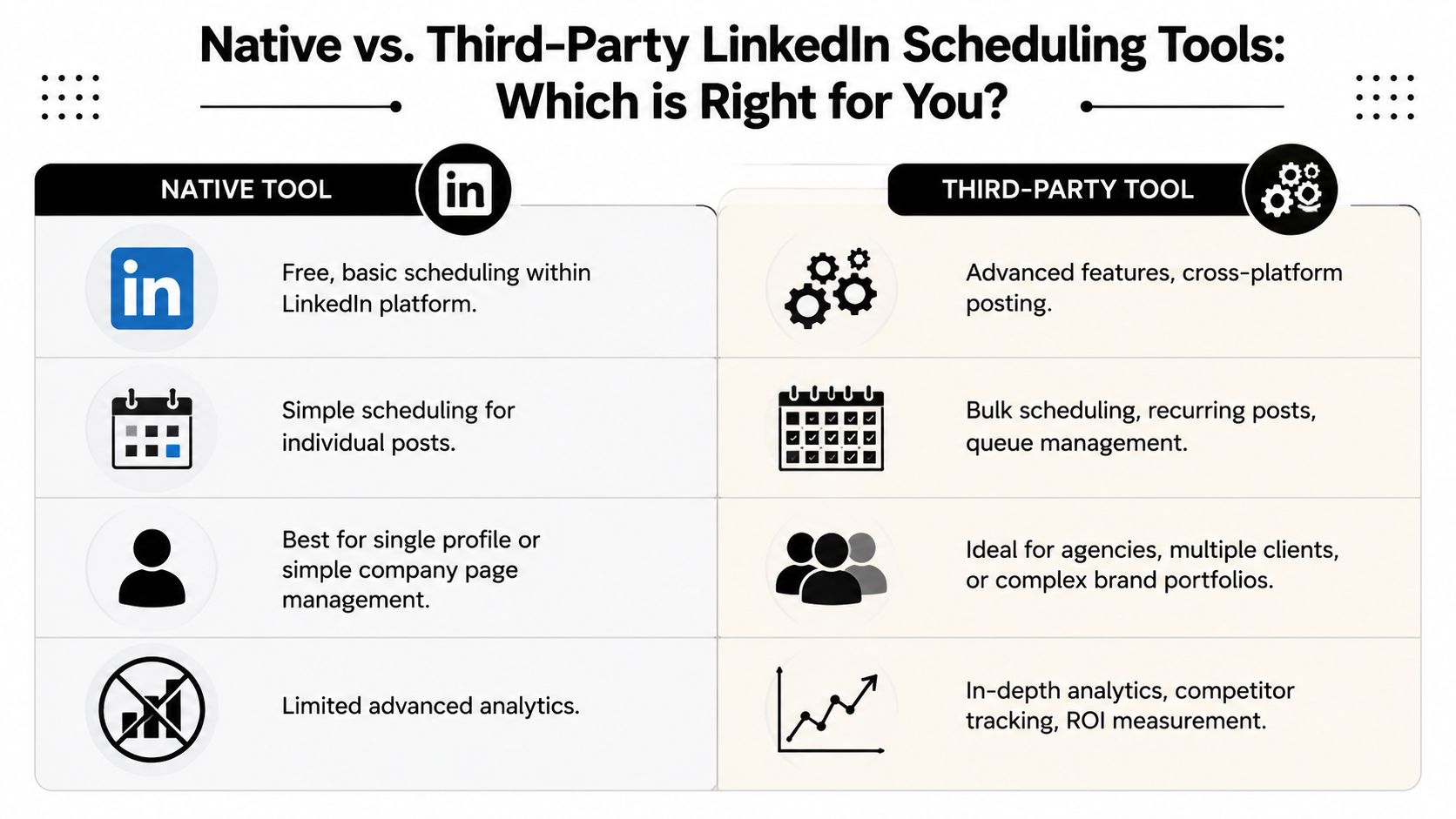
| Workflow need | Native LinkedIn tool | Third-party tool |
|---|---|---|
| One profile and basic scheduling | Strong fit | Usually overkill |
| Company page only, light volume | Fine | Helpful if approvals matter |
| Founder profile plus company page | Friction increases | Much easier to manage |
| Repurposed video clips and recurring content | Manual | Better fit |
| Central calendar across channels | Limited | Stronger option |
A third-party scheduler makes sense when you need a unified calendar, content approvals, or a repeatable pipeline from source content to published post. That’s especially true for teams clipping webinars, podcasts, demos, and founder interviews into multiple LinkedIn assets.
One option in that category is quso.ai, which is useful when your workflow starts with long-form video and ends with scheduled short-form posts, captions, and platform-ready publishing. If you’re comparing options, this roundup of social media scheduling tools is a good place to sanity-check feature trade-offs.
Your LinkedIn Scheduling Strategy Timing Cadence and Content
Which account are you scheduling for. Your personal profile, your company page, or both? That decision changes your timing, your cadence, and the kind of posts you should queue.
LinkedIn traffic follows a workday pattern. People check it between meetings, during breaks, and in short research windows. That is why timing matters on LinkedIn more than it does on channels built around passive scrolling.
Start with a baseline window
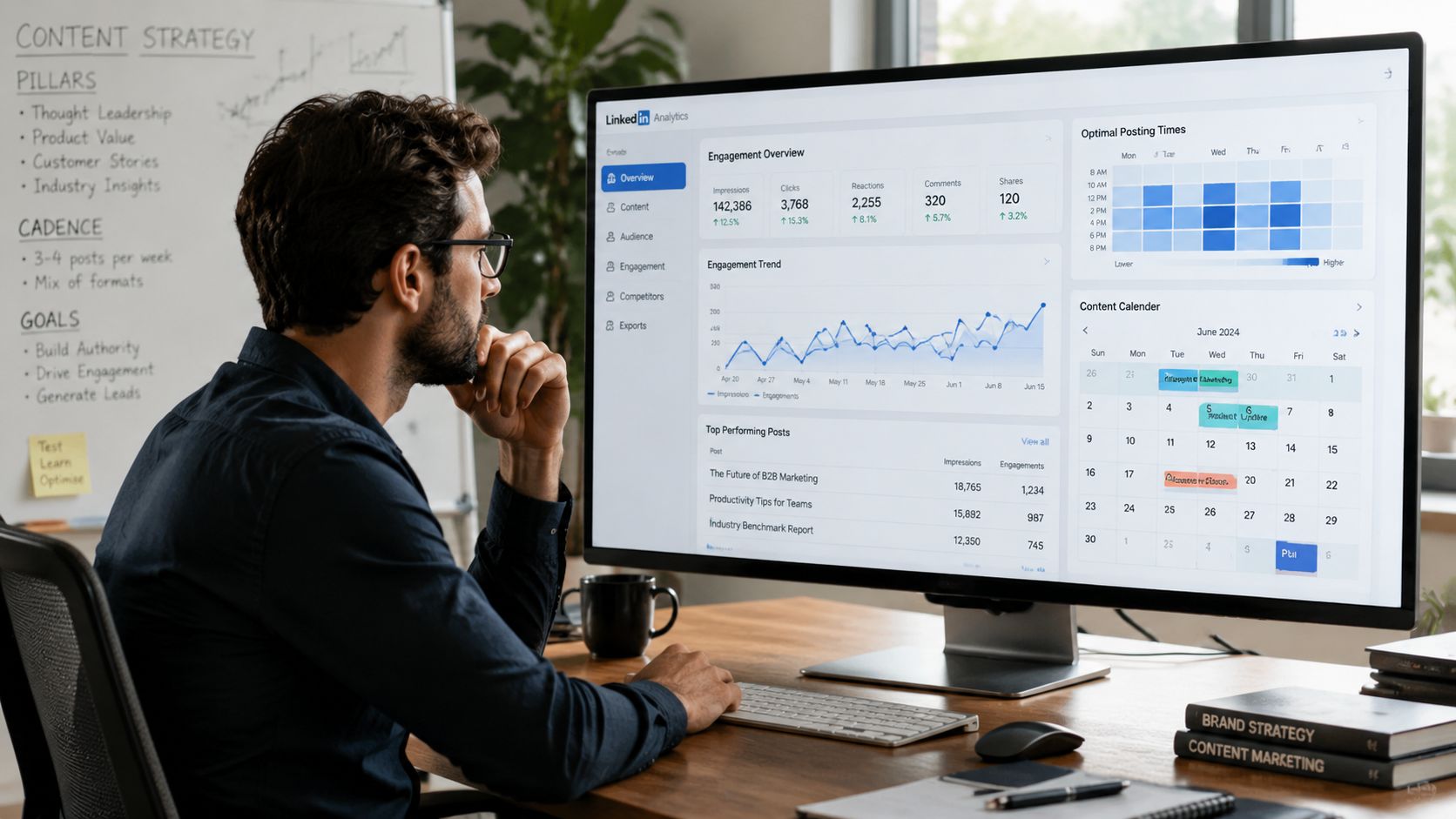
If you do not have enough account data yet, start with a simple default. Analysts cited in Sprinklr’s roundup of LinkedIn timing research found that Tuesday through Thursday, around 10 AM to noon in the audience’s local time, is a dependable starting window.
Use that as a baseline, then test around it.
Analysts at Postiv AI also found a useful pattern for teams trying to win crowded time slots. Posts published a little before peak activity often earned stronger click and comment rates than posts dropped at the exact busiest moment. In practice, that means testing 30 to 60 minutes before your assumed peak instead of scheduling everything for the top of the hour.
For a more detailed breakdown by day, audience, and format, use this guide on the best time to post on LinkedIn.
Set cadence by account type
Cadence should match the role of the account and the amount of quality content your team can maintain.
For personal profiles, a steady weekly rhythm usually works better than trying to post every day. Two to five posts per week is a realistic range for founders, executives, and subject matter experts who want to stay visible without turning their profile into a content treadmill.
Company pages can usually support a higher publishing volume because the content mix is broader. One to two posts per day is often workable if you have enough material across product updates, customer proof, hiring, events, partnerships, and brand education. Legacy Builder’s scheduling insights are useful here because they frame scheduling as an operating system, not just a calendar habit.
The challenge is managing both account types at once.
A founder profile and a company page should not publish the same message at the same time with minor wording changes. The better workflow is coordinated differentiation. Put the personal profile on opinion, lessons, and point of view. Put the company page on proof, announcements, and structured campaigns. That approach reduces duplication and gives each account a clear job.
Build content from existing assets
Do not create every LinkedIn post from scratch. Build a weekly queue from assets you already have.
One webinar can produce several posts:
- a short insight clip for the company page
- a personal post from the host with one strong opinion
- a customer problem post pulled from the Q and A
- a team or hiring angle tied to the same topic
- a comment prompt that extends the conversation a day later
This is also where teams get scheduling wrong operationally. They fill the company page first, then repost leftovers to the founder account. That usually weakens both. Start with the strongest original point for the personal profile if a real person is the growth engine. Start with the clearest proof asset for the company page if the goal is product awareness or demand capture.
Scheduling itself does not create a reach penalty. Weak repetition does. If two accounts publish near-identical posts, performance drops because the content is redundant, not because LinkedIn punishes scheduled publishing.
Later in your workflow, this kind of walkthrough helps when you’re turning video into a publishing rhythm:
Best Practices for Scheduled Posts
Ignore the native scheduler myth
A lot of LinkedIn creators still believe that scheduling natively hurts reach. That belief has spread faster than the evidence.
Based on analysis of 170K+ posts, scheduling via LinkedIn’s native tool does not kill engagement. What hurts performance is inconsistent posting times and irrelevant content, according to John Shehata’s LinkedIn post on scheduler performance.
So the right question isn’t “Did I publish natively?” It’s “Was the post relevant, clear, and timed consistently?”
If a post underperforms, fix the topic, hook, and timing before blaming the publishing method.
Tagging hashtags and safe zones
Three practical mistakes show up constantly in scheduled LinkedIn posts:
- Broken tagging: Check mentions before scheduling. A mistyped company page mention won’t help distribution or context.
- Hashtag stuffing: Keep hashtags relevant and restrained. They should support categorization, not pad the caption.
- Ignored safe zones on video: This is the one many teams miss.
If you’re scheduling video clips, review the frame for mobile UI overlap. Keep on-screen text and burned-in captions away from the edges and lower portions of the frame where LinkedIn’s interface can cover them. If the hook, speaker name, or subtitle sits too low, the clip becomes harder to watch even if the topic is strong.
For a broader cross-platform perspective on scheduling discipline, Legacy Builder’s scheduling insights are worth reading alongside your LinkedIn workflow.
Frequently Asked Questions
Can you schedule LinkedIn posts for free
Yes. LinkedIn’s native scheduler is free to use. You create the post inside LinkedIn, click the clock icon, and choose a time.
Can you schedule posts for a LinkedIn company page
Yes. Scheduling is available for company pages as well as personal profiles, but management happens per profile, which is why teams often run into manual tracking issues.
Does scheduling LinkedIn posts hurt reach
No. The stronger evidence points to consistency and relevance as the bigger variables, not whether you used the native scheduler or a third-party tool.
What time should I schedule LinkedIn posts
A solid default starting point is Tuesday through Thursday, 10 AM to noon in your audience’s local timezone. If you already have some traction, test publishing 30 to 60 minutes before that window.
Should founders and company pages use the same schedule
Not always. Founder content usually needs more voice and selective timing. Company page content can support a steadier publishing rhythm if the content mix is broader.
If your LinkedIn workflow starts with webinars, podcasts, demos, or interviews, quso.ai can help turn that long-form video into short clips with captions and then schedule those assets without adding another manual step to your week.