How to Post a YouTube Video on TikTok Without Errors
If you need to know how to post a YouTube video on TikTok, the right move is simple, don’t upload the full horizontal YouTube file. Pull a high-retention segment, reframe it to 9:16, add captions, and publish it as a TikTok-native clip that stands on its own. That’s the fastest way to avoid the two mistakes that sink most reposts, bad framing and broken audio rights, especially when you’re trying to turn one YouTube upload into multiple TikTok cuts with how to post a youtube video on tiktok as the actual workflow, not just the search query.
This is the practical repurposing path teams use now. You choose the moment, crop it for the vertical feed, keep the opening tight, and post something useful instead of a teaser that sends people away too early. If you want a broader content system behind that, the repurpose content framework is a solid reference point for thinking about source content, clip selection, and distribution without wasting edits.
Table of Contents
- How to Post a YouTube Video on TikTok the Right Way
- TikTok Specs and Safe Zones You Must Get Right First
- Turn Your YouTube Video Into a TikTok Ready Clip
- Avoid Copyright and Audio Problems Before You Publish
- Choose the Right Length and Upload Path for Reach
- Final Checklist and Frequently Asked Questions
How to Post a YouTube Video on TikTok the Right Way
The correct answer is to repurpose, not reupload. TikTok is built around vertical, fast-moving discovery, so a YouTube video usually needs to become a shorter, tighter, captioned cut before it belongs in the feed. The operator move is to find a segment with a strong opening, reframe it to 9:16, and publish it as a standalone post that gives value without requiring context from the original YouTube upload.
What that really means in practice
The search intent behind how to post a YouTube video on TikTok usually comes from one of two jobs. Either you want more reach from an existing long-form video, or you want a repeatable way to turn one recording into several short clips for different platforms. The second use case is where the workflow gets useful, because you can trim one source into multiple versions and schedule them without reopening the edit every time.
A clean repurpose flow starts with a segment worth watching on its own. Then you crop it for vertical, add captions before export, and make sure the post doesn’t feel like a placeholder for something else.
Practical rule: if the clip only works when someone clicks out to YouTube, it’s not ready for TikTok.
For teams that want a repeatable system, not a one-off manual edit, that’s the point where a repurposing workflow matters. Tools built for this job can take one long recording, turn it into short-form cuts, and queue them for posting instead of forcing you to rebuild each version by hand. For a process-oriented view, the TikTok dimensions guide is the right companion read.
TikTok Specs and Safe Zones You Must Get Right First
A YouTube upload can be technically fine and still look wrong on TikTok. The common fix is 9:16 at 1080 × 1920 pixels in MP4 or MOV. If you keep the YouTube frame as-is, TikTok has to letterbox or crop it, and the result usually reads as repurposed, not native. The vertical frame is the baseline, and the TikTok aspect ratio guide is the clearest reference for that setup.
Safe zones matter more than you think
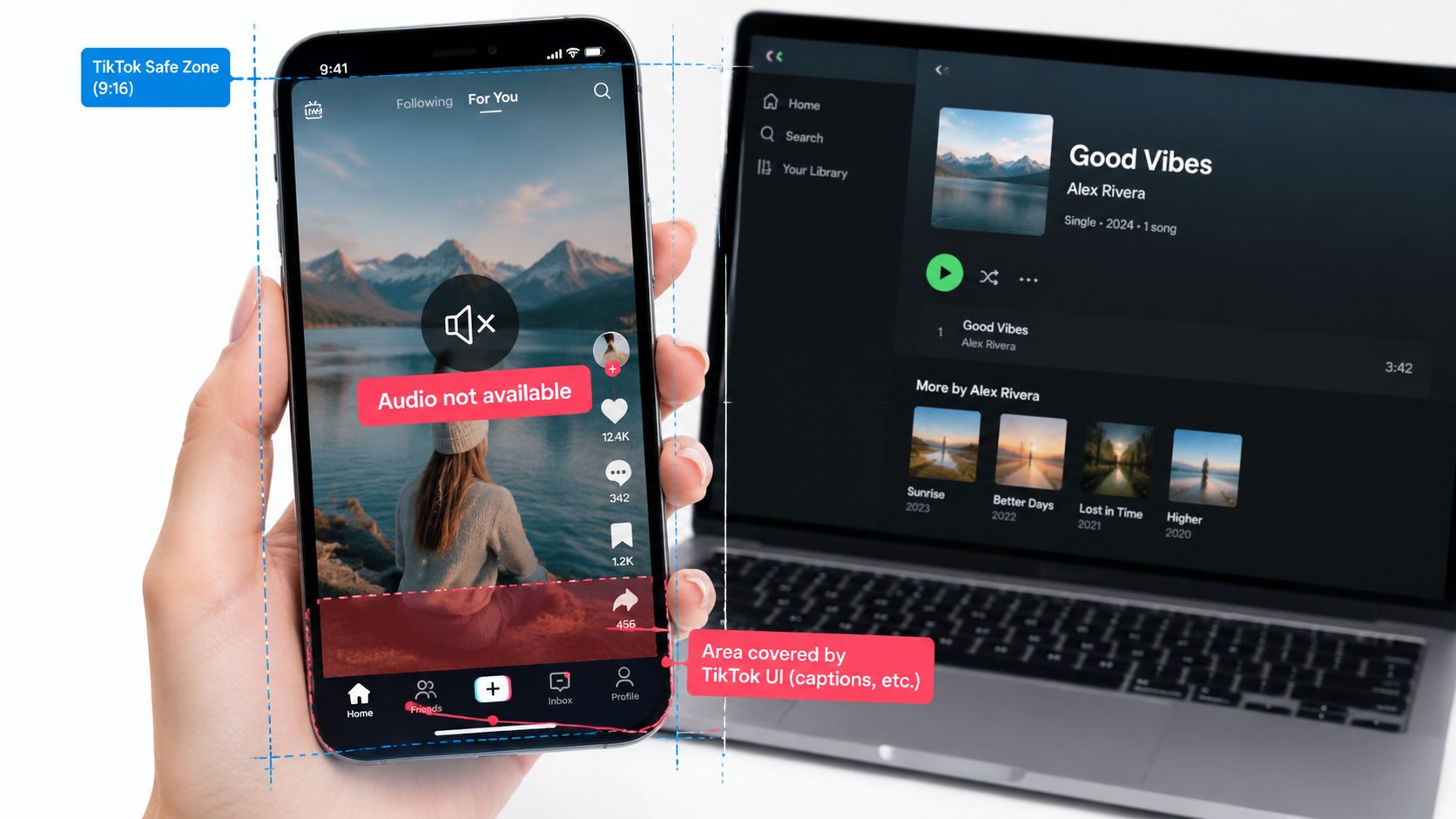
The part that breaks a lot of reposts is the safe zone. TikTok’s interface sits on top of the video, so captions, profile elements, and action buttons can hide the wrong part of the frame. Keep faces, text, and any key motion in the center, not near the bottom or right edge where the app UI gets crowded.
Keep the important part of the frame in the middle, not where the app chrome lives.
File delivery matters too. TikTok’s upload rules vary by path, with in-app recording up to 10 minutes, uploaded videos reaching up to 60 minutes on eligible accounts, and current specs noting up to 4 GB through the posting API documentation (Social Media Video Specs Guide). Mobile file limits can be tighter than web uploads, so longer repurposed edits are usually easier to handle on desktop or web posting routes (TikTok video size guide).
Here’s the practical rule set:
| Upload path | Limit and best use |
|---|---|
| In-app recording | Best for quick native uploads, up to 10 minutes on current guidance |
| Uploaded video in app | Better for repurposed clips, can reach up to 60 minutes on eligible accounts |
| Web or desktop upload | The most forgiving route for longer edits and larger files, with current specs noting up to 4 GB |
For a direct workflow reference, quso’s technical baseline is summarized on quso.ai/blog/tiktok-dimensions. Export for the phone screen first, then adjust everything else around that frame.
Turn Your YouTube Video Into a TikTok Ready Clip
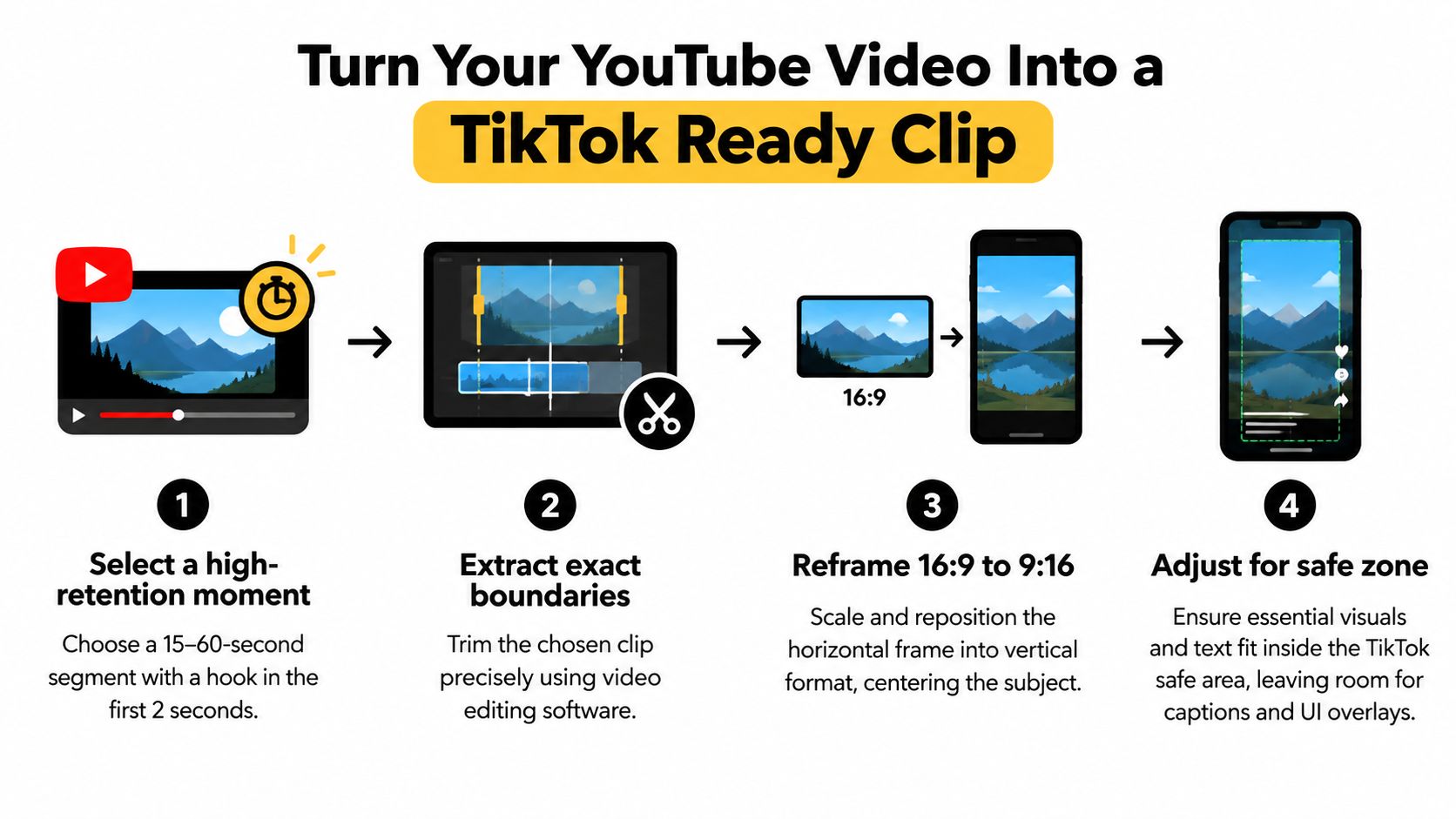
The cleanest conversion starts with a moment that can carry itself. Pick the part of the YouTube video where the point lands early, because TikTok doesn’t reward a slow warm-up. You want a clip that opens with motion, a clear statement, or a visible payoff, then stays tight enough that the viewer doesn’t need a second setup.
Build the clip around the strongest moment
A lot of people start by trimming the beginning of the YouTube video and calling it a day. That usually fails because the opening was written for a long-form viewer, not a scrolling feed. The better approach is to extract exact boundaries around a moment that already has a hook, then crop the frame so the subject stays centered when it moves.
After that, add captions from the first frame. On TikTok, captions aren’t decoration, they’re part of retention because many viewers watch with sound off. Put the text inside the safe zone and keep it readable against whatever’s happening behind it.
A good repurposed clip should feel finished even if someone never sees the original upload. If you’re a podcaster, that might be a pointed answer from a guest that works as a self-contained takeaway. If you’re a B2B marketer, it might be a webinar segment where a product expert solves a single problem cleanly enough to stand alone.
A TikTok cut should make sense without a setup paragraph or a “watch the full video” crutch.
What to do before export
A strong export is less about fancy editing and more about removing friction. Make sure the video is vertical, the subject isn’t pinned against the edge, and the captions don’t sit under the app UI. Then publish the clip as a real TikTok post, not a teaser that just points people elsewhere.
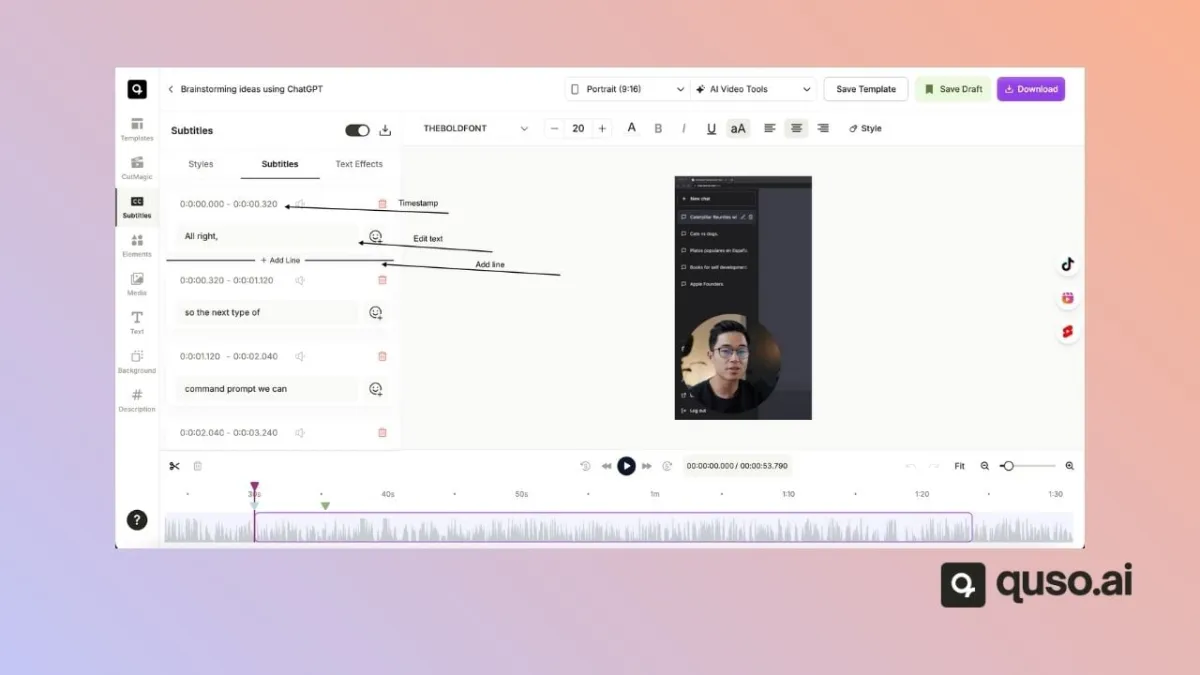
For teams that do this every week, quso.ai can handle the repurposing, auto-captioning, and scheduling workflow so one source video becomes several TikTok-ready assets without reopening the edit each time. If you want a direct tool reference, the YouTube to TikTok converter is built for that exact job.
Avoid Copyright and Audio Problems Before You Publish
The publishing failure isn’t the upload, it’s the rights check. Music licensed for YouTube is not automatically licensed for TikTok, and TikTok can mute, flag, or remove videos that include copyrighted soundtracks (Paperbell guide on posting YouTube videos to TikTok). That’s the part most quick guides skip, because “download and reupload” sounds easy until the soundtrack inside the clip blocks distribution.
Audit the source edit before you cut
Before you publish, check whether the YouTube source contains third-party music, licensed video clips, or sound effects you don’t fully control. That matters for coaches, podcasters, and SaaS teams because the problem is often buried inside the recording, not obvious from the title. If a track came from a YouTube-safe license, it still might not survive on TikTok.
Strip or replace the risky audio before you export the final cut. Then lean on native captions and platform-safe sound choices so the video stays publishable even if the original background track can’t move with it.
The rule is blunt. If the audio rights don’t travel cleanly, the clip isn’t done.
A simple publishability check
- Original voice only: usually safe if you own the recording.
- Third-party music present: remove it or replace it before posting.
- Licensed clip inside the edit: verify that the license covers TikTok, not just YouTube.
- Podcast or webinar cut: captions matter because the spoken message has to carry the post.
- SaaS demo with stock music: keep the music platform-safe or mute it entirely.
The safest move is to make the clip work without leaning on borrowed audio. That keeps the account cleaner and avoids the silent failure where a post looks fine in your editor but gets muted after upload. If you want a workflow reference for cleaning up source audio before repurposing, the sound extractor from YouTube page is a useful adjacent resource.
Choose the Right Length and Upload Path for Reach
Length should follow the job the clip has to do. If the goal is fast retention, a tight excerpt usually works better. If the segment needs context or a full explanation, a longer cut can still fit TikTok’s current upload options, with uploaded videos reaching up to 60 minutes on some accounts and in-app recording still capped at 10 minutes on current guidance (ClickAnalytic TikTok aspect ratio guide).
Use the length that fits the job
A practical rule is simple. Short repurposed clips work best when the point lands quickly and the hook is obvious. Longer cuts work best when the idea needs room, but the frame still has to stay tight and the captions must remain easy to read.
According to Kompoziyo TikTok video length limit, clips around 30 seconds can perform well for strong engagement, while 2 to 3 minute videos can also draw more views for explanatory content. That does not make longer video a default win. It means TikTok can reward different cuts depending on whether the post is built for punch, context, or explanation.
The better workflow is to choose the cut after you decide the post’s job. A short hook clip gets one idea and a fast opening. A deeper educational excerpt keeps the message intact, but it still needs a clean safe zone, readable captions, and a clear endpoint. Reposting a full YouTube segment just because the platform allows it is usually the wrong trade-off.
| TikTok Length Limits and Best Cut Lengths for Repurposed Clips | |
|---|---|
| Best short repurpose | Around 30 seconds when the clip needs a sharp hook |
| Best deeper cut | 2 to 3 minutes when the idea needs room to land |
The upload screen is still the final check. Limits can vary by path, region, or account tier, and that is exactly why the posting flow belongs in QA. Treat the posting flow as part of the QA process, not a separate afterthought.
Don’t assume one source video should become one TikTok post. One good YouTube recording can become multiple clips with different lengths and different jobs.
The operational move is to test several versions from the same source and schedule them across different days. That gives you a repeatable repurpose pipeline instead of a one-off download and reupload. Publish both the fast hook and the longer explanation, then let performance show which cut deserves more reach.
Final Checklist and Frequently Asked Questions
Before you post, run the same checklist every time. Crop to 9:16, keep the subject in the center safe zone, add captions from the start, remove or replace risky audio, and choose a length that fits the point of the clip. If the post still feels like a trailer for something else, tighten it again.
For teams handling multiple videos, the smartest workflow is to turn one YouTube source into several TikTok-ready versions, then schedule them instead of editing each one manually. That keeps the repurposing process repeatable and makes it easier to compare what gets traction.
Can I post a full YouTube video on TikTok?
Technically, some accounts can upload longer videos, but that doesn’t make the full YouTube version a good TikTok post. If it’s horizontal, slow to open, or dependent on outside context, repurpose it into a vertical excerpt instead.
What should I do if TikTok mutes my audio?
Assume the audio rights didn’t transfer cleanly. Remove the at-risk soundtrack, use platform-safe audio, and make sure the clip still works with captions alone.
What’s the best export format for TikTok?
Use MP4 or MOV in 1080 × 1920 at 9:16. Keep critical content away from the UI areas so captions and buttons don’t cover it.
How do I schedule multiple clips from one YouTube video?
Cut several versions from the same source, then queue them through a scheduling workflow instead of posting them one by one. That’s the easiest way to test hook length, topic angle, and caption style without rebuilding the edit.
Should I post a teaser that sends viewers back to YouTube?
Not first. Give the TikTok viewer standalone value, then let the profile, comments, or follow-up posts do the routing work later.
If you want a cleaner way to turn long recordings into vertical clips, quso.ai handles repurposing, auto-captions, and scheduling in one workflow. That makes this process less manual, especially when you’re turning one YouTube upload into several TikTok-ready posts. Visit quso.ai if you want to build that repurposing system without rebuilding every clip by hand.