How to Add Text to Video in 2026: The Complete Guide

The fastest way to add text to video is to use your phone’s built-in editor (like iPhone Photos) for a quick, single-line overlay. For more control or animated text, a mobile app like CapCut is your next best bet. If you need to add text based on a transcript or for multiple clips at once, browser-based tools or AI repurposing platforms are more efficient.
Ultimately, knowing how to add text to video is about matching your method to your goal. On-screen text and captions are proven to increase viewer retention and watch time, especially on sound-off feeds. One study showed adding them significantly lifts completion rates, a critical metric for social media success. This guide covers the quickest methods first, then breaks down when to use each for the best results.
Table of Contents
- Methods for Adding Text to Video
- Quickest Method: Add Text Directly on Your Phone
- Platform-by-Platform Text Guides
- Manual vs. Automatic: Burned-In Text vs. Platform Captions
- Exporting Your Video: Avoid Getting Text Cut Off (Safe Zones)
- FAQ: How to Add Text to Video
Methods for Adding Text to Video
Choosing the right tool depends on your needs for speed, control, and scale. Here’s a quick breakdown:
| Method | Best For | Speed | Key Feature |
|---|---|---|---|
| Phone Editors (iPhone Photos, CapCut) | Quick, on-the-go edits for single clips. | Very Fast | Simple, burned-in text overlays. |
| Browser Tools (VEED, Kapwing) | Branded, precise text placement using a transcript. | Medium | Transcript-based editing. |
| AI Repurposing (quso.ai) | Generating dozens of short, captioned clips from long videos. | Fastest at Scale | Automated, animated captions. |
Quickest Method: Add Text Directly on Your Phone
For social media managers and creators who need to edit on the move, mobile apps are the fastest solution. Both iPhone’s native Photos app and dedicated editors like CapCut allow you to add and style text in minutes.
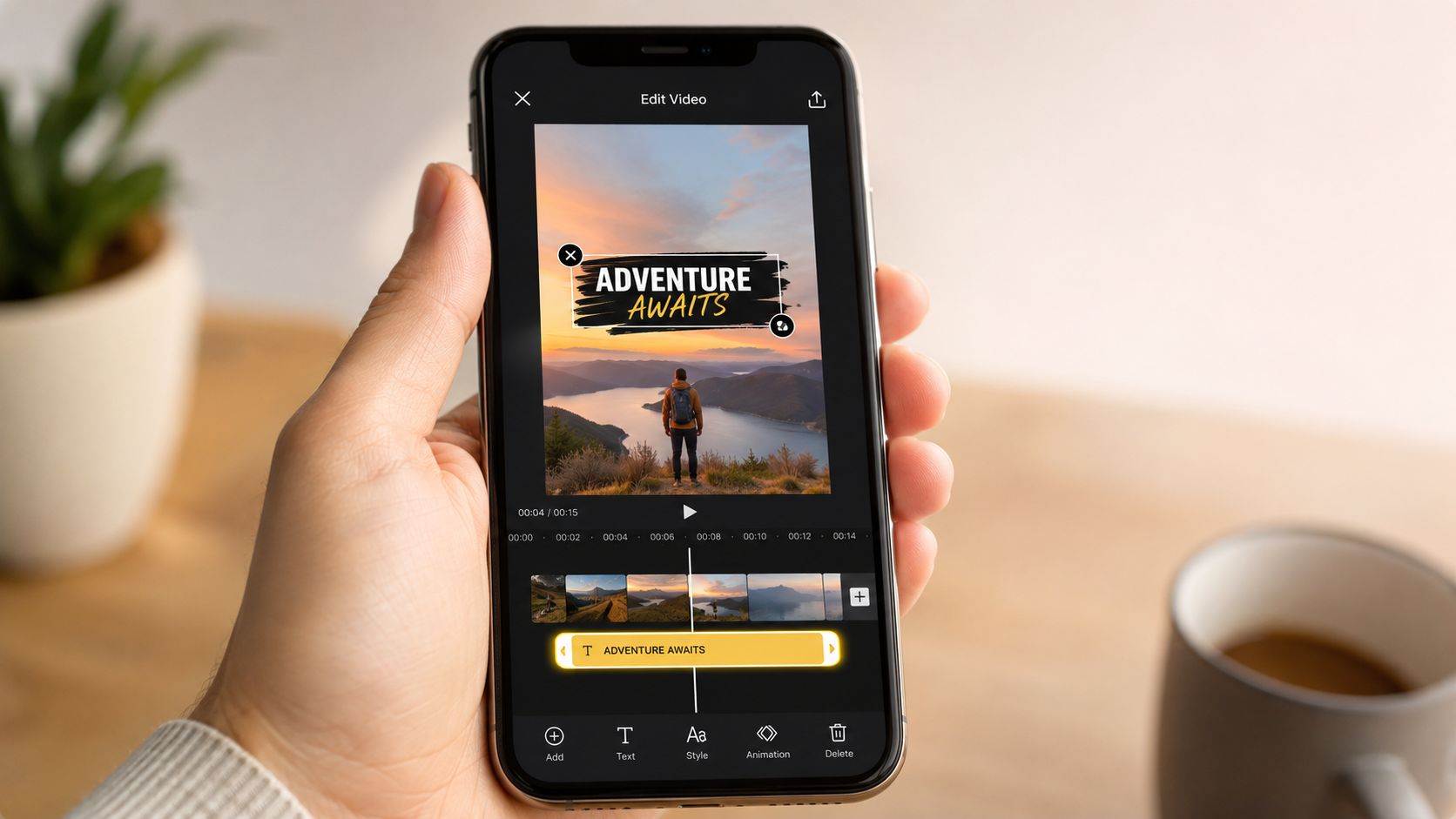
Using iPhone Photos
This is the simplest way to add permanent text to a video file.
- Open the video in your Photos app and tap Edit.
- Tap the Markup icon (a pen tip in a circle).
- Tap the + icon and select Text.
- Type your text, then drag it into position and pinch to resize.
- Tap Done. The text is now permanently “burned into” the video.
This method is ideal for adding a simple title, watermark, or a short, punchy hook that you need visible at all times.
Using CapCut
For more advanced options like animated text and precise timing, CapCut is a popular choice.
- Open CapCut and start a new project with your video.
- Tap the Text tool in the bottom menu.
- Select Add text and type your content.
- Use the Style, Effects, and Animation tabs to customize the look.
- On the timeline, drag the ends of the text clip to control when it appears and disappears.
- Export the video. The text will be burned into the final file.
Platform-by-Platform Text Guides
While mobile editors burn text directly into the video, social media platforms also have their own native text tools. Here’s how to use them on TikTok, Instagram Reels, and YouTube Shorts.
How to Add Text on TikTok
- Record or upload your video.
- On the editing screen, tap the Text (Aa) icon.
- Type your text, then customize the font, color, and alignment.
- Tap the text sticker and select Set duration to time its appearance.
- Drag the red box on the timeline to control when the text is visible.
- You can also enable Captions to automatically transcribe your audio.
How to Add Text on Instagram Reels
- Record or upload your Reel.
- Tap the Text (Aa) icon at the top of the screen.
- Type your text and choose your desired style and animation.
- Tap the text bubble at the bottom of the screen to open the timeline editor.
- Drag the slider to adjust the text’s duration.
- For more detail, see our guide on how to add captions to Instagram Reels.
How to Add Text on YouTube Shorts
- Create a Short and tap the checkmark to move to the editing screen.
- Tap the Text button in the bottom menu.
- Add your text and style it.
- Tap Timeline to adjust the start and end points for each text block.
- You can also use the Captions feature to auto-generate subtitles from your audio. Our guide on how to add subtitles/captions to YouTube Shorts provides a full walkthrough.
Manual vs. Automatic: Burned-In Text vs. Platform Captions
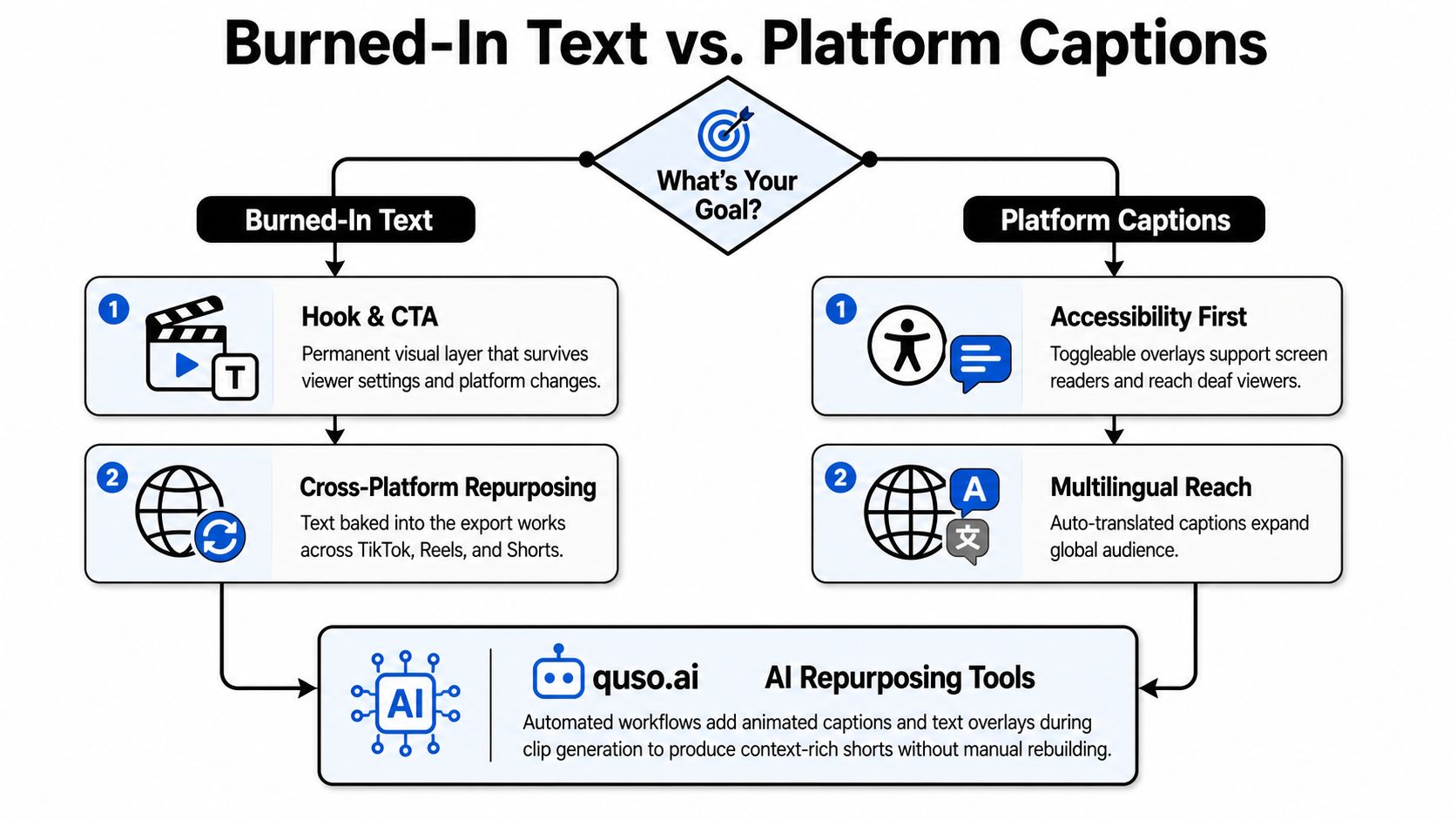
Adding text involves a critical choice: should it be “burned-in” (a permanent part of the video) or a separate “caption” file (like an SRT) that viewers can toggle on and off?
When to Use Burned-In Text
Burned-in text (also called open captions) is part of the video image itself.
- Use it for: Hooks, titles, key takeaways, and calls-to-action (CTAs).
- Why: It’s always visible, even if the viewer has captions turned off. This guarantees your core message is delivered. It also stays with the video if it’s downloaded and re-shared.
- The downside: It’s permanent. To fix a typo, you have to re-edit and re-export the entire video.
When to Use Platform Captions (SRT/VTT Files)
Platform captions (or closed captions) are separate text files that are layered on top of the video by the platform (like YouTube or TikTok).
- Use it for: Transcribing longer dialogue in talking-head videos or interviews.
- Why: It improves accessibility (for screen readers) and allows viewers to toggle captions on or off. You can also provide multiple language files. Plus, editing a text file is much faster than re-rendering a video.
- The downside: You lose control. Each platform displays captions differently, and they can sometimes be obscured by UI elements.
The Hybrid Approach (Recommended): For most social media content, the best strategy is a hybrid one.
- Burn in your primary hook (the first 1-3 seconds) and your final CTA.
- Use platform captions for the rest of the dialogue.
This gives you guaranteed visibility for your most important messages and accessibility for everything else. For a deeper look at this process, see our guide on how to burn captions into video.
Exporting Your Video: Avoid Getting Text Cut Off (Safe Zones)
One of the most common mistakes is placing text where it gets covered by the social media app’s interface—like the like button, username, or description. To avoid this, respect the platform “safe zones.”
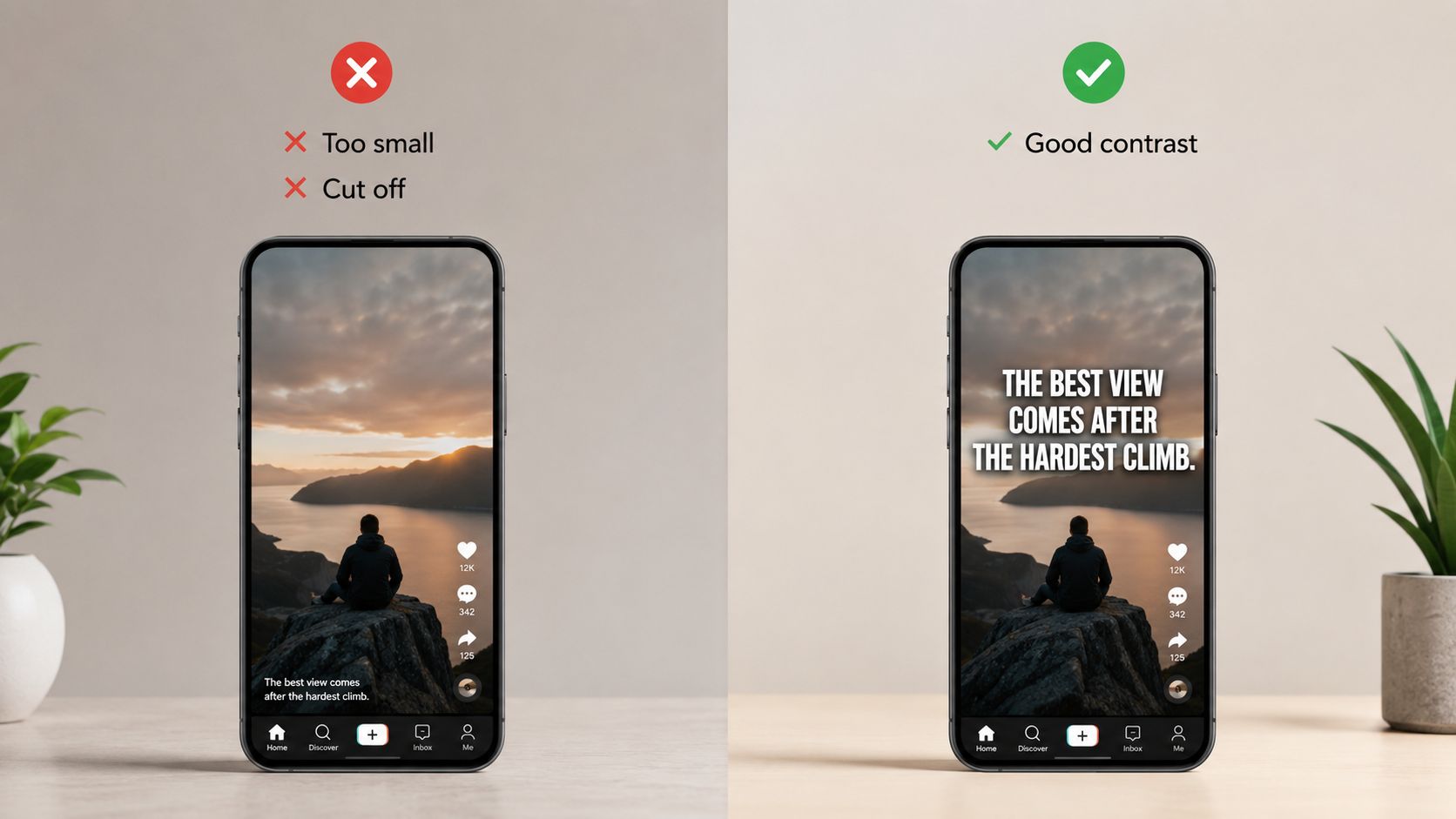
As a rule of thumb for vertical video (1080x1920):
- Avoid the bottom 20-25% of the screen. This area is reserved for captions, descriptions, and the progress bar.
- Avoid the right edge. This is where engagement buttons (like, comment, share) live.
- Place your most critical text in the upper-center of the screen. This area is almost always safe.
Before you export, always double-check your text placement against a screenshot of the TikTok, Reels, or Shorts interface to ensure nothing is hidden.
When you’re creating dozens of short clips from a longer video, manually adding and positioning text for each one is slow and error-prone. This is where AI tools shine. For example, when you repurpose long-form videos with quso.ai, it automatically generates animated, on-screen captions that are already placed within social media safe zones, saving you the tedious manual work. Give it a try at quso.ai.
FAQ: How to Add Text to Video
1. What is the fastest way to add text to a video? The absolute fastest way is using your phone’s native video editor (like iPhone Photos) to add a simple, static text overlay. For animated text, mobile apps like CapCut are the quickest option.
2. Should I burn text into my video or use platform captions? Use a hybrid approach. Burn your essential hook and call-to-action directly into the video for guaranteed visibility. Use platform captions (by uploading an SRT file or using the app’s auto-caption feature) for transcribing longer dialogue.
3. How do I stop my text from being covered by the TikTok or Instagram UI? Keep all critical text out of the “danger zones.” Avoid the bottom 20-25% and the far right edge of the screen on vertical videos. Place your most important text in the upper-middle portion of the frame.
4. What are the best free apps for adding text to videos? CapCut, VEED, and Kapwing all offer robust free tiers that are great for adding text to videos. For the quickest and simplest option without installing a new app, your phone’s built-in Photos app works well.
5. How can I add the same styled text to many videos quickly? For scaling production, manual editing is too slow. Use an AI repurposing tool. Platforms like Descript, VEED, or quso.ai can auto-generate styled captions and text overlays across dozens of clips, ensuring brand consistency without the manual effort.