How to Schedule YouTube Shorts: A Complete 2026 Guide
If you want the highest-probability default slot, schedule YouTube Shorts for Friday at 4 p.m. local time. The other two strongest slots are Friday at 6 p.m. and 7 p.m., and the safest ways to schedule are the YouTube mobile app, YouTube Studio on desktop, or a third-party scheduler if you’re batching clips.
If you’re reading this, you’re probably sitting on a few finished Shorts, or a long podcast, webinar, or demo that should already be cut into Shorts, and you don’t want to keep manually posting them one by one. That’s the core workflow problem. Most advice stops at “upload your Short and pick a time.” That helps if you have one clip. It doesn’t help much when you need to turn one long video into several Shorts, caption them cleanly, and schedule the whole batch without babysitting YouTube all week.
Table of Contents
- Why and How to Schedule YouTube Shorts
- Scheduling Shorts with YouTube’s Native Tools
- Using Third-Party Tools for Advanced Scheduling
- Best Practices for Scheduled Shorts That Perform
- Common Scheduling Pitfalls and How to Fix Them
- Frequently Asked Questions About Scheduling Shorts
Why and How to Schedule YouTube Shorts
Scheduling fixes two problems at once. It keeps your posting consistent, and it lets you publish when viewers are active instead of when you happen to be free.
For most creators and social teams, there are three practical ways to handle how to schedule YouTube Shorts:
- Use the YouTube mobile app when you’re posting a single clip on the go.
- Use YouTube Studio on desktop when you want better control over title, timing, and later edits.
- Use a third-party scheduler when you’re batching multiple Shorts, coordinating across platforms, or repurposing long-form into a publishing queue.
The right option depends on volume.
If you publish one Short at a time, native YouTube tools are fine. If you’re running a channel, client account, podcast, or B2B content engine, manual scheduling gets annoying fast. You upload, type metadata, check dates, fix captions, verify the time zone, then repeat it all for the next clip.
Practical rule: Native scheduling is good for isolated uploads. It’s weak for repeatable systems.
Consistency matters more than heroic last-minute posting. A working schedule means your content goes live while you’re in meetings, offline, or working on the next recording session instead of staring at the upload screen.
Scheduling Shorts with YouTube’s Native Tools
YouTube gives you two built-in paths. Desktop gives you more control. Mobile works when you need speed.
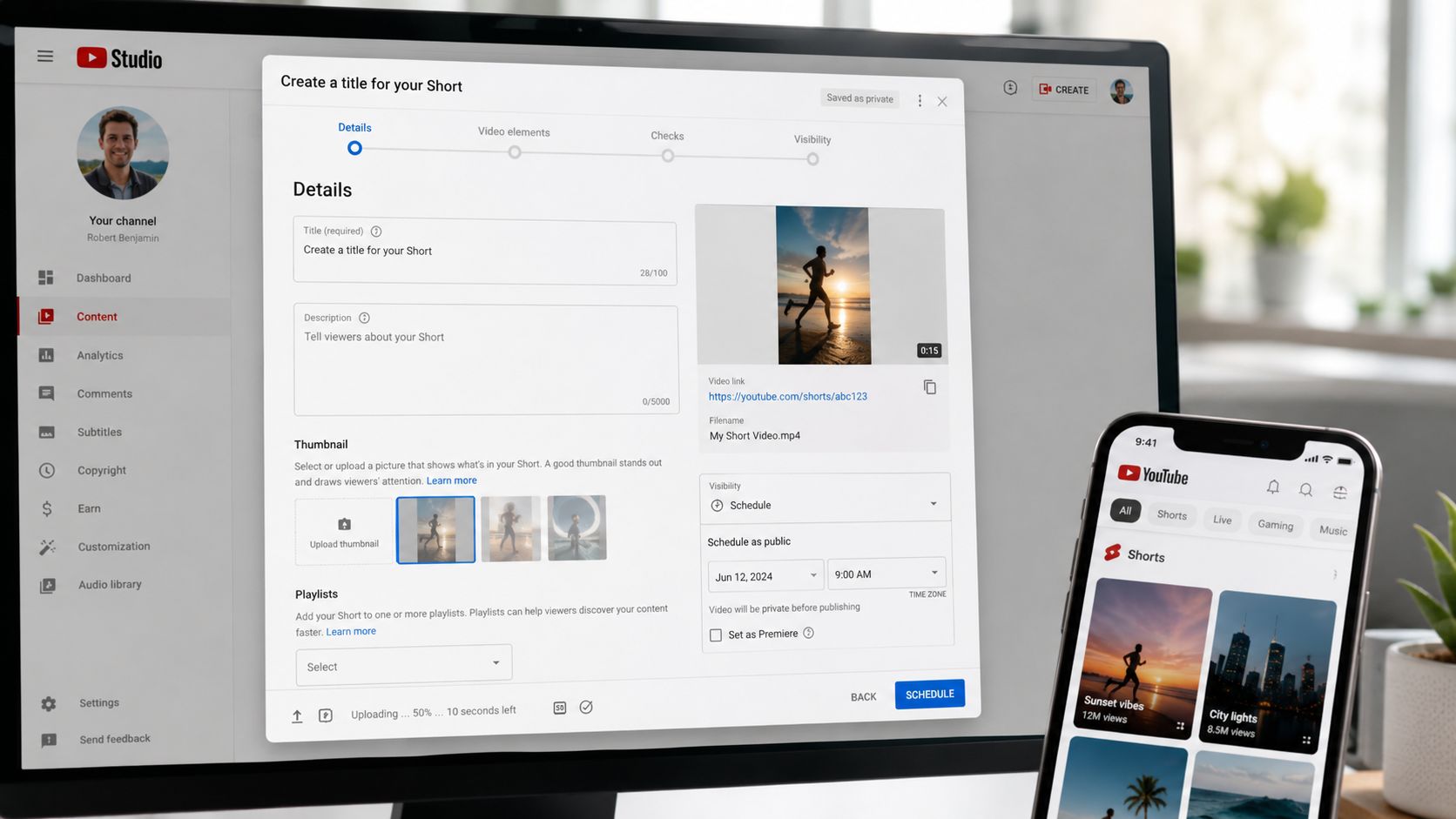
Desktop workflow in YouTube Studio
If I’m scheduling anything important, I use desktop first. It’s easier to review everything before the post goes live, and it gives you cleaner control if you need to edit later.
Use this sequence:
- Sign in to YouTube Studio.
- Open Content.
- Upload your vertical video.
- Fill in the details like title and description.
- In Visibility, choose Schedule instead of Public.
- Set the date and exact time.
- Finish the upload.
If you need to make changes after that, YouTube’s desktop flow is the better place to do it. The editing path is straightforward: go to YouTube Studio > Content, hover over the scheduled video, click Details, then update title, tags, or release time from the details view. That’s much easier than trying to fix timing from your phone.
One useful publishing habit is to set the Short live about an hour before your main audience peak, then let the platform process and distribute before traffic builds. A Postiz scheduling walkthrough outlines this approach and also notes the desktop editing path through the Details screen.
If you need the actual upload steps before scheduling, this guide on how to post YouTube Shorts is a good companion.
Mobile workflow in the YouTube app
Mobile works, but the scheduling option is easier to miss than it should be.
The exact tap path matters. To schedule a Short on mobile, you tap the + icon, upload the video, then tap the “Visibility | Public” arrow next to the clock icon, choose Schedule, and manually enter the date and time. Watch the AM/PM setting carefully. After you hit OK, there isn’t a separate Save button on that screen. The choice auto-saves when you return to the previous menu, as described in this NewTubers scheduling thread.
That missing Save button trips people up. They assume the date didn’t stick, back out, and start over.
Here’s the clean mobile order:
- Select the upload path: Tap +, then Upload a video.
- Open visibility settings: Don’t leave it on Public if you want automation later.
- Confirm the actual publish time: Double-check the clock, date, and AM/PM before final upload.
Later, if you need to revise the title or reschedule, desktop is usually less frustrating.
A quick video walkthrough helps if you prefer seeing the interface before clicking around:
What native scheduling does well and where it slows down
Native YouTube tools are free and reliable for one-off posts. They also keep everything inside YouTube, which reduces moving parts.
The trade-off is scale. Native tools don’t feel efficient when one source video turns into multiple Shorts and each one needs captions, review, and a different publish slot. You can do it. You probably just won’t enjoy doing it repeatedly.
Use native scheduling when you want control over a single upload. Switch workflows when the upload process starts eating creation time.
Using Third-Party Tools for Advanced Scheduling
The bottleneck usually isn’t scheduling one Short. It’s scheduling the fifth one from the same podcast episode.
When native tools stop being enough
A common challenge arises when bridging the repurposing-to-scheduling gap. You’ve got a webinar, interview, demo, or podcast. You cut several clips from it. Now you need captions, formatting, publish times, and a queue that doesn’t require manual uploading every day.
That’s not a YouTube problem. It’s an operations problem.
Based on analysis of 170K+ posts across 1,100+ creators, creators who repurpose long-form content into 5–7 Shorts per episode and schedule them across 3 days see 3.2x higher channel growth than one-off uploads. That same verified data is the clearest case for building a batch workflow instead of relying on random manual posts.
A better batch workflow
For a heavier publishing rhythm, the workflow should look like this:
- Start with one long-form asset.
- Extract multiple short clips from it.
- Add captions.
- Check framing and safe zones.
- Schedule the clips in a staggered sequence.
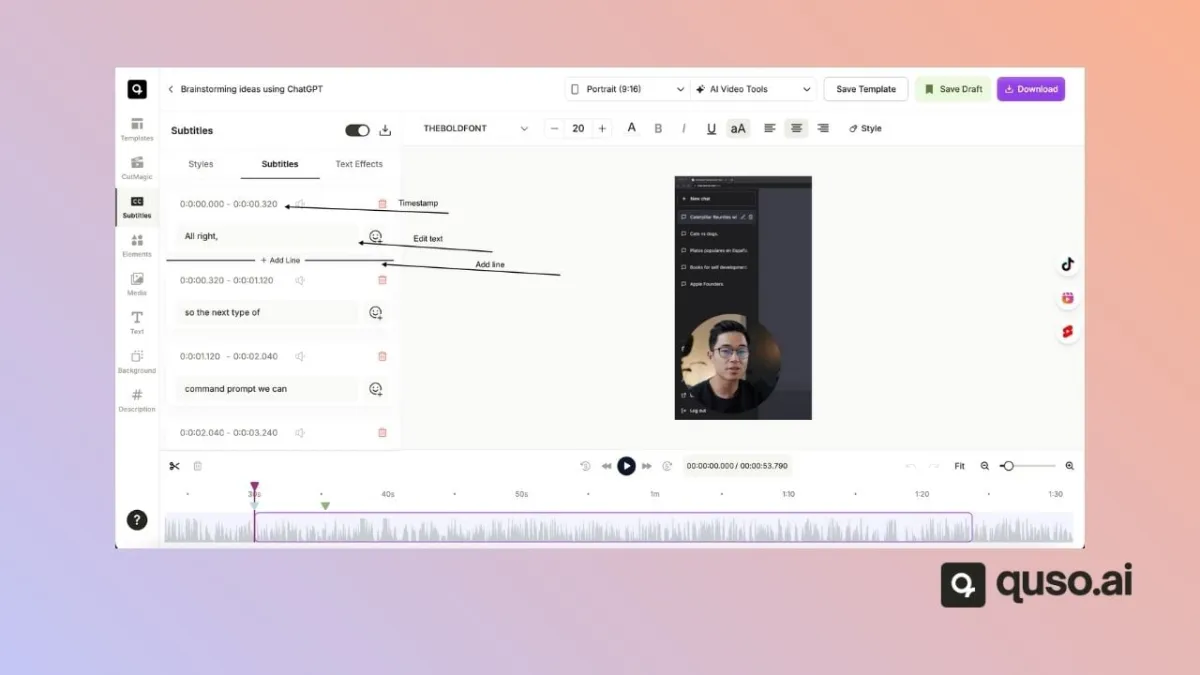
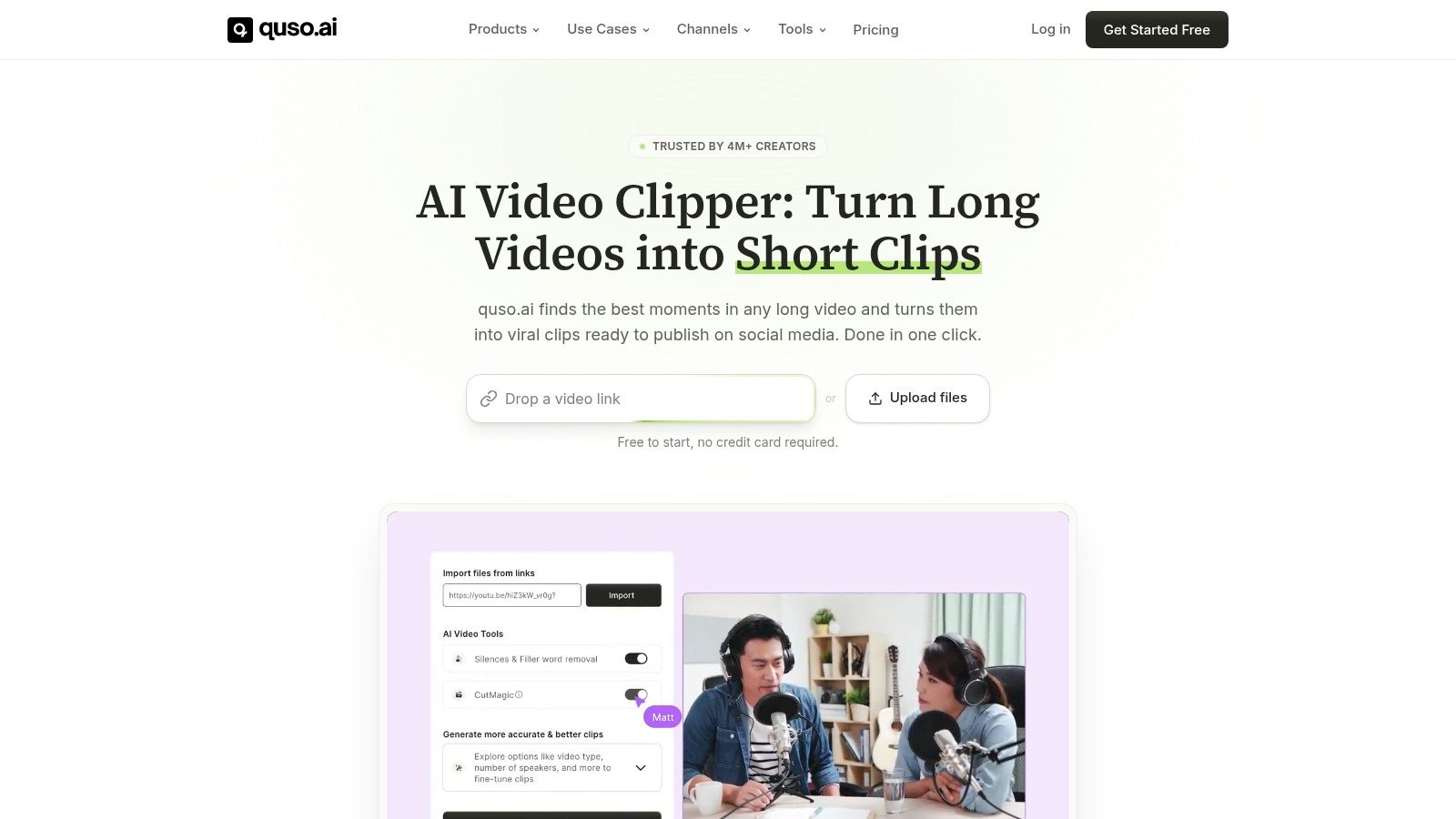
That’s where a tool like quso.ai fits naturally. It’s built for repurposing long videos into short-form clips, adding captions, and scheduling from the same workflow, which is a more practical setup than exporting files and uploading them one by one.
This matters even more if you’re also posting to other short-form channels. A separate scheduler can help you manage one calendar instead of juggling YouTube today, Instagram tomorrow, and TikTok later in the week. If your team handles multiple channels, this guide on how to schedule social media posts is useful for building a cleaner cross-platform process.
A third-party tool isn’t automatically better. It’s better when you have volume, approval steps, or repeatable weekly output.
Best Practices for Scheduled Shorts That Perform
Scheduling a Short is easy. Scheduling one that actually has a fair shot is where most channels slip.
Pick times that fit Shorts behavior
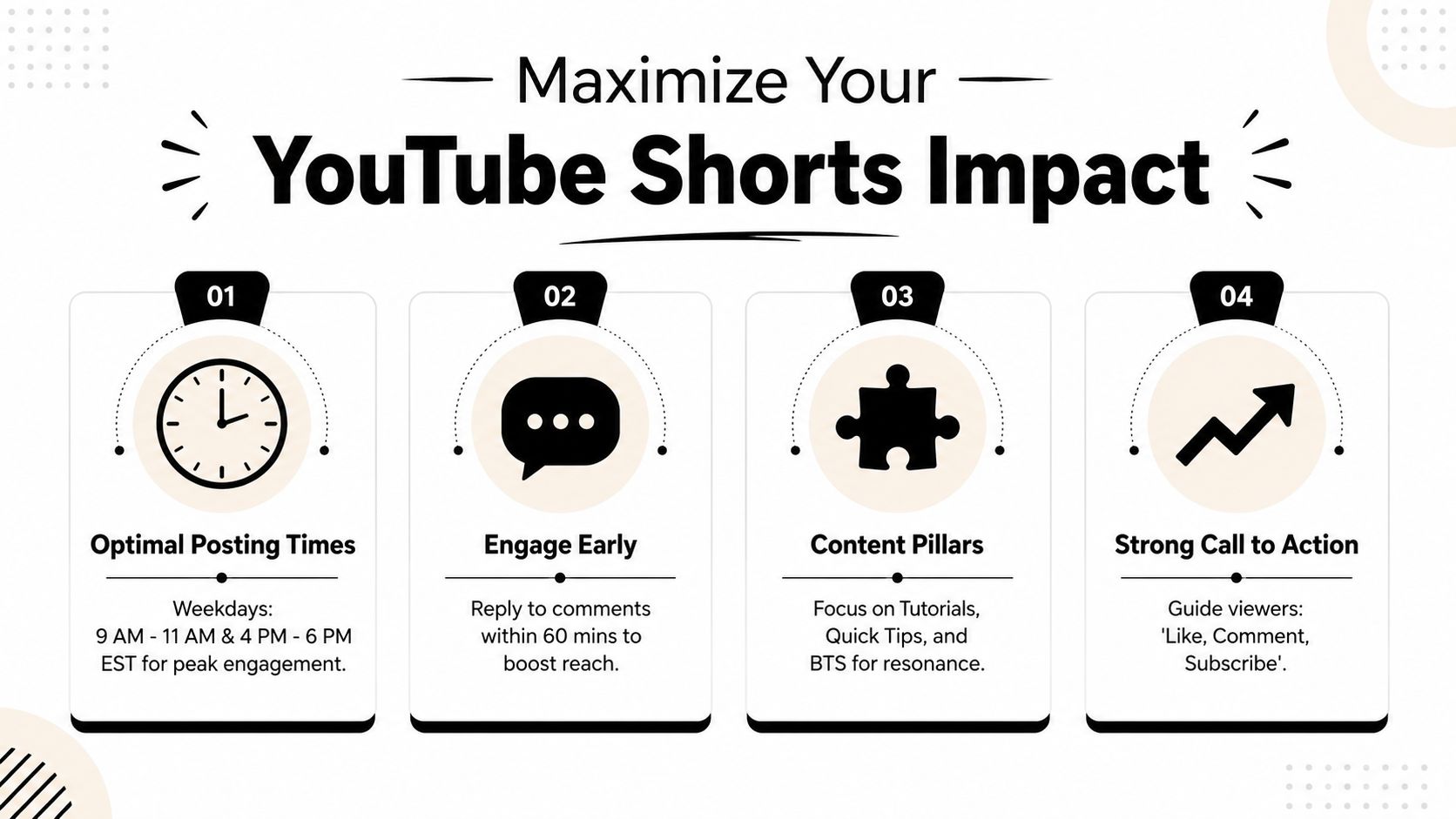
Based on analysis of 1.8 million YouTube Shorts, the highest-performing time slot is Friday at 4 p.m. local time, with the next strongest slots at Friday 6 p.m. and 7 p.m.. The same analysis shows Shorts engagement peaks in the evening, while long-form YouTube videos perform best in the morning between 8 a.m. and 11 a.m., according to Buffer’s YouTube timing study.
That difference matters. Don’t assume the schedule that works for a long tutorial, webinar replay, or product breakdown should also be used for Shorts.
A separate timing reference from Hopper HQ’s Shorts posting guide points to weekday late-morning and early-evening windows as useful secondary options, including Tuesday 11 a.m. to 12 p.m. and strong windows on Monday through Thursday.
Scheduling rule: Treat Shorts and long-form as different products. They don’t peak at the same hours.
Build each Short for the mobile screen
A lot of scheduled Shorts underperform because the content is technically published but visually messy. The YouTube interface overlaps parts of the frame, especially on mobile. If your captions sit too low, or your hook text hugs the edges, viewers won’t see the important part cleanly.
Keep the most important visual and text elements toward the center area of the frame. Leave breathing room at the top, bottom, and side edges. This matters for:
- Caption placement: Don’t pin captions where the UI may cover them.
- On-screen hooks: Put the first line where it’s readable at a glance.
- Face framing and product shots: Keep the subject clear without edge crowding.
If your Shorts come from repurposed long-form video, safe-zone errors are common because the original framing wasn’t built for a vertical feed.
Use a pre-publish checklist
Before you schedule, check the pieces that directly affect whether the Short looks finished:
| Check | What to verify |
|---|---|
| Title | Clear, specific, and not overloaded |
| Description | Relevant context, not keyword stuffing |
| Captions | Accurate and readable on a phone |
| Frame | Important elements stay inside safe zones |
| Timing | Publish time matches audience behavior |
If your team struggles with content timing across campaigns, these Boss as a Service deadline insights are worth reading because the same deadline discipline applies to content calendars. Good scheduling isn’t just a posting tactic. It’s an execution habit.
Common Scheduling Pitfalls and How to Fix Them
Most scheduling mistakes are operational. The clip is fine. The setup is wrong.
You scheduled for your time zone, not your audience’s
This is the big one for global audiences.
Scheduled Shorts publish in the uploader’s time zone, not the viewer’s, and a 2024 YouTube internal update confirmed that Shorts scheduling respects the creator’s locale. Data also shows creators in the US posting for EU audiences at 9 AM PST get 40% fewer views than those posting at 3 PM PST when that aligns with EU prime time, according to this YouTube Shorts update reference.
Symptom: Your content goes live “on time” but misses your audience’s active window.
Cause: You scheduled to your local clock instead of theirs.
Fix: Build your calendar around audience location first. If you serve multiple regions, use separate timing logic for each segment.
The upload went live but didn’t behave like a Short
This usually happens when the file doesn’t match what the platform expects for Shorts, or when the content format feels awkward in-feed.
Symptom: The video publishes, but the presentation feels off or the vertical viewing experience is poor.
Cause: Weak vertical framing, bad crop choices, or content that wasn’t prepared for Short-form viewing.
Fix: Review the clip before scheduling. Check runtime, vertical composition, and readability. If you’re repurposing from a longer video, trim harder and keep the opening tight. This related guide on YouTube video length limits helps when you’re checking the format side.
The scheduled post didn’t publish as expected
Sometimes the issue is simpler than people assume.
- Check visibility settings: Make sure you chose Schedule, not Private or Unlisted.
- Review the scheduled item in YouTube Studio: Desktop gives you the clearest status view.
- Confirm the final time entry: AM/PM mistakes still happen more than they should.
- Inspect metadata edits: If something looks wrong, open the details page and verify the final saved state.
The fastest troubleshooting move is opening the scheduled post in YouTube Studio on desktop and checking the exact visibility and publish time.
Frequently Asked Questions About Scheduling Shorts
Can I edit a YouTube Short after scheduling it?
Yes. In YouTube Studio, open Content, find the scheduled video, and click Details. You can adjust the title, description, tags, and scheduled time before it goes live.
Does scheduling YouTube Shorts hurt reach?
Scheduling itself doesn’t hurt reach. The bigger issue is whether you scheduled the Short for a useful time and whether the clip is strong enough to hold attention once it goes live.
What’s the difference between Private and Scheduled?
A Private video stays hidden unless you explicitly share access. A Scheduled video stays unpublished until the set date and time, then goes public automatically.
Why can’t I see the Schedule option on mobile?
Usually the app needs an update, or the option is hidden deeper than expected in the visibility menu. On mobile, look for the Visibility | Public dropdown rather than expecting a separate scheduling button on the main upload screen.
How far in advance should I schedule YouTube Shorts?
Far enough that your calendar stays consistent, but not so far that you forget to review what’s queued. A practical approach is to schedule in batches, then recheck titles, captions, and publish times before the content goes live.
If you’re turning podcasts, webinars, demos, or long YouTube videos into a steady stream of Shorts, quso.ai makes that workflow easier by handling repurposing, captions, and scheduling in one place.