YouTube Video Length Limit a 2026 Creator Guide

YouTube’s video length limit is 15 minutes for unverified accounts and up to 12 hours or 256 GB, whichever comes first, for verified accounts. If you’re uploading a podcast, webinar, lecture, or event recording right now, that split is the difference between posting once and having to cut your source file before you even start repurposing clips.
Teams often get tripped up in one of two places. Either they assume verification means “unlimited,” or they focus only on duration and forget the file size cap. Both mistakes create ugly workflow problems later, especially when the long-form upload is supposed to feed Shorts, social clips, and captioned cutdowns across multiple channels.
Table of Contents
- The YouTube Video Length Limit Explained in 30 Seconds
- YouTube Video Limits A Detailed Breakdown
- How to Lift the 15-Minute Limit by Verifying Your Account
- Beyond the Limit Strategic Content Planning
- Advanced Troubleshooting for Upload Failures
- Frequently Asked Questions
The YouTube Video Length Limit Explained in 30 Seconds
The YouTube video length limit depends on account status and format. For standard videos, unverified accounts are capped at 15 minutes, while verified accounts can upload up to 12 hours or 256 GB, whichever is smaller, after Google Account verification by text message or automated voice call, according to YouTube’s upload limits guidance.
Shorts are separate. For vertical or square videos uploaded after October 15, 2024, YouTube Shorts can run up to 3 minutes, as noted in this Shorts length reference.
That’s the essential answer. The practical part is deciding whether your video should stay long, be split before upload, or be planned from the start as one long-form asset plus a batch of short clips.
Practical rule: Check account verification first, then check file size, then check format. That order prevents most avoidable upload problems.
YouTube Video Limits A Detailed Breakdown
The limits that matter day to day
If you manage uploads for creators, marketers, or a podcast team, keep this table handy.
| Category | Maximum Length | Maximum File Size |
|---|---|---|
| Unverified standard video | 15 minutes | Not separately specified here |
| Verified standard video | 12 hours | 256 GB |
| YouTube Shorts | 3 minutes | Not separately specified here |
| Live stream archive | Follows standard upload constraints after processing | Follows standard upload constraints after processing |
The Shorts row matters because teams often confuse “vertical video” with “Short.” That isn’t enough by itself. The video also has to stay within the Shorts limit if you want YouTube to categorize it that way.
Why the rules look like this
YouTube didn’t start with today’s limits. In March 2006, the platform introduced a 10-minute upload limit because most longer uploads were unauthorized content. That restriction stayed in place until July 2010, when YouTube raised the default limit to 15 minutes for all users, then started removing the time limit for select compliant users in December 2010, according to this history of YouTube upload specifications.
That history matters because it explains why verification is built into the workflow. YouTube treats longer uploads as a trust issue as much as a storage issue. Verification isn’t a random hoop. It’s the gate between casual uploading and serious long-form publishing.
Two operator takeaways come from that:
- Verification is table stakes: If you publish webinars, courses, podcast episodes, interviews, or recorded demos, staying unverified creates unnecessary friction.
- Shorts and long-form serve different jobs: A Short is for discovery. The long upload is the archive, episode, or full watch experience.
Don’t plan with only the publishing surface in mind. Plan with the source asset in mind, because that’s what you’ll cut from later.
How to Lift the 15-Minute Limit by Verifying Your Account
If your channel is stuck at 15 minutes, the fix is simple.
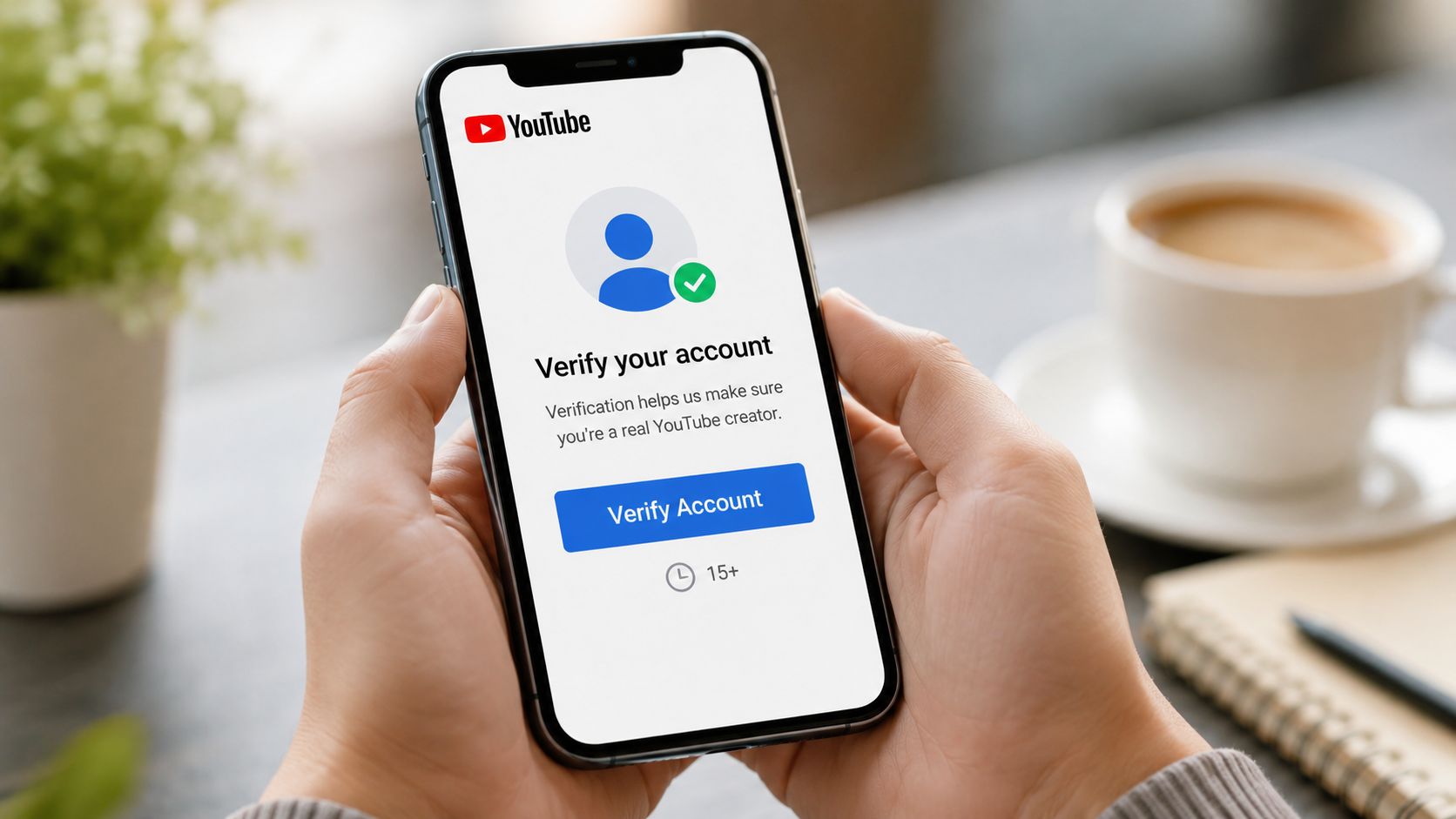
What to do right now
- Sign in to the Google account that owns the YouTube channel.
- Open YouTube Studio or your account settings tied to channel features.
- Find the option to verify the account.
- Enter a phone number.
- Choose text message or automated voice call.
- Enter the verification code you receive.
- Retry the upload after verification is complete.
That verification step is what enables uploads beyond the default cap. If you need a broader walkthrough for the full publishing flow, this guide on how to upload video to YouTube is a good operational reference.
What verification actually changes
Verification changes your ceiling from 15 minutes to YouTube’s higher upload limits for standard videos. It does not mean every oversized file will upload cleanly. It also doesn’t override later issues like bitrate-heavy exports, browser timeouts, or file-size-related failures.
That distinction matters because people often verify the account, see the restriction removed, and assume the problem is solved for every long file. It isn’t.
A quick visual walkthrough helps if you’re doing this for the first time:
If you run a team workflow, verify every channel before the production calendar gets busy. Doing it on upload day is where delays start.
Beyond the Limit Strategic Content Planning
A team records a 90-minute podcast on Tuesday, exports a high-quality master on Wednesday, and plans to publish clips for the next three weeks. The upload limit matters, but the bigger workflow call is packaging. Should that recording stay as one full episode, become a tighter edited version, or feed a clip pipeline that keeps the channel active long after the main upload goes live?
Length affects monetization and packaging
Videos longer than 8 minutes are eligible for mid-roll ads, which matters for monetized channels, according to this breakdown of ideal YouTube video length. That should shape editing decisions for teams publishing podcasts, interviews, classes, and webinars. A weak section should not stay in the cut just to cross 8 minutes, but a strong video that lands at 7:40 deserves a second pass before you publish.

For long-form operators, the content usually breaks into three working assets:
- Full-length assets: Podcasts, webinars, interviews, workshops, product demos.
- Mid-length edits: Tighter YouTube cuts that remove dead air, repeated points, or housekeeping.
- Short distribution clips: Vertical or square edits built for discovery and follow-on traffic.
That structure keeps the master recording useful.
Plan the source video and the clip workflow together
The main upload should be treated as the source library, not the finish line. Based on our analysis of 170K+ posts across 1,100+ creators, videos under 60 seconds consistently perform better on engagement metrics. For a content team, that changes production planning from day one. You are not only editing for the full episode. You are also collecting clean clip moments, reaction beats, strong hooks, and standalone answers while reviewing the timeline.
A practical workflow looks like this:
- Record long once: Capture the full conversation, training, or event as the master asset.
- Edit the archive version separately: Keep the complete watch experience available for viewers who want the full session.
- Cut a cleaner YouTube version if needed: Remove long pauses, off-topic tangents, tech checks, and repeated intros.
- Pull clips with one idea each: Good short clips usually answer one question, make one argument, or show one reaction.
- Place captions safely: Keep text away from the bottom edge and other UI-heavy areas so controls do not cover key words on vertical edits.
- Space out distribution: Schedule clips over days or weeks instead of posting them in a batch.
Shorts need their own publishing plan too. If your team is turning long recordings into vertical clips, this guide on how to post YouTube Shorts covers the channel-side setup and publishing details.
Tool choice matters here, but only if it removes manual work. A repurposing tool earns its place when it helps editors find usable moments faster, generate captioned cuts, and hand scheduled assets to the publishing team without extra file passing or reformatting.
The teams that handle long-form well do one thing consistently. They decide the full-video format and the clip plan before recording starts, not after the upload is finished.
Advanced Troubleshooting for Upload Failures
Your team exports a three-hour webinar, the runtime is within YouTube’s limit, and the upload still dies near the end. That usually means the workflow failed before the platform limit did.
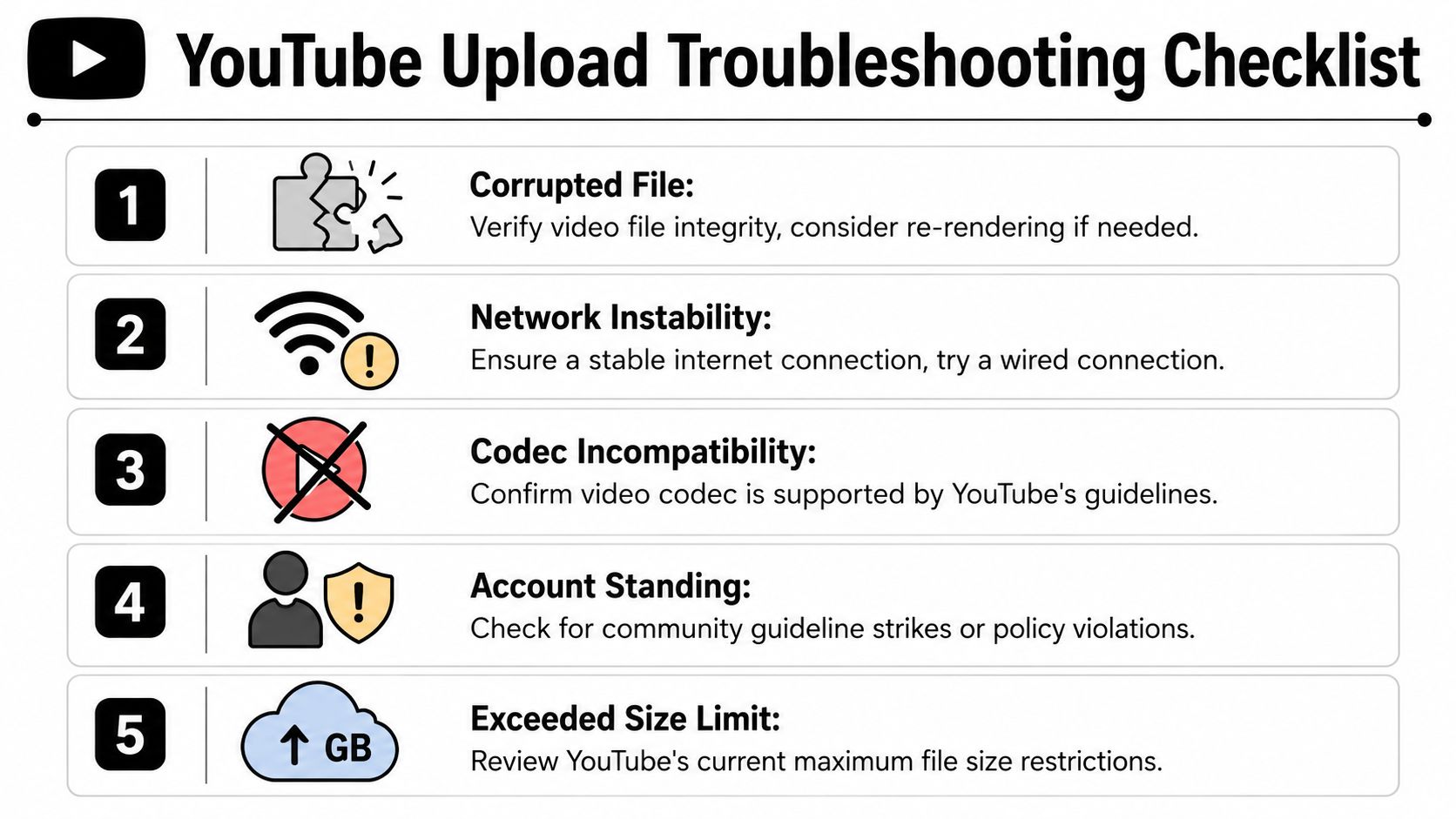
The common trap: file size, not just runtime
YouTube’s hard cap is 256 GB or 12 hours, whichever is less, according to YouTube Help on upload requirements. Teams handling long webinars, podcasts, and event recordings get caught by the second part of that rule.
A video can sit comfortably under 12 hours and still fail because the export is too large. High bitrate 4K files are a common reason. Long-form teams run into this more than short-form teams because archive exports are often built for quality first, upload reliability second.
That changes the editing workflow. Check runtime and file size before anyone starts an overnight upload. If the file is too heavy, lower the bitrate, export a platform version separate from the master archive, or split the recording into parts your team can retry without losing a full day.
When browser uploads keep failing, change the upload route
If the same file stalls in the browser more than once, stop repeating the same upload attempt. Change one variable first.
One practical option is the YouTube Studio mobile app. Another is exporting a lighter upload copy for YouTube while keeping the high-quality master in storage. For long-form teams, that split matters because the source file used for clipping does not need to be the same file used for publishing the full episode.
Splitting the archive can also help. A two-part webinar or conference session is easier to re-upload, easier to review in YouTube Studio, and easier to hand off for repurposing. Editors can pull short clips from cleaner source segments instead of scrubbing through one massive timeline. If your team wants a separate reference for platform caps and edge cases, keep this guide to YouTube uploading limits and file restrictions in your internal docs.
Retry checklist for long-form uploads
Run these checks in order:
- Confirm the channel is verified. If it is not, fix that first.
- Check total file size. Do not judge upload safety by duration alone.
- Review export settings. Bitrate is often the first place to look.
- Retry with a different upload path. If browser upload fails repeatedly, test the mobile app.
- Split very large recordings. This cuts retry time and gives your editing team cleaner source chunks.
- Review the published version for clip usability. A successful long-form upload still creates extra work if captions, lower-thirds, or burned-in graphics block your later vertical crops.
That last step gets missed. Upload failure is not always technical. For repurposing teams, a full video can publish fine and still fail operationally because the framing, text placement, or baked graphics make Shorts edits harder to produce. Keep source files clean, keep text away from UI-heavy areas, and preserve enough headroom in the frame for vertical crops later.
Frequently Asked Questions
What is the maximum YouTube video length for a verified account?
A verified account can upload up to 12 hours or 256 GB, whichever limit is reached first. Verification is done through your Google Account using a phone-based text or automated voice call flow, as covered earlier.
How long can an unverified YouTube account upload?
An unverified account is limited to 15 minutes for standard video uploads. If you’re hitting that cap, verification is the first fix.
How long can a YouTube Short be?
A YouTube Short can be up to 3 minutes if it’s a vertical or square upload that fits the platform’s Shorts rules for uploads after October 15, 2024. If it runs longer than that, don’t expect it to behave like a Short.
Does a YouTube video need to be 8 minutes long to make money?
No. A video doesn’t need to be 8 minutes long to be monetized. The 8-minute threshold matters because videos longer than that are eligible for mid-roll ads, which can improve revenue options for monetized channels.
What happens if my video is under 12 hours but still won’t upload?
The usual reason is file size, export settings, or upload-path failure. A video can be under the duration cap and still break the 256 GB limit or fail during browser upload. Check file size first, then retry with a different upload route if needed.
If your team records long webinars, podcasts, demos, or event sessions, quso.ai helps turn those source videos into short clips with captions and scheduled posts, without building a manual repurposing workflow from scratch.