7 Closed Caption Fails and How to Fix Them
Closed caption fails usually come from inaccurate transcription, poor cleanup, lost context, or text hidden beneath platform interface elements. Automatic captions can fall to 60–70% accuracy in some YouTube studies, meaning roughly one in three words may be wrong, while even a 95% accuracy rate can leave an eight-word sentence with an average error about once every 2.5 sentences.
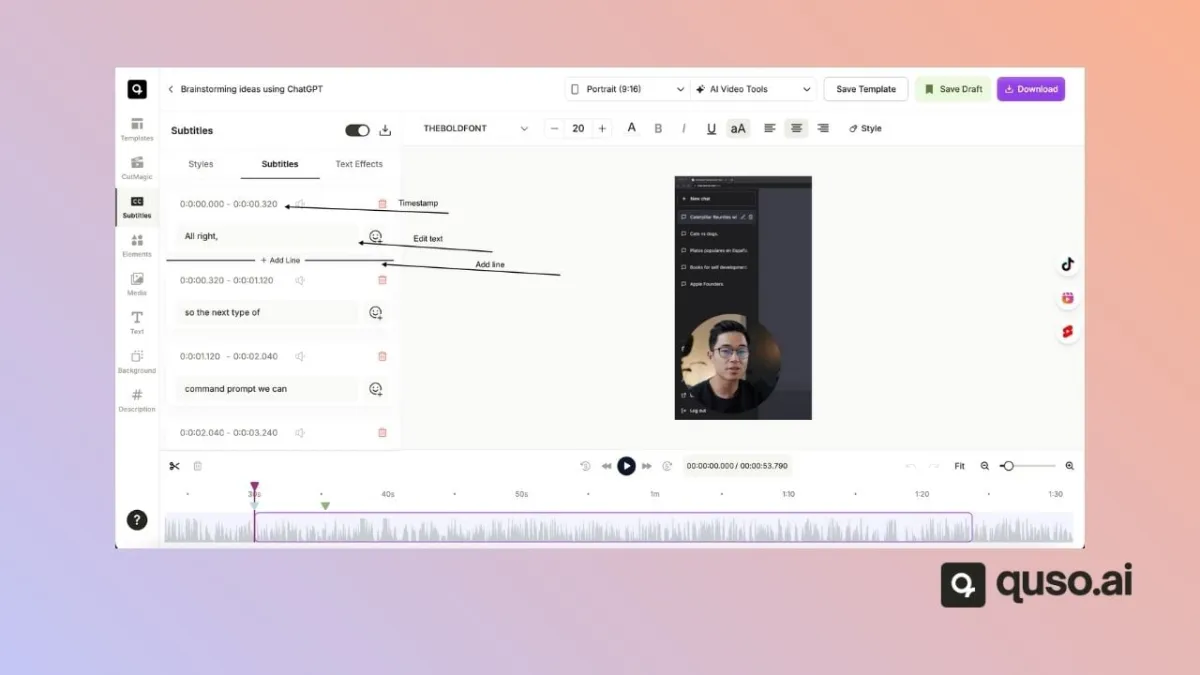
That’s why a good video can publish with bad captions. A coach’s key phrase changes meaning, a SaaS brand becomes unrecognizable, or a carefully edited subtitle disappears behind TikTok’s controls. This checklist covers seven closed caption fails at the points where repurposing workflows break: transcription, editing, interpretation, and platform delivery. Each example includes a before-and-after correction, the strategic risk, a review tactic, and a safe-zone check before scheduling short clips from long-form video. Before publishing, also check quso.ai for an existing near-duplicate on this topic so your team doesn’t create competing content. Related internal resources can include a transcription guide, a filler-word removal tool, and a burned-caption workflow.
Table of Contents
- 1. Homophone Confusion
- 2. Mumbled Words and Slurred Speech Transcription
- 3. Brand Names, Acronyms, and Proper Nouns Capitalization Errors
- 4. Incorrect Word Boundaries and Concatenation
- 5. Numbers, Statistics, and Numerical Data Misinterpretation
- 6. Filler Words and Verbal Tics Appearing in Captions
- 7. Platform-Specific Caption Safe Zone Overlap and Text Cutoff
- Comparison of 7 Closed-Caption Failures
- Turn Caption Review Into a Publishing Gate
1. Homophone Confusion
Homophones sound alike but carry different meanings. Automatic captioning systems can select the wrong spelling when the surrounding sentence doesn’t provide enough context, turning a minor transcription error into a visible credibility problem.
A coach might say:
“Your success depends on effort.”
The caption appears as:
“You’re success depends on effort.”
A B2B SaaS founder might say, “Their platform integrates with ours,” while the caption reads, “There platform integrates with ours.” Those mistakes can spread across every short clip created from the same webinar, interview, or training session.
The risk isn’t only grammatical. In professional content, incorrect possessives and contractions can make a knowledgeable speaker look careless. Viewers may not distinguish between an automated caption error and a speaker’s editing standard, particularly when the clip is a sales explanation or educational lesson.
Before scheduling
Review high-stakes homophones during the editing stage, not after the clips are live. Scan for:
- Possessives: your, their, its
- Contractions: you’re, they’re, it’s
- Location words: there, where, here
- Common sound-alikes: to, too, two
A simple find-and-replace list can catch recurring patterns across exports from one source video, but it can’t decide every instance correctly. “You’re” and “your” require sentence-level judgment, so use automated replacement as a first pass and manual review as the publish gate.
Safe-zone check
Correct wording still fails if the caption sits under a platform’s buttons or metadata. Preview the corrected line in the intended vertical frame, then confirm it remains readable in the central safe area rather than relying on the original long-form layout.
2. Mumbled Words and Slurred Speech Transcription
Muffled audio, overlapping speakers, background noise, and casual speech patterns create some of the strangest caption errors. A podcast host may say “fundamentally,” but the caption produces “fun mentally” or “fund mentally.” A quickly spoken “algorithm” can become “alga rhythm.”
These errors are common in podcast clips, interviews, livestreams, and informal creator content because the speaker’s delivery changes faster than the transcription system can resolve it. A sentence such as “I think we should reconsider” may appear as “I think we should wreck consider,” changing a clear recommendation into nonsense.
The first review should happen immediately after transcription. Don’t wait until a batch of short clips is already edited and queued. This guide to transcribing a video to text can fit into a workflow where the transcript is checked before clip selection and scheduling.
Fix the audio problem first
Caption correction is easier when the source audio is usable. Listen through the long-form recording and mark sections with:
- Background interference: air conditioners, traffic, keyboard noise, or room echo
- Speaker overlap: two people talking over each other
- Fast delivery: compressed words and dropped endings
- Low volume: a speaker fading beneath music or another track
Clean or re-record critical sections when possible. If the audio can’t be recovered, use a deliberate text overlay for the essential phrase rather than pretending the automated caption is reliable.
Practical rule: If a number, product name, or recommendation is hard for a human reviewer to hear, it’s high risk for an automatic caption system too.
Safe-zone check
Place the replacement caption where viewers can read it without covering the speaker’s mouth or key visual evidence. A centered caption may work for a talking head, but a product demo often needs a higher position so the interface and the product remain visible.
3. Brand Names, Acronyms, and Proper Nouns Capitalization Errors
Automatic captions often treat brand names and acronyms like ordinary speech. “YouTube” can become “you tube.” “AI” may appear as “a.i.” or “ay.” “OpenAI” can turn into “open a.i.” or “open ay.”
For SaaS marketers, the problem is more serious than capitalization. A misspelled tool name can obscure the product being discussed, weaken a partnership announcement, and make a clip look unreviewed. If the same long-form recording produces several social clips, one unchecked correction can propagate everywhere.
Consider this before-and-after example:
- Before: “We integrate with zapier.”
- After: “We integrate with Zapier.”
The same principle applies to customer names, software features, technical standards, company names, and industry acronyms. A caption that says “s.e.o.” may be technically understandable, but a consistent brand style usually calls for “SEO.”
Build a reference list
Before cutting the source video, list every proper noun that appears in it. Include your company, customers, tools, people, product features, acronyms, and industry terms. Then use that list to review the first captions of every clip, where speakers often introduce the subject.
For recurring content, add approved spellings to the caption template. Find-and-replace can standardize capitalization across exports, but don’t let it overwrite a legitimate lowercase use or a different company name with a similar sound.
Safe-zone check
Review names and acronyms at their actual display size. A caption may be technically present but too small, crowded, or positioned against a bright background. Keep brand references short enough to fit comfortably in the readable center area, especially when platform controls reduce the available frame.
4. Incorrect Word Boundaries and Concatenation
Sometimes the words are mostly correct, but the spaces are missing. “Get in here” becomes “getinhere.” “You know” becomes “younow.” “Hold up” becomes “holdup.” Viewers then have to decode the caption while the speaker continues talking.
This error is especially jarring in conversational clips. A podcast introduction such as “Alright, let’s jump in here, folks” might appear as “alright letsjumpin here folks.” In a coaching video, “The key is you need to focus” can become “the key isyouneed tofocus.” A product demo might render “Watch how this works” as “watch howthis works.”
The meaning may survive, but comprehension slows down. Short-form viewers make quick decisions about whether a clip is worth watching, and awkward word boundaries signal that nobody checked the export.
Inspect the caption line itself
Read captions character by character during clip export. Don’t only listen to the audio and glance at the general meaning. Rapid speech deserves a focused pass because the caption engine may repeatedly join short words.
If the problem appears throughout a recording, test a short sample before processing the full batch. A platform-native editor can usually insert spaces directly. For a particularly fast or unclear segment, re-recording the key sentence may take less time than repairing every caption event manually.
Safe-zone check
Word breaks become harder to read when captions sit too close to the frame edge or overlap interface elements. Keep lines inside a consistent central region, then check the uploaded preview on each target platform before scheduling the rest of the batch.
5. Numbers, Statistics, and Numerical Data Misinterpretation
Numbers deserve their own review pass because a single dropped symbol can change a claim. Automatic captions may render a year as separate digits, miss a percentage, or turn a currency amount into an awkward phrase. The spoken meaning and the displayed meaning can diverge even when the rest of the sentence looks clean.
A SaaS marketer might say, “Our platform reduces onboarding time by 75%,” while the caption displays “7.5%.” A case-study clip could turn “$2.3 million” into “two point three million” without the currency context. A pricing statement such as “$99 per month” might appear as “nine-nine per month.”
The FCC describes caption accuracy as matching the spoken words in the original language and order, without substituting proper names or places or paraphrasing except where timing requires it. Its worked example calculates 99% accuracy from 7,000 total words and 70 errors in the FCC captioning requirements explanation. For marketers, the operational lesson is simple: numerical claims need verification, not trust.
Create a number source of truth
Before repurposing, make a short reference list of every price, date, percentage, measurement, and revenue figure in the recording. Compare each caption against that list during export. For critical claims, add matching on-screen text so viewers can verify the number visually.
Use a consistent formatting rule, such as digits instead of spelled-out numbers, when your brand style allows it. If a number carries the entire point of the clip and the audio is unclear, re-record that sentence in isolation rather than publishing an uncertain claim.
Safe-zone check
Numbers must remain visible long enough to read and must not sit beneath buttons, handles, or timestamps. Preview the complete caption and any supporting graphic together, because a correctly transcribed number can still disappear behind platform UI.
6. Filler Words and Verbal Tics Appearing in Captions
Automatic captions capture what speakers say, including “um,” “like,” “uh,” “you know,” and repeated openings. That’s accurate transcription, but it isn’t always good editorial judgment.
A coaching clip might display:
“So, like, um, you know, the key is, basically, to focus on…”
A cleaner version reads:
“The key is to focus on…”
The difference matters most in professional and educational content, where excessive filler makes the message harder to scan. Casual creators may keep some verbal texture because it reflects personality. A polished LinkedIn thought-leadership clip may need a tighter edit.
Set the policy before editing
Choose whether the workflow will keep all filler, remove it, or clean it selectively. Apply the same decision to every clip from the source recording so one version doesn’t sound polished while another preserves every hesitation.
A bulk removal workflow can handle recurring terms, but human review remains necessary because “like” can be either a filler word or a meaningful verb. For high-stakes content, clean the transcript and the audio together when possible. Removing a captioned “um” while leaving a long audible pause can make the edit feel unnatural.
The filler-word removal tool can support this cleanup step before a team schedules a set of clips.
Safe-zone check
Shorter captions create more room, but don’t use that space to push text into the interface. Keep the cleaned line in the same readable safe area and confirm that removing filler hasn’t created abrupt timing or a caption that flashes too quickly.
7. Platform-Specific Caption Safe Zone Overlap and Text Cutoff
A caption can be perfectly transcribed and still fail after upload. Each platform adds its own controls, buttons, handles, timestamps, metadata, and engagement elements. Text positioned safely on one player can be obscured on another.
A vertical clip may look fine on YouTube but place bottom captions beneath TikTok’s like, comment, and share controls. A LinkedIn clip can lose words near the right-side profile area. On Instagram Reels, bottom-aligned text may compete with the handle, timestamp, and sound indicator.
This is a delivery failure rather than a spelling failure, but viewers experience both as unreadable captions. The same exported file shouldn’t automatically receive the same caption placement across every destination.
Export for the destination
Document the top, bottom, and side areas where each platform’s interface overlaps the frame. Position captions within the usable center area, then create separate versions when the layout differs substantially.
A practical workflow is:
- Choose a primary platform: Design the first caption preset around the channel that matters most.
- Preview native controls: Use the platform’s upload preview to identify actual overlap.
- Test one clip: Publish or preview one sample before scheduling the full batch.
- Create platform variants: Reposition captions for distinct layouts rather than forcing one compromise export.
Burned captions into video can be useful when you need consistent visible text in a platform-native short, but placement still needs a destination-specific check. Motion graphics teams may also find this safe-zone perspective from motion graphics studios useful when caption styling is part of a larger visual system.
Captions aren’t finished when the words are correct. They’re finished when viewers can read them on the platform where the clip will appear.
Comparison of 7 Closed-Caption Failures
| Issue | Implementation complexity | Resource requirements | Expected outcomes | Ideal use cases | Key advantages |
|---|---|---|---|---|---|
| Homophone Confusion (Your/You’re, Their/There/They’re) | Low, checklist or find-replace workflow | Low, manual scans, correction templates | Restored professionalism; fewer visible grammar errors | B2B, SaaS, LinkedIn, YouTube short clips | Predictable errors; easy bulk fixes |
| Mumbled Words and Slurred Speech Transcription | High, audio cleanup or re-recording often required | High, audio tools, time for review, possible re-edits | Accurate, intelligible captions but time-consuming to achieve | Podcasts, interviews, livestream clips with variable audio | Obvious errors once spotted; localized fixes by timestamp |
| Brand Names, Acronyms, and Proper Nouns Capitalization Errors | Low, build and apply a brand/acronym dictionary | Low to moderate, reference list and bulk find-replace | Consistent branding and improved credibility across clips | SaaS marketing, demos, case studies, brand mentions | Predictable pattern; easy to standardize globally |
| Incorrect Word Boundaries and Concatenation | Moderate, word-by-word review or rephrasing segments | Moderate, manual editing per clip; platform editors | Improved readability; avoids unintended meanings | Rapid-speech short clips, coaching, casual podcasts | Visible early; straightforward to correct |
| Numbers, Statistics, and Numerical Data Misinterpretation | Moderate to high, verify numbers and apply formatting rules | Moderate, reference verification, overlays or templates | Accurate factual claims; reduced compliance and credibility risk | Pricing, ROI claims, regulated industries, case studies | Errors are obvious; can be standardized with templates/graphics |
| Filler Words and Verbal Tics Appearing in Captions | Low to moderate, policy + bulk find-replace or manual edits | Moderate, batch editing across many clips, editorial policy | Cleaner, more professional captions (may reduce perceived authenticity) | Professional content (LinkedIn, YouTube); optional for casual platforms | Easy to identify and remove; bulk removal possible |
| Platform-Specific Caption Safe Zone Overlap and Text Cutoff | Moderate, create per-platform caption presets and placement rules | Moderate to high, testing on each platform, multiple caption tracks | Readable captions across platforms; fewer post-publish re-exports | Multi-platform repurposing (TikTok, IG Reels, YouTube, LinkedIn) | Preventable with presets; native editors support repositioning |
Turn Caption Review Into a Publishing Gate
Treat caption review as a publishing gate, not a cleanup task after scheduling. Closed-caption guidance commonly uses a 99% or higher accuracy benchmark, while accessibility guidance from Harvard and the University of Denver warns that autogenerated ASR captions need human review. The University of Denver also recommends no more than two lines and 32 characters per line, with urgent public-facing video remediated within 24 hours. Its guidance warns against publishing unreviewed captions because burned-in errors are difficult to correct later. See the University of Denver closed-captioning statement for those practical requirements.
Use four repeatable review passes:
- Transcription accuracy: Check homophones, mumbled phrases, names, acronyms, and word boundaries.
- Editorial cleanup: Apply the filler-word policy, punctuation, capitalization, and line-length rules.
- Meaning preservation: Verify numbers, pricing, percentages, technical claims, speaker changes, and relevant non-speech cues.
- Platform delivery: Check timing, readability, contrast, text placement, and safe-zone overlap on every destination.
A peer-reviewed MOOC caption study recorded 525 errors in 68 minutes, or 7.7 errors per minute, and concluded that automatic captioning alone didn’t meet applicable quality expectations. That example reinforces the need to sample captions before a long-form recording becomes a scheduled batch. Closed-caption quality can degrade even when captions exist, and a 2024 accessibility survey found that 47.8% of experts surveyed named videos without captions as the top digital accessibility blunder. Those findings are cited in the survey coverage from Verbit and the MOOC captioning discussion from 3Play Media.
Before scheduling, compare the flawed and approved versions:
- Words: “There platform integrates with…” becomes “Their platform integrates with…”
- Numbers: “7.5%” becomes the verified spoken percentage.
- Names: “open a.i.” becomes “OpenAI.”
- Boundaries: “watch howthis works” becomes “Watch how this works.”
- Filler policy: Remove or retain verbal tics consistently.
- Readability: Keep captions synchronized, legible, and within the chosen line limits.
- Placement: Move captions away from platform controls and device-specific UI.
Caption availability also isn’t enough if viewers can’t find or control it. The FCC’s 2024 rule requires covered manufacturers and multichannel video programming distributors to make caption display settings readily accessible, testing proximity, discoverability, previewability, consistency, and persistence, with compliance required by August 17, 2026. The FCC rule summary from Wiley Rein explains why caption controls can fail even when captions are technically present.
For creators and B2B teams, a repurposing platform can handle the repetitive work of clipping, caption generation, and scheduling, but human review should remain mandatory for names, numbers, claims, meaning, and placement. Build the gate into the workflow before the queue fills, then approve only the versions that pass all four checks.
FAQ
What are closed caption fails?
Closed caption fails are errors that make captions inaccurate, incomplete, poorly timed, difficult to read, or hidden by platform interface elements. Common examples include wrong homophones, misspelled names, merged words, incorrect numbers, excessive filler, and unsafe text placement.
Why do automatic captions make mistakes?
Automatic caption systems interpret audio without reliably understanding every speaker, accent, noise pattern, proper noun, number, or contextual distinction. Muffled audio, overlapping speech, fast delivery, and platform-specific display layouts increase the chance of failure.
How do I fix captions before posting?
Review the transcript before selecting or scheduling clips. Correct wording, names, numbers, word breaks, punctuation, filler, timing, and line length, then preview the captioned video on each destination platform.
Should captions be edited for each platform?
Yes. A caption position that works on YouTube may be covered by controls on TikTok, Instagram, or LinkedIn. Create platform-specific caption presets or exports when interface overlap differs.
How do safe zones affect caption readability?
Safe zones keep text away from buttons, handles, timestamps, metadata, and other interface elements. Captions outside those areas may be technically present but partially hidden, forcing viewers to guess the missing words.
quso.ai helps creators and B2B content teams turn long videos into short clips, generate captions, clean recurring caption issues, and schedule content for distribution. Visit quso.ai to build a caption review step into your repurposing workflow before the next batch goes live.