LinkedIn Video Size: 2026 Specs & Export Settings Guide
A standard organic LinkedIn video post can be up to 5GB, should be uploaded as MP4, and should stay within 10 minutes for the common feed-post workflow. If you want the safest default for feed performance, export in 4:5 rather than 16:9 so the video takes up more screen space on mobile.
You’re usually not looking this up because you love specs. You’re looking it up because a post is about to go live, an upload failed, or a horizontal webinar clip looks tiny in the feed. This is the problem with LinkedIn video size. The file can be technically valid and still be the wrong format for how people consume content.
For B2B teams, the fix is simple. Know the hard limits first, then choose the ratio based on the feed, not based on how the original recording was captured.
Table of Contents
- LinkedIn Video Size The Definitive Specs
- LinkedIn Video Specs Quick Reference Table
- Which Aspect Ratio Performs Best on LinkedIn
- Practical Video Export Settings for LinkedIn
- Designing for the LinkedIn UI and Safe Zones
- How to Repurpose Long Videos for LinkedIn
- Common LinkedIn Video Upload Errors and Fixes
- Frequently Asked Questions about LinkedIn Video
LinkedIn Video Size The Definitive Specs
The core LinkedIn video size specs for a normal organic feed upload are straightforward: 5GB max file size, MP4 or MOV with H.264, and a practical duration ceiling of 10 minutes for standard feed posting, with 1920 × 1080 as a common export size for widescreen video based on Postfast’s LinkedIn video specs guide.
If you’re posting for feed visibility rather than desktop presentation, don’t stop at “supported.” Supported and effective are different things.
Practical rule: Use 4:5 when the post is meant to win attention in the mobile feed. Use 16:9 when the content depends on slides, screen shares, or a presentation layout that breaks when cropped.
A clean default setup for most B2B clips looks like this:
- Format: MP4
- Codec: H.264
- Common resolution: 1920 × 1080 for horizontal orientation, or platform-native vertical formats when repurposing
- File size ceiling: 5GB
- Safer feed-first ratio: 4:5
LinkedIn Video Specs Quick Reference Table
The biggest mistake teams make is assuming organic and paid placements behave the same way. They don’t. Organic posts give you more room. Ads are much stricter. Company page cover videos are stricter too, so you need to export with the destination in mind.
If your team needs a second checkpoint for broader post formatting, Narrareach’s LinkedIn optimization strategy is a useful companion resource because it helps align the video asset with the rest of the post layout.
LinkedIn Video Specifications by Type (2026)
| Specification | Organic Feed Video | Video Ad | Company Page Cover |
|---|---|---|---|
| Aspect Ratio | 1:1, 16:9, 9:16 commonly used in feed | Use feed-safe ratios, but keep ad requirements tighter | More restrictive than organic |
| Resolution | Up to 1920 × 1080 cited as a high-resolution export option | Export for clean playback within ad limits | Use a version built specifically for the placement |
| File Size | Up to 5GB | 200MB cap | 200MB cap |
| Duration | Up to 10 minutes for standard feed posting workflow | Keep to placement requirements and lighter files | Keep concise and purpose-built |
| Supported Formats | MP4/MOV with H.264 for native uploads | MP4/H.264 is the safe choice | Use MP4/H.264 to avoid compatibility issues |
What matters most by placement
Organic feed video is the most flexible option. You can upload higher-quality files and keep more detail, which helps when you’re posting thought leadership clips, interviews, or product explainers.
Video ads need tighter control. The hard cap drops to 200MB for paid delivery in the spec set cited above, which changes how you export and how aggressively you trim.
Company page cover video should be treated as its own asset, not a hand-me-down from the feed. If you reuse a feed clip without checking layout, text placement usually suffers first.
Organic gives you room. Paid punishes lazy exports.
Which Aspect Ratio Performs Best on LinkedIn
If the goal is feed performance, 4:5 is the best default. 1:1 is still solid. 16:9 is usually the weakest choice for mobile-first distribution unless the content absolutely needs a wide frame.
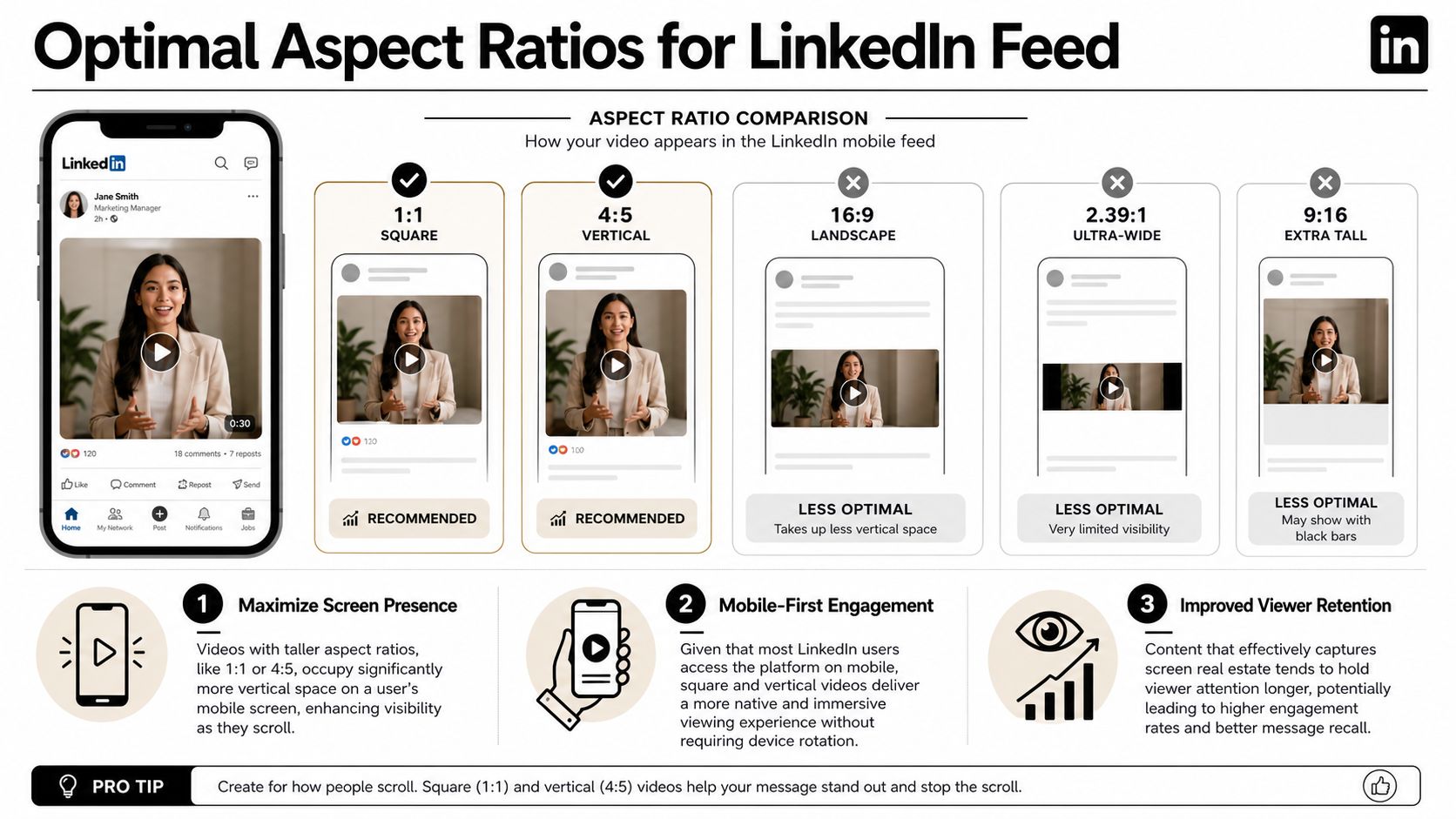
The reason is simple. 4:5 and 1:1 take up more of the phone screen. According to Fliki’s LinkedIn video specs breakdown, 4:5 and 1:1 can occupy 20-30% more screen real estate than 16:9 on smartphones. That’s why horizontal clips often feel smaller and easier to scroll past.
Use 4 to 5 for talking-head and clip content
This is the best choice for:
- Webinar highlights
- Interview snippets
- Founder clips
- Customer insight soundbites
- Short educational posts with captions
If a viewer is scrolling on mobile, 4:5 fills the frame better without going fully vertical.
Use 1 to 1 when you need more crop flexibility
Square still works well when:
- your original footage is loosely framed
- you need a safer crop around two speakers
- your editor wants a simpler layout for captions and logos
Keep 16 to 9 for slides and screen shares
There’s still a place for horizontal orientation. Keep it for:
- screen recordings
- product demos with UI
- webinar sections where the slide is the point
- wide compositions that can’t survive a center crop
Don’t choose 16:9 because it’s familiar. Choose it because the content breaks without it.
For most B2B feed posts, that’s the difference between “valid upload” and “watchable in-feed.”
Practical Video Export Settings for LinkedIn
When you’re at the export step, don’t overcomplicate it. LinkedIn’s safest standard is MP4 with H.264. LinkedIn’s own help documentation notes that MP4/H.264 is the gold standard, rejects AVI and QuickTime MOV, and only allows broader format flexibility for organic posts, not ads, in LinkedIn’s supported video format guidance.
Use this export baseline
- Container: MP4
- Codec: H.264
- Frame rate: keep it in the normal social range and match your source when possible
- Aspect ratio: export for the placement, not the original recording
- Compression: tighten file size if the upload feels heavy or ad delivery is involved
That gets you the most reliable upload behavior across both organic and paid workflows.
If your team needs a simple pre-export process, this create marketing videos workflow is useful because it starts with the distribution format rather than treating resizing as an afterthought.
What to avoid
Avoid AVI entirely. It’s not accepted.
Avoid treating MOV as your default. Even if a workflow produces MOV, MP4/H.264 is the safer final output.
Avoid exporting one master and forcing it everywhere. Feed post, ad, and cover placements aren’t the same job.
For quick reformats, use a dedicated LinkedIn video resizer so you can output the right ratio before upload instead of relying on last-minute crops inside the platform.
Designing for the LinkedIn UI and Safe Zones
Most bad LinkedIn videos aren’t failing because the codec is wrong. They fail because the important text sits where the interface sits.
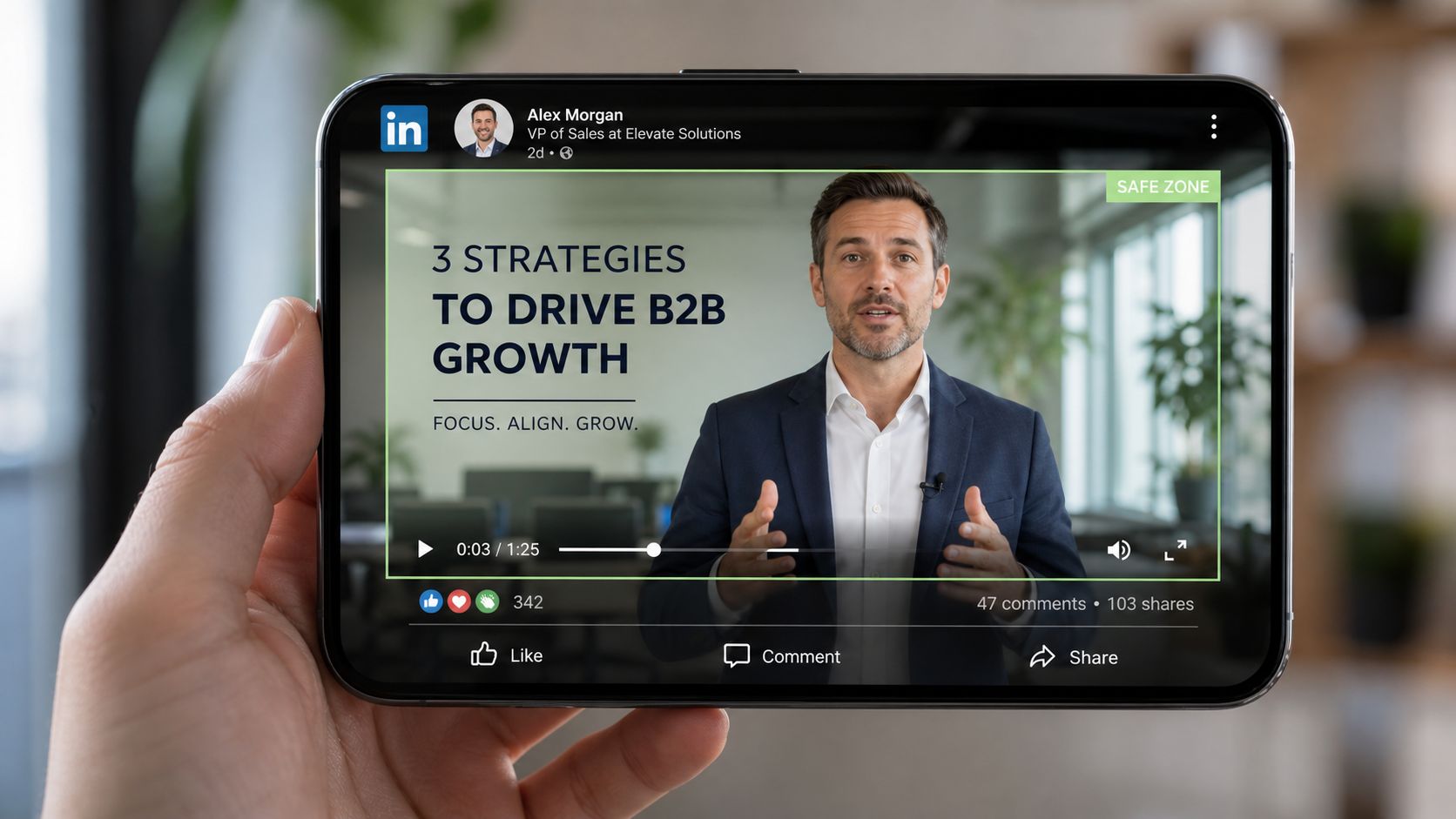
On feed posts, the frame is never just your frame. The post UI, profile details, and surrounding text compete with the edges of the video. If you burn in captions too low or place a logo in a corner, it can feel cramped or partially obscured depending on device and feed layout.
Where to keep important content
For 1:1 and 4:5 videos, keep these elements toward the center:
- Headlines and hook text: upper-middle area, not hugging the top edge
- Burned-in captions: above the very bottom edge with comfortable padding
- Logos and lower-thirds: away from corners
- Product UI callouts: centered enough that crop variations don’t clip them
A good rule is to treat the outer edges as risky space and the middle area as the safe working zone.
If text matters, don’t park it at the edge of the canvas.
Previewing helps here. Tools like Extrovert’s post previewer are handy because they let you sanity-check how the post feels before you publish.
For a quick visual walkthrough of feed placement and framing, use this example:
Captions need padding, not just contrast
Captions are where teams usually slip. They add readable text, then push it too low. On LinkedIn, that can make the post feel amateur fast. Keep captions high enough to breathe, short enough to scan, and large enough to survive a mobile screen.
How to Repurpose Long Videos for LinkedIn
Long-form recordings are where LinkedIn video specs become an operational problem. A webinar, podcast, or interview often starts too long, too wide, and too messy for the feed.
According to CapCut’s LinkedIn video specs resource, organic LinkedIn uploads allow 5GB, with a 15-minute cap on mobile uploads versus a 10-minute cap on desktop. That’s exactly why raw recordings usually need to be broken into smaller, feed-native assets before publishing.
A better workflow than manual clipping
Instead of forcing a full webinar into one post, pull out:
- A short argument or takeaway
- A sharp answer from an interview
- A single product insight
- One moment that can stand alone with captions
That gives you clips that are easier to watch, easier to subtitle, and easier to fit into a mobile-first ratio.
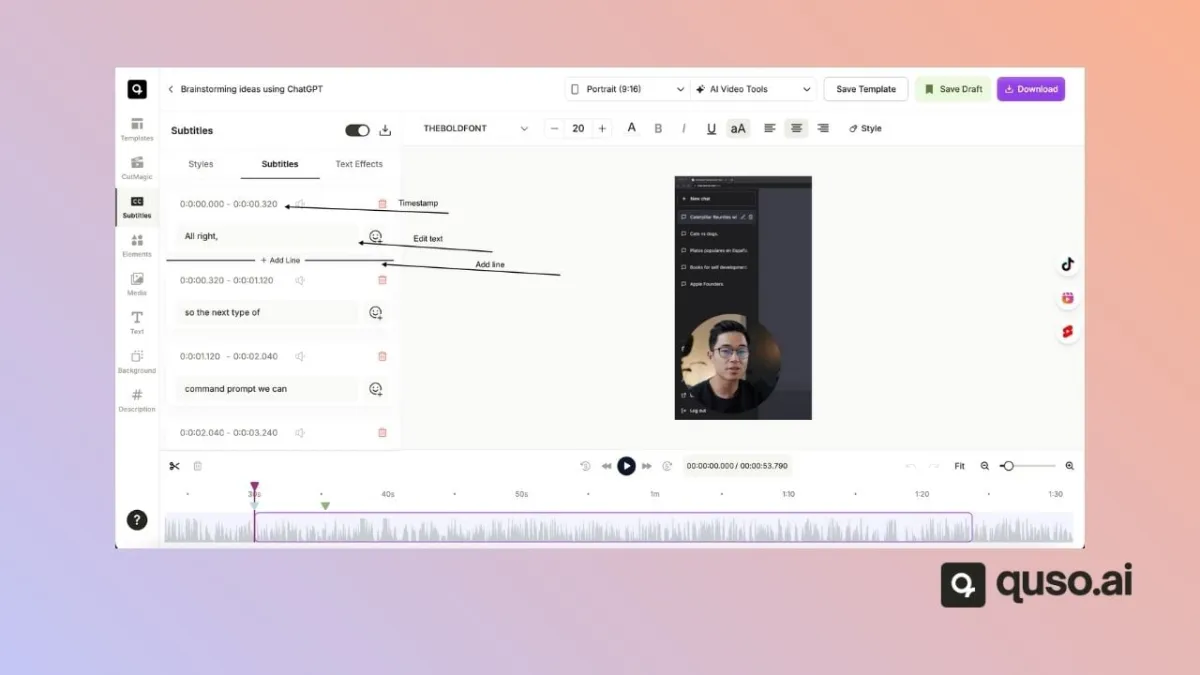
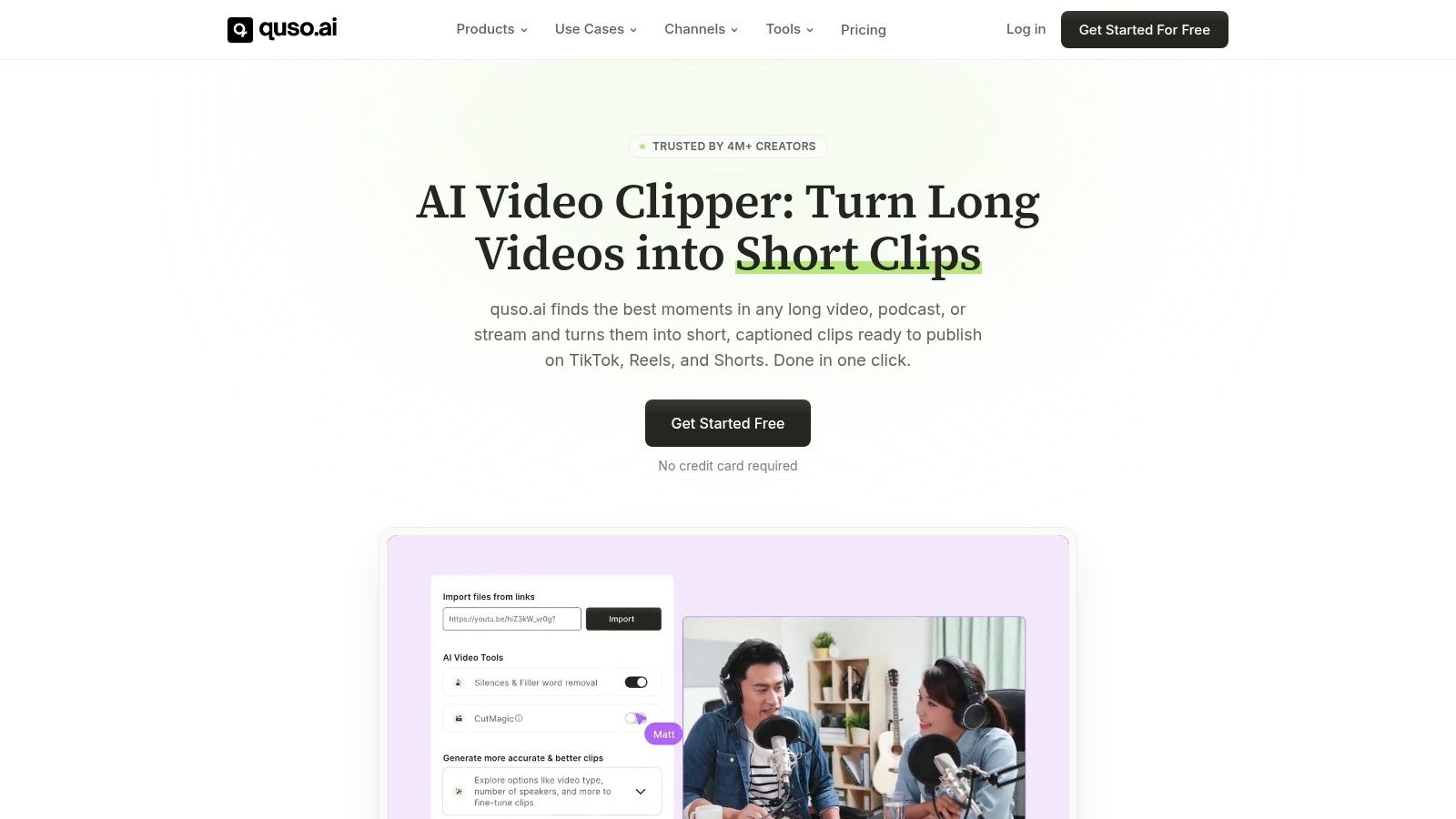
One tool can save a lot of repetitive work. quso.ai can take long video, find clip-worthy sections, reformat them for 4:5 or 1:1, add captions, and prep them for scheduling across platforms. If that’s your workflow, start with this guide on repurposing video content.
Common LinkedIn Video Upload Errors and Fixes
When an upload fails, the cause is usually boring and technical. That’s good news, because the fix is usually boring and fast too.
Quick fixes
-
Media processing failed
Usually means the export settings are off or the file is unstable. Re-export as MP4 with H.264 and upload the fresh file. -
Video is too long
The clip exceeds the posting limit for the workflow you’re using. Trim it into shorter segments before re-uploading. -
Unsupported file type
The file was exported in a format LinkedIn won’t reliably accept. Switch to MP4 instead of formats like AVI. -
File size is too large
The export is over the limit for the placement, especially for ads. Re-compress or cut the clip down before uploading.
If the issue isn’t the file, it’s often the posting workflow. This guide on how to share video on LinkedIn is a good checklist for getting the post format right before you hit publish.
Frequently Asked Questions about LinkedIn Video
Can you upload a 9 to 16 vertical video to the LinkedIn feed
Yes. Vertical formats such as 9:16 are supported for feed use, and they’re useful when you want a more mobile-native presentation.
Is MP4 the best format for LinkedIn video
Yes. MP4 with H.264 is the safest default for reliable upload and playback across LinkedIn placements.
What’s the file size limit for LinkedIn video ads
Paid video ads are much stricter than organic uploads. Use the ad-specific cap covered in the specs table and export a lighter file before upload.
Should I use 1 to 1 or 4 to 5 for LinkedIn
Use 4:5 when feed visibility is the goal. Use 1:1 when you need a more forgiving crop or a simpler layout for text and speaker framing.
Why do my LinkedIn captions get covered or feel cramped
Usually because the burned-in text sits too close to the bottom edge. Keep captions inside a safe central area with visible padding from the frame edge.
If you’re turning webinars, podcasts, or interviews into LinkedIn clips every week, quso.ai is worth a look for resizing, captioning, clipping, and scheduling without rebuilding each asset by hand.