YouTube Uploading Limits: 2026 Guide & Fixes
You're usually searching for YouTube uploading limits at the worst possible moment. The export is finished, the file is huge, the deadline is close, and YouTube throws a vague warning that doesn't tell you whether the problem is your account, your codec, your file size, or the platform itself.
Most upload problems aren't random. They come from a small set of rules that YouTube applies consistently, plus a few less obvious workflow traps that creators learn only after wasting an afternoon on failed uploads. The hard part isn't memorizing the limits. It's understanding which limit you're encountering, why YouTube cares, and what you should change before you upload again.
Table of Contents
- The cap you hit depends on how you export
- What works and what wastes time
- Why processing can still drag
- Why MP4 and H.264 keep winning
- The settings that save you from ugly delays
- A practical export checklist
- Why one channel gets through and another gets slowed down
- Shorts and live content run on separate operational rules
- What happens if my file is over the cap
- Why does a short video sometimes take forever to process
- Does deleting older uploads restore my daily quota
- Why can someone else upload more than I can
- Can location affect whether YouTube works at all
- What's the fastest way to avoid upload headaches
The Two Tiers of YouTube Access Verified vs Unverified
You finish exporting a 40 minute interview, drag it into YouTube, and the platform rejects it before processing even starts. In most cases, that is not a codec problem or a file corruption problem. It is an account status problem.
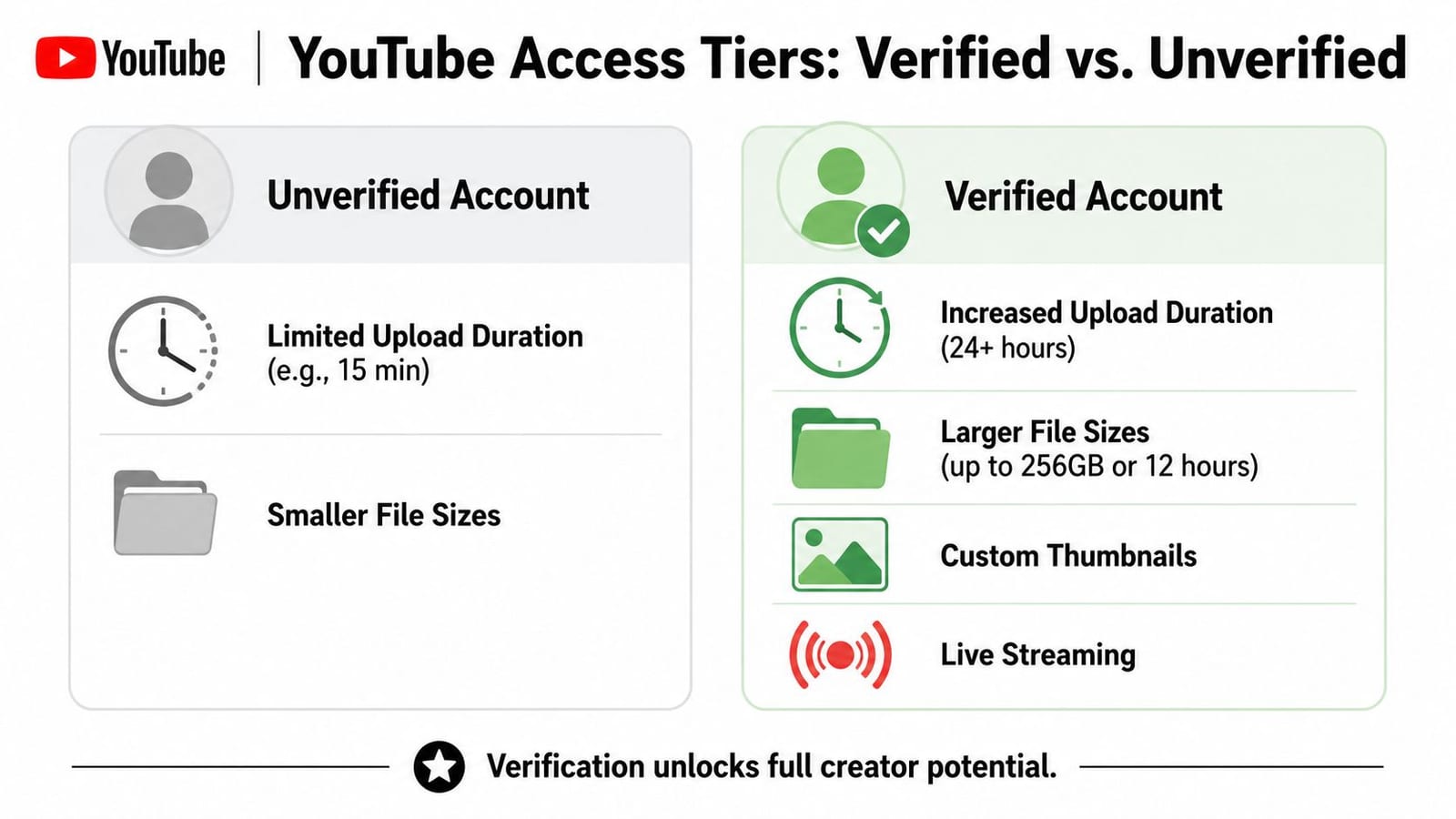
YouTube runs on two access levels for uploads. An unverified account is capped at short uploads. A verified account can publish videos longer than 15 minutes, up to YouTube's current maximum limits, based on the platform's upload rules. That split explains a lot of the confusion creators run into early on.
What changes after verification
Verification is a basic account trust check, usually done with a phone confirmation. For creators, the practical effect is simple. You get access to longer uploads, and your workflow stops colliding with the default 15 minute wall.
That limit exists for a reason. Long uploads cost YouTube more in storage, processing time, and moderation review. The platform uses verification to reduce abuse before it gives an account access to heavier publishing features.
Here's the part that matters day to day:
| Account status | What it means for uploads |
|---|---|
| Unverified | Works for test uploads, Shorts, and short standard videos. It breaks down fast if you publish interviews, tutorials, events, or recordings that run long. |
| Verified | Lets you post long-form content and build a channel around full episodes, webinars, streams, classes, or podcasts. |
I see creators misdiagnose this all the time. They re-export, lower bitrate, switch browsers, and clear cache, even though the file was never the issue. If the upload stalls or gets blocked near the eligibility check, verify the account before changing your edit settings.
Practical rule: If your content plan includes anything longer than a quick clip, verify the channel before you build your recording and export workflow.
Why creators think YouTube has inconsistent rules
Part of the confusion comes from history. Some older videos on YouTube exceed today's limits because the rules were different when those videos were uploaded. That is why copying advice from old tutorials, forum threads, or legacy channel examples causes problems.
The better approach is to treat verification as a workflow checkpoint, not a formality. Set it up early, confirm the account can handle long uploads, and then plan exports around the limits your channel has. That saves time, avoids unnecessary re-exports, and keeps your publishing system predictable.
Decoding YouTube's File Size and Duration Caps
Once your account can upload long videos, YouTube stops being a simple “can I upload this?” question and becomes a two-part constraint problem.
For most verified accounts, the ceiling is 12 hours or 256 GB, and you're bound by whichever one you hit first, as described in this overview of YouTube video size limits. This is comparable to a truck with a maximum weight and a maximum cargo space. You can't exceed either limit. It doesn't matter that one still has room if the other is already full.
The cap you hit depends on how you export
A lightly compressed long recording may stay under the size cap for a long time, while a high-bitrate export can run into the file limit much sooner. That's why two videos with similar runtimes can behave completely differently at upload.
Creators usually hit one of these scenarios:
- Huge production export: You finish a polished master file from Premiere Pro or Final Cut Pro, and the file is so large that YouTube rejects it before duration becomes the issue.
- Ultra-long recording: You upload an event archive, game stream, lecture capture, or all-day session and run into the duration ceiling even though the file itself isn't outrageous.
- Processing bottleneck: The file technically qualifies, but YouTube takes far longer than expected to finish processing.
If the file is near the edge of either cap, don't gamble on a single upload. Prepare a fallback export before you start.
What works and what wastes time
The worst move is uploading a giant mezzanine file just because it's the file you already have. That's editor logic, not publishing logic. YouTube will create its own versions anyway, so your job is to upload a file that preserves quality without creating avoidable upload and processing pain.
A more reliable approach looks like this:
- Check runtime first. If you're anywhere near the duration ceiling, split the content into logical parts before export.
- Inspect file size second. If the exported file is massive, make a platform-ready delivery version rather than using your archive master.
- Keep naming clean. Multi-part uploads fail less often when filenames, thumbnails, and descriptions are organized before the first upload starts.
Why processing can still drag
Upload completion doesn't mean the job is done. YouTube still has to ingest, scan, transcode, and prepare playback versions, and long uploads often process more slowly than creators expect. That's normal behavior, not always a broken upload.
The practical lesson behind YouTube uploading limits is that the published limit is only half the story. Your real workflow limit is the point where file size, duration, and processing time all stay manageable at once.
Recommended Upload Formats and Codecs for Faster Processing
A file that meets the upload cap can still process badly if it's encoded in a way YouTube doesn't like. In such instances, creators lose hours. The upload starts, the bar moves, and then processing stalls because the file isn't structured for YouTube's pipeline.
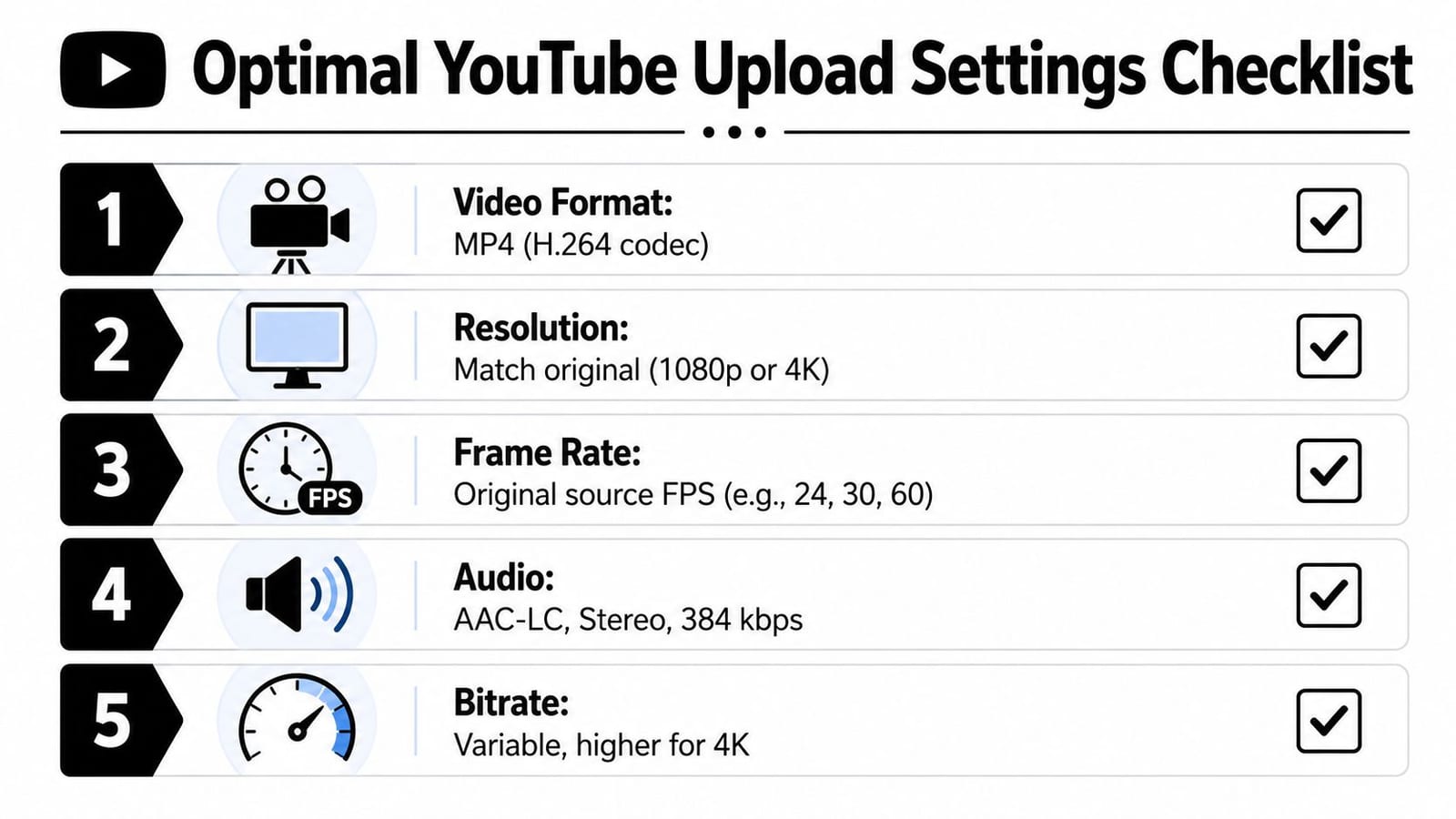
Google's official guidance is specific. YouTube recommends MP4 with H.264 video, AAC-LC, Opus, or Eclipsa Audio, 48 kHz audio, 4:2:0 chroma subsampling, source-matched frame rates such as 24/25/30/48/50/60 fps, deinterlacing interlaced footage before upload, and placing the moov atom at the front for faster startup and processing behavior, according to YouTube's recommended upload encoding settings.
Why MP4 and H.264 keep winning
Creators hear “upload MP4” so often that it starts to sound lazy. It isn't. MP4 is the container YouTube handles smoothly in most routine workflows, and H.264 remains the safe, broadly compatible video codec for creator exports.
If you want a clean explanation of what the container does versus what the codec does, this guide on demystifying the MP4 video container is useful. It helps clear up a common mistake: changing the file extension without changing the encoding.
The settings that save you from ugly delays
The technical terms matter because they map directly to real upload behavior.
- Match frame rate to source: Don't convert footage from one frame rate to another just because you think YouTube prefers a different number. Artificial conversion can create motion artifacts and extra processing hassle.
- Use 4:2:0 chroma subsampling: This is standard delivery behavior for web video. Exotic export settings can create compatibility headaches for no visible gain on YouTube.
- Deinterlace older footage: Interlaced sources often cause ugly playback and conversion issues if you upload them as-is.
- Put the moov atom first: This is one of the least understood fixes. The moov atom is file metadata that helps players and platforms understand the video structure quickly. When it's at the front, YouTube can start handling the file more efficiently.
A lot of “YouTube is stuck” complaints start in the export dialog, not in YouTube Studio.
A practical export checklist
Before you upload, check these in your editor or encoder:
| Setting | Safer choice for YouTube |
|---|---|
| Container | MP4 |
| Video codec | H.264 |
| Audio | AAC-LC and 48 kHz |
| Frame rate | Match the original footage |
| Interlacing | Deinterlace before export |
| File structure | Fast start or moov atom at front |
What doesn't work well is “maximum quality” as a vague export preset. That usually produces larger files without a meaningful YouTube advantage. What works is a deliberate delivery export built for YouTube's ingest system.
Navigating Special Upload Limits and Quotas
A channel can upload a 4K long-form video in the morning, then hit friction on a burst of Shorts or a live setup later the same day. Creators read that as inconsistency. In practice, YouTube applies different checks to different publishing actions, and those checks are shaped by risk control, abuse prevention, and channel trust.
Some of these rules have shifted over time. YouTube's older post on longer uploads shows that upload access has never been completely static. The bigger takeaway for creators is simpler. Limits are not only about file specs. They also reflect how YouTube evaluates account behavior, format type, and upload volume over a rolling period.
Why one channel gets through and another gets slowed down
Creators usually notice this after a batch day. One account can push several uploads through with no drama. Another gets extra checks, slower processing, or temporary resistance even when the files look fine.
Channel history strongly affects how YouTube applies these quotas. So do account age, recent activity patterns, and local policy differences. That is why copying another creator's publishing schedule is a bad operating model. Two channels with similar audiences can still get very different treatment from the upload system.
Build your release plan around your own channel's tolerance, not someone else's screenshot in a Discord thread.
The practical fix is workflow discipline:
- Spread out heavy upload days: Dumping a full backlog into one window can create avoidable slowdowns.
- Keep publishing patterns predictable: Sudden spikes in volume can trigger more scrutiny than a steady cadence.
- Separate archive uploads from deadline uploads: If a bulk batch gets delayed, your priority release should not be trapped behind it.
- Track what your channel can handle: After a few weeks, patterns usually show up. That matters more than forum guesses.
Shorts and live content run on separate operational rules
Shorts should be treated as their own production lane, not as trimmed-down long-form uploads. A lot of Shorts failures come from avoidable formatting mistakes, not from the upload itself. If your team publishes vertical video regularly, use this guide to YouTube Shorts dimensions, durations, and common mistakes to avoid as a pre-upload check.
Live content is a different category again. The risk is not just file delivery. It is also feature access, stream setup, device readiness, scheduling, and moderation. A channel that uploads edited videos without trouble can still run into limits or readiness problems on live day.
The useful way to think about quotas is by workflow, not by one headline number. Long-form uploads, Shorts, and live streams each create different failure points. Teams that separate those lanes usually waste less time, miss fewer publish windows, and recover faster when YouTube slows one part of the system down.
How to Fix Common Upload Errors and Increase Limits
When an upload fails, most creators start with the file. Start with account status first. It's the fastest fix, and it eliminates one of the most common causes immediately.

Remove the 15 minute barrier first
If your channel still behaves like a default account, verify it before you troubleshoot anything else. That one step clears the path for longer uploads and prevents you from chasing phantom encoding problems that are really just access limits.
For a straightforward walkthrough inside the normal creator workflow, this guide on how to upload video to YouTube is a good reference.
Use this sequence:
- Confirm channel access. Make sure you're logged into the correct channel, especially if you manage multiple brand accounts.
- Complete phone verification. This is the gate that typically enables long-form uploading capability.
- Retry with the same file. If the file was valid all along, the upload issue may disappear without any re-export.
Fixes for the upload failures creators see most
Different failures point to different causes. Treating them all the same wastes time.
Upload rejected immediately
Check account eligibility first, then confirm the file isn't over the applicable cap. If the video is extremely long or the file is extremely large, split or recompress before trying again.Invalid file format
This usually means the container or codec combination is off, or the file was exported with unusual settings. Re-export to a standard YouTube-friendly MP4 with H.264 and compatible audio.Stuck at processing
This often comes from heavy files, awkward encoding, interlaced footage, or poor file structure. A clean delivery export usually fixes more than repeated re-uploads.
Here's a visual walkthrough if you want a second screen guide while working through Studio:
- Processing abandoned
Start by checking whether the export itself is corrupted. Then make a fresh export with standard settings, a shorter filename, and no exotic characters. - Very slow upload on a valid file
Don't keep refreshing the browser and restarting unless it's clearly broken. Repeated interruptions often waste more time than waiting out a large ingest job.
When a file keeps failing, make one controlled change at a time. New account state, new export preset, or new browser session. Not all three at once.
The fix that doesn't work is panic-editing. Trimming random seconds off the video, changing filename extensions by hand, or exporting five variants without tracking differences usually creates more confusion. The fix that works is isolating the bottleneck and solving that one bottleneck cleanly.
Pro Creator Workflows for Large and Long Videos
Creators who publish long videos regularly don't treat uploading as the last step. They treat it as part of the production system. That's the difference between channels that scramble every week and channels that move smoothly even with heavy footage.
Build around source files not final uploads
A reliable workflow separates three things: archive masters, edit project files, and upload-ready exports. If you use one giant master file for everything, every delay hurts more because the file is too heavy for practical publishing.
A cleaner workflow looks like this:
- Keep the archive master untouched: Store your highest-quality source separately for backup and future edits.
- Export a delivery version for YouTube: This is the file tuned for publishing, not the file tuned for preservation.
- Prepare alternate cuts early: If a long video might need splitting, create part markers before the final export stage.
That approach makes compression a normal publishing step instead of a last-minute emergency. Tools like HandBrake are useful here because they let you reduce file size without rebuilding your whole edit.
Turn one long upload into a publishing system
Long-form content is most advantageous when you stop treating it as one asset. A full podcast, webinar, interview, or lesson can feed Shorts, quote clips, social posts, and follow-up content if you build that workflow in from the start.
That's where repurposing tools become operational, not cosmetic.
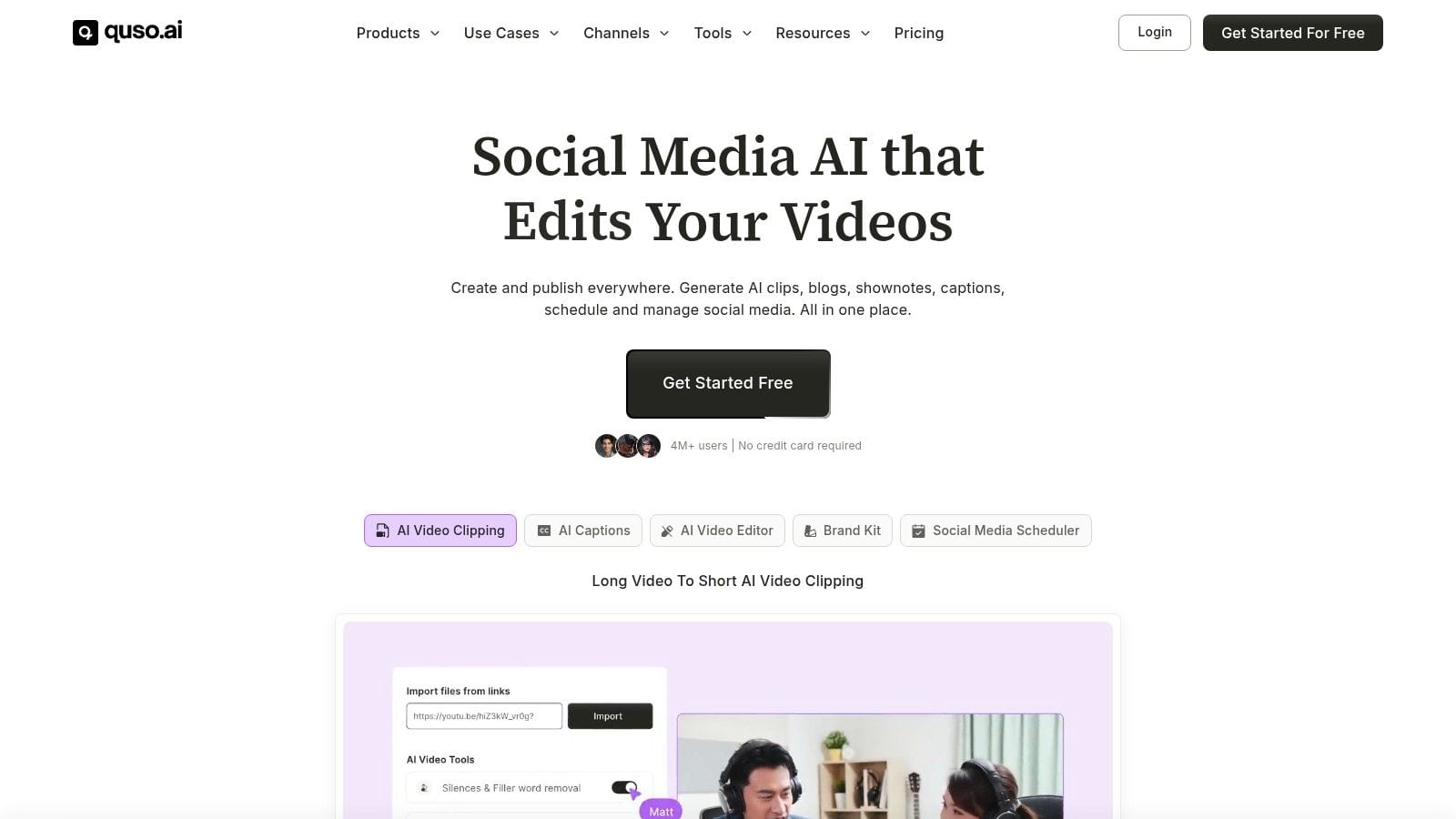
One option is quso.ai, which can help teams turn long videos into shorter assets and schedule them through a single workflow. If your process includes recurring YouTube publishing, a dedicated YouTube post scheduler can reduce the manual overhead around repurposed content and release timing.
What works especially well for teams is this sequence:
| Stage | Practical outcome |
|---|---|
| Record once | Capture the full conversation, lesson, or event |
| Publish the core video | Get the main asset onto YouTube cleanly |
| Extract short clips | Build supporting content from the same source |
| Schedule follow-ups | Keep distribution moving without reopening the edit every day |
YouTube uploading limits become a competitive issue. The creators who handle big files efficiently don't just avoid frustration. They publish more consistently because their workflow doesn't collapse every time a source file gets large.
Frequently Asked Questions About YouTube Uploads
What happens if my file is over the cap
You need to reduce something. If the file exceeds the allowed threshold for your account, YouTube won't accept it just because the content is important. The practical fixes are splitting the video, compressing the export, or both.
Why does a short video sometimes take forever to process
Runtime and processing time aren't the same thing. Encoding choices, file structure, source issues, and queue conditions can all slow processing down. A short video with a messy export can behave worse than a longer video with clean settings.
Does deleting older uploads restore my daily quota
Don't assume it will. If your channel is being throttled at the account level, the issue is usually your current channel state or recent upload behavior, not the amount of old content sitting on the channel.
Why can someone else upload more than I can
Channel history and regional factors can affect practical limits. If another creator reports different behavior, that doesn't necessarily mean your account is broken.
Can location affect whether YouTube works at all
Yes. In some places, the issue isn't upload settings but access itself. If you or your team operates across regions, this explanation of Great Firewall YouTube access gives useful context for why YouTube may be restricted or inconsistent in certain environments.
What's the fastest way to avoid upload headaches
Use a verified account, export in standard YouTube-friendly settings, and keep an upload-ready version separate from your archive master. Most recurring problems come from skipping one of those three.
If you want a simpler way to manage long videos after upload, quso.ai helps turn one source video into clips, posts, and scheduled content without rebuilding the workflow by hand every time.