Download MP4 from Dailymotion: Best Methods 2026
You've got a Dailymotion video open in one tab and a deadline in the next. Maybe it's your own upload and you need a clean local copy. Maybe it's a public clip you want to reference, archive for offline review, or move into an editing workflow. In most cases, the goal isn't just “save video.” The goal is getting a usable MP4 file that won't fight you later in Premiere, CapCut, Final Cut, or your social workflow.
That's where most quick listicles fall short. They tell you to paste a link into a random downloader and hope for the best. Sometimes that works. Sometimes the tool fails at the analysis step, gives you the wrong format, or only grabs part of the stream. If you need a method that matches the situation, you need to know which route is official, which route is fast, and which route is more dependable when Dailymotion's delivery method gets messy.
Table of Contents
Why Download an MP4 from Dailymotion
You find a Dailymotion video you need to work with. Maybe it is your own upload that needs a clean archive. Maybe it is a talk you need to review on a flight. Maybe it is a long-form video you plan to cut into shorts, add captions to, or pull quotes from later. In every case, the job gets easier once you have a local MP4 instead of a browser stream.
MP4 is the format that fits the rest of the workflow. Editors accept it. Cloud storage previews it. Most subtitle, clipping, and repurposing tools handle it without extra conversion. A stream in the browser is fine for watching. A downloaded MP4 is what you can sort, trim, tag, transcribe, and reuse.
That distinction matters more than it looks. Dailymotion playback often relies on segmented streaming formats such as HLS, where the video is delivered in small chunks rather than as one clean file. That is one reason some downloaders fail, stall, or give you a broken export with no audio, the wrong resolution, or a generic container your editing app hates. If the tool cannot properly assemble the stream, your "download" is not much use.
Real-world use cases typically fall into a few buckets:
- Offline review: You need a stable copy for travel, weak connections, or client review without buffering.
- Editing prep: You want to pull the file into Premiere Pro, CapCut, Final Cut, or another editor without screen recording.
- Research: You need to compare versions, creative choices, thumbnails, or messaging without relying on a live page that could change.
- Archive and backup: You want a copy of approved content for internal records or future reuse.
- Repurposing: You plan to turn one video into clips, captions, transcripts, quote posts, or blog assets.
The last use case is usually the ultimate payoff. Downloading the MP4 is rarely the end goal. It is the handoff point between distribution and production. Once the file is local, you can cut hooks, extract key moments, add subtitles, and feed the asset into a wider content pipeline. That is also where tools like quso.ai make more sense, because the downloaded file becomes source material for faster repurposing instead of just another video sitting in a folder.
A practical rule helps here. If the video is yours, use Dailymotion's own download option. If it is not, use the lightest method that gives you a clean MP4 and verify the file before you build work on top of it.
File quality matters too. A low-resolution MP4 may be enough for reference, but it falls apart fast once you crop for vertical clips, burn in captions, or reuse the footage across platforms. The better the source file, the better your output. That is why choosing the right download method matters from the start, not after you have already begun editing.
The Official Method for Your Own Dailymotion Videos
If the video belongs to you, stop there. This is the right method. Dailymotion's native workflow is the cleanest option and avoids the extra failure points that come with third-party converters.

Dailymotion's documented process for creator-owned videos is to go to Studio > Media > Videos, find the asset, and use the Download menu item in the platform's own interface, as shown in Dailymotion's video download help page.
The step-by-step workflow
Use this order:
Sign into the correct account
Make sure you're in the account that owns the video. Team environments and multiple brand logins are where people lose time first.Open Studio
Go into your creator dashboard, not just the public-facing channel page.Go to Media, then Videos
That takes you to the asset library where your uploads live.Find the exact video
Confirm title, thumbnail, and any version naming you use internally.Use the Download option
Download the file directly from the menu attached to that asset.
Why this works better than converters
Third-party tools add friction in places you don't need it. They can misread the page, fail during link analysis, or output a file that isn't ideal for post-production. The native Studio route avoids those problems because you're pulling from the platform you uploaded to.
Here's the practical difference:
| Method | Best for | Common issue |
|---|---|---|
| Dailymotion Studio download | Your own videos | Requires account access |
| Online converter | Quick public-video attempts | Fails on parsing or stream detection |
| Desktop downloader | Repeated or harder downloads | Requires install and setup |
Use the platform-native option whenever you can. It removes the conversion layer, which is where many download jobs go wrong.
If you manage content professionally, keep this as your default archive habit. Download local copies of finished uploads, label them clearly, and store them with your project files. That saves time when you need to republish, re-edit, or create derivative assets later.
Using Online Converters for Quick Downloads
Online converters are usually the first thing people try when they want to download MP4 from Dailymotion. The appeal is obvious. No install, no setup, and the basic flow is easy to understand.
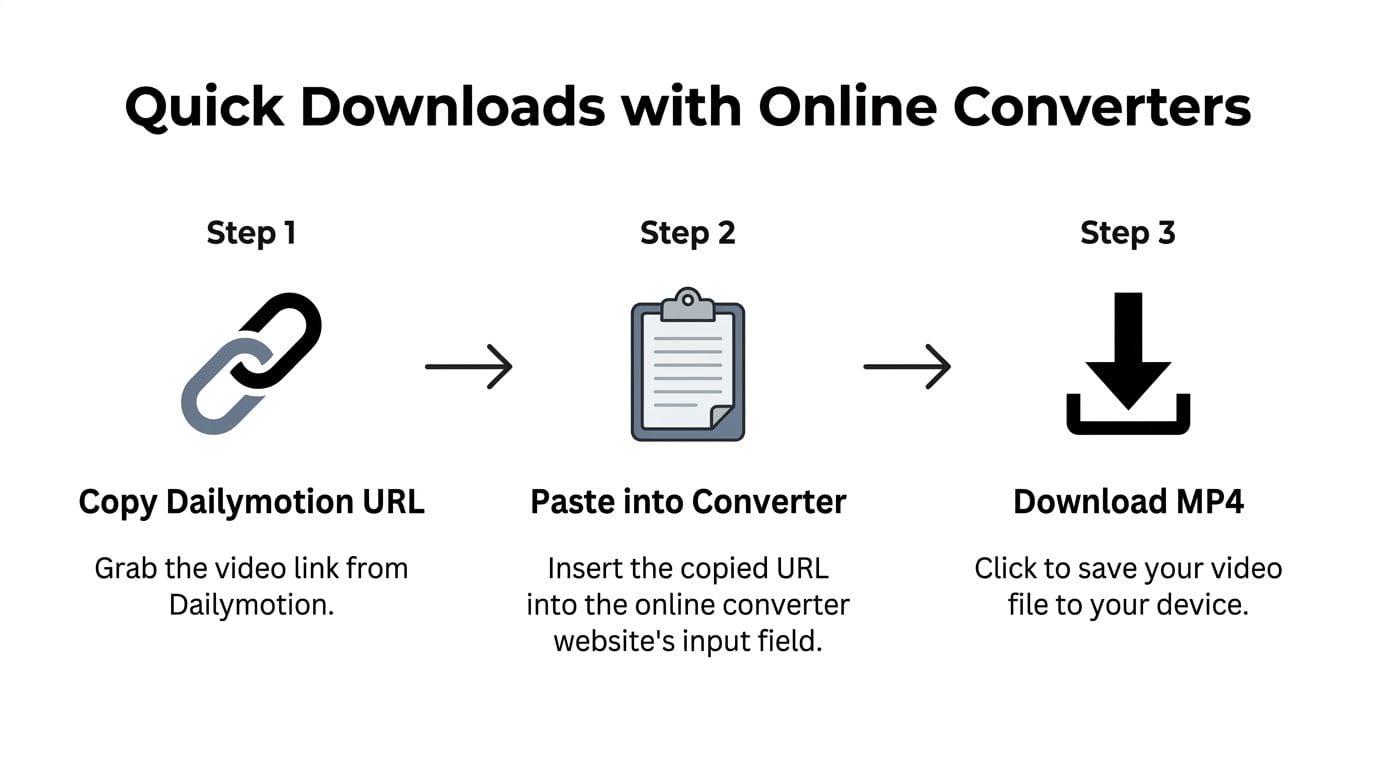
The common workflow is consistent across many tools: copy the Dailymotion URL, paste it into the converter, let it analyze the media, choose MP4 and often a quality preset like HD, then download the file. One published walkthrough describes that exact pattern in its guide to converting Dailymotion videos to MP4.
The fast path
When an online converter works, it's usually because the video is public, accessible, and easy for the tool to parse. That makes these tools useful for occasional one-off downloads where convenience matters more than control.
A basic flow looks like this:
- Copy the video link from the Dailymotion page.
- Paste it into the converter and wait while the site analyzes the media.
- Choose MP4 output and the available quality option.
- Download the file to your device.
This is the same broad pattern you'll see on other video platforms too. If you've used tools for downloading YouTube videos, the experience will feel familiar.
Here's a visual walkthrough:
The trade-offs
Online tools save time up front, but they're the least predictable option over time.
Pros: Fast, browser-based, no installation, fine for occasional public clips.
Cons: Pop-ups, misleading buttons, unstable site quality, and more failures during media analysis.
A few warning signs usually tell you the site isn't worth trusting:
- Too many fake buttons: If every banner says “download,” back out.
- Forced software installs: A converter shouldn't require an extra app just to test a URL.
- Aggressive redirects: If a simple paste action opens unrelated tabs, the site is already costing you time.
- No format clarity: Good tools state the output format and available quality options clearly.
When these sites work, they're convenient. When they don't, they tend to fail before the download even starts. That usually means the service couldn't correctly detect the actual media behind the Dailymotion page.
Desktop Apps and Extensions for Reliable Results
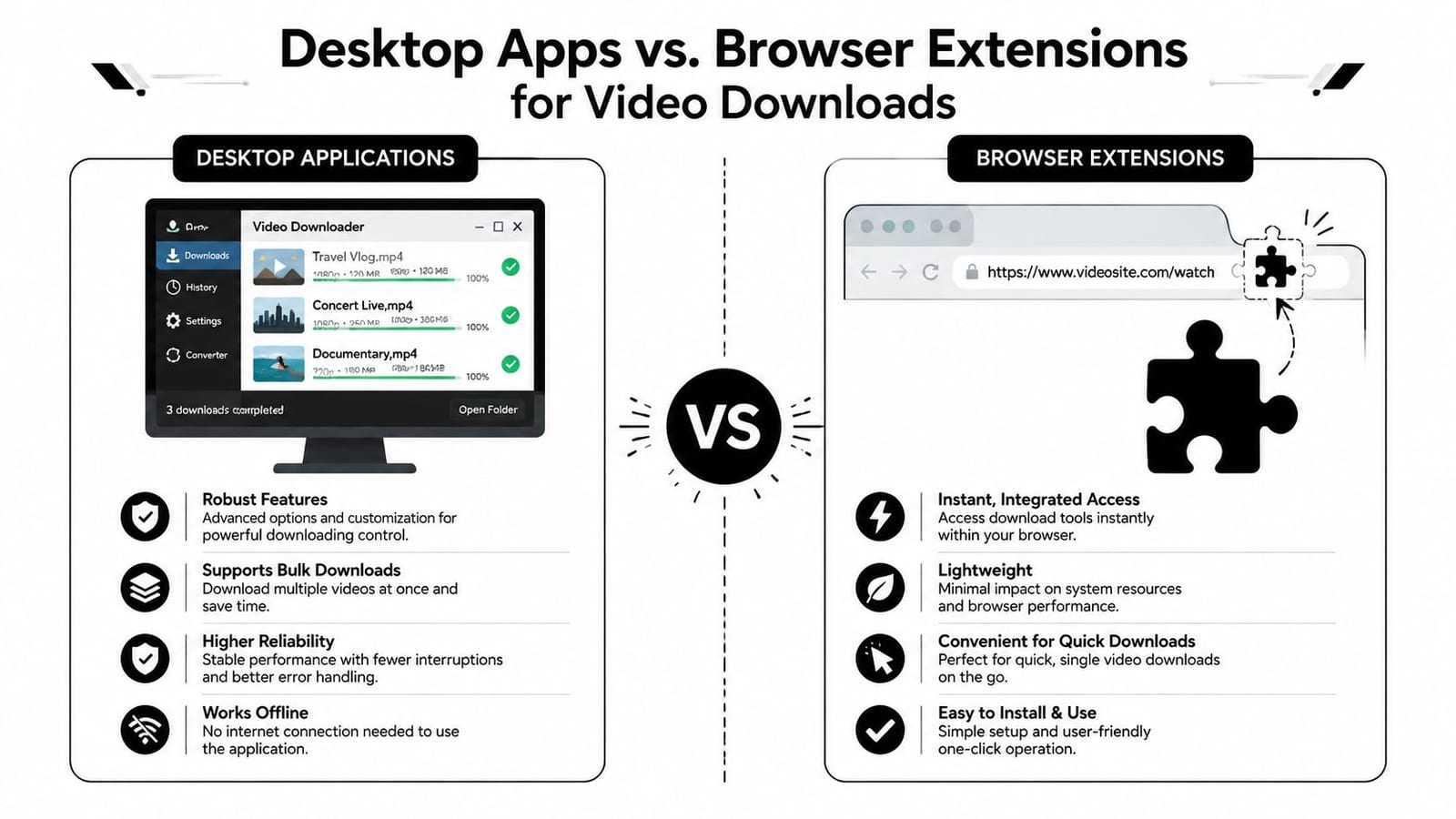
When browser-based tools keep failing, a desktop app or browser extension is usually the next move. These tools tend to be better at handling the actual media behind the page instead of only reading the visible URL.
That matters because not every Dailymotion video behaves like a single static file. Some are delivered through time-limited HLS streams, often exposed through a signed manifest.m3u8 URL. If the token expires, or if the tool only reads a wrapper page instead of the actual stream metadata, the download breaks before it becomes a proper MP4. That technical gap is outlined in this developer note on Dailymotion stream behavior and signed HLS manifests.
Why stronger tools succeed more often
Desktop apps usually do a better job in three areas:
- Stream detection: They're more likely to identify the underlying media manifest instead of only the public page URL.
- Format control: Better tools let you select MP4 output with options such as H.264 + AAC, not just “best available.”
- Workflow depth: Some support bulk downloads, which is useful when you're handling a batch of references or archived assets.
A current third-party guide describes tools that offer MP4 as a standard output with quality choices such as HD, 720p, and sometimes 4K, along with codec options like H.264 + AAC and bulk downloading in more advanced software, as shown in this MacX guide to Dailymotion-to-MP4 workflows.
Desktop apps versus extensions
The best choice depends on how often you do this and how much control you need.
| Tool type | Strongest advantage | Main downside |
|---|---|---|
| Desktop app | Better control over output, codec, and repeated downloads | Installation and possible paid features |
| Browser extension | Faster in-browser access for single grabs | Can be limited by browser policy or page changes |
Browser extensions work well when they surface a download option right where you're watching the video. For single public clips, that can be the quickest route after the official method. But extensions can also break when the site changes its player behavior.
What usually fails in practice
Most failed attempts come from one of these situations:
Expired stream token
The downloader found a temporary media URL too late.Wrapper-page parsing
The tool recognized the Dailymotion page but not the actual stream.Separate audio and video tracks
The downloader can fetch parts of the media but doesn't merge them cleanly into a playable MP4.
If a tool keeps failing at “analyzing” the URL, the issue often isn't your connection. It's the tool's inability to read the actual stream structure.
If you download often, the extra setup of a desktop app usually pays off. You spend less time retrying unstable web tools and get better odds of ending up with a file you can edit.
Understanding the Safety and Legal Rules
You finally get the MP4 onto your drive, drop it into your editor, and start cutting clips. That is usually the moment people realize the download was the easy part. The harder question is whether they had the right to save it, reuse it, or publish new versions of it.
Start with ownership. If the video is yours, the legal risk is low and the main job is keeping the file clean and usable. If the video belongs to someone else, public viewing does not give you permission to repost it, monetize excerpts, or package it into new content. That applies even if a downloader makes the file easy to grab.
For creators, marketers, and editors, the safest habit is simple. Decide the intended use before you download. Archiving your own upload, collecting approved source footage for a client, and republishing someone else's clip without permission are very different situations. If you need a practical reference point on platform disputes, this guide to a YouTube copyright claim covers the kind of reuse issues that often carry over to other video platforms.
Safety matters just as much, because many download tools create avoidable problems on your machine or in your browser. I see the same issues repeatedly: fake buttons, forced redirects, aggressive extension permissions, and installers packed with extra software. Some sites also log submitted URLs and push users through ad-heavy pages before the file appears.
A cautious setup looks boring, and that is a good sign. The tool should accept the URL, identify the media clearly, and export the file without extra installs or strange permission requests. If a downloader asks for broad browser access or keeps bouncing you across new tabs, close it.
There is also a workflow reason to care about this. A bad download can leave you with a corrupted file, mismatched audio, or a low-quality encode that is useless for clipping, captioning, and resizing later. If the MP4 is the raw material for a larger repurposing process, file quality and source rights both matter from the start. Teams that care about downstream publishing should be just as disciplined about provenance as they are about monitoring AI content for SEO.
Use the official option for your own videos whenever possible. For third-party content, download cautiously, verify your rights first, and treat the file as source material that may end up across multiple formats and channels.
You Have the MP4 What Now? Repurpose It with AI
Once the file is on your drive, the useful work starts. A Dailymotion MP4 can become far more than a saved backup. It can turn into clips, summaries, transcripts, subtitles, blog drafts, social posts, and reusable content assets across multiple channels.
This is the workflow shift that saves the most time. Instead of treating the downloaded video as the end product, treat it as raw material. A webinar can become short clips. An interview can become quote cards and a written recap. A tutorial can become chapter-based excerpts for different platforms.
A practical repurposing chain
A clean MP4 gives you options:
- Clip extraction: Pull out the strongest moments for short-form posts.
- Captioning: Add burned-in subtitles for silent autoplay environments.
- Transcript-led writing: Turn spoken content into articles, summaries, or show notes.
- Platform adaptation: Reframe the same source into different aspect ratios and posting styles.
That matters even more if you publish regularly. One decent source video often has more value in it than is commonly extracted.
There's also an SEO angle. If you're turning video into articles or AI-assisted text assets, it helps to understand how search visibility is changing and why teams are monitoring AI content for SEO as search interfaces evolve.
Where automation fits
Manual repurposing works, but it's slow. You download the file, open an editor, scrub the timeline, mark highlights, export cuts, create captions, write post copy, then schedule everything one by one. That's manageable for one video. It's not a great system if you do this every week.
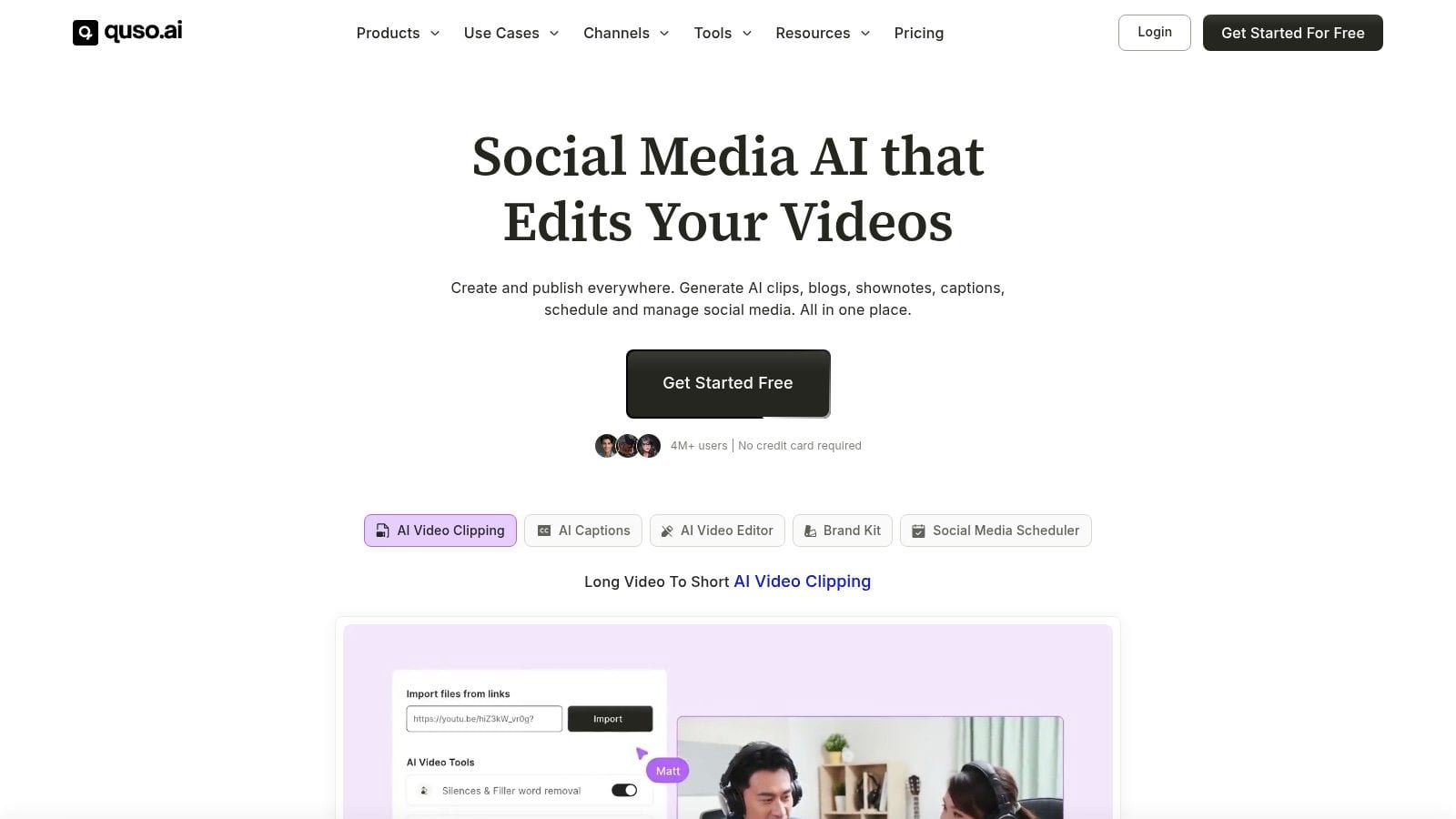
A better setup is to move the MP4 into a tool built for repurposing and distribution. If your goal is to turn long-form video into usable short-form assets and publish them faster, this walkthrough on how to repurpose video content with quso.ai is the right next read.
The download gets the asset into your hands. The repurposing workflow is what turns that asset into reach.
If you're already downloading video files for editing, clipping, or content reuse, quso.ai is the logical next step. Upload the MP4, turn long videos into short clips, generate captions and written assets, and move from “saved file” to publish-ready content without stitching together a pile of separate tools.