How to Post GIFs on Facebook: A 2026 Guide for All Devices
You're probably here because a GIF that should have worked didn't. You pasted a link into Facebook and got a still image. Or you uploaded a .gif file, only to see something that behaves more like a video than a looping reaction.
That confusion makes sense. Facebook supports GIFs, but it doesn't handle them the same way in comments, Stories, standard posts, Pages, and Groups. The method that works perfectly in one place can fail in another. If you understand those differences, posting GIFs becomes much less frustrating.
Table of Contents
Why Posting GIFs on Facebook Can Be Tricky
Facebook didn't start as a GIF-friendly platform. On June 14, 2017, Facebook rolled out the native GIF button for comments globally, after years of users running into frozen or non-animated results when trying to post GIFs directly, as noted in this Facebook GIF rollout recap. That history still explains a lot of the odd behavior people see today.
A GIF on Facebook isn't always treated the same way across every surface. In comments, the built-in GIF picker is usually smooth. In Stories, a GIF behaves more like a sticker layer. In standard feed posts, the platform can be less predictable, especially if you upload a file instead of using a native tool. If you need a quick refresher on the format itself, this plain-English GIF definition is useful.
The real problem is format handling
Most posting failures come from one of these situations:
- You uploaded a file instead of using Facebook's picker. That can change how Facebook renders it.
- You pasted the wrong kind of link. A page URL and a direct .gif URL aren't the same thing.
- You used the right asset in the wrong place. Stories, comments, and feed posts each have different behavior.
Practical rule: If Facebook gives you a native GIF button, use that first. It removes most of the failure points.
The other reason this feels inconsistent is that Facebook has layered GIF support over time instead of treating every composer the same way. That's why two people can both say they “posted a GIF on Facebook” and mean completely different workflows.
The Easiest Ways to Post a GIF on Facebook
For everyday use, the simplest answer to how to post GIFs on Facebook is this. Use Facebook's built-in tools whenever they're available. That keeps you inside the app, reduces upload issues, and usually gives you a searchable library instead of making you hunt for files manually.
Post a GIF in comments
This is the most reliable use case on Facebook.
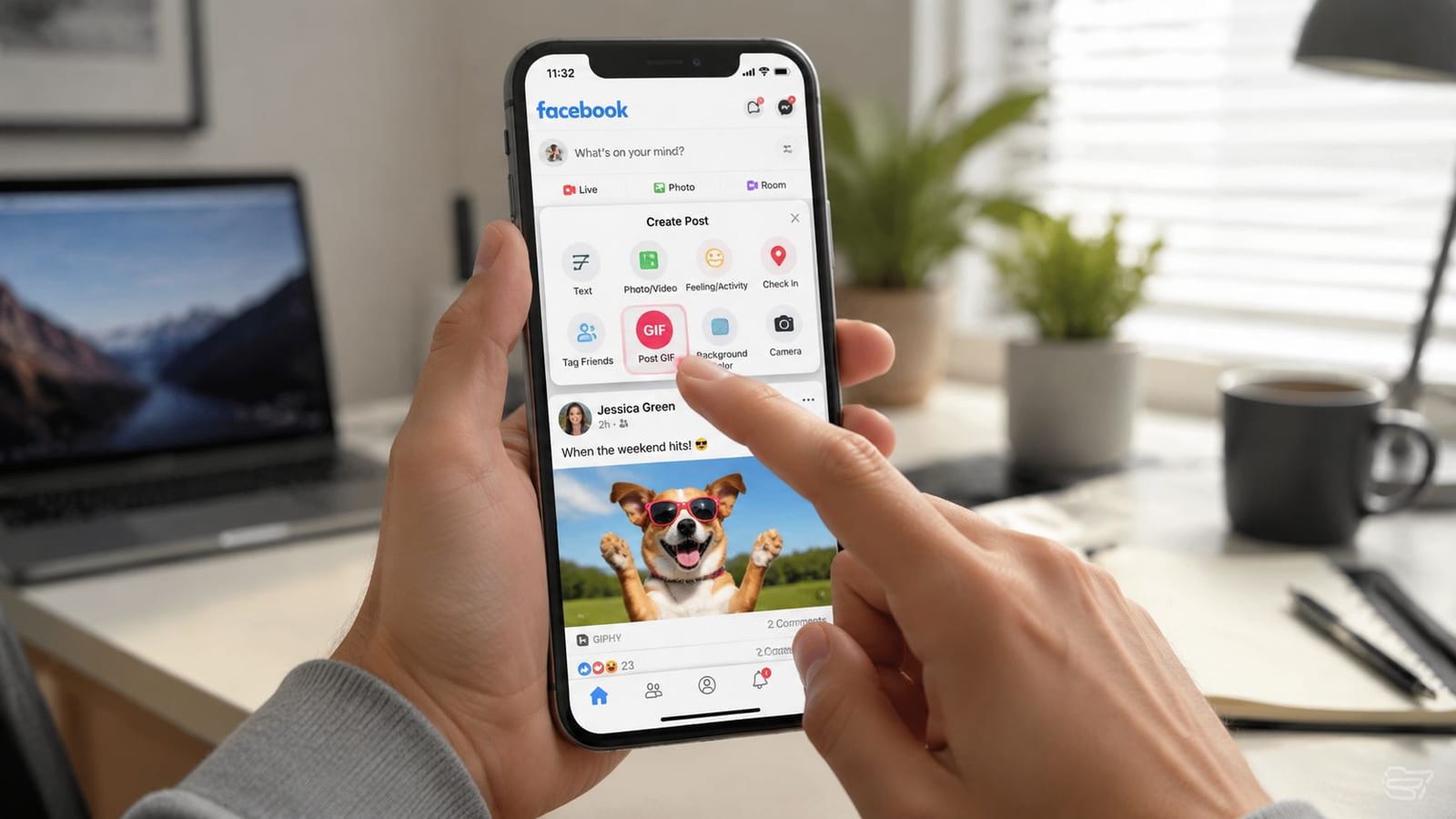
Open the comment box under a post. Look for the GIF icon. Tap or click it, search for a keyword, preview the result if needed, then select the GIF you want. Facebook's comment GIF feature was built around direct search and posting, which is why it tends to work better than manual uploads.
If you're on desktop, the GIF button usually appears alongside the comment tools. On mobile, it appears in the same general comment composer area, though placement can vary by app version.
A few practical habits help here:
- Search by emotion first. Words like “celebrate,” “awkward,” or “applause” usually surface better reaction options than long phrases.
- Preview before posting. Some GIFs communicate differently once they loop.
- Match tone to audience. A team update, a client thread, and a casual community post shouldn't all use the same reaction style.
Use the GIF option in posts when available
Facebook has also introduced a dedicated GIF icon in post and comment areas in some community contexts, with direct search and preview through Tenor. That built-in search experience matters because it removes the old workaround of downloading files or relying on outside hosts, as described in this overview of Facebook's native community GIF search.
When you see the GIF icon in the post composer, use it instead of uploading a file. Search, preview, select, and publish. That workflow is cleaner because Facebook already knows how to render the asset it's surfacing.
Here's where people get tripped up. Not every Facebook post composer exposes the same GIF controls. Personal profiles, Pages, Groups, and mobile app views can differ. If you don't see a GIF icon, that doesn't mean GIFs are impossible there. It just means you may need a different method, which I cover below.
This quick walkthrough helps if you want a visual example of the native flow:
Add GIFs to Facebook Stories
Stories are a different system. For Facebook Stories, the workflow is to add or import a photo or video, tap the Stickers icon, choose GIF, then search or browse and place the GIF on screen, according to Adweek's Facebook Stories GIF walkthrough.
That matters because the GIF in Stories is treated as a sticker, not as the main uploaded media file. You can move it, resize it, rotate it, and layer multiple GIFs on top of the same Story frame.
In Stories, think of a GIF as a design element, not the content container.
That difference opens up better creative options. You can use a product photo as the base, add a subtle animated arrow, then place a branded reaction sticker on top. For coaches, educators, and service brands, that often works better than trying to make the GIF carry the whole message by itself.
Posting GIFs on Facebook Pages and Groups
Posting to a personal profile is one thing. Posting for a brand, client, or community is another. On Pages and Groups, the question usually isn't just “Can I post this GIF?” It's “Can I post it reliably, at the right time, without breaking my workflow?”

What works well on Pages
For Facebook Pages, native GIF tools are useful when available, but Page managers also need consistency. A GIF can work well for:
- Announcement posts that need more motion than a static image
- Lightweight product reminders where a full video would be overkill
- Comment replies that make a brand sound human instead of scripted
- Community prompts inside Groups where engagement depends on fast reactions
Pages and Groups also have different social expectations. A GIF in a brand comment thread can feel responsive. The same GIF in a formal customer support reply can feel dismissive if the tone is off.
A simple way to decide is to ask whether the GIF adds clarity, emotion, or timing. If it only adds noise, skip it.
How scheduling fits into the workflow
For social teams, manual posting doesn't scale. One practical point that many step-by-step guides bury is that GIFs can be scheduled with third-party tools or Meta Business Suite, which matters if you're managing a calendar across multiple channels, as noted in this Page workflow guide for Facebook GIF posting.
That changes how you should prepare assets. A social manager usually needs to think about three stages:
| Workflow stage | What to check |
|---|---|
| Asset prep | Make sure the GIF format behaves the way you expect |
| Scheduling | Confirm whether your tool publishes the GIF directly or treats it differently |
| Post-publish review | Check the live post, not just the scheduler preview |
If you manage multiple brand accounts, it also helps to centralize asset prep and scheduling in one place. Tools such as Facebook Business Page management platforms can support the planning side, while Meta Business Suite handles native publishing for many teams.
A scheduled post is only “done” after you verify the published version actually animates.
For Groups, the technical side may be less uniform because admin permissions, posting methods, and mobile handoff workflows can vary. In practice, that means testing one post format before building it into a repeatable process.
Troubleshooting Why Your GIF Is Not Animating
If your GIF posts as a still image or behaves strangely, the problem usually isn't the idea. It's the method.
Why direct uploads fail
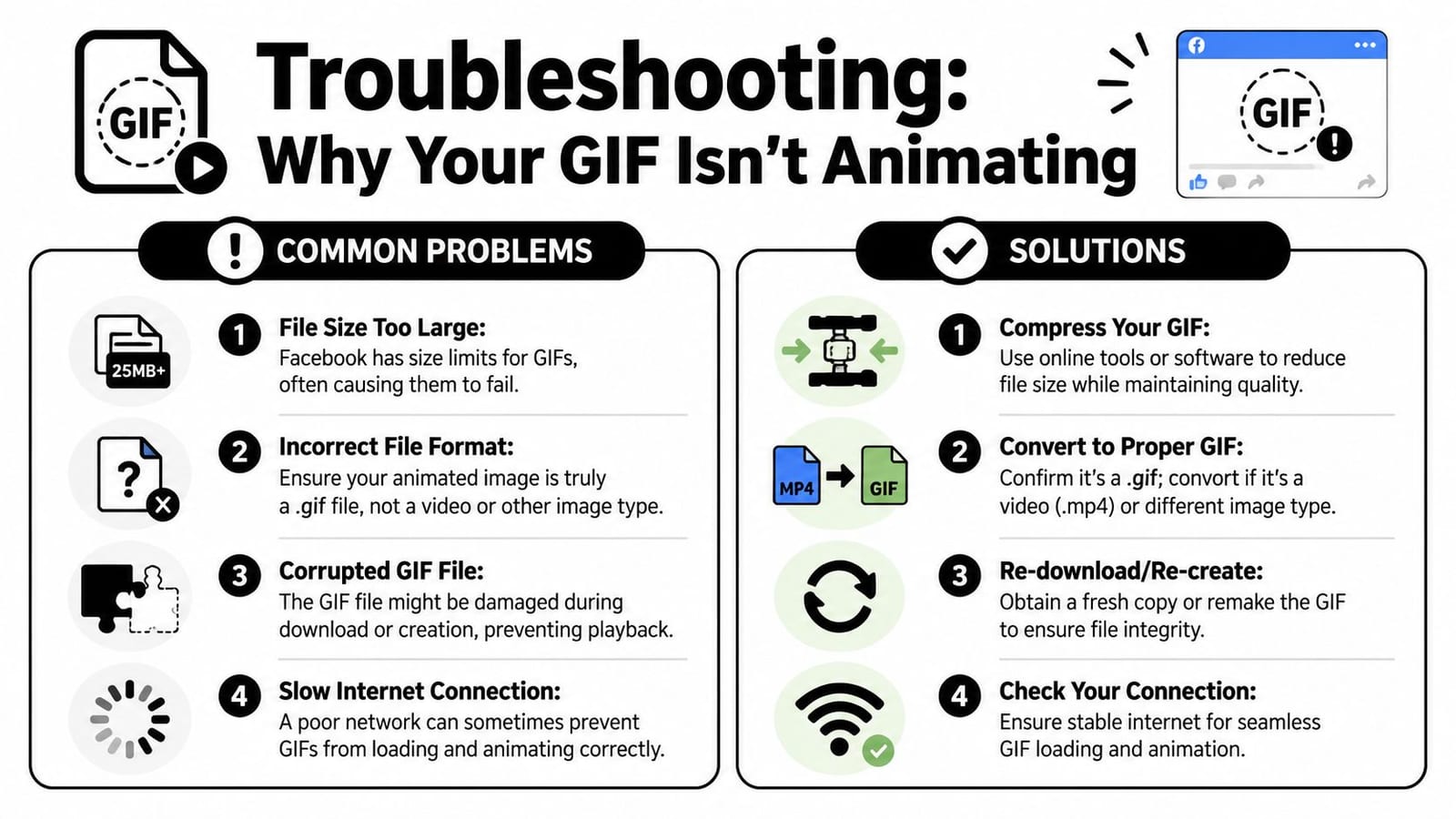
One of the most important technical details is this. When you use the photo or video button to select a .gif file on phone or desktop, Facebook will often technically upload it as a video, which changes how it plays back, according to this community discussion of Facebook GIF file conversion.
That explains several common complaints:
- It shows a play button. Facebook may be treating it as video media.
- It doesn't loop the way you expected. The file handling changed after upload.
- It previews oddly before publishing. The composer isn't always showing the final rendering behavior.
- It animates in comments but not in a feed post. Those are different publishing systems.
This is why a GIF from Facebook's own picker can work perfectly while the same visual uploaded from your desktop doesn't.
The fastest fixes
If animation matters, use the fix that matches the problem.
Use the built-in GIF search first
In comments and supported post areas, the native picker is the most dependable option.Don't assume upload equals GIF playback
Uploading a .gif file from your device may produce video-like behavior instead.Check the actual published post
Facebook previews can be misleading. Test in the live environment.Switch methods if the first one fails
If file upload gives you poor playback, try a hosted direct GIF URL or use a native library result instead.
If a GIF must loop exactly as designed, treat Facebook like a rendering environment that needs testing, not a neutral file host.
There are also basic failure points outside Facebook's conversion behavior. A damaged file, a mislabeled format, or a weak connection can all interfere with playback. But the biggest hidden issue is still Facebook's tendency to reinterpret the uploaded asset.
Advanced GIF Tips and Best Practices for Engagement
Once the GIF posts correctly, the next job is making it publish cleanly and feel intentional. Most weak Facebook GIFs fail for one of two reasons. The file is too heavy, or the creative choice doesn't fit the post.
Optimize the file before you publish
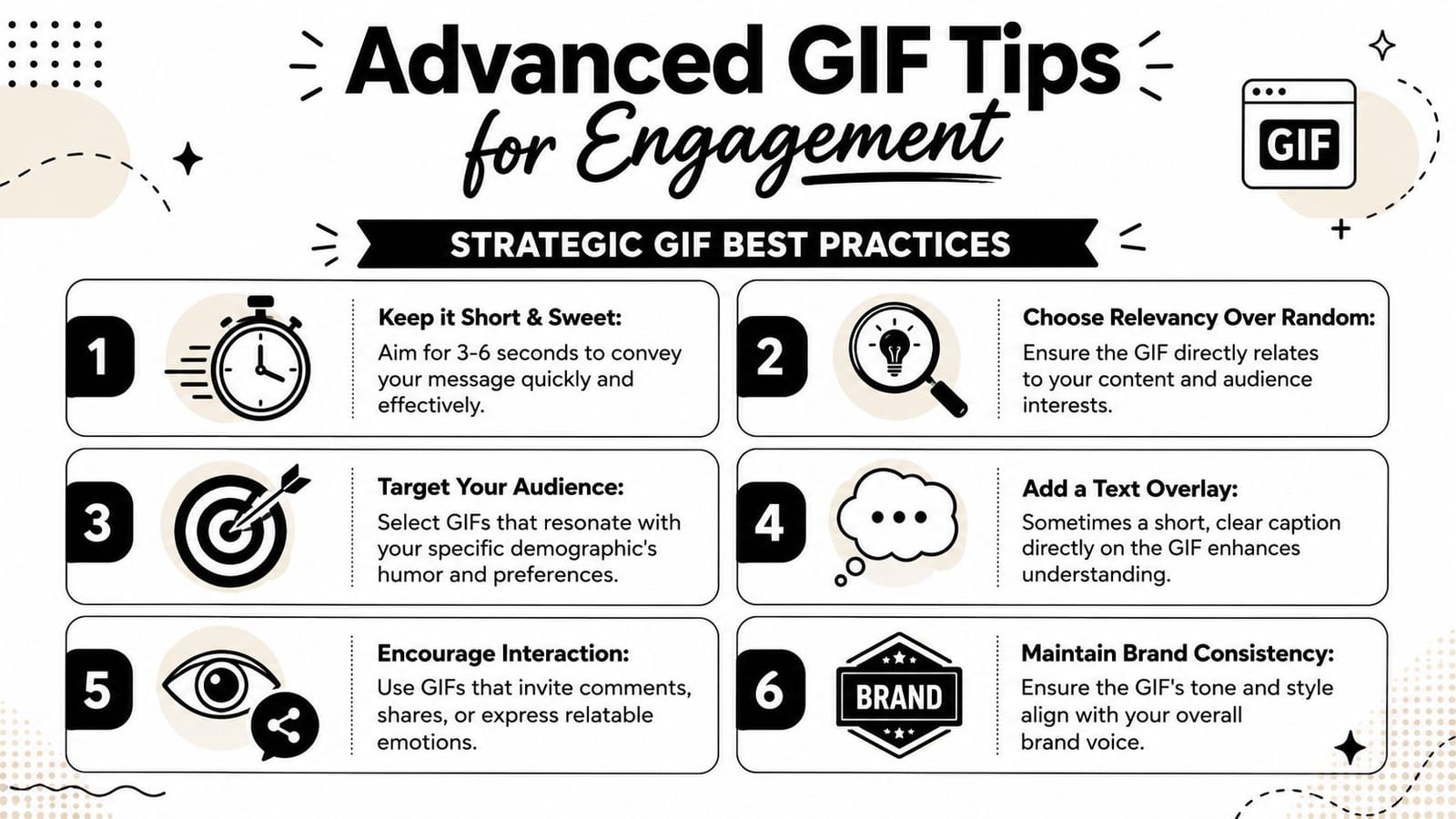
For self-created GIFs, a useful production limit is to keep them under 8 MB for Facebook use, and one common workaround for direct uploads is to host the GIF elsewhere and paste a direct URL ending in .gif into the post, as explained in TechSmith's guide to posting animated GIFs on social platforms.
That has two practical implications:
- Smaller files are easier to work with. They're less likely to cause upload friction and easier to reuse across workflows.
- A direct .gif URL can work better than a device upload. If Facebook can fetch the asset from the URL itself, the post may behave more like a true animated embed.
Choose the format based on the job
A lot of creators try to force GIFs into every motion use case. That's rarely the right move.
Use a GIF when you need quick, lightweight visual emotion. Use a short looping video when you need more control over playback quality, text, or polish. If the content is branded, educational, or central to the post's message, converting the animation into a short MP4 is often the cleaner move, even if the audience casually calls it a “GIF.”
Here's the decision logic I use:
- Reaction content in comments usually belongs in the native GIF picker
- Decorative motion in Stories works best as GIF stickers
- Brand assets in feed posts often perform more reliably as short video loops
- Reusable planned content should be tested in the exact publishing workflow before it enters the calendar
A timing strategy matters too. If you're using animated posts in campaigns or recurring content series, it helps to align them with a broader publishing plan. This guide on the best time to post on Facebook is useful for deciding when those assets should go live.
Making GIFs Part of Your Content Strategy
The strongest Facebook GIF use isn't random. It's consistent, on-brand, and tied to a job. Sometimes that job is to get a quick reaction in comments. Sometimes it's to make a Page update feel more alive. Sometimes it's to add motion to a Story without producing a full video asset.
What matters is choosing the right posting method for the context. Native GIF search is usually the safest choice. Story stickers are best when motion supports a visual layout. Scheduled content for Pages needs an operational check after publishing. Direct uploads need more skepticism because Facebook may handle the file differently than you expect.
For teams building a fuller publishing system, GIFs should sit inside the same editorial standards as any other asset. Caption quality, timing, audience fit, and asset reuse still matter. If you're refining the bigger picture too, these expert tips for content marketing are a solid companion resource for keeping creative choices connected to actual strategy.
A good GIF doesn't just move. It communicates fast, fits the moment, and works reliably in the format Facebook supports.
If you want one place to plan posts, prepare creative assets, and schedule content across channels, quso.ai is one option to consider. It supports social media scheduling for Facebook along with other major platforms, which can make it easier to fit GIF-based posts into a broader publishing workflow.