How to Zoom in on Video: Preserve Quality Guide 2026
You've got a strong clip. The problem is the most important thing in the frame isn't obvious.
Maybe it's an interview where the reaction shot lands softly because the speaker is too wide. Maybe it's a product demo where the button you're talking about sits in the corner of the screen. Maybe it's a talking-head video that feels flat because the framing never changes. In all three cases, the fix is often simple. You need to zoom in on video with intent, not just enlarge it and hope for the best.
That's where most creators get stuck. They know how to drag a scale slider, but they don't always know which zoom method to use, how far they can push it before the footage gets soft, or when AI reframing helps versus when it makes the edit feel generic. The difference between a clean punch-in and a muddy crop usually comes down to that decision.
Table of Contents
- Start with more resolution than you need
- Know the difference between optical and digital zoom
- Keep motion selective, not constant
- What's the difference between a pan and a zoom
- Can I zoom in on a video after it's uploaded to YouTube
- How do I fix a video that's already pixelated from a zoom
Why Every Creator Needs to Master the Video Zoom
A zoom isn't just a style move. It's one of the fastest ways to tell the viewer what matters right now.
If a frame is wide and cluttered, the viewer has to search. That slows down comprehension. A well-timed zoom removes that friction. It pushes attention toward a face, a hand movement, a chart label, a UI element, or a reaction that would otherwise get lost.
This matters more now because video has become a default communication format for work, education, and marketing. During the pandemic, Zoom meeting participants increased by 2,900%, and its valuation surpassed $100 billion, according to Business of Apps' Zoom statistics. That shift trained audiences to expect clear framing and obvious visual emphasis, even in simple tutorial or interview content.
For creators making explainers, onboarding videos, and product walkthroughs, that expectation is even stronger. If you work on creating video tutorials for SaaS, zooming is one of the cleanest ways to highlight interface details without forcing the audience to squint at a full-screen dashboard.
Three methods that solve different problems
You don't need one universal zoom technique. You need the right one for the job.
- Manual crop and scale works when the framing can stay fixed after the cut.
- Keyframed zooms work when you want the camera move to feel deliberate and smooth.
- AI-powered zooms work when you're producing a lot of clips and need software to follow speakers or reframe automatically.
Practical rule: Use zooms to clarify attention, not to decorate footage.
The good edits are usually restrained. The zoom should feel like a camera operator made a decision, not like the editor discovered the scale slider and got excited.
The Two Foundational Zooming Methods Explained
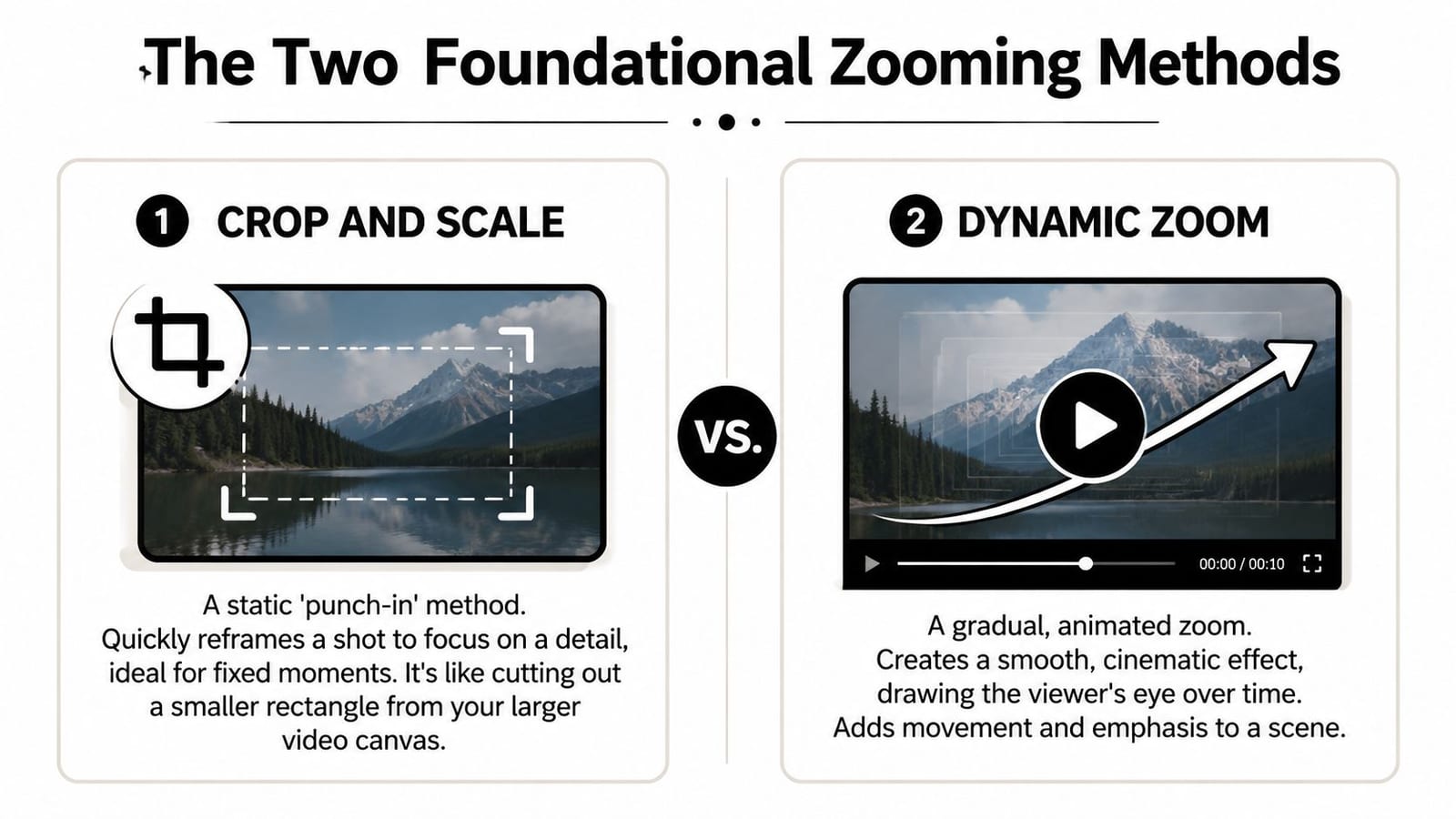
Most edits that zoom in on video rely on two basic approaches. Everything else, including many AI tools, is built on top of them.
Crop and scale
This is the classic punch-in. You take a wide shot, increase scale, reposition the frame, and hold that framing for the duration of the clip or segment.
It's fast. It's clean. It works well when the subject isn't moving much and when the new framing is meant to function like a second camera angle. A lot of talking-head edits use this to create visual variation without switching cameras.
The downside is that it can feel abrupt if there's no editorial reason for the change. If the crop appears at a random moment, viewers notice the edit instead of the point you're trying to emphasize.
A simple way to understand:
| Method | Best use | Strength | Weakness |
|---|---|---|---|
| Crop and scale | Interviews, demos, talking heads | Fast reframing | Can feel static or sudden |
Dynamic zoom with keyframes
Keyframing adds motion over time. Instead of jumping from wide to close, you set a starting scale and position, then an ending scale and position, and let the software animate the move.
This is what gives you a smooth push-in during an emotional moment, a gentle move toward a product detail, or a slight pan across a screen recording. It's more controlled than a static crop because you decide exactly when the motion starts, how fast it moves, and where it ends.
That control is why keyframes usually look more polished. The movement feels motivated. It helps the viewer arrive at the important detail instead of being snapped there.
A punch-in changes framing. A keyframed zoom changes framing and pacing.
Which one should you choose
Use crop and scale when the purpose is editorial clarity. You're effectively saying, “This is the closer shot now.”
Use keyframes when timing matters. You're saying, “Follow this moment as it develops.”
A practical decision framework looks like this:
- If the subject stays mostly still, use a static punch-in.
- If the point unfolds over a few seconds, use keyframes.
- If you need speed over finesse, crop and move on.
- If the clip is a centerpiece moment, animate it.
The mistake I see most often is choosing keyframes for everything. Constant camera movement makes footage feel restless. The second most common mistake is using static crops where a gentle move would have made the cut feel intentional.
How to Zoom In on Any Video Editing Platform
The mechanics are similar across almost every editor. You're looking for controls named Scale, Position, Transform, Motion, or Crop. The interface changes. The logic doesn't.
Source quality matters before you touch any of those controls. Compare Internet's 2026 guide estimates that a 1-on-1 HD call at 1080p can use around 1.62 GB per hour, while HD group calls can reach 2.5 GB per hour, which is a useful reminder that higher-quality source footage gives you more image data to work with when you reframe in post, as noted in Compare Internet's Zoom data usage guide.
Desktop editors
In Adobe Premiere Pro, Final Cut Pro, and DaVinci Resolve, the process usually starts in the inspector panel for the selected clip. Premiere calls this Motion. Final Cut uses Transform controls. Resolve exposes similar controls in the inspector.
For a static zoom, raise Scale, then adjust Position until the subject sits correctly in frame. If you're punching in on a face, keep the eyes on a stable horizontal line. If you're zooming into a product or UI element, give it enough breathing room that the crop doesn't feel cramped.
For a moving zoom, toggle keyframes for scale and position at the start of the move, then change those values at the end point. If the movement feels robotic, ease the keyframes if your editor supports it. That softens the start and stop.
Mobile apps
CapCut, InShot, and similar apps are built for speed, so the zoom tools are often easier to access than on desktop. You'll usually find a Keyframe button, then use pinch gestures or transform handles to set your framing.
Mobile editing is great for short social clips, but it's less forgiving when your original footage is already compressed. If you're editing vertical clips from a call recording or reposted file, don't assume the app can rescue detail that wasn't captured in the first place.
If you want a simple browser-based utility for reframing before doing more detailed edits elsewhere, a dedicated video crop tool can help you quickly test composition options.
Web-based editors
Web editors usually keep the workflow stripped down. That's useful when you're collaborating with a team or turning around social content quickly. Look for a right-side property panel with scale, crop, fit, and fill options. Many also include timeline keyframes, even if they hide them behind an “animate” or “motion” menu.
The primary trade-off with web tools isn't whether they can zoom. It's whether they give you enough control over timing and positioning. If all you need is a punch-in for a tutorial clip, that's often enough. If you want subtle motion and exact pacing, desktop still gives you more precision.
For creators comparing editing stacks, lnk.boo's creator tool guide is a useful overview of the wider tool ecosystem around production and publishing.
Don't start by asking which platform is best. Start by asking whether this clip needs a fixed crop, a timed move, or automated reframing.
Leveraging AI for Smart Automated Zooms
AI zooming is useful when the job is repetitive, not when the creative decision is unusually specific.
That's why it works so well for podcasts, interviews, webinars, and educational clips with predictable visual structure. The software can detect a face, track the active speaker, and reframe the shot without you setting keyframes by hand on every clip.
What AI is actually doing
Under the hood, the idea is closer to selective attention than magic. In research on long-video understanding, ZoomV uses a query-aware temporal zoom-in approach that identifies important event windows, encodes them, then applies temporal downsampling to keep key frames while discarding less informative ones, as described in the ZoomV paper on arXiv.
That matters for editors because the same broad logic shows up in practical AI tools. The system isn't “understanding” a clip the way a human editor does. It's prioritizing moments, subjects, and frames that are more likely to matter.
When AI zooms work well
AI does its best work in footage with a clear center of interest:
- Two-person interviews where one speaker is active at a time
- Podcasts where cuts and punch-ins follow speech naturally
- Tutorials where the subject or screen region is obvious
- Repurposed long-form content where manual editing would be slow
Where AI struggles is nuance. If the emotional point is a pause, a glance, or a deliberate hold on a wide frame, automation may overcorrect. It may zoom when stillness would have been stronger.
For creators thinking through the bigger role of AI in the creative process, Bulby's guide to creative AI is a thoughtful read.
If you want to test this workflow directly, an AI video editor is the right category of tool to explore because it can combine reframing with clipping and layout decisions.
Create Perfect Zooms in Seconds with quso.ai
For teams repurposing long videos into short clips, the useful part of automation isn't only the zoom itself. It's the combination of moment selection, reframing, and editing speed in one workflow.
Where automated clipping helps
quso.ai fits best when you have podcasts, webinars, interviews, or educational recordings that need to be cut into multiple short-form pieces. Its workflow is built around taking long footage, identifying strong clip candidates, and applying editing choices that make those clips publish-ready faster.
That includes AI-assisted zoom behavior as part of a broader clipping and reframing process. In practice, that's useful when you don't want to build every punch-in manually on a timeline.
Where manual judgment still matters
Automation works well for repeatable patterns. It doesn't replace editorial taste.
If you're shaping a flagship sales video, a polished course lesson, or a highly designed brand piece, it still makes sense to review every zoom decision. You may want a slower move, a wider hold, or no movement at all. The more intentional the storytelling, the more manual judgment matters.
That's the right way to think about automated zooms. They remove tedious work. They don't remove the need for taste.
Pro Tips to Zoom In Without Losing Video Quality
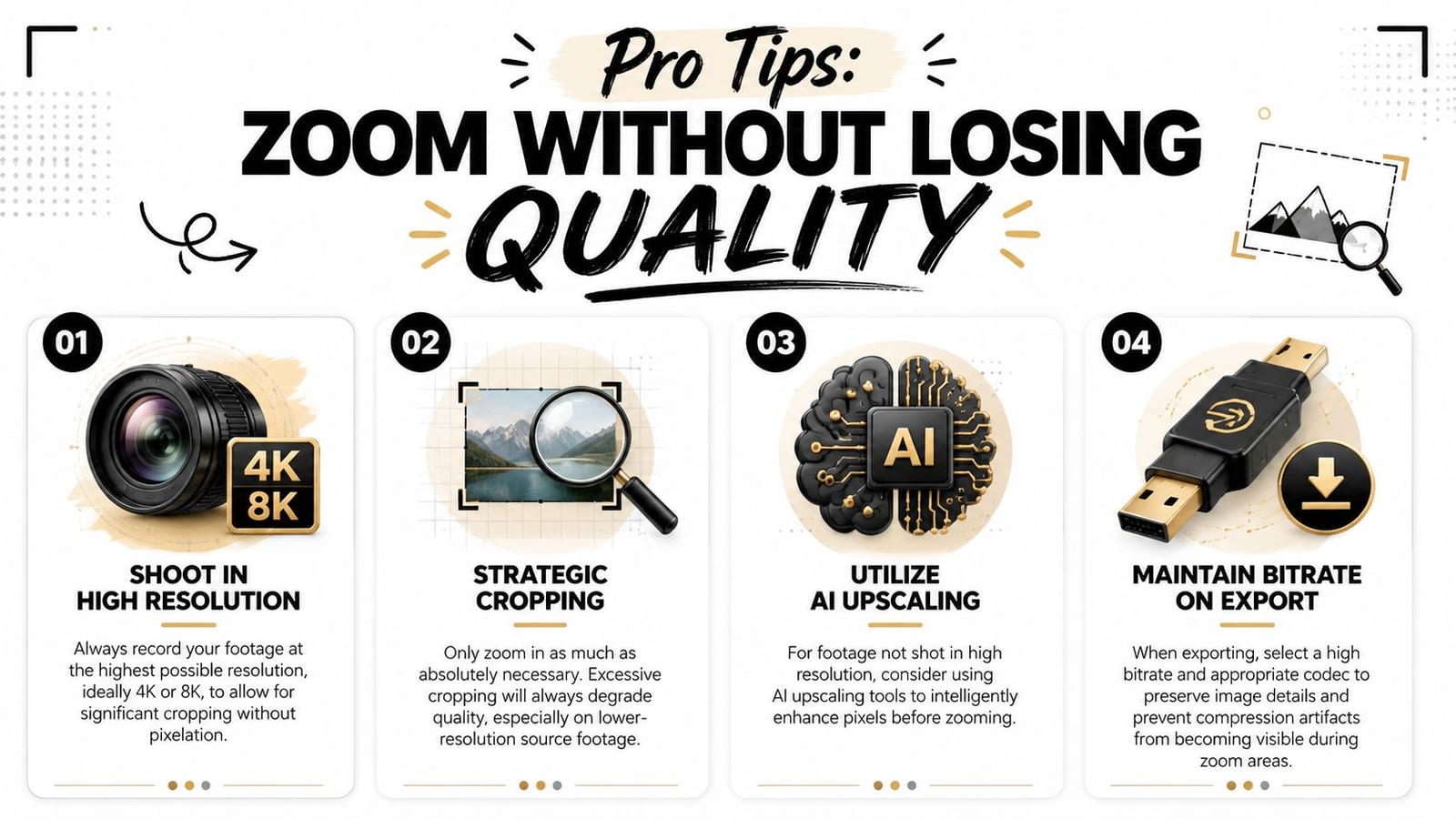
Quality falls apart for predictable reasons. You crop too far. You start with weak source footage. You export too aggressively. Or you confuse lens zoom with post-production enlargement and expect them to look the same.
The cleanest fix is to plan for the edit before you hit record.
Start with more resolution than you need
If you know you'll crop in later, record in 4K even if your final delivery is 1080p. A practical workflow guide from Smooth Capture recommends starting from 4K source footage, setting the first keyframe at 100% scale, then animating to roughly 150% to 300% scale at the moments that matter. The same guide says 4K can maintain about 95% sharpness up to a 300% zoom and recommends limiting zooms to 3 to 5 key points per video, as detailed in Smooth Capture's pro zoom workflow guide.
That gives you a usable ceiling. It does not mean every clip should be pushed that far. Plenty of footage looks better with a smaller crop and stronger composition.
A related tactic is improving the source before you start reframing. If your footage already looks rough, it helps to review practical methods for improving video quality before adding any zoom at all.
Know the difference between optical and digital zoom
This is the quality distinction basic tutorials often skip.
Optical zoom happens in-camera through the lens. It magnifies the image without throwing away resolution. Digital zoom in editing is a crop. You're enlarging existing pixels, so softness becomes visible faster, especially if the source was already compressed or recorded at a lower resolution.
If you need a dramatic close-up and quality matters, get closer in-camera or use optical zoom before relying on a heavy digital punch-in.
This short demo is useful if you want to see framing choices in action before applying them in your own edit.
Keep motion selective, not constant
Even well-executed zooms lose impact when they happen too often. Editors sometimes add movement to every beat because static framing feels plain on the timeline. The result is visual fatigue.
A better habit is to reserve zooms for moments that benefit from emphasis:
- Emotional reactions in interviews
- Critical interface details in tutorials
- Important product features in demos
- Comedic punchlines in short-form edits
Use stillness elsewhere. Contrast is what makes the movement work.
Frequently Asked Questions About Video Zooming
What's the difference between a pan and a zoom
A pan moves the framing horizontally or vertically across the image. A zoom changes magnification. You can combine them, but they do different jobs. If you want to follow a subject moving across frame, a pan may solve the problem better than a tighter crop.
Can I zoom in on a video after it's uploaded to YouTube
Not in the same way you can in an editor. Platform players may let viewers enlarge playback on their own screens, but that isn't the same as reframing the actual video. If you want a clean editorial zoom, download the source project or original export and make the change in editing software.
How do I fix a video that's already pixelated from a zoom
You usually can't fully restore lost detail. You can try sharpening, denoising, or AI enhancement, but those tools improve perception more than they recover true image information. This is also where the optical-versus-digital distinction matters most. Optical zoom preserves resolution, while digital zoom is just a crop that often turns soft or blurry, a difference highlighted in this optical vs digital zoom explanation.
If you regularly turn long recordings into short clips, quso.ai is worth a look. It combines clipping, reframing, and AI-assisted editing in one workflow, which is useful when you need faster turnaround on social-ready video without building every zoom by hand.