How to Schedule TikTok Posts: A Practical Guide for 2026
Yes, you can schedule TikTok posts, either through TikTok's desktop browser interface for Business Accounts or more flexibly with third-party tools. Here's the breakdown.
The part most guides miss is that scheduling isn't really a publishing trick. It's a content pipeline problem. Based on analysis of 170K+ posts across 1,100+ creators, posts with automated captions and pre-scheduled release times show a 22% higher consistency metric, yet 68% of creators abandon scheduling because they lack a pipeline of finished assets (TikTok Business). That lines up with what happens in teams: the bottleneck usually isn't clicking “Schedule.” It's getting enough edited clips ready before the posting window passes.
If you're trying to learn how to schedule TikTok posts, start with the tool that matches your workflow. Native TikTok scheduling works if you only need a short planning window and you're posting from desktop. If you batch content, repurpose long videos, manage multiple channels, or need mobile flexibility, you'll hit the native limits quickly.
📊 quso.ai data: We grouped creators by yearly post volume. Those posting 200+ times earn 169x more total reach with no per-post penalty. Volume compounds. See the full study: How Often Should You Post on TikTok? What the Data Shows.
Table of Contents
- How to Schedule TikTok Posts The Right Way
- What the native scheduler is good at
- How to schedule a TikTok post natively
- Safe zones that prevent ugly posts
- The schedule button is missing
- The post didn't publish on time
- The post looks wrong after publishing
- The caption or hashtags didn't save the way you expected
- Can you schedule TikTok posts from your phone?
- Do scheduled TikTok posts get less reach?
- Do you need a Business account to schedule natively on TikTok?
- Can you edit a scheduled TikTok post after setting it?
- Should you schedule every TikTok post?
How to Schedule TikTok Posts The Right Way
There are really two ways to schedule TikTok posts.
One is TikTok's own scheduler in the desktop browser interface. The other is using a third-party scheduler that handles auto-publishing, planning beyond TikTok's short native window, and often cross-platform posting too. The right choice depends less on budget and more on whether you already have finished content ready to publish.
Practical rule: Scheduling only works when editing, captions, approvals, and publishing happen as one system.
That's why batching matters. If your clips are still sitting in draft folders, scheduling won't fix inconsistency. It just gives you another tab to manage. Teams that publish regularly usually build a weekly workflow: record long-form content, cut clips, add captions, approve copy, then load everything into a calendar. If you need help upstream, this a guide to TikTok editing for creators is a useful reference before posts ever reach the scheduler.
For broader planning across channels, it also helps to think beyond TikTok alone. A simple social workflow like the one in this social media scheduling guide keeps posting from turning into a daily scramble.
Scheduling Posts with TikTok's Native Tool
TikTok's native scheduler is fine for straightforward publishing. It's built for desktop use, it posts directly from TikTok's side, and it removes the need for a reminder notification or manual tap at publish time.
What the native scheduler is good at
Use it when you have a Business account, your video is ready now, and your schedule doesn't need to stretch too far ahead.
The constraints matter. The TikTok web-based Studio allows scheduling up to 10 days in advance, and posts set for less than 15 minutes out fail to queue. The same Hootsuite reference also notes that, based on analysis of 170K+ posts, posts scheduled 24 to 48 hours out had 3.2x higher engagement than posts scheduled at the 10-day edge (Hootsuite's TikTok scheduling guide).
That last point is useful operationally. You don't need to max out the full window just because it exists.
Here's the desktop interface commonly used:

How to schedule a TikTok post natively
Open TikTok in a desktop browser
Log in and go to the upload area. If you're trying to do this from the mobile app, you won't get the same native scheduling controls.Upload the finished video
Add your final file, not a rough draft. Native scheduling is the end of the process, not the place to keep tinkering.Write the caption and set post options
Add your description, hashtags, cover, and privacy settings. Double-check everything before moving on.Toggle on scheduling
Pick a date and time that fits your audience and campaign calendar.Leave enough lead time
Don't cut it close. If you try to schedule too near the current time, TikTok may fail to queue the post.
Native scheduling is reliable when the asset is final. It's frustrating when the asset is still changing.
Safe zones that prevent ugly posts
Most scheduling tutorials ignore this, but operators care because a bad frame kills retention before the hook even lands. TikTok's interface places usernames, captions, and engagement icons over the video. If your main text or subject sits too low on the right side, parts of the message get covered.
Use these placement habits:
- Keep headline text high and centered so the bottom caption area doesn't hide it.
- Avoid placing critical visuals on the right edge because interface buttons stack there.
- Leave room at the bottom for auto-captions and TikTok's own text overlays.
- Preview before scheduling to make sure on-screen text still reads cleanly on mobile.
If the frame only works in an editor preview and not inside TikTok's UI, it isn't ready to schedule.
Using Third-Party Tools for Advanced Scheduling
Scheduling gets harder after the edit is done, not before. The main bottleneck is the handoff between content production and publishing.
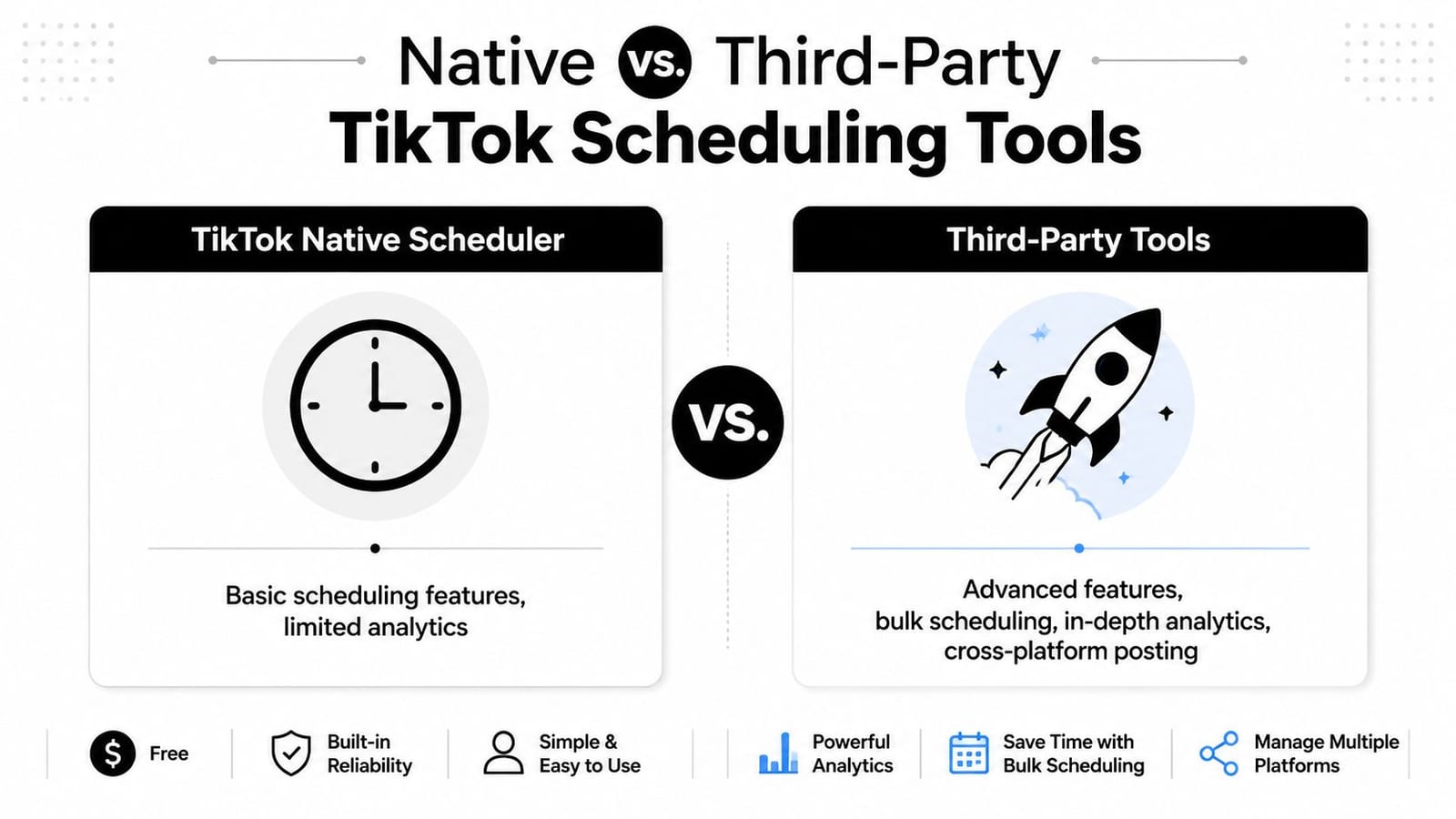
A native scheduler works well for a finished post. A third-party scheduler starts to matter when you are batching 10, 20, or 50 clips at once and need approvals, captions, owners, publish dates, and cross-platform visibility in one place. That is the workflow gap a lot of scheduling guides skip. Posting is the last step of a batching system, not a standalone task.
Where the native option starts to slow the workflow
| Need | Native TikTok tool | Third-party tool |
|---|---|---|
| Desktop-only scheduling | Yes | Often no |
| Personal account mobile scheduling | No | Often supported via auto-publishing |
| Planning beyond a short window | Limited | Usually better |
| Cross-platform calendar | No | Usually yes |
The trade-off is simple. Native scheduling keeps you close to TikTok's own interface, which is useful for final checks. Third-party tools reduce the admin load once content is already approved and queued.
That matters most for teams running a batch process. If an editor finishes clips on Tuesday, a manager reviews them on Wednesday, and publishing is spread across the next two weeks, passing files through TikTok one by one creates avoidable work. Metadata gets copied manually. Captions drift from the approved version. Publish dates live in a spreadsheet instead of the actual scheduler.
When third-party tools earn their place
Use a third-party scheduler when content creation and publishing happen in separate steps or with different people.
That usually includes podcasts, webinars, interviews, UGC programs, product demos, and B2B thought leadership. In those setups, the team needs more than a publish button. They need a calendar, asset status, reusable captions, and a way to queue final posts without reopening every file in TikTok.
quso.ai fits that type of workflow for creators and B2B content teams. It handles clipping, captions, repurposing, and scheduling in one system. These are off-product tasks that often eat more time than the actual post setup inside TikTok.
If you want a side-by-side comparison, review these TikTok schedulers to save time and stay consistent. If your process is getting more automated across editing, approvals, and publishing, you can also explore TikTok automation strategies.
The downside is control. Some third-party tools lag behind TikTok feature updates, and some posting flows still need a mobile confirmation step depending on account type and permissions. I use them to remove repetitive scheduling work, not to replace final QA. That balance keeps the batching system fast without letting bad posts slip through.
How Often and When You Should Schedule Posts
Scheduling works best as the last step in a batching system, not a daily scramble. Posting frequency and timing matter, but they only help if your pipeline can keep up.
Timing that gives posts a better start
Analysts at Buffer found strong default posting windows for TikTok. Sunday at 9 a.m. local time showed the highest median engagement in their study, Saturday performed well overall, and evenings between 6 p.m. and 11 p.m. were consistently active across many days.
Use those as starting points, not fixed rules.
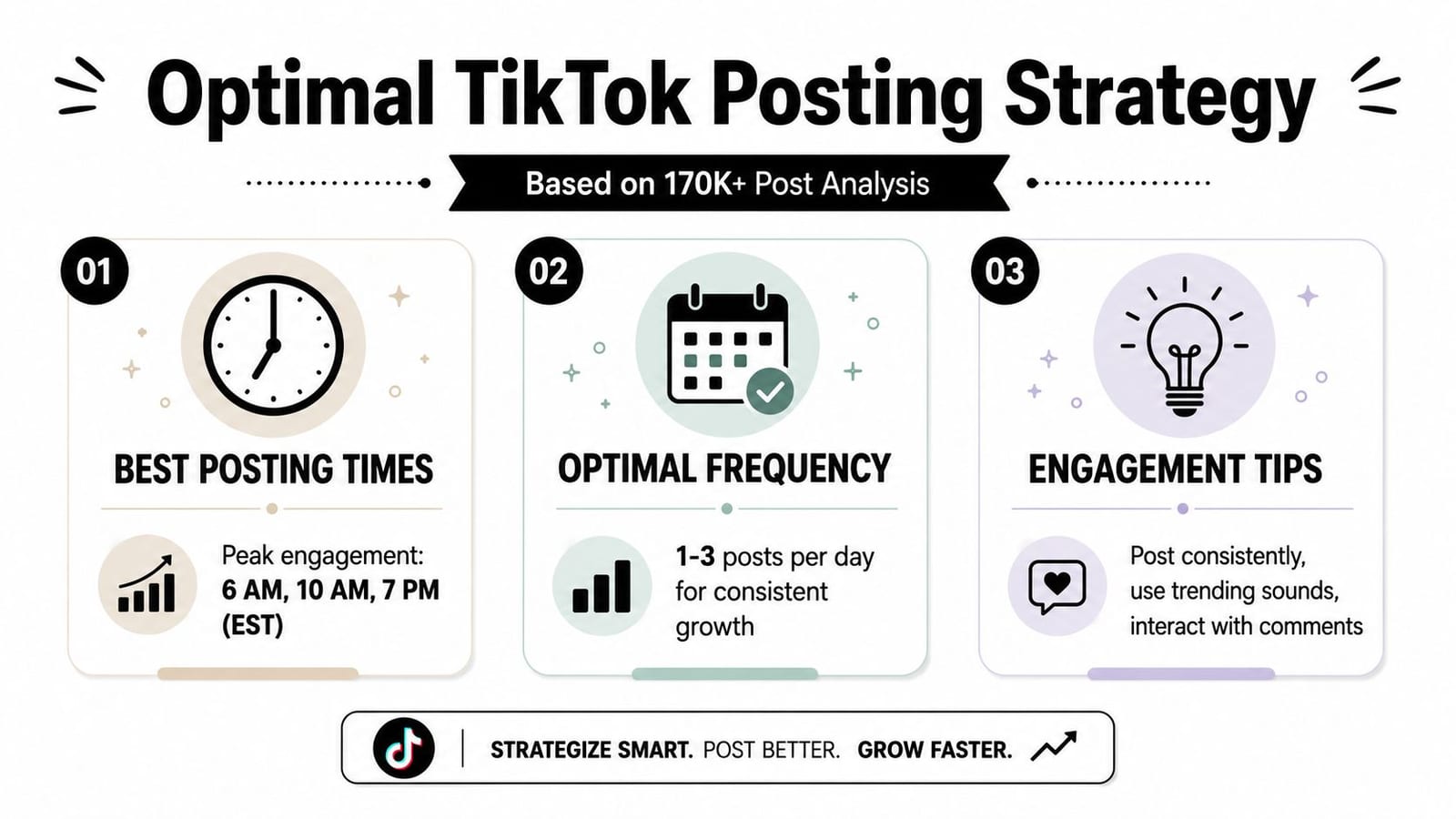
The better scheduling decision is usually to publish before your audience peak. If your viewers tend to be active around 6 p.m., schedule the post for 4 p.m. or 5 p.m. so it has time to pick up early engagement before the busiest hour, based on guidance from Sendowl's TikTok timing and cadence research.
Schedule for the ramp-up, not the crowd.
If you want more practical posting windows by day, this guide on the best time to post on TikTok is a useful reference.
A realistic scheduling cadence
Cadence breaks down when teams batch content one day, then try to publish it with no spacing plan. That is the workflow gap a lot of scheduling advice skips.
Sendowl's research also suggests that new creators do well with 3 to 4 posts per week, and daily posting works better when uploads are spaced at least 4 to 6 hours apart.
That pacing is realistic for an actual content operation. Record once. Cut several usable clips. Queue the strongest posts across the week. Keep one slot open for a reactive post if a trend, reply, or product moment earns it.
I use that approach because it protects consistency without forcing filler content. Posting more often can help, but only if quality stays high and each video has a clear role in the week's lineup.
If you're trying to improve reach as well as stay organized, this article on how to grow on TikTok pairs well with your scheduling plan.
Troubleshooting Common TikTok Scheduling Issues
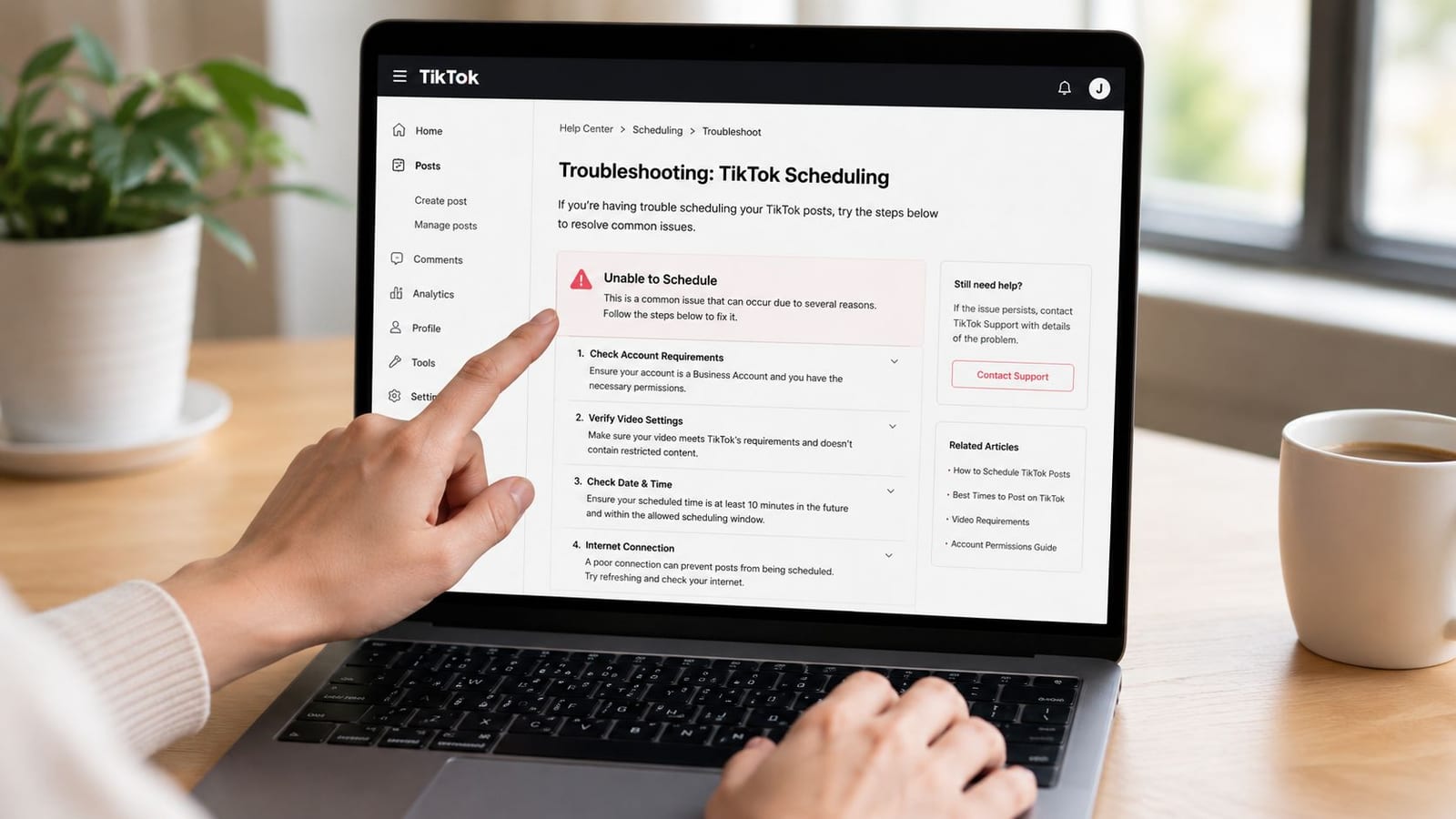
Most scheduling problems aren't mysterious. They're usually one of a few repeatable errors.
The schedule button is missing
This usually happens because you're on mobile or using the wrong account setup for the native flow. If you don't see scheduling options, switch to desktop and confirm you're using the account type that supports the tool in TikTok's browser workflow.
The post didn't publish on time
Start with the obvious checks:
- Check the lead time. If you scheduled too close to the current time, the post may not have queued.
- Check the asset. Re-export if the file looks incomplete or corrupted.
- Check rights-sensitive elements. Audio or content settings can block or delay publishing.
- Check the chosen time. If your audience peaks at 6 p.m., posting at 6 p.m. itself may be less effective than posting between 4 p.m. and 5 p.m., since posting 1 to 2 hours before peak activity can improve momentum, as noted earlier from Sendowl.
The post looks wrong after publishing
This is usually a formatting problem, not a scheduling problem.
If captions cover your hook, the post wasn't publish-ready.
Fix the frame, not the posting time. Rework text placement, keep important visuals away from the right edge, and leave more room at the bottom for TikTok UI overlap.
The caption or hashtags didn't save the way you expected
Native tools are less forgiving when you're making last-minute changes. Finalize your caption before uploading, then preview everything once more before locking the post. Small copy edits are where rushed scheduling sessions usually go wrong.
FAQ About Scheduling TikTok Posts
Can you schedule TikTok posts from your phone?
Not natively through TikTok's standard mobile workflow. If mobile scheduling is a requirement, use a third-party scheduler that supports auto-publishing.
Do scheduled TikTok posts get less reach?
There's no evidence in the provided sources that scheduled posts are penalized just because they're scheduled. Poor timing and inconsistent posting are the bigger problems.
Do you need a Business account to schedule natively on TikTok?
For the desktop native method described here, yes. That's one reason many creators move to third-party tools instead of relying on TikTok alone.
Can you edit a scheduled TikTok post after setting it?
In practice, native scheduling is much easier when the asset is final before you queue it. If you expect frequent changes, a calendar-based third-party tool is usually easier to manage.
Should you schedule every TikTok post?
No. Schedule your planned content, then leave room for reactive posts. If you also experiment with sound-led content, this guide to making AI tracks for TikTok can help you build posts that still feel native to the platform.
If your workflow starts with long-form video, quso.ai is a practical way to turn those recordings into short clips, add captions, and schedule them without piecing together separate tools. It's a cleaner setup when you want a consistent TikTok calendar instead of posting one clip at a time.