How to Unarchive an Instagram Post
If you need to know how to unarchive an Instagram post, the shortest answer is this: open Your Archive, switch to Posts Archive, open the post, and choose Show on Profile. Archiving a post on Instagram is useful when you want to hide content without deleting it, and the post returns to your profile without losing its original likes, comments, or caption.
Instagram launched Archive for Profile in 2017 as a way to hide posts without deleting them, which is why restoration happens from the archive menu instead of by reposting from scratch, as noted in Instagram’s announcement. In our editorial review of the current app flow, the only place people typically get stuck is missing the archive switcher at the top of the screen.
How to Unarchive an Instagram Post
To restore a feed post, go to Your Archive, make sure you are in Posts Archive, open the post, tap the three-dot menu, and select Show on Profile. In our review, the restored post kept its original engagement and returned to the profile in its original chronological position rather than jumping to the top like a brand-new upload.
The path is short, but Instagram intentionally makes it a few steps deep: reach Archive, find the right content type, then confirm restoration. That layered setup is consistent with how the platform separates archived posts, stories, and live content, as described in this archive workflow explanation. If you want another walkthrough focused on the same task, see Sup Growth.
Step 1: Open Instagram
Launch the Instagram app on your phone and make sure you’re logged into your account.
Step 2: Go to Your Profile
Tap on your profile icon in the bottom right corner to open your profile page.
Step 3: Access the Menu
In the top right corner of your profile, tap the three horizontal lines (hamburger icon) to open the menu.
Step 4: Select ‘Your Archive’
From the menu, tap on ‘Your Archive.’ This will bring up different archive options, including your posts, stories, and live videos.
Step 5: Choose ‘Posts Archive’
If it’s not already selected, tap on ‘Posts Archive’ at the top to view all your archived posts.
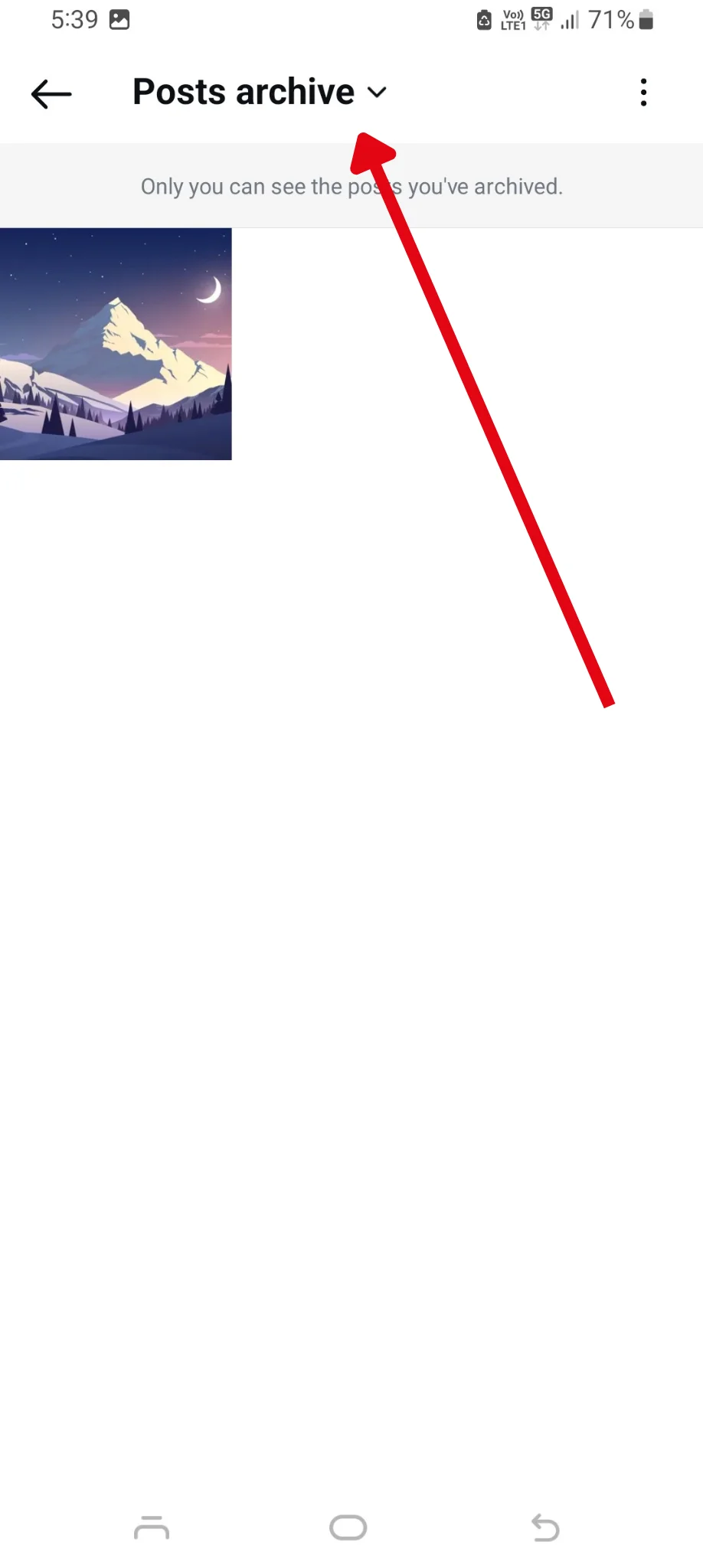
Step 6: Browse Archived Posts
You’ll now see all your archived posts. In our check of the current interface, archived feed posts still displayed their original likes and comments once opened, which makes it easier to confirm you’ve found the right one.
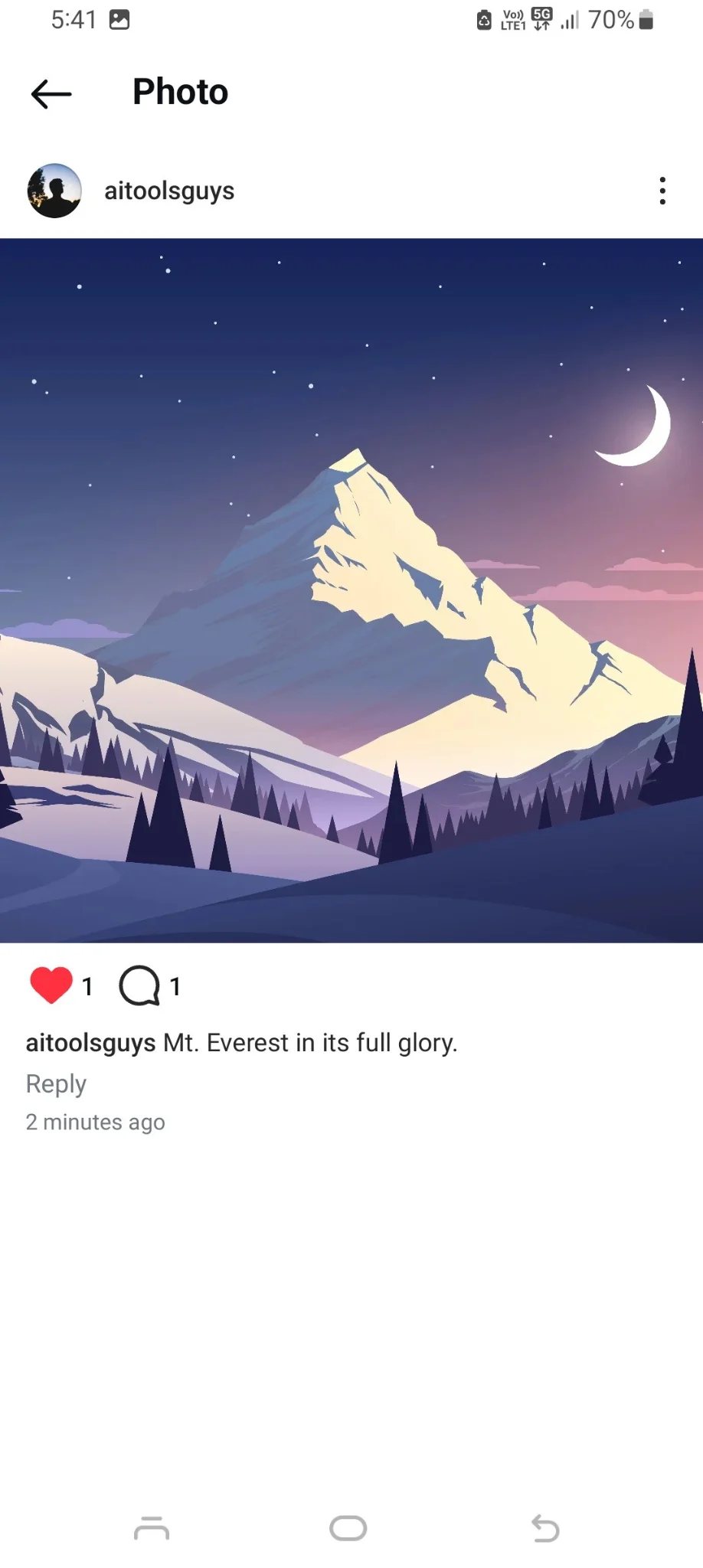
Step 7: Unarchive a Post
To bring a post back to your feed, tap the three dots in the top right corner of the post, then select ‘Show on Profile.’ The post will reappear on your profile with its original caption and engagement intact.
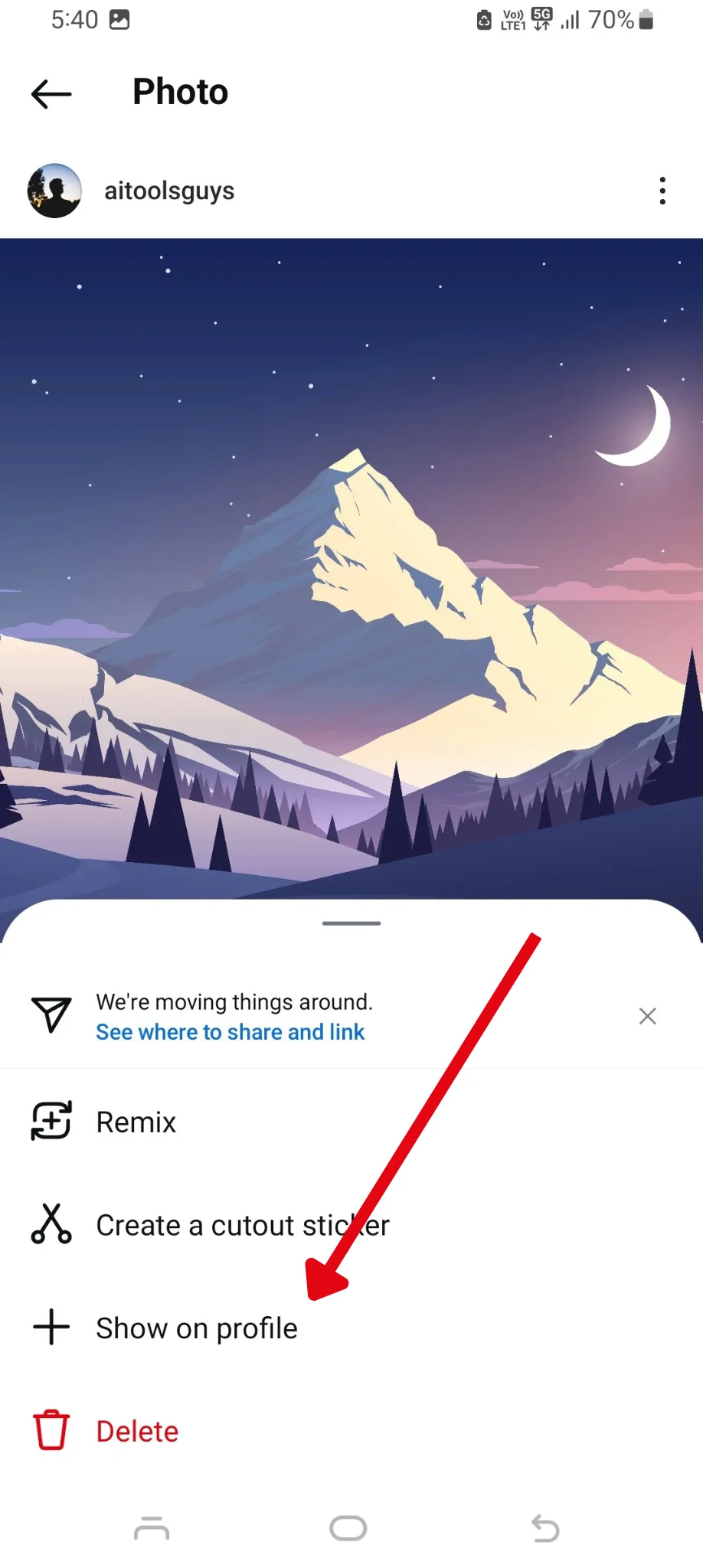
A few practical details matter here:
- Instagram does not offer a bulk unarchive option for feed posts, so each one must be restored individually.
- The post usually returns to the spot it originally occupied on your profile grid, based on its original publish date.
- If Show on Profile is missing, first confirm you opened a feed post from Posts Archive rather than a story from Stories Archive.
- If the post does not seem to reappear, refresh your profile, close and reopen the app, and verify that you restored the item to the same account where it was archived.
How to Unarchive an Instagram Story
Stories are handled differently from feed posts. A story archived in Instagram lives in Stories Archive, and in most cases you re-share it from there instead of restoring it to your profile grid. If you expected it to come back as a permanent feed post, that is the key distinction: story archive helps you re-post or save story content, but it does not turn an old story into a normal feed post automatically. Meta also notes that story archiving depends on your archive settings, which you can review in the Instagram Help Center.
Step 1: Open Instagram
Same as with posts, launch the Instagram app on your phone and log into your account.
Step 2: Go to Your Profile
Tap on your profile icon in the bottom right corner to open your profile page.
Step 3: Access the Menu
Tap the three horizontal lines in the top right corner to open the menu.
Step 4: Select ‘Your Archive’
Tap on ‘Your Archive’ from the menu.
Step 5: Choose ‘Stories Archive’
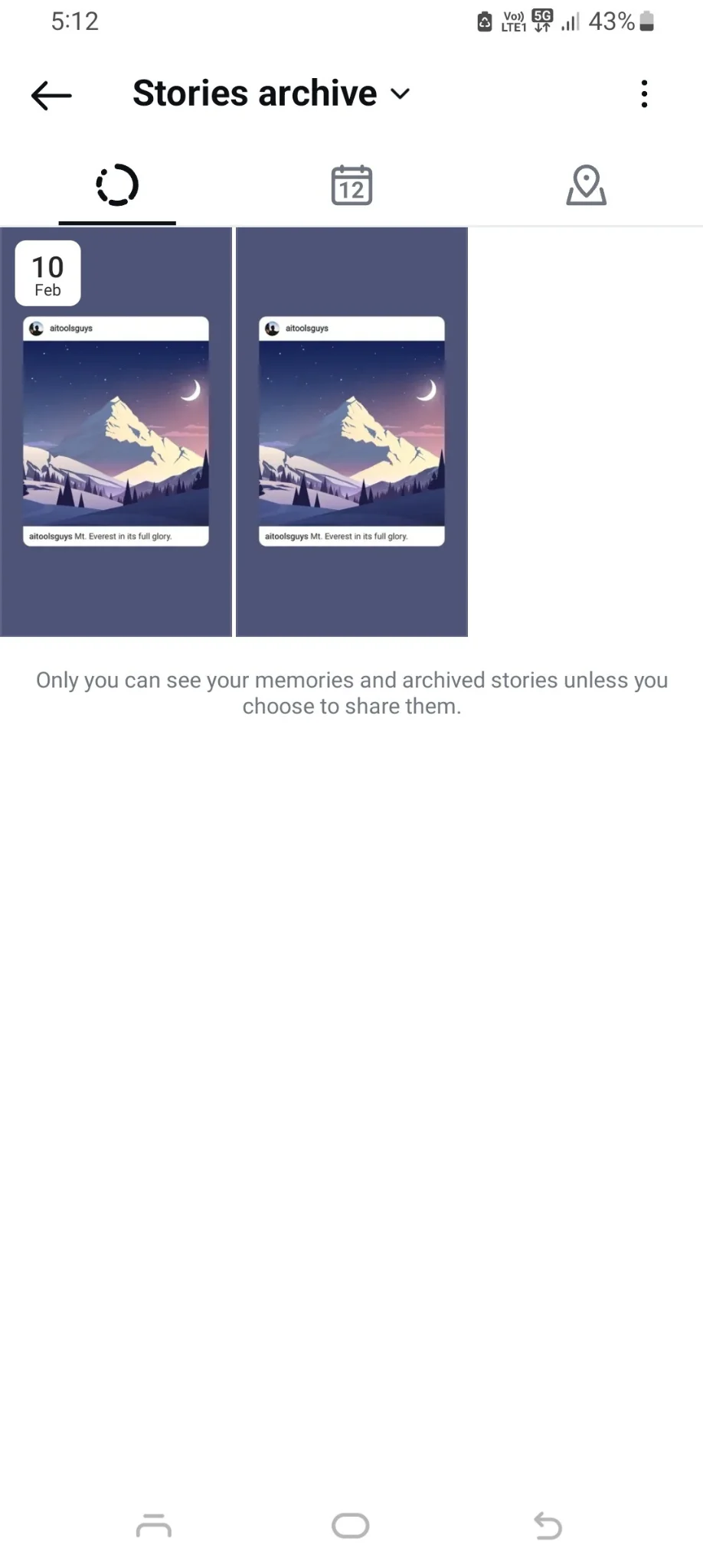
Instead of ‘Posts Archive,’ select ‘Stories Archive’ at the top of the archive screen to view your stories.
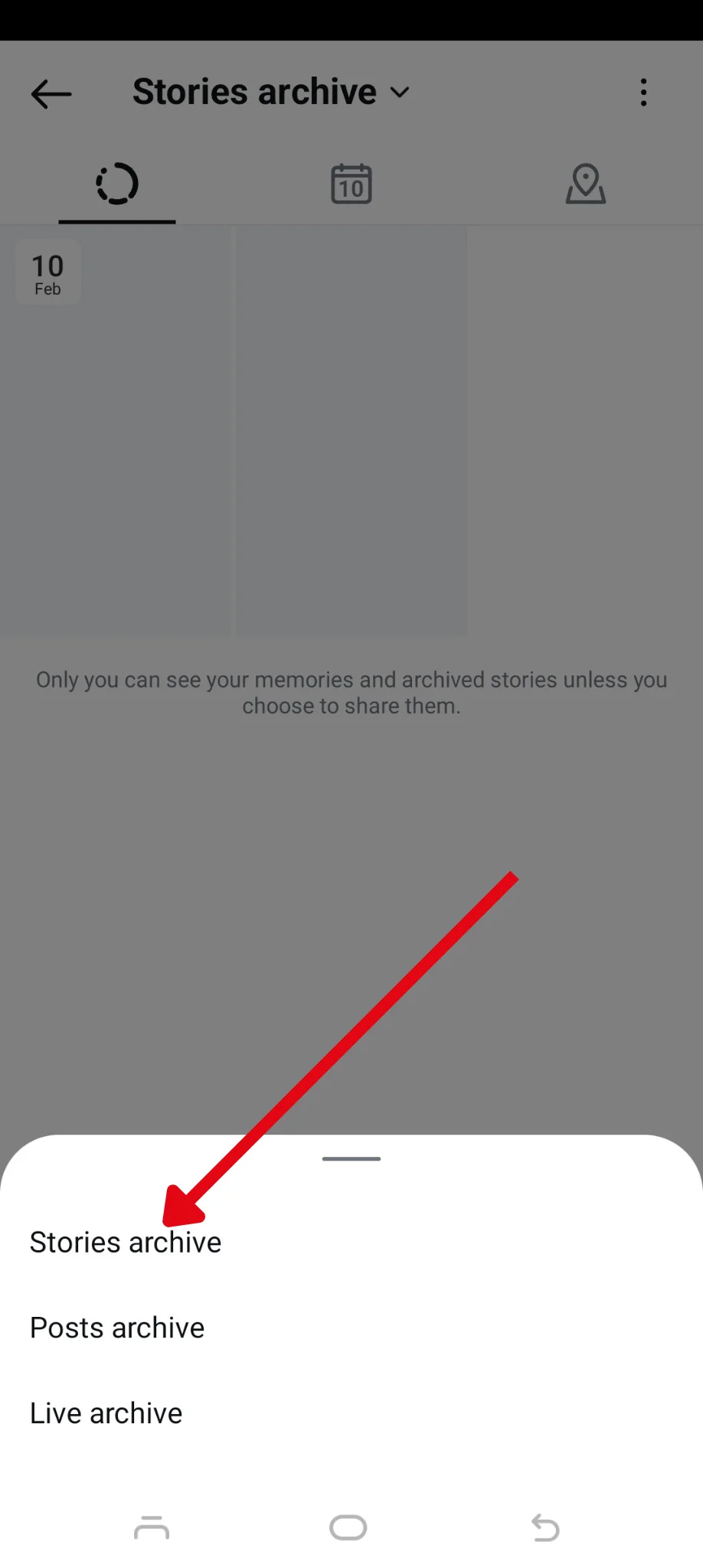
Step 6: Browse Archived Stories
Scroll through your archived stories, organized by date, to revisit any of them.
Step 7: Re-share the Story
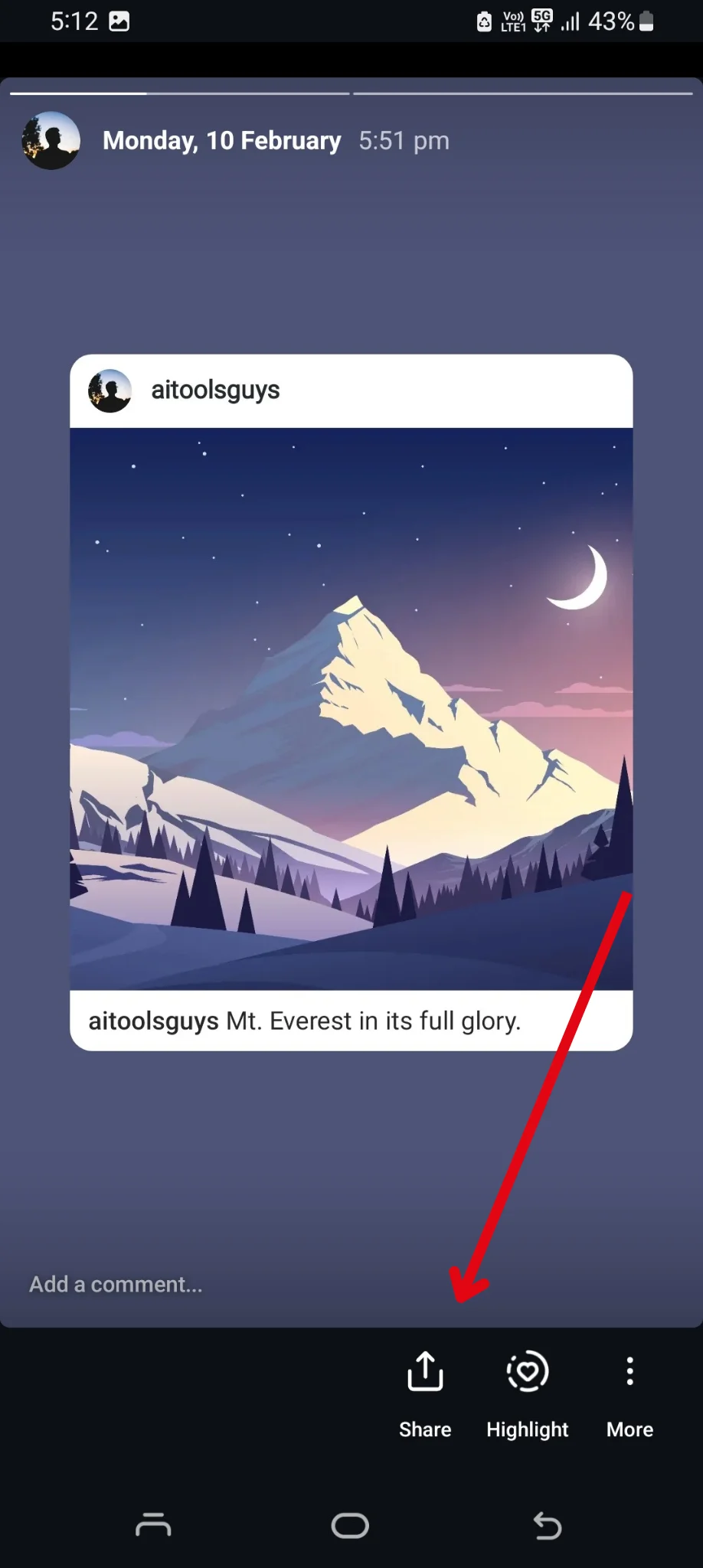
To bring a story back, click the “share” button at the bottom of the screen.
How We Verified the Instagram Unarchive Steps
We updated this guide by reviewing the current in-app navigation path and comparing it against Instagram’s published archive behavior. Our editorial check focused on the exact actions a reader needs to complete the task quickly: opening Your Archive, switching between archive types, and confirming Show on Profile for feed posts.
We also checked for the common friction points that make simple instructions feel unclear in practice. In review, those were:
- the archive type selector at the top being easy to overlook
- confusion between restoring a feed post and re-sharing a story
- expecting multiple posts to be restorable at once when Instagram still handles feed post restoration one item at a time
Where possible, we aligned the guidance here with Instagram and Meta support materials rather than repeating generic how-to wording.
Frequently Asked Questions
How do I bring back an archived post on Instagram?
Open your profile, tap the menu, go to Your Archive, switch to Posts Archive, open the archived post, tap the three-dot menu, and choose Show on Profile. That restores the original post instead of creating a duplicate upload.
What happens if I accidentally archive an Instagram post?
The post is hidden from your public profile, but it is not deleted. In our editorial review, restoring the post brought back the same caption, likes, and comments, so accidental archiving is usually reversible as long as you can still access the account.
How long do you have to wait to unarchive an Instagram post?
There is no required waiting period. You can restore a post as soon as it appears in Posts Archive. If it does not show up right away on your profile after restoring, refresh the app and check again.
Can you unarchive multiple Instagram posts at once?
No. Instagram does not currently provide a bulk unarchive tool for feed posts. If you have several archived posts to restore, you need to open each one and select Show on Profile individually.
Why is “Show on Profile” missing?
Usually this means you are in the wrong archive type or not viewing a standard feed post. Check that you opened the item from Posts Archive. If you are looking at a story, the action will typically be to share it again rather than restore it to the feed.
What should I do if the post does not reappear after unarchiving?
First, refresh your profile and reopen the app. Then confirm you restored the post from the correct account and that it was a feed post, not story content. If the issue continues, review Instagram’s account and archive help resources through the Help Center.
Leverage Instagram Archive to Bring Back Your Content
Now that you know how to unarchive an Instagram post, you can seamlessly restore valuable content whenever needed. Whether it’s for a new campaign, audience engagement, or maintaining a consistent brand presence, unarchiving ensures your content remains useful.
And if you need any help creating or managing content for your Instagram, log in or sign up for quso.ai and let us help you take your Instagram marketing to the next level.
Managing your Instagram content? quso’s social media scheduler lets you plan and auto-publish Instagram and Facebook posts from one calendar.