Content Management Software for Digital Signage: A 2026
You're probably dealing with one of two situations right now.
Either your screens are already live, and your team is updating them with a patchwork of USB sticks, email requests, shared folders, and last-minute text changes. Or you're shopping for a digital signage platform and every vendor page looks the same: scheduling, templates, cloud dashboard, analytics, integrations. Everything sounds capable. Very little tells you what daily ownership feels like.
This is the core buying challenge. Many groups don't fail because the software can't publish content. They struggle because the system adds hidden work: chasing approvals, fixing offline players, keeping content current across locations, and training non-technical staff to use tools they didn't choose. A smart purchase isn't just about feature depth. It's about whether your team can run the network without turning it into a second job.
Table of Contents
- From USB Sticks to Centralized Control
- Think of it as a website CMS for screens
- The three jobs a CMS handles
From USB Sticks to Centralized Control
Manual screen management usually breaks down in predictable ways.
A store manager updates one location but forgets another. A lobby display still shows last month's campaign because nobody logged into that player. Marketing approves a holiday promotion, but operations can't push it everywhere fast enough. Then somebody discovers one screen has been black for days.
That's the gap a digital signage CMS closes. Instead of treating each screen like a separate project, it gives you one control point for content, timing, devices, and permissions. You stop managing isolated displays and start managing a network.
The category itself has evolved in that direction. Digital signage content management software is a centralized software layer that lets organizations manage screens, content, schedules, integrations, and user access from one place. In practice, it's also used to create, distribute, and monitor content across players and displays, with scheduling, template design, screen-health monitoring, and analytics now treated as standard CMS functions in major platforms, as described by Playipp's explanation of digital signage content management systems.
Practical rule: If your process depends on someone remembering to update each screen manually, you don't have a signage system yet. You have a collection of screens.
That distinction matters when you compare vendors. Many platforms can publish media. Far fewer fit neatly into the way your team works. A marketing manager needs fast campaign updates. IT needs predictable device management. Local staff need guardrails so they can make safe edits without breaking layouts or brand standards.
The strongest buying decision usually comes from one question: what happens after launch on an ordinary Tuesday?
If the answer involves too many handoffs, too many logins, or too much cleanup, the software may be technically strong and still be the wrong choice.
What Is a Digital Signage Content Management Software
Think of it as a website CMS for screens
If you've ever used WordPress, Webflow, or Shopify, you already understand the basic idea.
A digital signage CMS is the control layer that manages what appears on screens, when it plays, where it's deployed, and who can publish or approve it. In practical terms, that means teams can push updates, apply scheduling rules, and manage permissions across one or many locations instead of editing each player one by one, which helps reduce manual synchronization errors in multi-site networks, as explained by Yodeck's overview of digital signage CMS basics.
Instead of web pages, your “site” is a fleet of displays. Instead of posting a blog article, you publish playlists, promotions, menus, announcements, dashboards, or emergency messages. Instead of updating one page at a time, you can target one screen, one region, one building, or the entire network.
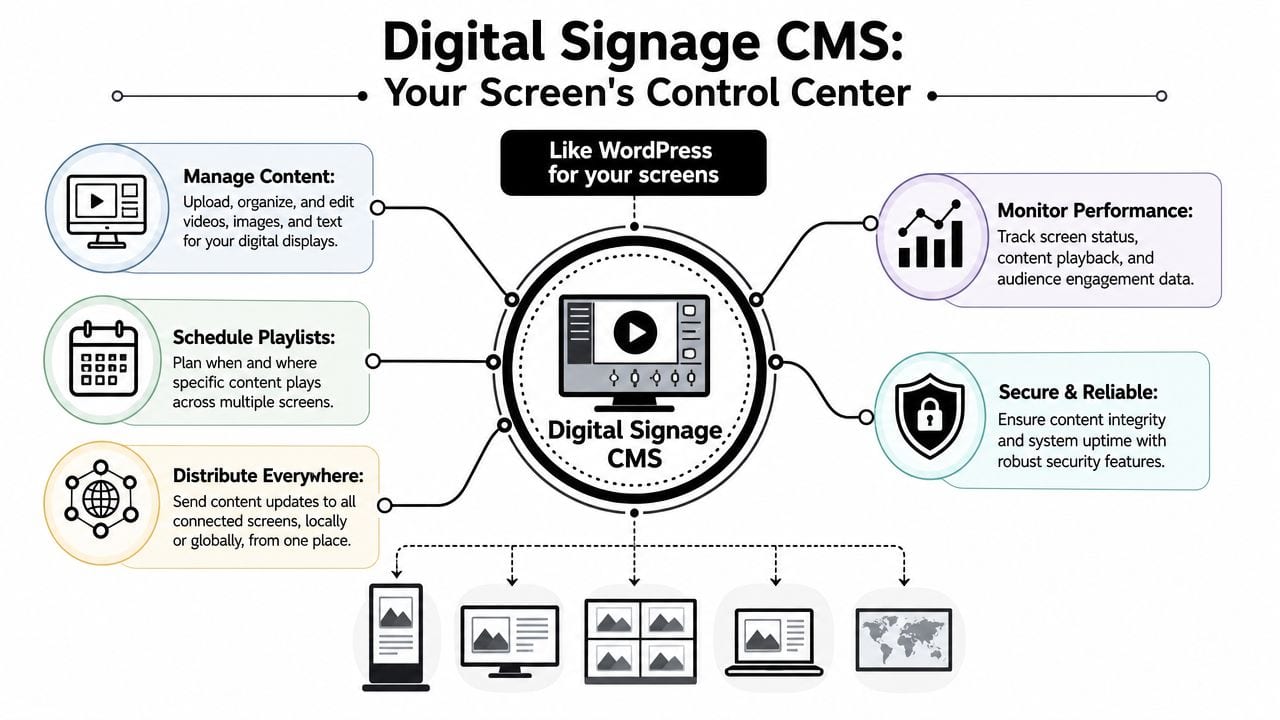
What confuses many buyers is that a signage CMS isn't only a content editor. It's part publishing tool, part scheduling engine, part device management layer. If you think of it only as “software to upload videos,” you'll miss why some systems are easy to run at scale and others become messy fast.
The three jobs a CMS handles
A useful way to evaluate content management software for digital signage is to separate it into three jobs.
Content engine
A content engine allows your team to store assets, builds layouts, edits screen designs, and reuses branded templates. Good systems make common tasks simple. Swap an image, update text, localize pricing, or duplicate a playlist without rebuilding the whole screen experience.Scheduling engine
This controls when content plays and under what conditions. You might schedule breakfast menus in the morning, promotional campaigns on weekends, or internal messages during shift changes. The best tools make timing rules visible, so teams can tell what will play before they publish it.Network engine
This is the overlooked piece. It manages players, checks screen status, helps troubleshoot issues remotely, and keeps the network consistent. Without it, every content problem turns into an IT ticket.
Here's the simplest way to think about it:
| CMS function | What your team sees | Why it matters |
|---|---|---|
| Content management | Media library, templates, layouts | Faster updates and stronger brand consistency |
| Scheduling | Calendars, playlists, rules | Right message on the right screen at the right time |
| Network control | Device status, remote actions, permissions | Fewer outages and less manual support work |
A good signage CMS doesn't just help you publish. It helps you avoid publishing mistakes at scale.
That's why the product demo can be misleading. A polished editor may impress marketing, but if the platform makes permissions clumsy or troubleshooting hard, IT and operations will carry the burden later.
Essential Features and System Architectures
The features that matter most in daily use
When you compare platforms, separate flashy features from operational ones.
The technical feature set in digital signage CMS platforms typically includes remote screen monitoring, playback control, template-based content creation, and analytics/reporting. That matters because the CMS isn't just a publishing tool. It acts as a network orchestration system that can collect device-health and audience data, then use that feedback to support display settings, content timing, and troubleshooting across the signage fleet, according to Navori's guide to digital signage CMS workflows.
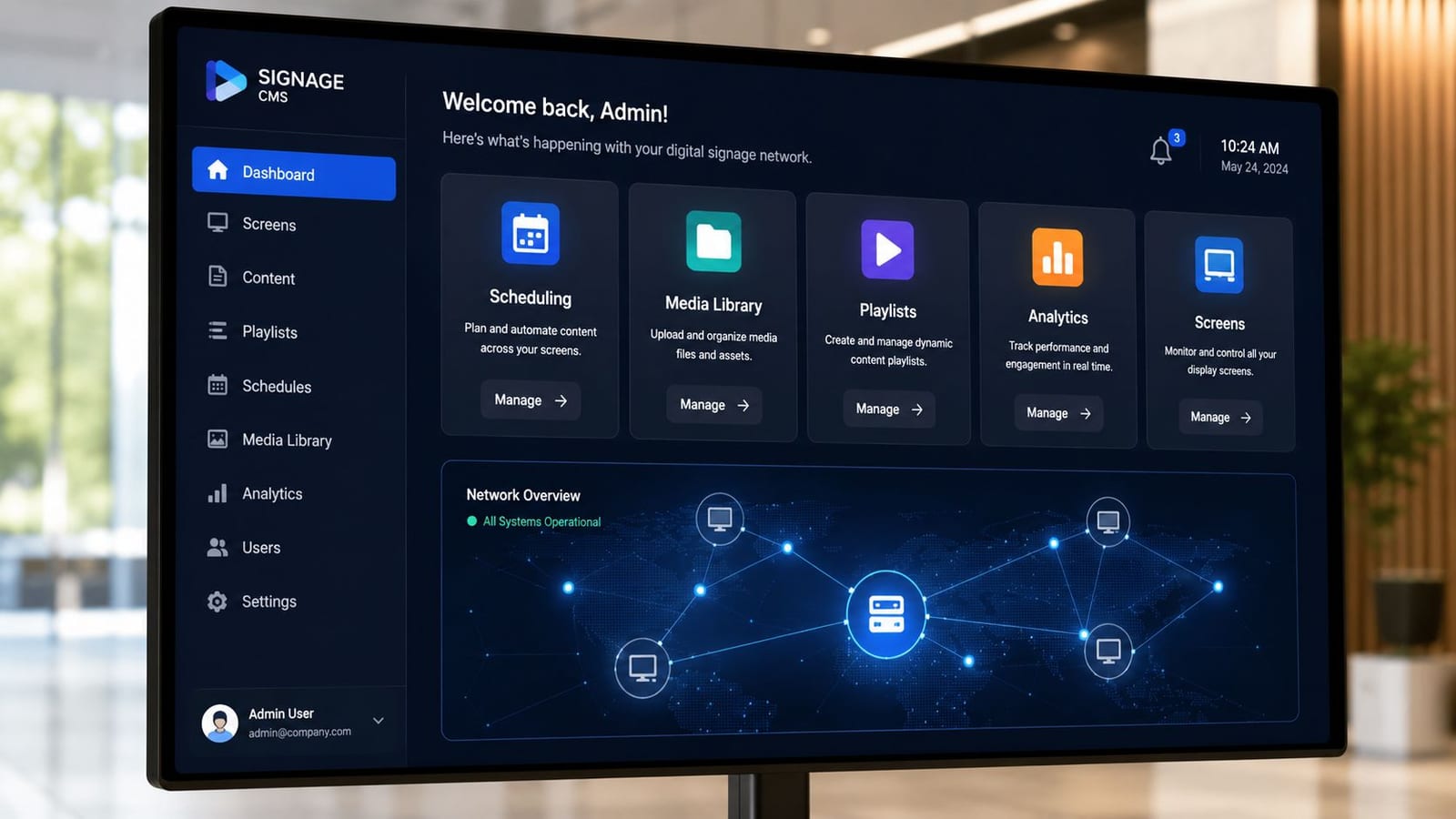
In practice, the most useful features often look unglamorous:
- Template controls: Marketing can lock logos, fonts, and layout zones while local teams update only approved fields.
- Playlist and schedule management: Users can assign content by location, time, campaign, or screen group.
- Remote monitoring: IT can spot offline players, playback failures, or device issues without visiting each site.
- Role-based access: Corporate teams, agencies, branch managers, and franchise operators can each get the right level of control.
- Reporting and proof of play: Teams can confirm whether content ran where and when expected.
Nice-to-have features can still matter, but they should come after the basics. Examples include AI-assisted layout creation, advanced data triggers, audience measurement tools, or deeper API options. If your team can't reliably publish, govern, and monitor content, those extras won't rescue the project.
Cloud and on-premise in plain English
Most buyers also need to choose between cloud-based and on-premise architecture.
Here's the business version of that choice:
| Architecture | Best fit | Tradeoff |
|---|---|---|
| Cloud CMS | Teams that want faster rollout, remote access, and less infrastructure to maintain | Less direct control over hosting environment |
| On-premise CMS | Organizations with strict internal policies or special control requirements | More responsibility for setup, maintenance, and support |
A cloud system usually suits distributed organizations because staff can work from anywhere with a browser. That tends to simplify publishing and support. An on-premise approach can be appropriate when internal compliance rules are firm or when the organization wants tighter control over deployment.
Field note: Ask who patches the system, who monitors uptime, and who handles backups. Architecture decisions become staffing decisions very quickly.
This is also where hardware compatibility enters the conversation. Some platforms work best with dedicated media players. Others support smart displays, system-on-chip panels, or mixed hardware fleets. The wider the compatibility, the more flexibility you may have. But broader support can also mean more variation to test and maintain.
Real-World Use Cases and Industry Examples
Retail and customer-facing environments
Retail is where digital signage often feels most immediate. Promotions change quickly. Prices vary by location. Seasonal campaigns need tight timing. Local managers still need room to adjust messaging for inventory, weather, or foot traffic.
That matters because digital signage has proven in-store impact. A widely cited 2026 industry compilation reports that 83% of consumers recall content from digital signage and 76% take some action after viewing it, such as visiting a website, entering a store, or making a purchase. The same source says 41% of digital signage deployments had integrated AI in 2026, with that share projected to reach 65% by 2028, which shows how quickly CMS workflows are being shaped by automation and AI-driven operations, based on CrownTV's 2026 digital signage statistics roundup.
A retail chain might use the CMS to push a weekend promotion across every location, while still letting each branch swap in local pricing or featured products. A restaurant group might run a master menu design centrally, then allow each site to update availability or region-specific specials. A property business could apply similar logic across offices, and teams exploring localized digital content strategies may find useful parallels in real estate content workflows.
In environments where staff also present information in meeting rooms, showrooms, or service counters, the signage conversation often overlaps with collaboration tools. That's why many IT teams also review guides to wireless display solutions for IT teams when planning how content gets shared across spaces.
Offices campuses and multi-building organizations
Corporate offices, universities, and healthcare facilities use digital signage differently.
In a corporate setting, screens often replace ignored email updates with visible, ambient communication. HR announcements, KPI dashboards, visitor messaging, and event reminders can all run on scheduled playlists by department or floor. The CMS matters because communications teams can publish fast without asking IT to touch every display.
A university has another layer of complexity. One building might need class schedules. Another needs campus alerts. Student centers need event promotion. Administrative areas need internal notices. A centralized CMS lets the institution manage those needs from one place while still delegating certain content rights to local teams.
Here's a simple pattern you'll see across industries:
- Central team owns brand standards
- Local team adjusts approved content
- IT monitors device reliability
- Managers confirm the right message reached the right screen
That operating model is often more valuable than any single feature on a vendor comparison sheet.
How to Choose the Right Digital Signage CMS
Start with team capacity not feature count
Most buying mistakes happen before the demo ends.
A vendor shows a polished interface, a long integrations list, and advanced options your team may never use. The platform looks future-ready, so it feels safe to buy. Then the work starts: screen groups need naming conventions, templates need governance, users need permissions, content approval rules need decisions, and someone has to watch for failed playback.
This is why total cost of ownership matters more than sticker price. Public descriptions often explain digital signage CMS as a centralized tool for creating, scheduling, deploying, and managing content, but they often stop short of the practical buying question: how much time and operational overhead it takes to keep the network running after launch. For lean teams, that's the line between a simple CMS and a system that becomes another workload, as discussed in OmmaSign's analysis of digital signage CMS buying considerations.
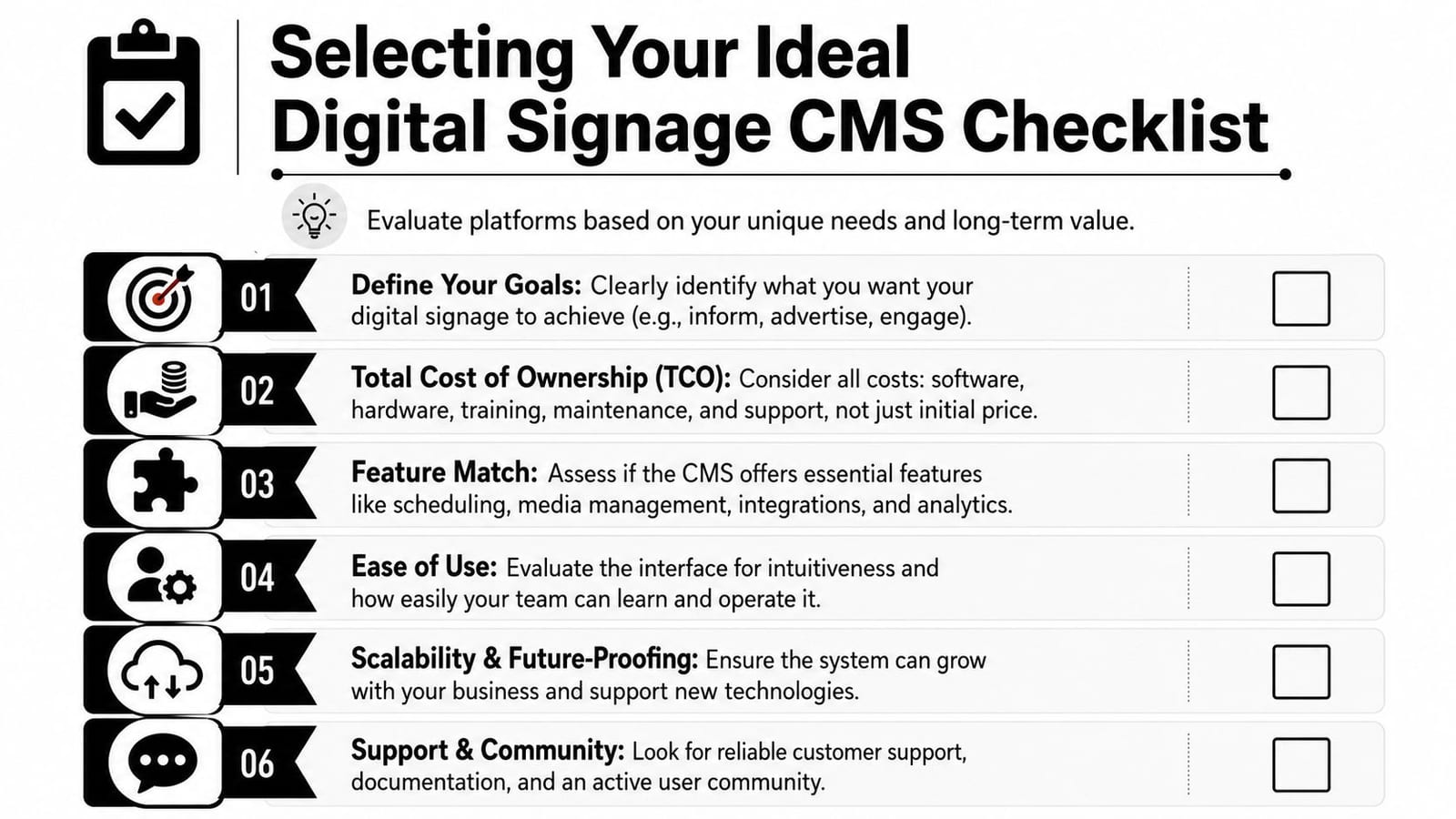
Here's the test I use with clients: if your best internal operator left next month, would the system still run smoothly?
If the answer is no, you may be buying software that depends too much on tribal knowledge.
A short walkthrough can help frame what to evaluate in a live buying process:
A buying checklist that catches hidden workload
Use this checklist during demos and procurement reviews.
- Map users: Who creates content, who approves it, who publishes it, and who troubleshoots devices? A tool that works for AV admins may frustrate branch managers or marketers.
- Check hardware fit: Confirm support for your screens, players, and deployment model. Mixed hardware environments can create support complexity if the CMS handles some devices better than others.
- Test non-technical usability: Ask a marketing coordinator to update a playlist or duplicate a template during the demo. Don't rely on a sales engineer to make the workflow look easy.
- Inspect permissions thoroughly: You want granular control. Global templates should stay protected while local teams edit only safe fields.
- Review monitoring workflow: See how the platform flags offline screens, failed playback, or stale content. If alerts are vague, support work piles up.
- Look at integration reality: Calendar feeds, dashboards, data sources, and business systems all sound useful. But each integration adds setup and maintenance.
- Ask about onboarding: Training, documentation, support responsiveness, and role setup shape adoption more than feature volume.
- Model future growth: You may start with a few screens and expand later. Make sure the system can scale without forcing a redesign of your folder structure, permissions, and content logic.
Buy the system your current team can run well. Not the system an ideal future team might run perfectly.
The right platform often isn't the one with the longest feature matrix. It's the one that gives marketing enough flexibility, IT enough control, and local users enough simplicity to keep content fresh without constant supervision.
Implementation and Integration Best Practices
Roll out in phases
A digital signage project usually goes smoother when you treat rollout like an operational change, not a software install.
Start with a pilot. Pick a small set of screens that represent your real environment, such as one lobby display, one menu board, one office screen, or one branch location. Validate playback, scheduling, remote access, and approval flow before you expand.
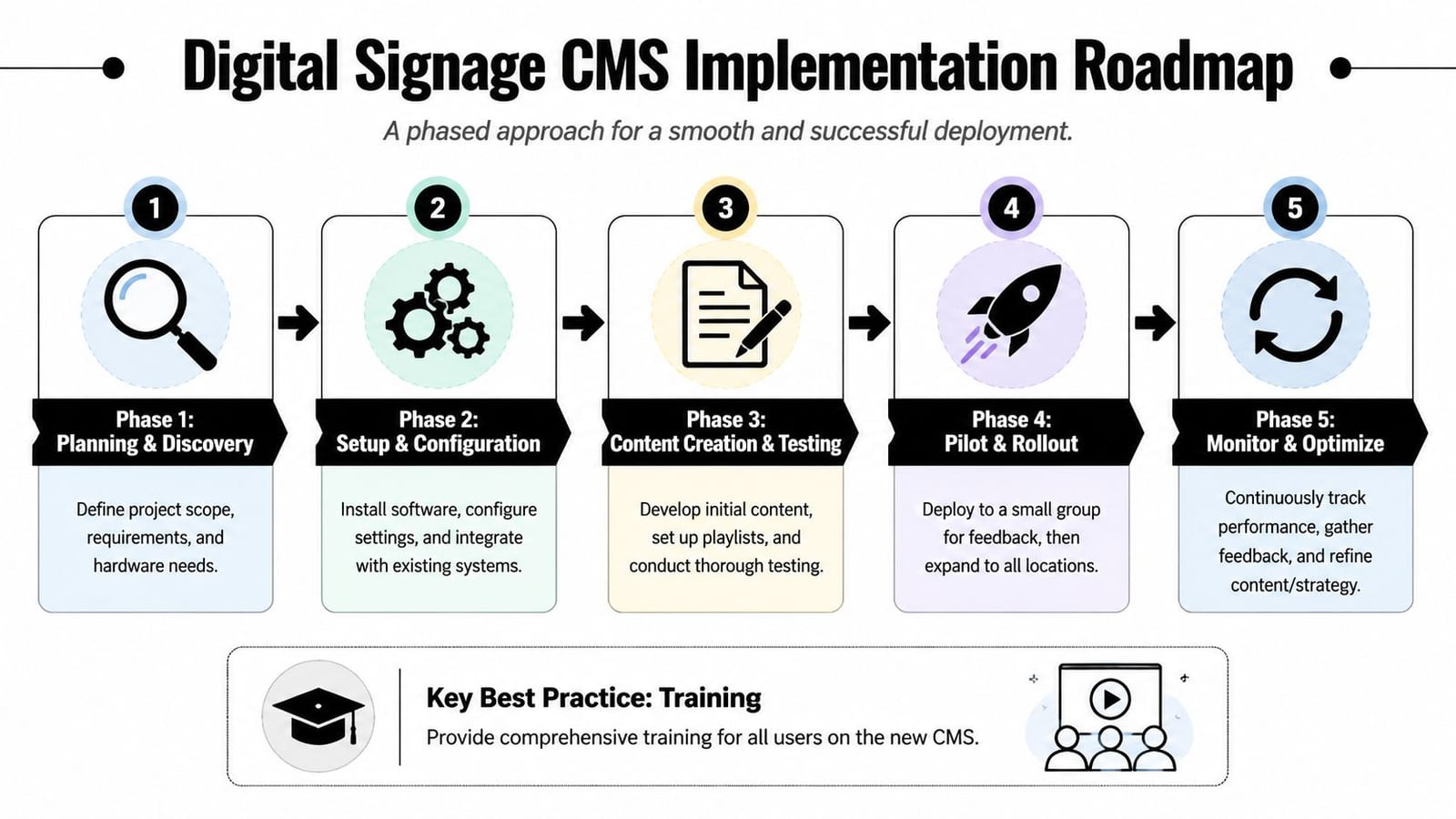
A phased rollout usually works best in this order:
Plan the screen network
Define player groups, naming standards, user roles, and ownership by location or department.Configure the platform
Set schedules, permissions, templates, and default behaviors before many users enter the system.Create starter content
Build a small library of approved layouts and reusable modules instead of uploading random assets first.Pilot with real users
Let marketers, branch staff, or administrators complete typical tasks and report friction.Expand carefully
Add sites in batches, not all at once, so support issues don't spread across the network.
One practical area teams often underestimate is integration work. Pulling in calendars, dashboards, social feeds, or live business data can be useful, but each connection needs ownership and testing. If your team is planning a broader connected workflow, it helps to review how software ecosystems fit together through integration planning across tools.
Build governance before scale
The fastest way to lose control of a signage network is to scale before you define content governance.
Create a few master templates early. Lock down brand-sensitive zones. Decide who can publish immediately and who needs approval. Set a rule for file naming, campaign dates, and archive cleanup. Those choices sound boring, but they prevent clutter and reduce mistakes later.
Train by role, not by platform. A content editor, an approver, and an IT administrator don't need the same workflow.
Teams also benefit from a content refresh routine. If nobody owns stale-content review, screens start looking neglected even when the technology works fine. A simple monthly review of playlists, expired promotions, and underused templates can keep the network useful without much drama.
Future Trends and Advanced Considerations
AI changes the operating model
The most important shift in digital signage isn't just better publishing. It's the move from static screen updates to AI-assisted and data-driven content operations.
Recent market coverage shows vendors moving toward AI-generated templates and browser-based CMS workflows. Buyers are increasingly asking not just whether a platform can publish to screens, but how it helps teams keep content on-brand, localized, and timely at scale, especially in retail, hospitality, education, and service environments, according to Digital Signage Today's review of software provider trends.
That change has a familiar parallel in other content systems. If you want a useful outside comparison, this article on AI for Next.js content management shows how AI is changing content workflows beyond signage as well.
The opportunity is obvious. Teams want faster production, more localized variants, and less repetitive formatting work. The risk is also obvious. If AI creates more drafts than your team can review, the tool may save production time while increasing approval burden.
What mature teams plan for early
As digital signage networks grow, advanced considerations become unavoidable:
- Content governance: Who approves urgent changes, seasonal campaigns, and location-specific edits?
- Security and access control: Which users can publish globally, and which can only update local playlists?
- Scalability: Can your structure support more locations, more users, and more content types without becoming confusing?
- Workflow integration: Can your content teams connect signage planning with wider content operations and AI-supported creation tools such as AI content creation workflows?
The strongest long-term view is simple. A signage CMS is no longer just a screen scheduler. It's becoming part of the broader content operations stack, where brand control, localization, automation, and governance all have to work together.
If your team is trying to create more content without adding more manual work, quso.ai is worth a look. It helps marketers and content teams turn long-form videos into short clips, blogs, captions, and scheduled posts from one place, which is useful when your screen content also needs matching social, campaign, or location-specific assets.