Back to Basics: How to Edit TikTok Captions With quso.ai
Once your TikTok video is live online, there is no button that allows you to edit or change the description under a TikTok video. The only way to edit the TikTok caption after posting is to swiftly delete and re-post. Don't worry! Our guide on how to edit TikTok captions using a vertical video editor will help you keep the original video, complete with all of its edits, filters, and added effects.
How to Edit TikTok Captions After Posting
While you should notice that when you download a video from TikTok, it loses quality, and there appears a logo and username on it.
So we'd like to share with you a third-party TikTok video editor to help you make your TikTok video and allow you to re-edit the video at any time without losing any quality of the video.
quso.ai (previously vidyo.ai) is a free and powerful online video editor you can use to easily make and edit TikTok videos. Here’s a step-by-step breakdown of how to edit caption on TikTok:
- Start by selecting the video you want to edit the AI subtitles for from the home screen of the quso.ai (previously vidyo.ai) app.
- Navigate to the clip to which you want to add the captions.
- Click on "Edit and Download Video" to enter the editor.
- Click on "Editor" within the subtitles tab.
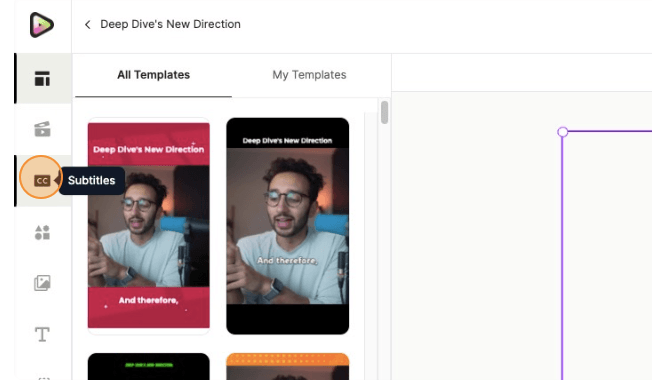
- Here, you'll have the option to completely delete specific parts of your subtitles.
- Alternatively, you can add new subtitles if the AI missed them. To manually add subtitles, simply click on "Add Line" and create or correct your own subtitles.
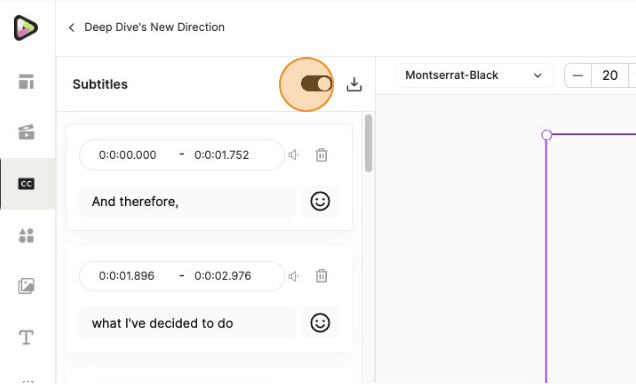
- Go to the subtitles section within the editor.
- Click on the "Subtitle Styles" option, which will open up your subtitle editing options.
- Look for a button within this menu that says "Effects Customization" and click on it.
- This will open a panel where you can customize various background effects for your subtitles.
- Within this panel, you can add multiple background effects, change the color, and edit features such as radius, padding, and more. Choose the style that fits your video's aesthetic and content.
- Make the desired adjustments to your subtitle background effects according to your preferences.
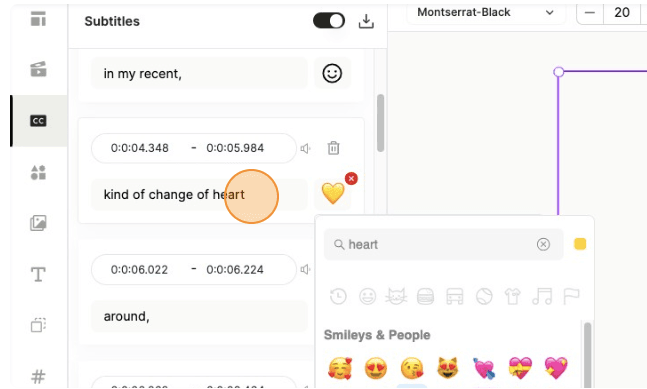
- You can also put a bunch of emojis or auto add them to your video subtitles automatically.
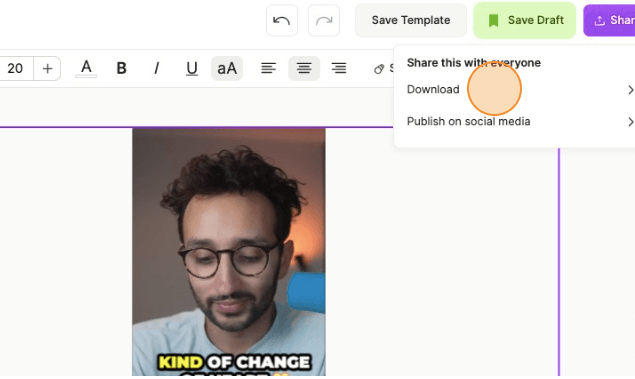
- Once you’re satisfied with the TikTok captions, download the video to publish on TikTok or alternatively, publish it directly to your TikTok channel.
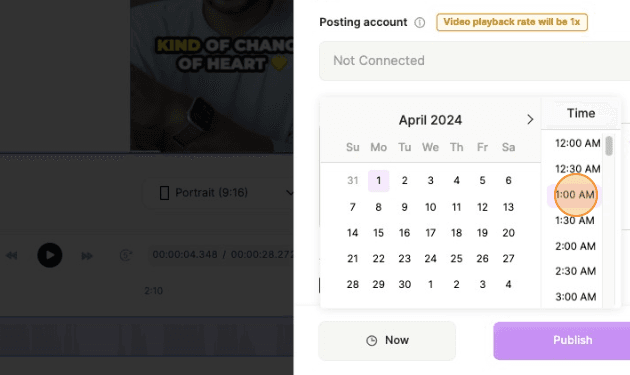
- You can also schedule the TikTok video for the future with our one-click social media scheduling feature.
💡Related read: How a CEO Elevated TikTok Viewership by 10x With quso.ai
How to Edit TikTok Caption Using a Custom Font
Here's how you can upload a custom font on video and use it in your TikTok videos:
Method 1
- Select the video you want to customize and navigate to the editor.
- Click on the "Subtitles" tab and go to the font settings.
- Choose the font type, then click on "Upload Custom Font" from the drop-down menu.
- Select your custom font file (in ttf format) from the dialogue box to upload it.
- Once uploaded, select the font to use it in your video.
Method 2
- Go to the dashboard and click on the "Media" tab from the top strip.
- From the drop-down menu, select "Brand Kit," then go to the "Font" tab.
- Click on "Add Font" and choose the font file you want to upload.
- Your font will appear in the list, and you can immediately use it in your videos.
- Remember to upload a ttf file (TrueType font) for proper functionality.
- Note that this feature is available on paid plans only.
With these methods, you can easily personalize your TikTok video captions by adding your own custom fonts.
💡Related read: Travel Creator Gets 5.5M+ Views on TikTok With quso.ai
How to Edit Captions After Downloading TikTok Video
- Navigate to the "Downloads" tab on the home screen.
- Select the preferred clip that you want to edit from your downloaded clips.
- Within the selected clip, you'll find an option labeled "Edit Video." Click on this option.
- You'll then be taken to the editing interface where you can make changes to the downloaded video according to your preferences.
- Once you've finished editing, you're all set! Your downloaded clip has been edited successfully.
💡Related read: quso.ai Helps Founder Gain 15,000 Views on TikTok Reel
Conclusion
In an era dominated by silent scrolling, captions have become the norm, capturing the attention of viewers who prefer to consume content without sound.
quso.ai (previously vidyo.ai) offers superior manual and auto-captioning features, elevating the quality and accessibility of your TikTok content. Additionally, you can unlock a myriad of editing tools to enhance your videos further. Get acquainted with how to edit TikTok captions on quso.ai (previously vidyo.ai) today by signing up on our platform.
Frequently Asked Questions
1. Can I edit TikTok captions directly after posting?
Unfortunately, TikTok doesn't offer a direct edit option for captions after posting. You'll need to delete and repost the video with the desired changes.
2. Which third-party apps are best for editing TikTok captions?
Popular choices include quso.ai (previously vidyo.ai), offering advanced captioning features and comprehensive editing tools.
3. Do captions impact TikTok's algorithm?
Captions can enhance accessibility and engagement, potentially influencing TikTok's algorithm by making your content more discoverable.
4. Can I use emojis in TikTok captions?
Yes, emojis can add personality and flair to your captions, enhancing their appeal to viewers.