

You've got the raw material already. A webinar recording, a podcast interview, a customer call, a product demo, maybe a folder full of vertical clips from your phone. The problem usually isn't lack of footage. It's that the footage is too long, too messy, and too uneven to post as-is.
That's why many struggle to make video montages that hold attention. They open their editor, drag in fifty clips, try a few transitions, add music too early, and end up with something that feels random instead of sharp. Social montages work when they feel intentional, fast, and easy to follow. They fail when they feel like leftovers stitched together.
There's also a real business reason to get good at this. Worldwide spending on digital video advertising exceeded $191.4 billion in 2024, and short-form digital video spending is projected to reach $111 billion in 2025, a 12% year-on-year increase, according to Wix's roundup of video marketing statistics citing Statista. Montage editing sits right in the middle of that shift because it turns long recordings into short clips people will watch on feeds.
Table of Contents
- How long should a social montage be
- Can I use a popular song if I credit the artist
- What export settings work well for social media
The Blueprint Before You Cut
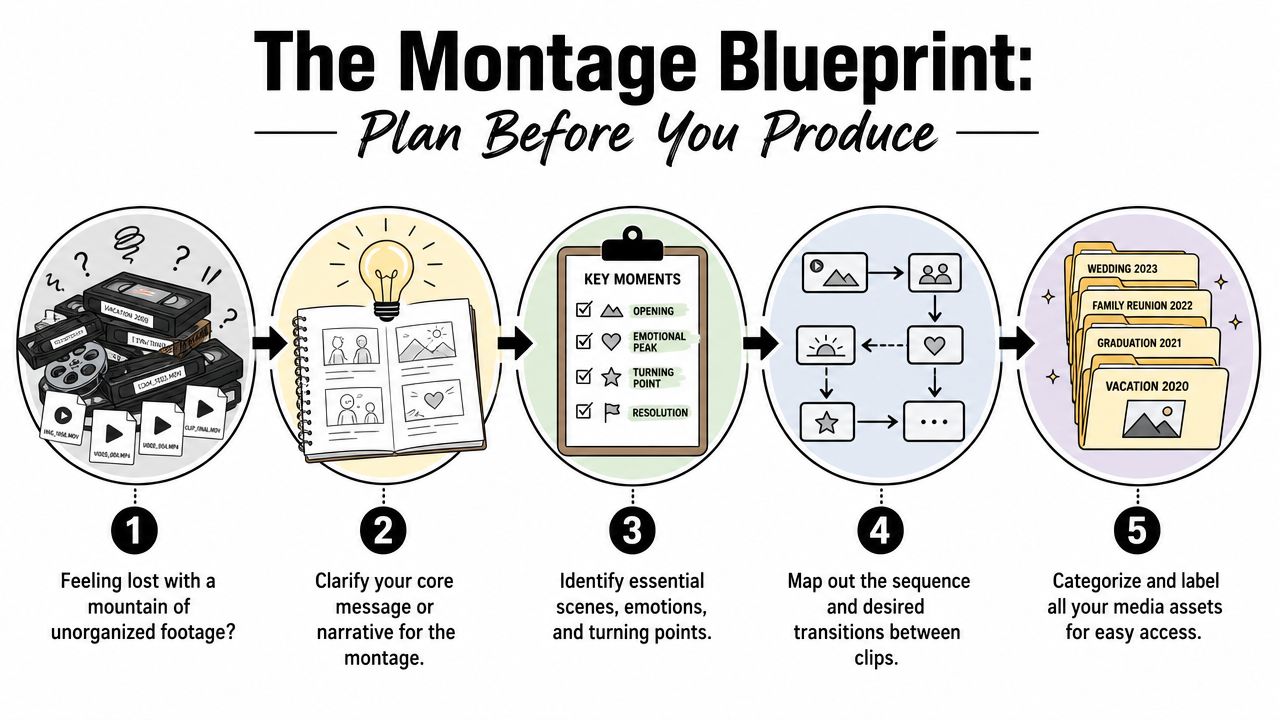
The fastest way to waste an afternoon is to start editing before you know what the montage is supposed to say. This happens all the time with repurposed content. You have a long recording with useful moments buried inside it, but no clear angle for the short version.
Planning fixes that. Not with a giant storyboard. Just with a few decisions made early.
Start with one outcome
Pick one message for the montage. Not three. If you're cutting down a webinar, the montage might be:
- A lesson from the talk
- A reaction reel with strong audience moments
- A promo clip that pushes people to watch the full session
- A credibility montage that shows expertise and energy
Once you know the job of the montage, clip selection gets easier. You stop asking, “Is this a good clip?” and start asking, “Does this help this version do its job?”
Then choose the primary emotion. Social montages usually work best when they lean hard into one feeling:
- Excitement for launches, event recaps, behind-the-scenes edits
- Inspiration for educational creators and coaches
- Nostalgia for anniversary content or brand storytelling
- Urgency for offers, product reveals, and limited campaigns
Practical rule: If you can't describe the montage in one sentence, you're not ready to edit it.
Platform choice matters this early too. A short vertical montage for Reels or TikTok needs a harder hook and quicker visual turnover than a longer YouTube highlight edit. Decide the destination before you touch the timeline, because format drives crop, pacing, caption style, and how much setup the viewer will tolerate.
If your source footage looks rough, fix that before the main edit begins. A quick pass using advice like this guide on how to improve video quality can save weak clips that are worth keeping.
Build a simple story spine
Even a short montage needs shape. The easiest structure is a stripped-down three-part flow:
Beginning
Open with the strongest shot or line. A bold claim, a surprising reaction, a clean visual, a moment of tension.Middle
Stack proof, contrast, motion, and context, allowing clips to build momentum.End
Finish with resolution. A takeaway, transformation, punchline, or call to action.
This isn't film-school theory. It's a practical editing shortcut. When the structure is clear, you make fewer timeline decisions and throw away fewer hours testing random clip orders.
A strong plan also keeps you from over-editing. Most weak montages don't fail because they needed more transitions. They fail because the editor never chose a clear center.
Gathering Your Raw Ingredients
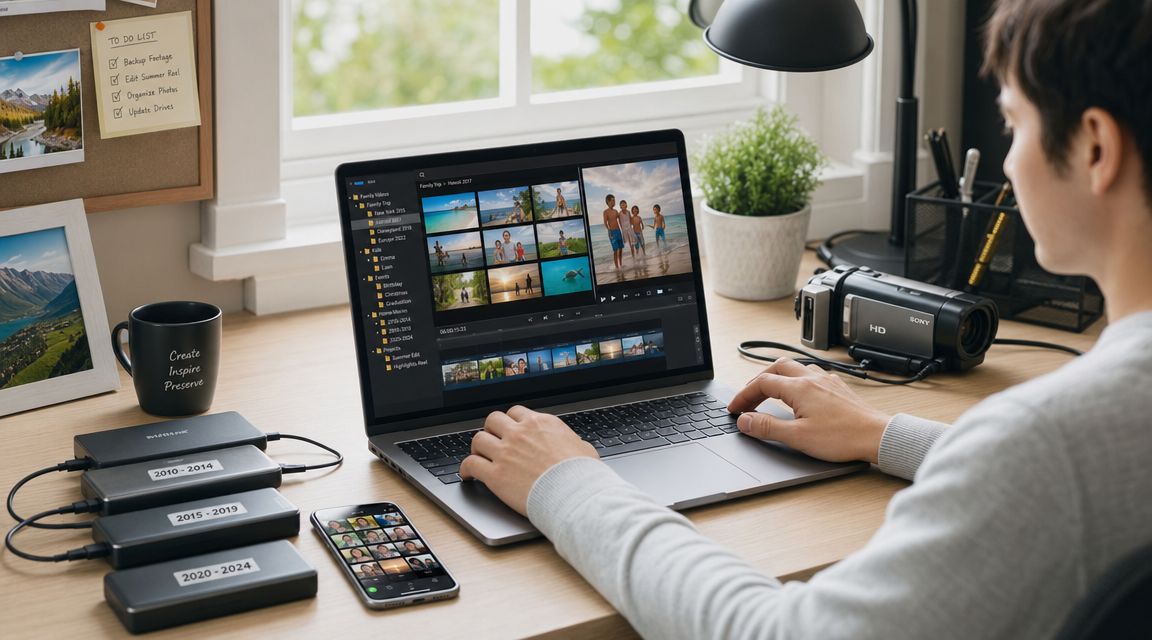
Most creators don't need more footage. They need a better way to sort what they already have. Wistia's 2026 State of Video Report says 76% of teams create at least one video per month, and it notes that educational videos and social videos are among the most common formats, as summarized in Wistia's video marketing statistics page. That means a lot of teams are sitting on recordings that can be repurposed into montage-ready clips.
Tag clips like a producer, not a perfectionist
Don't review footage by trying to make decisions on the first pass. That slows everything down. Review it once and label aggressively.
A simple folder or tag structure works well:
| Category | What goes in it | Why it matters |
|---|---|---|
| A-roll | Talking head, interview bites, main speaker moments | Carries the message |
| B-roll | Screens, workspace, crowd shots, product cutaways | Covers cuts and adds movement |
| Proof | Applause, strong reactions, visual results, demos | Builds credibility |
| Hooks | Sharp claims, surprising lines, visual peaks | Gives you opening options |
| Enders | CTA lines, takeaway quotes, satisfying final visuals | Helps you finish cleanly |
This is especially useful for webinars, podcasts, interviews, and tutorials. You're not searching for “beautiful shots.” You're searching for useful moments.
Awing Visuals recommends cataloging and tagging clips by scene, theme, or chronology before refining the edit, then sketching a rough sequence and placing the strongest shot first to preserve flow and reduce rework, as described in their guide on creating a video montage in easy steps.
Use a balanced shot diet
Repurposed content gets stale fast when every clip looks and feels the same. A montage built entirely from medium talking-head shots feels flat, even if the advice is good.
Use this as a practical checklist:
- Context shots bring viewers into the scene. Event wide shots, screen views, room setup, host entering frame.
- Action shots keep momentum moving. Typing, gesturing, product handling, audience interaction, slide changes.
- Emotion shots do the heavy lifting. Close-ups, laughter, eye contact, pauses, reactions, nods.
- Pattern breaks wake the montage up. A text slide, a cutaway, a zoomed crop, a change from camera footage to screen recording.
The right clip isn't always the prettiest one. It's the one that changes the pace at the exact moment attention starts to dip.
One more practical filter helps. Pull clips for contrast, not just quality. Mix calm and energetic moments. Mix wide and tight framing. Mix speaker footage with environment footage. Good social montage editing often feels like rhythm before it feels like polish.
Finding the Heartbeat of Your Montage
A lot of editors treat music like wallpaper. They finish the cut, drop a track underneath, lower the volume, and call it done. That usually creates a montage that looks busy but feels off.
Music works better as the timing system. It tells you how fast the edit should move, where to hold, where to accelerate, and when to land a key visual. But it shouldn't control the concept. Story first, pace second.
Music sets pace, but story sets direction
If you're making a motivational recap, you might choose a track with a steady build. If you're cutting punchy educational clips for short-form feeds, a tighter rhythmic track often supports cleaner cuts. If the footage is reflective, forcing hyperactive music onto it usually makes the montage feel fake.
That's why the order matters. Build a rough idea of the sequence first. Then pick music that strengthens that sequence instead of fighting it.
A useful way to think about soundtrack choice is to match the track to the montage's job:
- Promo montage needs drive and momentum
- Testimonial or reaction montage needs emotional lift without drowning the voice
- Educational highlight reel needs rhythm, but enough space for captions and dialogue
- Event recap often benefits from a clear rise and finish
Use music legally and cut with intent
Popular commercial songs are where creators get sloppy. Giving credit usually doesn't solve the licensing problem. Using only a short excerpt usually doesn't solve it either. If you don't have the rights, don't use it.
Safer options:
- Royalty-free libraries where you buy or receive a license
- Creative Commons music if the license terms match your use case
- Public domain music when it's free to use
- Platform-safe music libraries built into editing or publishing tools
Once the track is locked, cut to musical events, not every single beat. The downbeat can support a visual hit. A buildup can support faster clip changes. A pause can make one spoken line stand out.
Use this sequence in practice:
- Mark the intro, rise, drop, and ending.
- Place your strongest opener before getting precious about timing.
- Align key cut points with the track's bigger moments.
- Refine micro-timing after the narrative flow works.
If you try to sync everything perfectly too early, you'll spend too much time polishing a weak structure.
The Art of the Edit
Editing gets easier when you stop treating the whole timeline as one giant task. Build it in passes. First structure, then flow, then polish.
Early in the process, it helps to work visually and keep decisions lightweight.
Build the rough cut fast
On the first pass, ignore fancy transitions, detailed color work, and tiny audio flaws. Get the sequence on the timeline and prove that the montage works in plain form.
That means:
- Drop in the opening hook first
- Arrange clips by narrative or emotional climb
- Trim obvious dead air
- Match clip length to the energy of the footage
- Leave perfection for later
The rough cut should feel slightly messy. That's normal. If you polish too soon, you'll waste time perfecting clips that may not survive the next round anyway.
When I'm cutting social edits from long-form content, I usually know the montage is viable once the first few clips create a clear promise and the ending feels earned. Before that, everything is still disposable.
Choose transitions that earn their place
Most montages need fewer transitions than people think. A hard cut is usually the right choice when you want energy, speed, or contrast. It's clean and it keeps the viewer moving.
Use audio-led transitions more selectively:
- J-cuts bring the next clip's audio in early. Good for smoother movement between spoken moments.
- L-cuts let current audio carry over the next visual. Good for continuity when the speaker matters more than the shot.
- Whip, blur, spin, zoom transitions should solve a real visual problem, not advertise that your software includes presets.
A transition is useful when it hides an awkward jump, marks a change in section, or supports a beat in the soundtrack. If it doesn't do one of those jobs, it's usually decoration.
If you want a clean workflow for trimming first and deciding later, this breakdown of video trimmer tools for effortless editing is a practical place to compare lightweight options before moving into full assembly.
Fancy transitions don't create momentum. Clip order does.
Polish in the right order
Life Inside recommends a methodical post-production order: rough cut first, then audio polishing, color correction or grading, effects, and final refinement, along with keeping at least one backup on a cloud or external drive, as outlined in their guide to mastering video post-production. That order is worth following because it prevents rework.
For social montage editing, I'd simplify the polish pass into this checklist:
| Pass | What to fix | What to avoid |
|---|---|---|
| Audio | Balance dialogue and music, remove harsh jumps, clean obvious distractions | Mixing music so loud that captions become mandatory |
| Color | Normalize exposure and white balance across clips | Overgrading mixed footage from phones and webcams |
| Text | Add animated captions, emphasis words, speaker labels if needed | Filling every frame with text |
| Branding | Add logo, colors, recurring title style if relevant | Repeating brand marks so often they distract |
Later in the edit, this walkthrough can help if you want to see timeline decisions in motion.
The biggest polish mistake is trying to make every clip look cinematic. Social montage footage often comes from webcams, Zoom calls, phone cameras, and screen recordings. The job isn't to fake a film look. The job is to make the piece feel coherent, readable, and quick.
Smart Shortcuts and AI-Powered Editing
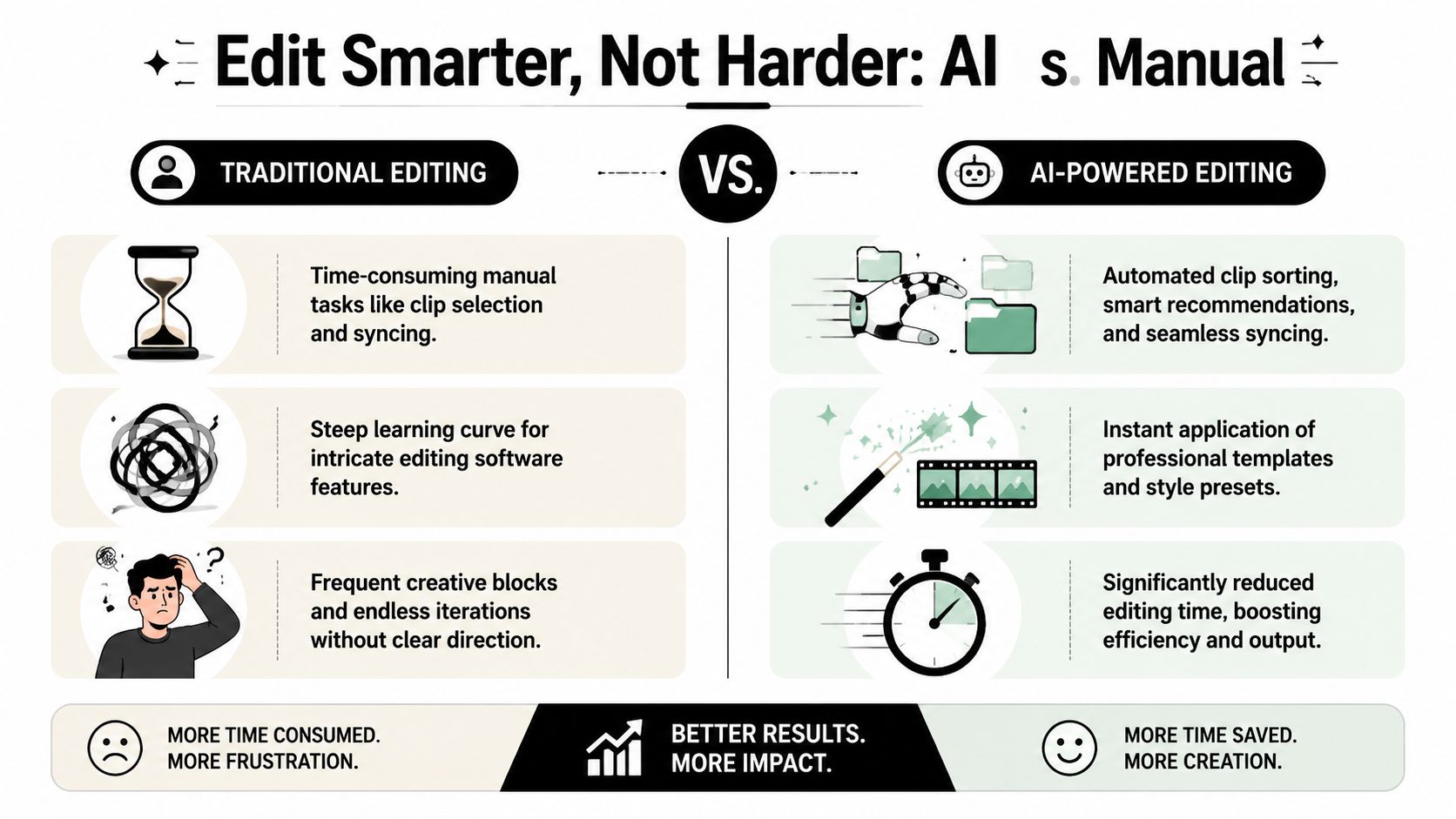
Manual montage editing breaks down when the source is long-form. A podcast episode, webinar, or training session can contain many usable moments, but finding them by hand is repetitive work. That's where AI is useful. Not because it replaces editorial judgment, but because it handles the slow first layer.
Google's 2025 research on YouTube culture says over 2 billion logged-in users visit YouTube monthly, cited in this YouTube culture research reference. That scale is exactly why fast repurposing matters. Most creators aren't trying to build one polished centerpiece. They're trying to turn one recording into a stream of short, usable clips.
Where AI actually saves time
The most helpful AI features tend to be boring on paper and valuable in practice:
- Clip discovery finds strong moments inside long videos, especially sharp statements, clean answers, or emotional peaks.
- Auto-captioning speeds up sound-off viewing workflows and makes talking-head clips easier to follow.
- Silence and filler cleanup tightens delivery without hand-trimming every pause.
- Reframing for vertical formats saves time when the source was recorded horizontally.
- Template-based assembly gives you a working visual structure before custom edits begin.
Tools vary. CapCut is popular for template-heavy short-form edits. Descript is useful when transcript-driven editing matters. quso.ai's AI video editor is built around repurposing long videos into shorter clips with captions, branding, and social-ready editing options from one workflow. For creators who mainly repurpose podcasts, webinars, interviews, or YouTube uploads, that type of tool fits the job better than software designed around complex cinematic timelines.
If your source clips are soft or low-resolution, a dedicated enhancement pass can help before assembly. MyImageUpscaler's comprehensive video guide is a useful reference for understanding when upscaling helps and when it just exaggerates compression artifacts.
What still needs your judgment
AI can suggest moments. It can't reliably decide what your audience should care about most. That part is still human.
Use AI to narrow the pile. Then make the actual editorial calls:
- Which clip should open
- Which line needs on-screen emphasis
- Which moments feel repetitive
- Which clips support the same idea from different angles
- Which ending creates a reason to comment, click, or watch more
AI speeds up sorting. You still decide what deserves attention.
The strongest workflow is hybrid. Let automation do the scanning, transcribing, reframing, and first-pass cutting. Then spend your energy on hook quality, sequence, and emotional timing. That's the part viewers notice.
FAQs About Making Video Montages
How long should a social montage be
Make it as short as the idea allows. For Reels, TikTok, Shorts, and other feed-first formats, shorter usually works better when the goal is discovery. If the montage needs setup to make sense, cut a slightly longer version for YouTube or LinkedIn and a tighter teaser for vertical feeds.
A simple rule works well: if a clip doesn't add new information, energy, or emotion, cut it.
Can I use a popular song if I credit the artist
Usually, no. Credit alone doesn't give you the right to use copyrighted music. A short excerpt doesn't automatically make it safe either. If you want less risk, use licensed royalty-free music, Creative Commons tracks that fit your use case, public domain music, or a platform-cleared library.
When in doubt, skip the song. Re-editing around a takedown is slower than choosing safe music up front.
What export settings work well for social media
For most social platforms, 1080p, H.264, and your original frame rate, commonly 24fps or 30fps, is a practical default. Keep text large enough to survive mobile compression. Export a vertical version for vertical platforms instead of letting the platform crop it for you.
Before publishing, always check three things on your phone:
- Text readability
- Audio balance
- Whether the opening frame makes sense without sound
A montage that looks fine on a desktop preview can still fail on a mobile feed if captions are tiny or the first second is visually weak.
If you're turning webinars, podcasts, demos, or interviews into short clips regularly, quso.ai is built for that workflow. You can pull highlights from long videos, add captions, clean up the edit, and prepare social-ready outputs without piecing together a stack of separate tools.





.png)