

Your raw footage is in one folder. The subtitle file is somewhere else. The approved brand intro lives in a shared drive no one can find quickly. You trimmed the clip in one editor, resized it in another, uploaded it manually, then opened a scheduler in a browser tab you forgot to refresh. That used to be a normal social video workflow.
It also used to waste a shocking amount of time.
Modern teams don't need more editing features as much as they need fewer handoffs. That's why social media video editing software has become less of a standalone editor and more of a production system. The category is expanding fast. One forecast puts the video editing software market at US$3.75 billion in 2026 and US$4.99 billion by 2031, while cloud-based workflows are projected to grow at an 8.23% CAGR through 2031, a useful signal for anyone choosing tools built for collaboration and fast publishing (video editing software market forecast).
That shift matters because social content rarely fails at the idea stage. It fails in operations. Clips sit in review. Captions get fixed too late. Exports pile up. A creator or marketer spends more time moving assets between tools than shaping the message. The best software now attacks that bottleneck directly.
Table of Contents
- Start with transcript-driven editing
- Resize once instead of rebuilding
- Use brand systems, not one-off fixes
- AI is useful when it removes repetitive labor
- Speed matters because volume matters
- Where AI still needs a human editor
- Does AI editing improve quality or only speed
- Are phone editors enough for a serious content workflow
- What pricing model makes the most sense
The End of Video Editing Chaos
The old social video process broke in small ways all day long. An editor exported one cut. A marketer requested captions in a different style. A founder wanted a square version for LinkedIn and a vertical one for Reels. Then someone had to schedule every version by hand.
None of those tasks are difficult in isolation. Together, they drain the team.
That's why the most important change in social media video editing software isn't cosmetic. It's operational. The software category has moved away from being just a post-production tool and toward being a shared workspace for editing, packaging, approval, and publishing. For social teams, that's a bigger leap than any flashy transition preset.
Why old workflows feel heavier than they should
Desktop-first editing still has a place. If you're cutting a documentary, grading footage shot across multiple cameras, or doing detailed motion work, full-scale editors earn their keep. But for daily social publishing, traditional workflows often create friction that has nothing to do with creative quality.
You don't need cinematic complexity to turn a webinar into five usable clips. You need speed, clarity, and consistency.
Practical rule: If your process requires exporting files just so another teammate can do basic packaging work, your workflow is the problem.
Why workflow now matters more than feature count
The social calendar doesn't care how advanced your timeline is. It rewards teams that can move from source footage to platform-ready clips without recreating the same work over and over. That is where integrated tools have changed expectations.
A good system now helps with:
- Finding usable moments quickly instead of forcing endless scrubbing
- Keeping captions, branding, and sizing in one place so revisions don't multiply
- Publishing from the same environment where the clip was edited
- Reducing status-check messages because everyone can see what's approved and what's waiting
That last point is easy to underestimate. Time isn't lost on editing alone. It is lost in the spaces between editing and everything that follows.
What Is Social Media Video Editing Software
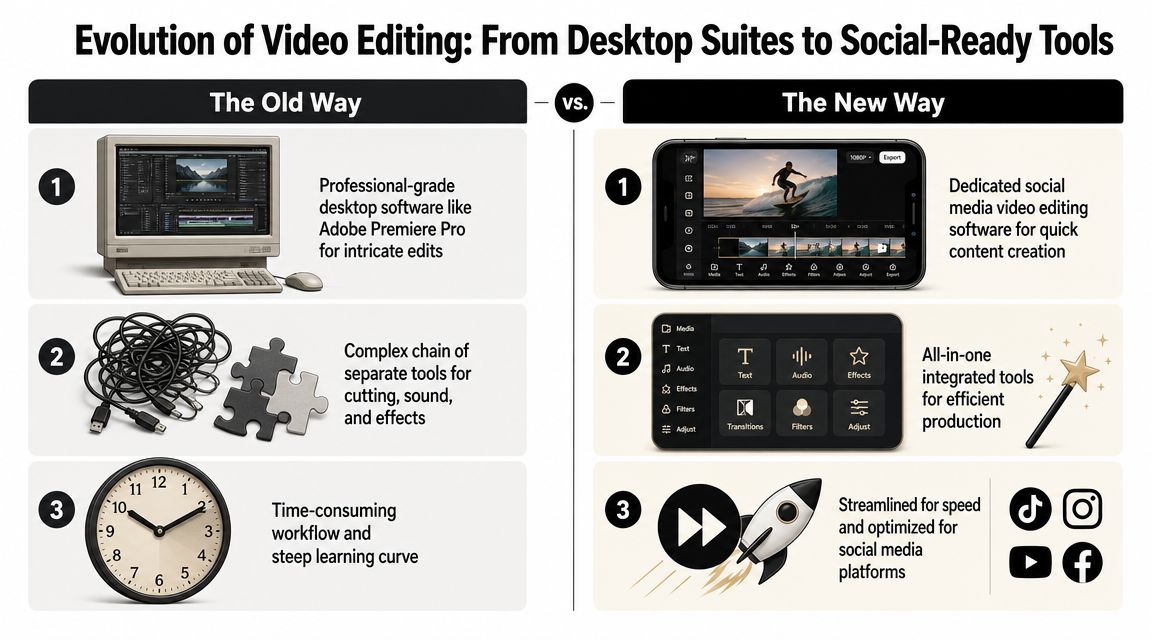
Social media video editing software is best understood by what it replaces. It replaces the patchwork process where one tool handles the cut, another handles subtitles, another handles graphics, and another handles scheduling. Instead of treating editing as an isolated step, it treats content production as one connected workflow.
The old stack was powerful but fragmented
A traditional setup often looked like this: cut footage in Adobe Premiere Pro or DaVinci Resolve, clean audio somewhere else, generate subtitles in another app, build simple motion assets in a design tool, then upload finished files into a scheduler. Every step added capability. Every step also added friction.
That stack worked when video output was lower-volume and each asset had a longer shelf life. It works less well when a single recorded conversation needs to become a week of short-form posts.
Here's the workflow difference in plain terms:
| Stage | Old Way (Multiple Tools) | New Way (Integrated Platform) |
|---|---|---|
| Import | Bring files into a desktop editor | Upload source content into one workspace |
| Rough cut | Manual timeline review | Clip from transcript, scenes, or suggested moments |
| Captions | Export to a subtitle tool | Generate and edit captions in the same interface |
| Formatting | Duplicate projects for each platform | Resize from one master edit |
| Branding | Add logos and styles manually | Apply saved templates and brand assets |
| Publishing | Export, upload, and schedule separately | Send directly into scheduling workflow |
The new stack is built for repurposing
The newer category is designed around speed, not just editing depth. One of the clearest examples is text-based editing. Instead of scrubbing a timeline to locate a quote, you work from an auto-generated transcript and cut the video by editing text. That's especially useful when repurposing interviews, webinars, or podcasts into short clips, and Descript is explicitly described as using that transcript-first layout for the task in this video explanation of text-based editing.
That design choice says a lot about how the category has changed. These tools assume your source material is long-form and your output is multi-platform. They assume you need to publish often. They assume the same footage may become a Short, a Reel, a LinkedIn snippet, and a scheduled post in one sprint.
If you're comparing categories rather than brands, this overview of what AI video tools are used for is a useful reference point. The important distinction is simple: old tools help you edit a video, while newer platforms help you turn one recording into a repeatable content workflow.
The Core Features That Save You Hours
The fastest gains don't usually come from dramatic creative breakthroughs. They come from removing the jobs that keep repeating every time a clip moves from rough cut to published post.
Start with transcript-driven editing
For long-form source material, transcript-based editing changes the pace of work. Instead of hunting through waveforms and playheads, you scan text, find the sentence that carries the point, and cut around it. That makes repurposing much less tedious, especially for interviews, webinars, and talking-head content.
It also helps non-editors participate. A strategist or marketer can flag usable lines directly from text without needing deep timeline skills.
A practical example is turning one recorded session into several topic-led clips:
- Pull the quote first from the transcript
- Trim around the quote to keep the idea clean
- Add captions immediately while the context is still visible
- Package the clip for different channels before moving to the next segment
For teams producing short-form content from long recordings, tools built for long video to short video repurposing fit this workflow better than traditional editors alone.
Resize once instead of rebuilding
Resizing sounds minor until you do it repeatedly. Social platforms don't share one framing logic, and aspect-ratio mismatch can crop the speaker, cut off text, or force you to rebuild the composition. That's why platform-specific resizing has become a core requirement rather than a bonus.
AI editors increasingly automate adaptation from a single master edit into formats such as Instagram Stories, YouTube Shorts, and Facebook feed placements, reducing manual rework across channels, as outlined in this discussion of AI video editors and platform-specific resizing.
If your team still makes separate projects for every platform format, you're spending editor time on formatting labor, not message quality.
Use brand systems, not one-off fixes
A lot of social teams confuse “branding” with “remembering to add the logo.” That's too narrow. In practice, branding means the same caption style, color treatment, intro behavior, lower-third system, and tone showing up consistently across a week or a month of output.
That's where saved templates and brand kits matter. They reduce tiny judgment calls that slow production down. Instead of asking what font to use on each post, the team starts from a known system. The work shifts from assembly to refinement.
The features worth caring about most are often the least glamorous:
- Caption styling presets so every clip doesn't need manual cleanup
- Brand kits for colors, logos, and fonts
- Reusable templates for recurring formats like tips, quote clips, and announcements
- Built-in scheduling so the clip doesn't disappear into another handoff after export
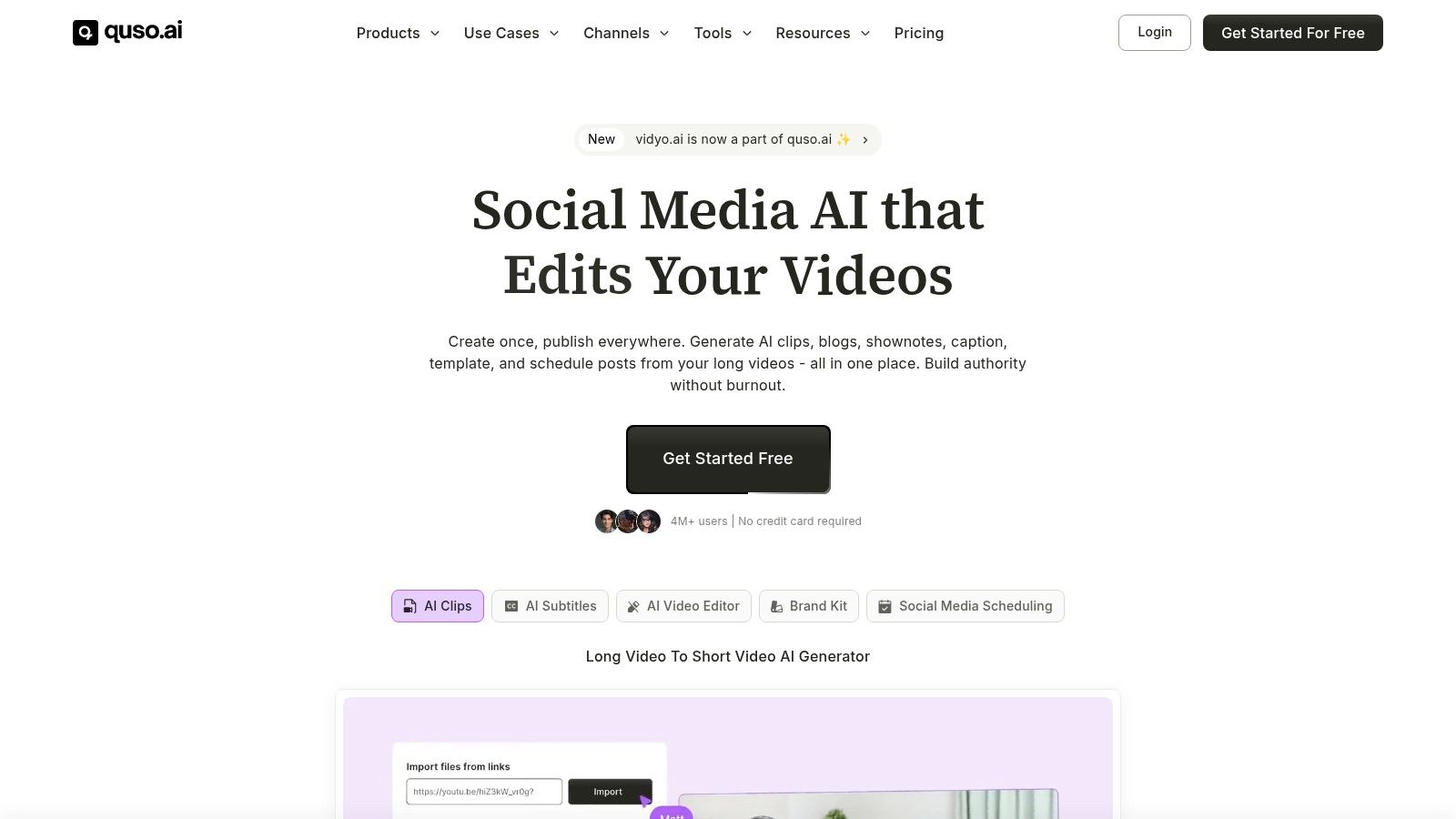
One option in this category is quso.ai, which combines editing, repurposing, branding, scheduling, and analytics in one dashboard. That matters less as a feature checklist than as a workflow choice. It reduces the number of times a finished clip has to leave the system before it goes live.
The Rise of AI in Video Content Creation
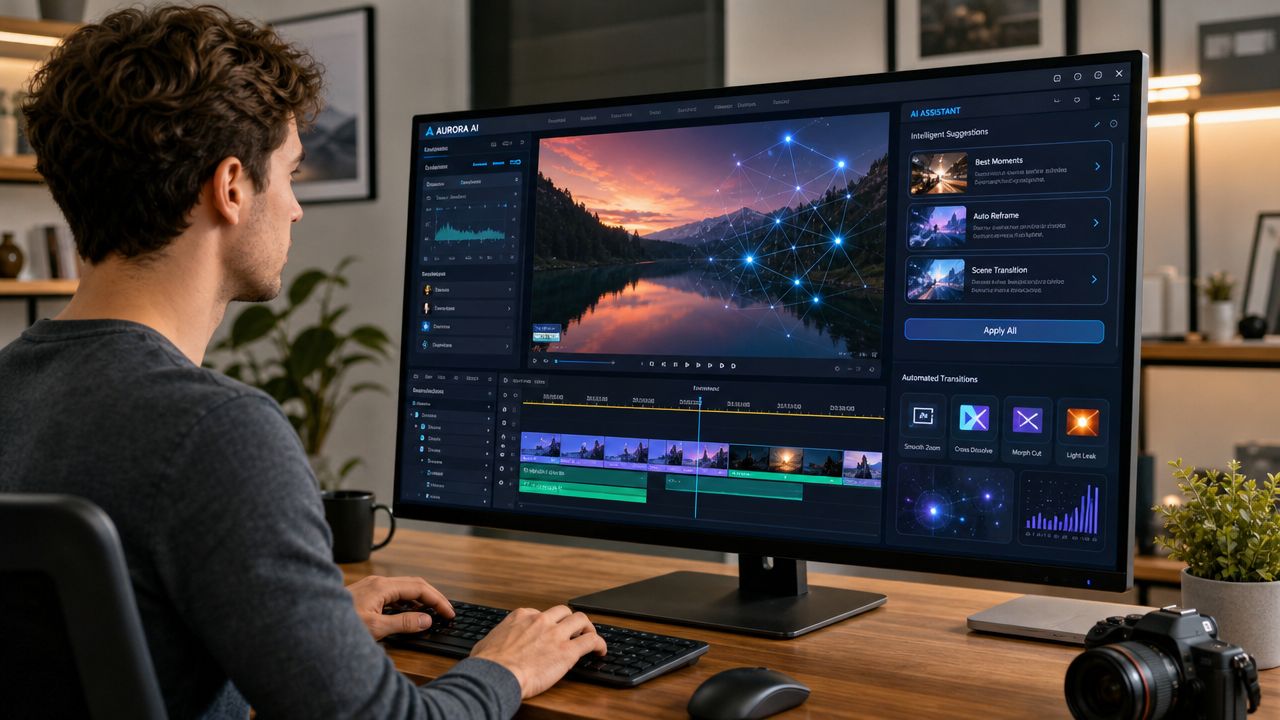
AI matters in social video because most of the work around social video is repetitive. The creative decision is choosing the angle, the hook, and the framing. The repetitive labor is finding highlights, cleaning filler words, generating subtitles, reformatting, and preparing variations.
AI is useful when it removes repetitive labor
The strongest AI features aren't the ones that try to replace editorial judgment. They're the ones that remove low-value repetition. Scene detection can break long footage into workable chunks. Filler-word removal cleans spoken delivery. Auto-captions create a first draft that an editor can correct instead of writing from scratch.
Text-based editing belongs in this group too. It's one of the clearest examples of AI supporting a smarter workflow rather than pretending to be creative direction.
AI works best as an assistant editor. It breaks when teams expect it to be a brand strategist.
Speed matters because volume matters
This category isn't growing because AI is fashionable. It's growing because the demand for social video is huge. One industry report projects the AI-powered video editing software market will reach US$1,032 million by 2032, and the same report ties that demand to social video behavior, including the claim that social videos are shared 1,200% more than text-and-image posts combined (AI-powered video editing software market report).
That scale changes what teams need from software. They don't just need editing tools. They need systems that can handle more output without turning every extra clip into extra administrative work.
If you want a broader creative perspective on leveraging AI in video production, Armox Labs has a useful breakdown of where AI effects and automation fit into modern workflows.
Later in the workflow, AI can also support adjacent tasks like summarizing a video into show notes, turning talking points into blog drafts, or generating camera-free videos with avatars when a team needs explanatory content without a shoot day.
A quick demo makes the shift more concrete:
Where AI still needs a human editor
AI still misses context. It can select a sentence that sounds catchy but weakens the actual argument. It can remove pauses that made the speaker sound credible. It can over-style captions and make a serious clip feel cheap.
That's why the best results come from a hybrid approach. Let AI handle first-pass labor. Let a person handle message clarity, brand fit, and final judgment.
Workflows and Who Uses This Software
The right tool looks different depending on what enters the workflow first. A podcaster starts with long recordings. A social manager starts with a publishing calendar and approval chain. A coach often starts with live sessions, Zoom calls, or recorded lessons. The software only helps if it fits that reality.
A useful way to judge any platform is the question many reviews skip: which one reduces handoffs between the editor, marketer, and scheduler? That workflow gap is called out clearly in this piece on video editing for social media teams.
The podcaster workflow
Podcasters usually have plenty of material and not enough time to mine it. The bottleneck is rarely recording. It's turning one episode into a stream of clips that feel native to social platforms.
The best workflow here starts with transcript or scene-based review. The editor identifies moments with a clean hook, trims them into standalone clips, adds readable captions, resizes for vertical viewing, and pushes them into a posting queue. The weaker workflow exports every clip as a separate task for someone else to finish.
The social media manager workflow
For managers handling multiple brands or internal stakeholders, consistency matters as much as speed. They need approved fonts, intros, caption styles, and review visibility. They also need fewer points of failure.
In practice, this means:
- Shared templates prevent each editor from reinventing the same asset
- Centralized approvals keep brand review tied to the actual clip
- Built-in publishing removes the last manual relay step
- Analytics nearby help the team learn from output instead of guessing
The winning workflow is usually the one with fewer transfers between people, not the one with the longest feature page.
The coach or consultant workflow
Coaches, educators, and consultants often sit on high-value material without a content machine around it. One client call, workshop, or training session can produce multiple clips if the tool makes extraction easy.
A practical workflow looks like this:
- Upload the source session.
- Pull short moments that answer one question clearly.
- Add captions and simple branding.
- Schedule clips across the platforms that matter to the business.
If part of that process includes archiving or referencing existing short-form examples, it can also help to know how to save TikTok content for research, internal review, or creative analysis. The key is to keep inspiration and production organized rather than scattering them across folders and messages.
How to Choose the Right Software for Your Needs
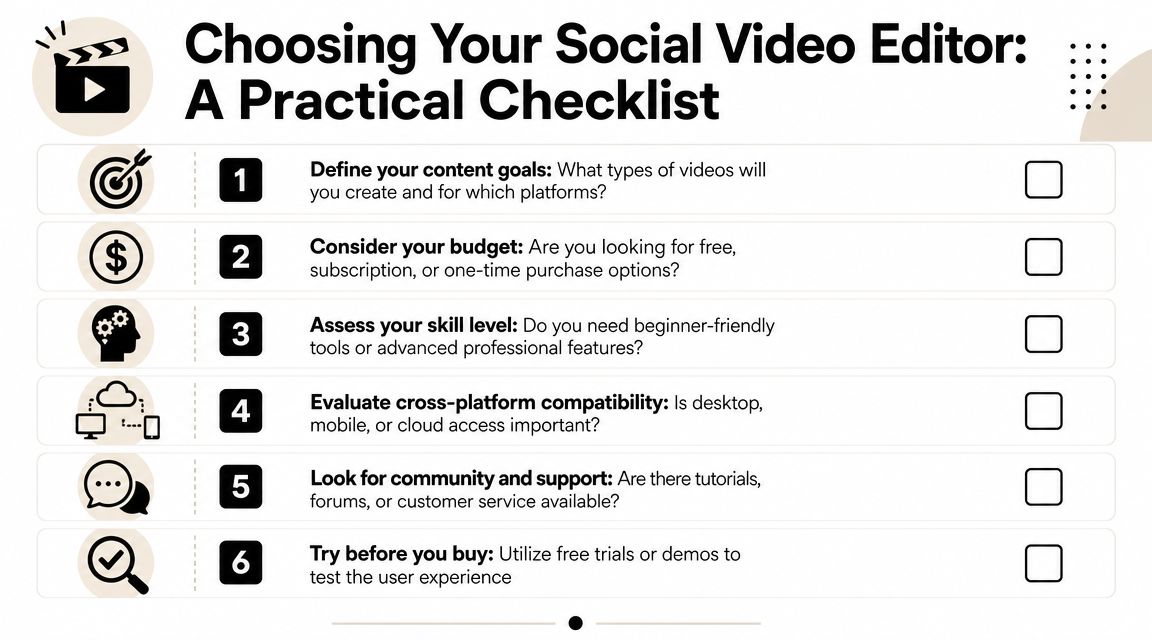
Most buyers start by comparing feature lists. That's understandable and often misleading. The better question is whether the tool matches the way your content is created, reviewed, and published.
Choose based on content source
Start with the material you produce most often. A podcast-heavy workflow needs transcript editing, clipping, and caption handling. A course creator may care more about screen recording cleanup, templates, and branded overlays. A social team producing trend-led clips may prioritize fast formatting and scheduling.
If you skip this step, you'll end up paying for editing depth you don't use or missing workflow support you need every day.
Choose based on team friction
Solo creators can tolerate a few manual steps if the editor is fast enough. Teams usually can't. Once more than one person touches the content, handoffs become expensive. Review cycles slow down. Version confusion starts. Brand inconsistency appears.
Ask direct questions before you commit:
- Who needs access to the clip before it goes live?
- Where do approvals happen today?
- Does the platform keep brand assets centralized or scattered?
- Can the person scheduling content work in the same system as the person editing it?
If you want a practical buying framework, this guide on choosing the right AI video editor for your needs is a useful checklist.
Choose based on publishing reality
The last trap is buying based on editing demos instead of publishing volume. The right tool is the one that helps you sustain output. If you publish frequently, built-in scheduling, reusable templates, and analytics matter more than exotic timeline controls.
A short shortlist works better than an endless comparison sheet:
- Must-have workflow fit: transcript editing, approvals, scheduling, analytics, or templates
- Nice-to-have polish: advanced transitions, effects, fine-grain motion controls
- Non-negotiable usability: easy enough that the workflow doesn't depend on one expert
Buy for the workflow you repeat every week, not the one impressive edit you might make once a quarter.
Frequently Asked Questions
Does AI editing improve quality or only speed
Speed is the obvious benefit. Quality is more nuanced. A major unresolved buyer question is whether AI editing helps output quality or mostly accelerates production, especially when clarity and retention matter. That trade-off is noted in this review roundup on top social media video editors and AI trade-offs. In practice, AI helps quality when it removes mechanical work and gives the editor more time to shape the message. It hurts quality when teams accept first-pass cuts without review.
Are phone editors enough for a serious content workflow
They can be enough for quick, one-off posts. They usually fall short when content needs approval, repeatable branding, multi-platform formatting, and scheduling. The problem isn't that mobile editors are bad. It's that they're often isolated from the rest of the workflow.
What pricing model makes the most sense
That depends on where the bottleneck sits. If editing time is expensive, subscription software can make sense quickly because it replaces repeated labor. If you publish rarely, simpler tools may be enough. The useful comparison isn't just software cost. It's software cost versus the hours your team spends moving clips across disconnected tools.
If you want one platform that handles clipping, editing, branding, scheduling, and analytics in the same workflow, quso.ai is built for that use case. It's especially relevant for podcasters, coaches, marketers, and small teams trying to turn one recording into multiple social assets without adding more handoffs.





.png)