



You know the pattern. You mean to post on LinkedIn regularly, then the week fills up. A client call runs long, an internal meeting eats the afternoon, and your “I'll post after lunch” idea disappears. By Friday, you either publish something rushed or skip the week entirely.
That's why learning how to schedule posts on LinkedIn matters. Not because the clicks are hard, but because inconsistent posting usually isn't a content problem. It's a workflow problem. The people who stay visible on LinkedIn rarely rely on memory or spare moments. They build a system, choose the right scheduling method, and protect time for the work that moves results: writing useful posts, responding to comments, and refining what they publish.
Table of Contents
- Why Scheduling LinkedIn Posts Is a Non-Negotiable Strategy
- On your desktop browser
- Using the LinkedIn mobile app
- How to manage scheduled posts
- Where native scheduling works well
- Where native scheduling starts to slow you down
- What to look for in a third-party tool
- How do I find and edit a scheduled LinkedIn post
- What should I do if a scheduled post didn't publish
- Why did my formatting look different after publishing
Why Scheduling LinkedIn Posts Is a Non-Negotiable Strategy
Last-minute posting creates bad habits. You publish when you remember, not when your audience is most likely to see it. You write under pressure, which usually makes the post flatter, safer, and less specific than it should be. Then you tell yourself LinkedIn “doesn't really work.”
Scheduling fixes that by turning LinkedIn into a planned channel instead of a reactive one. You stop asking, “What can I post today?” and start asking, “What should I publish this month that supports my positioning, pipeline, or brand?” That shift matters more than the scheduler itself.
A practical workflow gives you four things that manual posting rarely does:
- Consistency without daily effort. Scheduled posts keep your profile active even when your calendar gets crowded.
- Better writing quality. Batch writing gives you time to tighten the hook, simplify the message, and remove filler.
- Stronger timing control. You can publish when your audience is working, even if you're in meetings or offline.
- Less burnout. You don't need to think about LinkedIn every day to maintain a professional presence.
Practical rule: If LinkedIn only happens when you “have time,” it won't happen often enough to be useful.
There's also a reputation angle people ignore. Inconsistent posting makes your expertise look inconsistent. A solid post once every few weeks won't build much trust if your audience can't predict when you'll show up. Regular publishing does not mean posting constantly. It means choosing a pace you can sustain and building around it.
What doesn't work is overengineering too early. Many professionals go from no process to a giant spreadsheet, a complex content plan, and a publishing target they can't maintain. That usually collapses within a few weeks. A better approach is simpler: pick a realistic cadence, create in batches, schedule ahead, and leave room for timely commentary when something relevant happens.
That's the core value of scheduling. It protects consistency without forcing you to live inside the platform.
Scheduling Natively on LinkedIn Desktop and Mobile
You finish a strong post at 7:30 a.m., then the day gets away from you. By the time you remember LinkedIn again, the best window to publish has passed. Native scheduling fixes that problem without adding another tool to your stack.
For solo professionals, company page managers, and small teams with a simple publishing rhythm, LinkedIn's built-in scheduler usually does the job. It works on personal profiles and company pages, and the setup is simple once you know where LinkedIn hides the scheduling option. The visual cue is the clock icon inside the post composer.
Here's the desktop and mobile process at a glance:
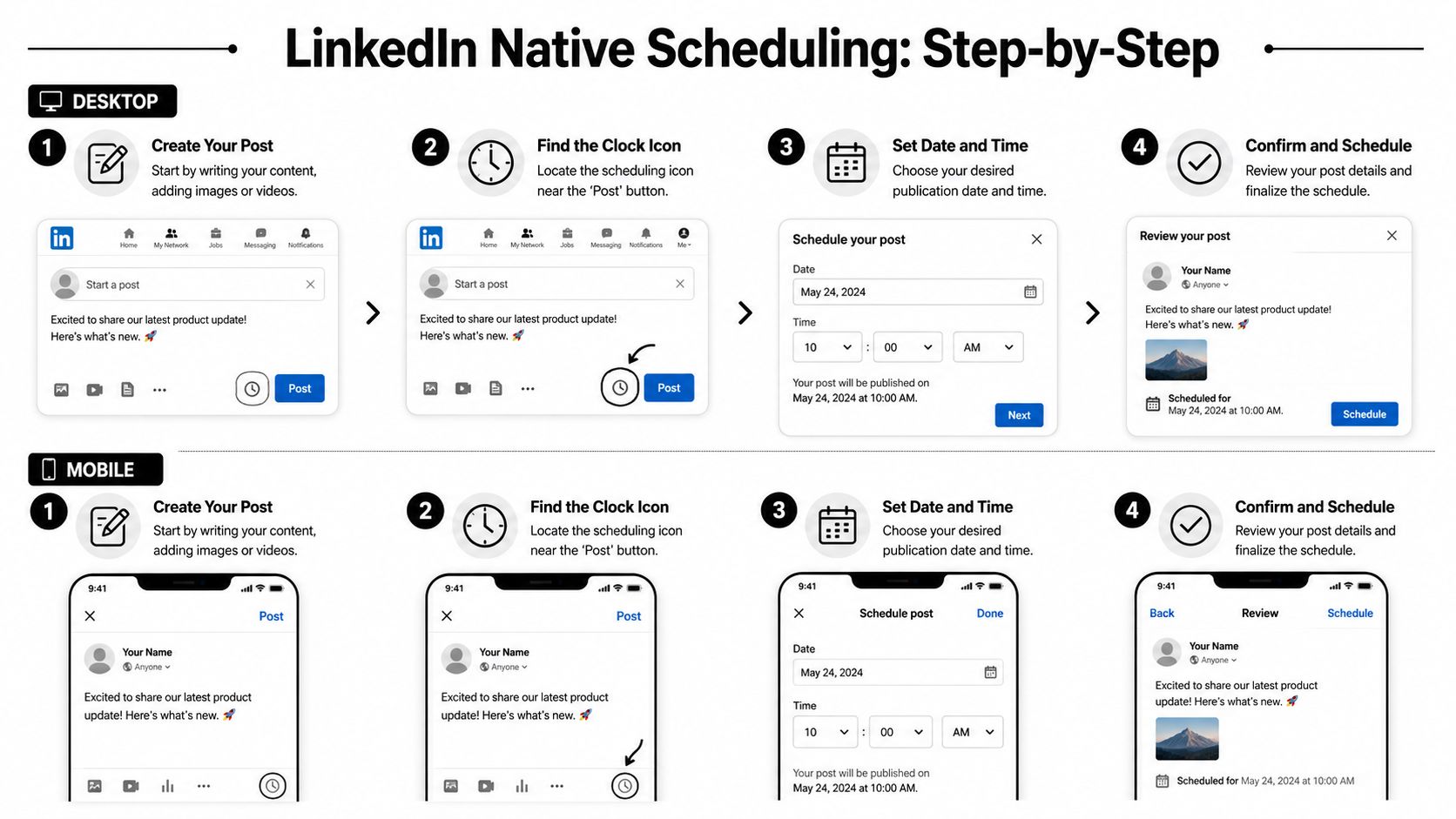
Native scheduling gives you a clean way to plan ahead without leaving LinkedIn. That matters if your goal is a sustainable workflow, not a complex content system. You can map out the week, queue posts in batches, and stay consistent without managing another dashboard. If you want a tool built specifically for queuing LinkedIn content outside the platform, a LinkedIn post scheduler can give you more flexibility.
On your desktop browser
Desktop is the better option for serious writing. It gives you more room to review formatting, tighten the hook, and catch small errors before the post goes live.
Use this process:
- Open the post composer. Start a post from your LinkedIn feed or company page.
- Finish the post before you schedule it. Write the caption, add media, and check the structure first.
- Click the clock icon. This opens LinkedIn's scheduling window.
- Choose the date and time. Set the publication slot you want.
- Confirm the scheduled post. Do one final review, then save it.
The order matters. Scheduling too early creates sloppy posts because revisions keep happening after the time slot is set. A better habit is simple: draft first, proofread second, schedule last.
If you want another practical walkthrough that compares methods, BAMF has a useful comprehensive guide to LinkedIn posting.
After you know the clicks, seeing it in action can help:
Using the LinkedIn mobile app
Mobile scheduling is useful, but it has limits. It works well for quick execution. It is weaker for planning and editing.
Use this flow:
- Tap to create a post. Start from the LinkedIn app home screen.
- Add the content. Write the caption and attach media.
- Tap the clock icon. Open the scheduling option.
- Select the date and time. Choose the slot.
- Schedule the post. Check the preview, then confirm.
Mobile works best for:
- Quick reaction posts from an event, meeting, or fresh takeaway
- Small timing changes when you need to move a scheduled post
- Simple text posts that do not need much formatting review
Mobile is less reliable for:
- Long thought leadership posts that need structure and clean pacing
- Weekly planning where you want to compare multiple posts at once
- Detailed proofreading of spacing, line breaks, and media order
That trade-off is easy to miss. Native mobile scheduling is convenient, but convenience is not the same as control.
How to manage scheduled posts
A scheduled queue still needs review. Posts can become outdated fast, especially if your industry shifts midweek or your company has news that should take priority.
Inside LinkedIn's scheduled posts area, you can review upcoming content and make changes before it publishes. That is why short scheduling windows usually work better than filling the calendar too far ahead. A one to two week queue is easier to manage than a packed month of posts you never revisit.
Keep the queue short enough to review with care.
For consultants, founders, and lean marketing teams, native scheduling is a strong starting point because it keeps the process light. It gives you enough structure to batch content and stay consistent, without forcing a larger system before you need one.
When to Upgrade to a Third-Party Scheduling Tool
Native scheduling is fine until it isn't. The problem usually isn't publishing one LinkedIn post. The problem is managing LinkedIn as part of a larger content operation.
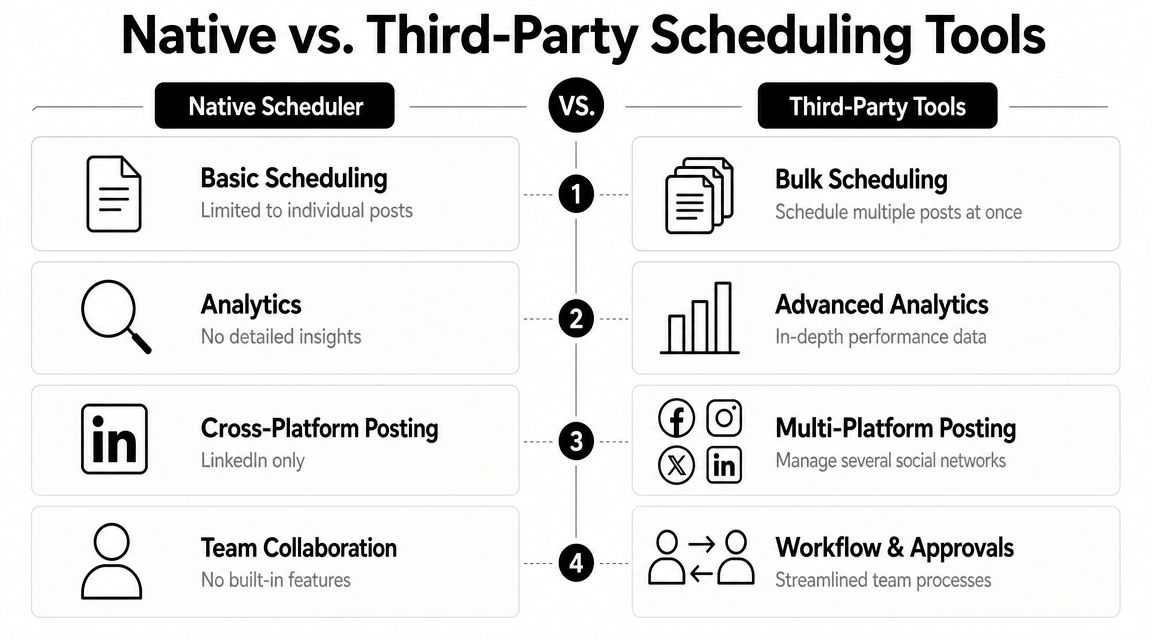
If LinkedIn is your only channel and you publish a modest number of posts each week, the built-in scheduler stays efficient. If you also manage Instagram, X, YouTube, TikTok, or client accounts, the native tool starts creating friction. You end up switching tabs, duplicating captions manually, and losing visibility across the broader calendar.
Where native scheduling works well
Native LinkedIn scheduling is a good fit when your needs are narrow and stable.
| Use case | Native scheduler fit |
|---|---|
| Solo professional posting on LinkedIn only | Strong fit |
| Company page with a light publishing cadence | Good fit |
| Simple queue management | Good fit |
| Multi-platform campaign planning | Weak fit |
| Team approvals and collaboration | Weak fit |
That's the trade-off in plain terms. Native is convenient because it removes setup and cost. It's limiting because it keeps LinkedIn separate from the rest of your workflow.
Where native scheduling starts to slow you down
Three pain points usually push teams toward a third-party tool.
First, cross-platform coordination. If the same campaign needs a LinkedIn post, a short video cut, an Instagram caption, and a follow-up post next week, native scheduling gives you no central view.
Second, workflow management. Native tools are built for publishing, not for approvals, content libraries, and handoffs between strategist, writer, and stakeholder.
Third, content repurposing. Here, all-in-one platforms become useful. If your starting point is long-form content like webinars, podcasts, or interviews, a tool that helps generate clips, captions, and scheduled posts in one place can reduce a lot of manual work.
One example is quso.ai's LinkedIn post scheduler, which sits inside a broader workflow for creating, repurposing, and scheduling social content. That matters most for teams turning one source asset into multiple posts rather than writing every LinkedIn update from scratch.
Buffer and Sprout Social are also common choices when the core need is broader scheduling and management across channels.
A third-party scheduler makes sense when your bottleneck isn't posting. It's coordination.
What to look for in a third-party tool
Don't pick a tool because it has the longest feature list. Pick one that removes your actual bottleneck.
Look for:
- A shared content calendar if you need visibility across channels or campaigns.
- Approval workflows if more than one person needs to sign off.
- Repurposing support if your team publishes from podcasts, webinars, or recorded interviews.
- Analytics you'll use. More reporting isn't automatically better if nobody acts on it.
- Reliable queue management so you can move posts quickly when priorities change.
What doesn't work is paying for enterprise complexity when your current issue is primarily inconsistency. If you haven't built a posting rhythm yet, no platform will solve that for you. The tool should support the workflow, not become the workflow.
How to Build a Sustainable LinkedIn Content Workflow
Most LinkedIn inconsistency starts before scheduling. It starts with weak planning. If you don't know what kinds of posts you want to publish, you'll keep opening the composer with a blank screen and hoping a topic appears.
A sustainable system is simpler than people think. You need a few repeatable themes, a batching habit, and a lightweight calendar you'll maintain.
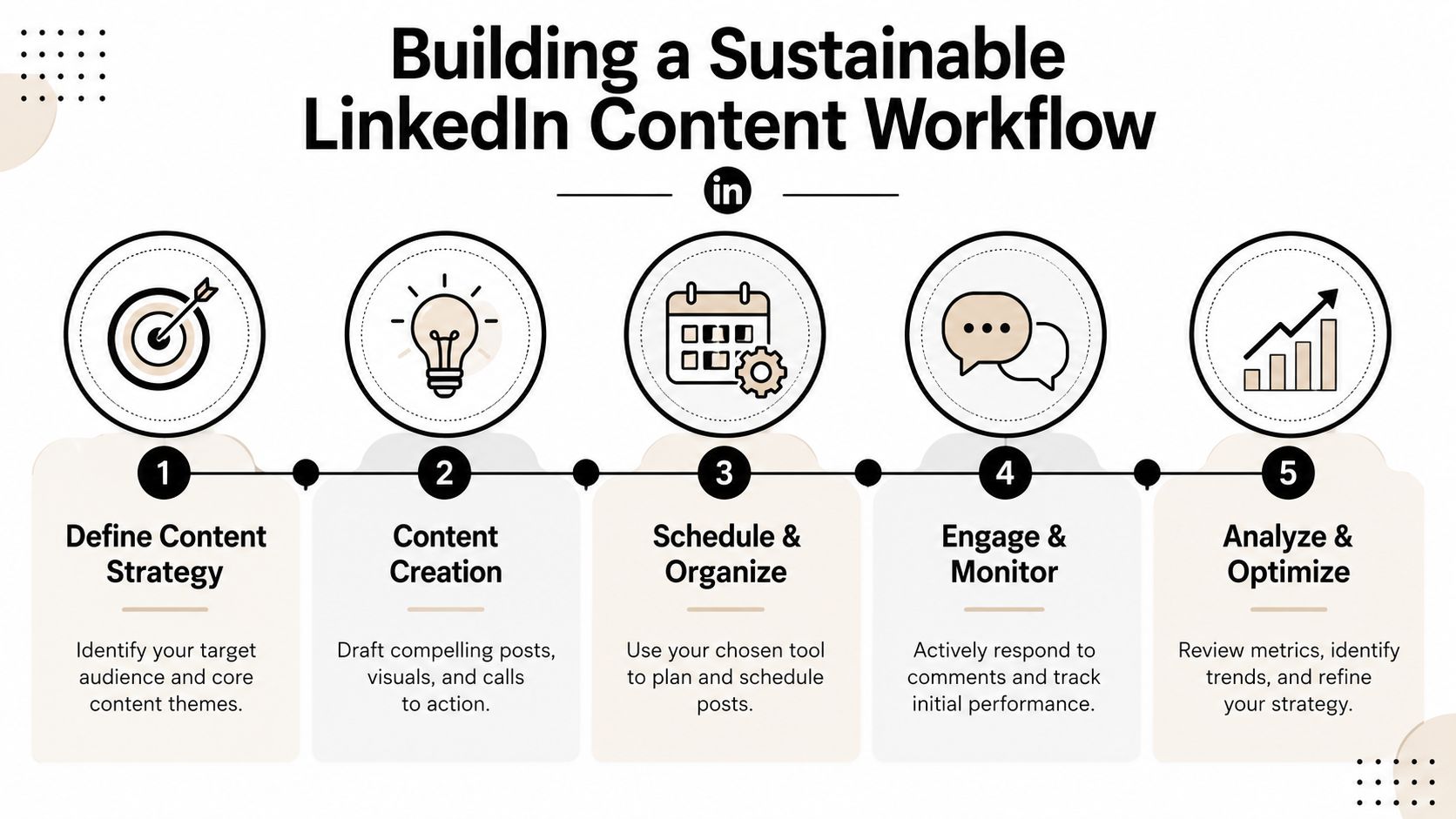
If you need a planning format to start from, a social media calendar template can help you organize topics, timing, and ownership without building a giant spreadsheet from scratch.
Start with content pillars
Content pillars are the categories you return to repeatedly. They keep your feed coherent and make ideation much faster.
A consultant might use:
- Client lessons drawn from real project work
- Industry analysis on trends, tools, or mistakes
- Personal operating principles about leadership, sales, or execution
- Behind-the-scenes process showing how work gets done
An educator might use:
- Teaching moments
- Student questions
- Frameworks
- Resource recommendations
The mistake is choosing too many. If you create a dozen pillars, you don't have pillars. You have clutter. A smaller set works better because it trains your audience to understand what you're known for.
Use batching to reduce context switching
Batching means separating content work into focused blocks instead of doing everything in one sitting every day. That usually looks like one session for ideas, one for drafting, and one for scheduling.
Here's why it works. Writing five posts in one session is easier than writing one post five separate times. Your brain stays in the same mode. Your examples stay sharper. Your tone stays more consistent.
A practical batching rhythm:
- Capture ideas continuously. Keep a note on your phone or desktop for client questions, objections, wins, and examples.
- Draft in one block. Write several posts while you're already thinking about your audience.
- Edit in a separate pass. Tighten hooks, remove repeated phrasing, and check calls to action.
- Schedule together. Once the posts are clean, load them into your queue.
Good batching reduces friction. Bad batching creates a month of generic posts you're afraid to publish.
The fix is to batch only far enough ahead that the content still feels relevant. For many professionals, that means planning a short runway and leaving room for timely commentary.
A simple weekly workflow
You don't need a complex operating system. A basic weekly cycle is enough.
| Day or block | What to do |
|---|---|
| Idea capture | Save lessons from calls, meetings, and audience questions |
| Writing session | Draft a small set of posts tied to your pillars |
| Editing pass | Check clarity, formatting, and whether each post has one clear point |
| Scheduling block | Queue the finished posts in LinkedIn or your chosen tool |
| Engagement window | Reply to comments and note which topics sparked conversation |
Many people overcomplicate things. They spend too much time color-coding the calendar and not enough time improving the posts. The calendar is support. The content still carries the result.
One more workflow habit matters: keep a “ready later” file. Some posts are solid but not timely. Don't force them into this week's queue. Save them. That small backlog makes future scheduling easier and reduces the pressure to create from zero every time.
Best Posting Times and Content Templates for LinkedIn
A scheduled post at the wrong time can disappear before your audience opens LinkedIn for the day. A mediocre post in a strong time slot can still waste a good opportunity. Timing and format need to work together.
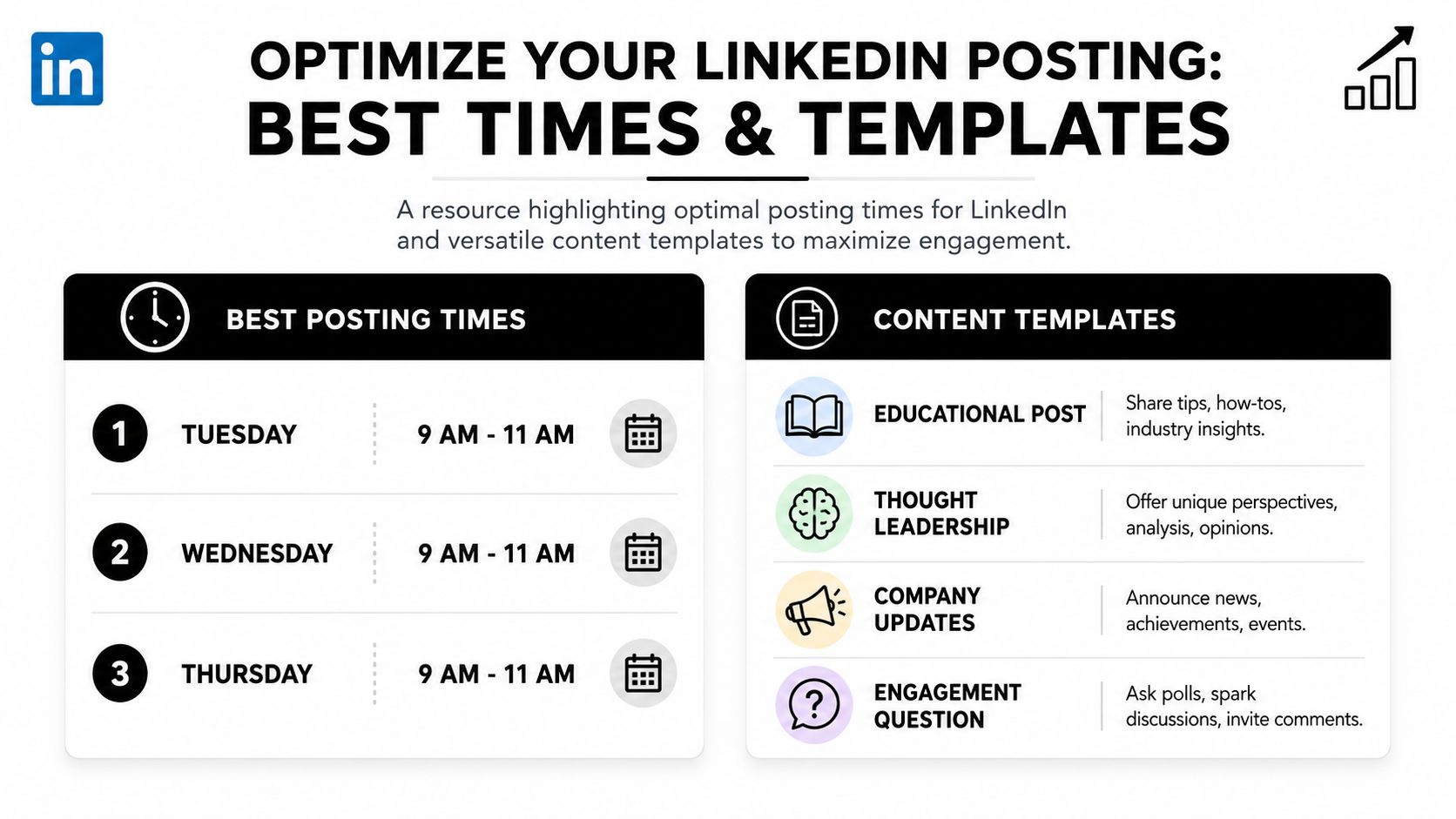
The practical starting point is simple. Publish during weekday work hours, then adjust based on your own audience behavior. For many LinkedIn accounts, Tuesday through Thursday is a reliable testing window because professionals are active, focused, and more likely to engage with work-related ideas than they are late in the evening.
If you want a stronger benchmark before you start testing, this guide on the best time to post on LinkedIn gives a useful planning reference.
When to schedule your posts
Good scheduling reflects how people use LinkedIn. They check in between meetings, during lunch, after opening their laptop, or while catching up on industry news. That means your posting schedule should favor times when your audience is in professional mode.
Use this as a working rule set:
- Start with Tuesday through Thursday for your priority posts.
- Schedule in the audience's local time zone, not yours, if those are different.
- Put your strongest posts in your clearest slots, especially posts tied to offers, launches, or strong opinions.
- Treat timing advice as a starting point, then review reach, comments, saves, and profile visits to see what holds up for your account.
There is a trade-off here. A broad “best time” can help you avoid dead zones, but it will never beat account-level evidence. A consultant targeting founders in one region may see very different results than a recruiting leader posting to a national audience.
If you need more topic variety before you fill your schedule, Sift AI's content strategy guide is a useful source of prompts.
Templates you can use without sounding templated
Templates help with consistency, but they should not make every post read the same. The goal is to reduce writing friction, not flatten your point of view.
I keep hearing the same problem from [audience]: [problem].
Here's what usually fixes it:
- [point]
- [point]
- [point]
If you want to improve [outcome], start with [first step].
Use this for educational posts. It works well when you want to teach one clear lesson and give people something practical to try.
We changed one part of our process this week: [change].
We did it because [reason].
The result was [observation].
The bigger lesson is [lesson].
Use this for behind-the-scenes process posts. These tend to perform well because they show how you think, not just what you claim to know.
A common view in [industry] is [popular opinion].
My experience has been different.
What I've found is [your perspective].
That matters because [practical impact].
Use this for point-of-view posts. Save this format for opinions you can defend with experience, not recycled hot takes.
Before I publish, I ask one question: [question]?
If the answer is no, I rewrite.
That has helped me avoid [mistake].
What question do you use as a filter?
Use this for conversation posts. It invites replies without forcing engagement.
The strongest LinkedIn posts are usually simple. One idea. One audience. One reason to care.
That discipline matters more than chasing perfect timing.
How to Edit or Fix Common Scheduling Errors
Scheduling problems are usually small. The main issue is not knowing where to fix them fast.
How do I find and edit a scheduled LinkedIn post
Open the post composer and go back to the scheduling area through the clock icon. From there, access your scheduled posts list. That's the first place to check if a post needs to be moved, removed, or reviewed before it goes live.
If something feels off, fix it before the publish time instead of hoping it won't matter. Small issues are more visible on LinkedIn than people expect.
What should I do if a scheduled post didn't publish
Start with the basics. Confirm the post is still in the scheduled queue and check whether the selected time has already passed. Then review the post itself for anything that may have caused a problem, such as media that didn't upload correctly or text that was saved in an unfinished state.
If the topic is still relevant, duplicate the post manually and schedule it again. Don't wait days to address it.
Why did my formatting look different after publishing
This usually comes from writing in another app and pasting into LinkedIn. Line breaks, bullets, and spacing can shift.
The simplest fix is to preview carefully before scheduling and keep formatting clean. Short paragraphs usually survive the transition better than complicated structure. If a post format matters a lot, test the layout with a lower-risk post before using it for an announcement or campaign piece.
If you've outgrown ad hoc posting and want a more connected workflow, quso.ai is worth considering for teams and creators who need to plan, repurpose, and schedule content from one place instead of managing each step separately.





.png)