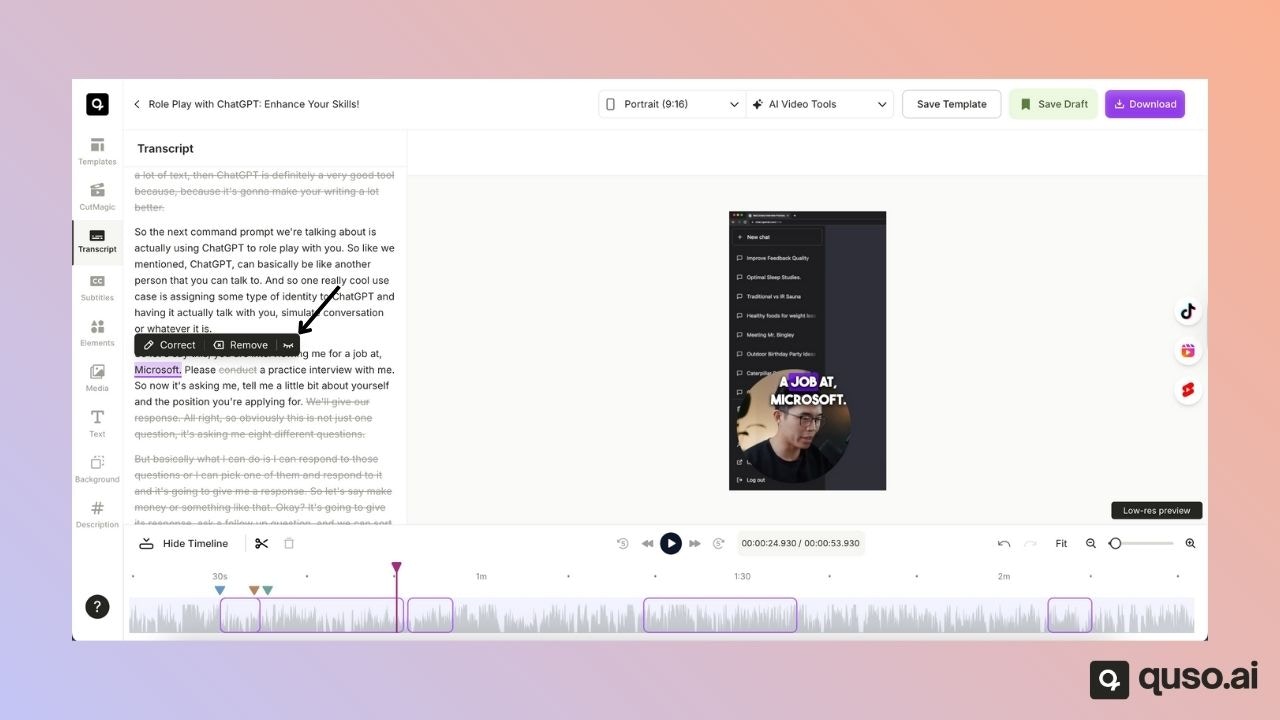
✨ What You Can Do with the Transcript-Based Editor
Using the transcript-based editor, you can: • ✂️ Remove specific portions of a video• 🔄 Restore deleted sections
• 🎯 Keep only selected parts of a clip
• ✍️ Correct spelling or wording errors
• 🗑️ Delete words entirely from the video
• 🙈 Hide words from captions without affecting the video
✂️ Remove Portions of a Video Using the Transcript
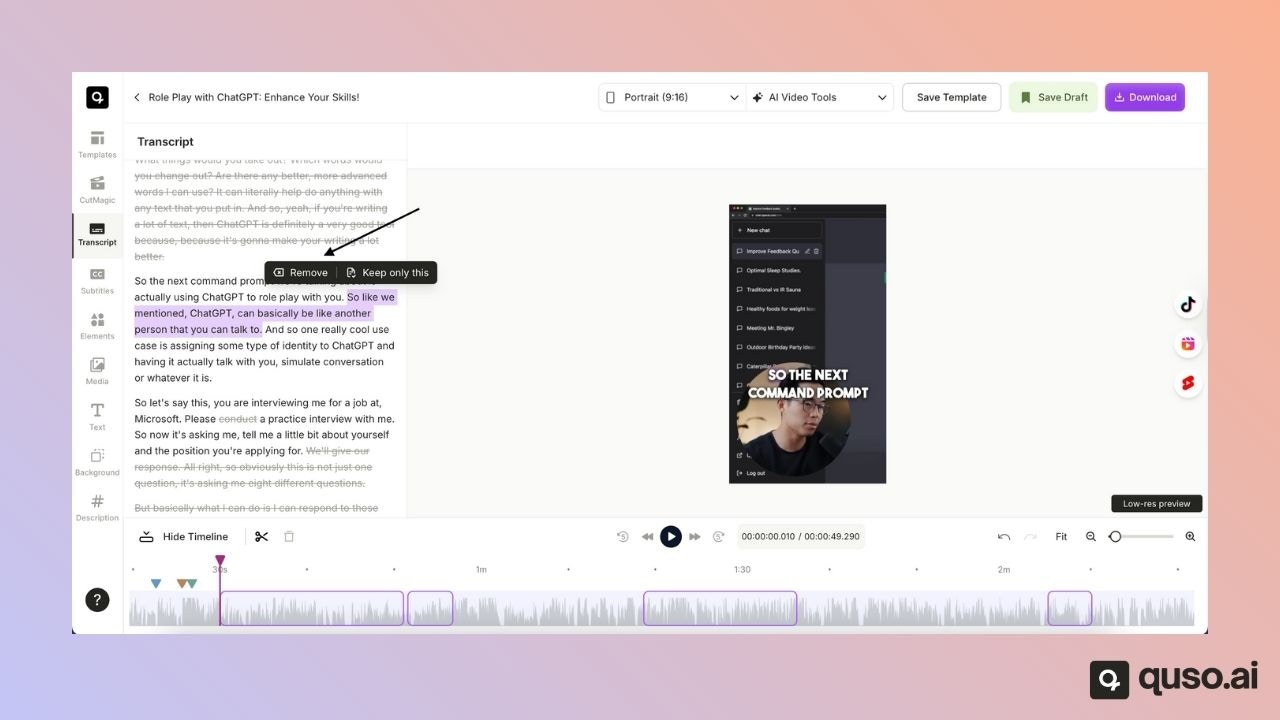
You can remove any section of a video by selecting its corresponding text in the transcript. Steps:-
Open the transcript of the clip
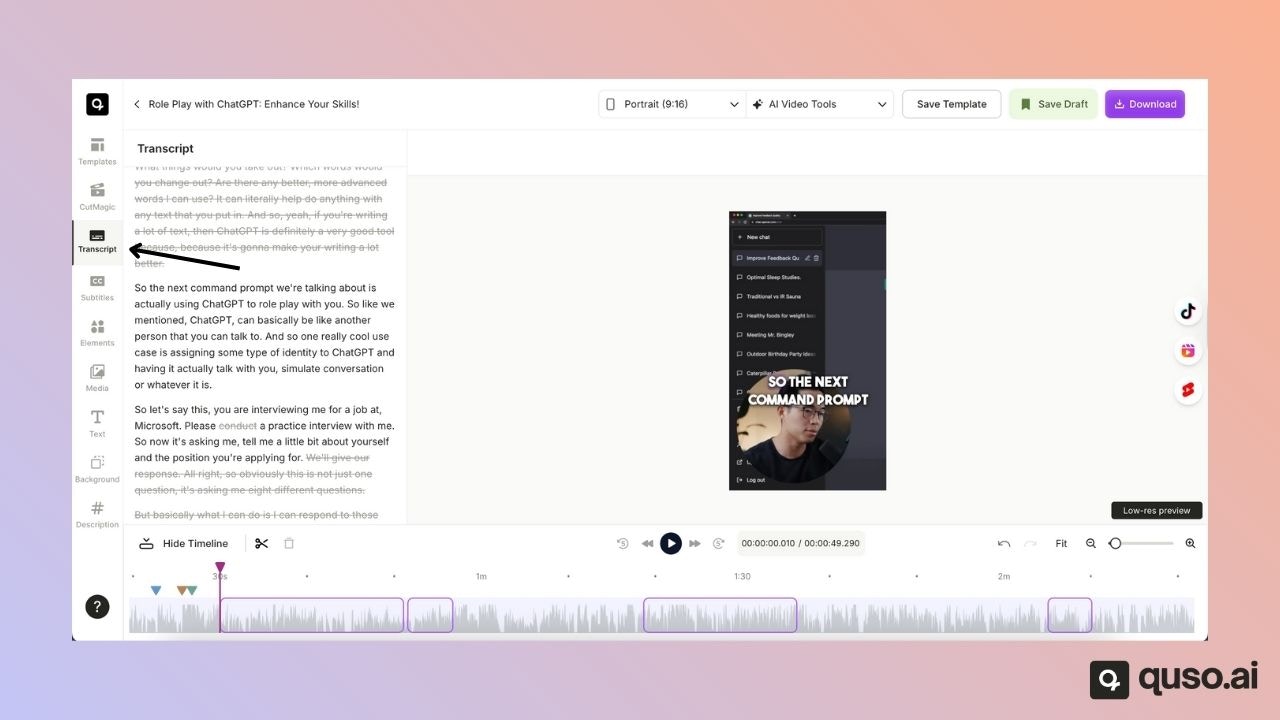
- Select the portion of the transcript you want to remove
-
Click on Remove
🔄 Restore Removed Portions of a Video
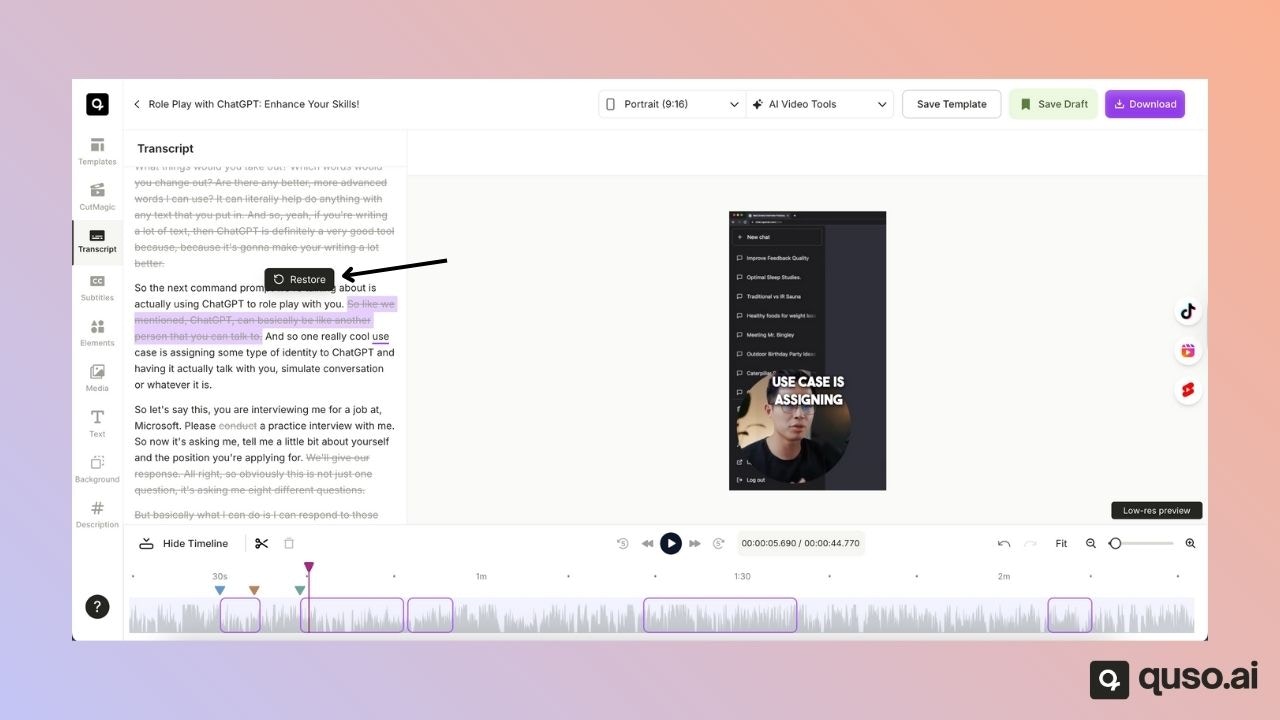
Accidentally removed something important? No problem — you can easily restore it. Steps:- Open the transcript of the clip
- Select the portion you want to restore
-
Click on Restore
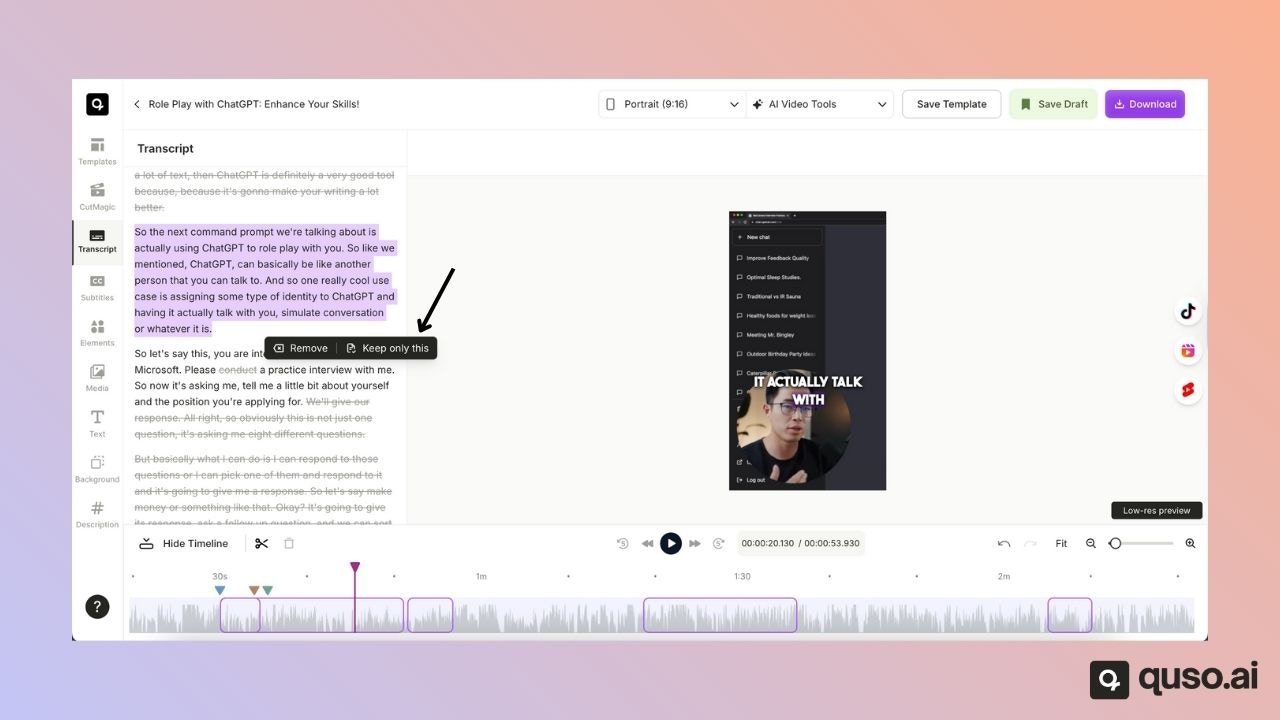
🎯 Keep Only a Specific Section
If you want to keep just one part of the clip and remove everything else:- Select the desired section in the transcript
- Click Keep only this
✍️ Edit Words Directly in the Transcript
You can correct, delete, or hide individual words directly from the transcript editor — no re-exporting required📝 Correct a Word
Use this option to fix spelling mistakes or incorrect words. Steps:- Select the word you want to correct
-
Click on Correct
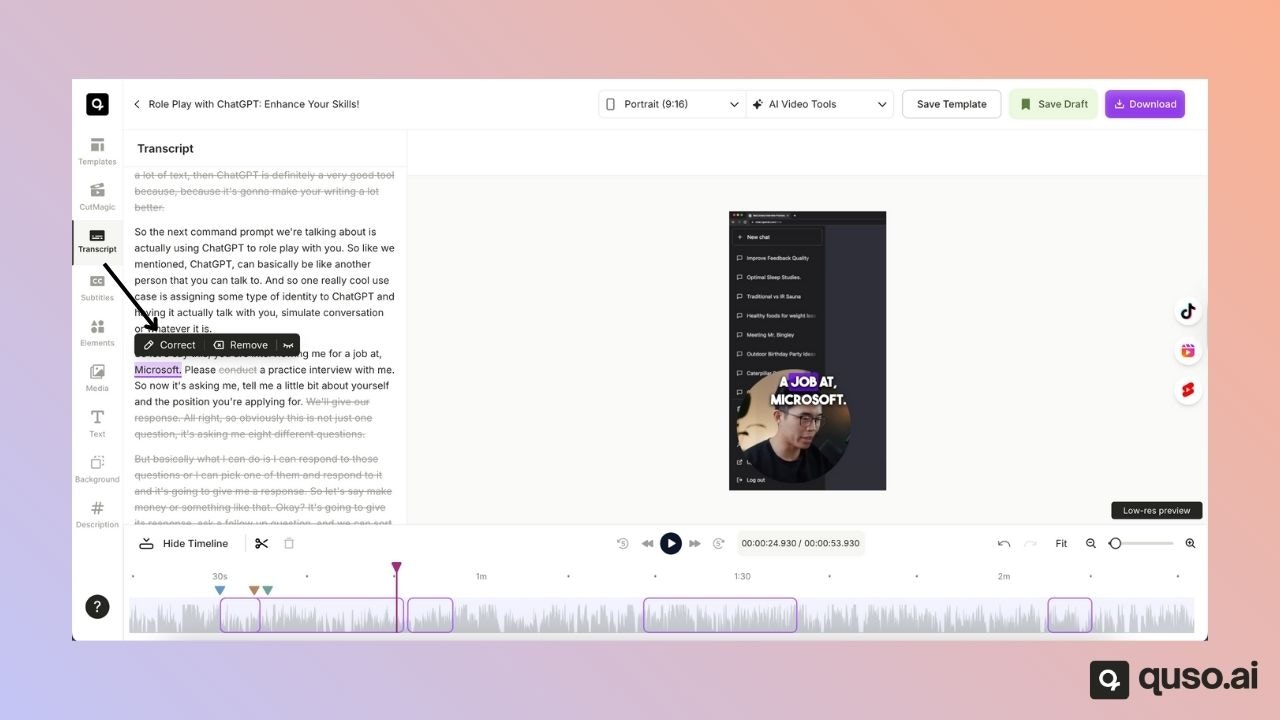
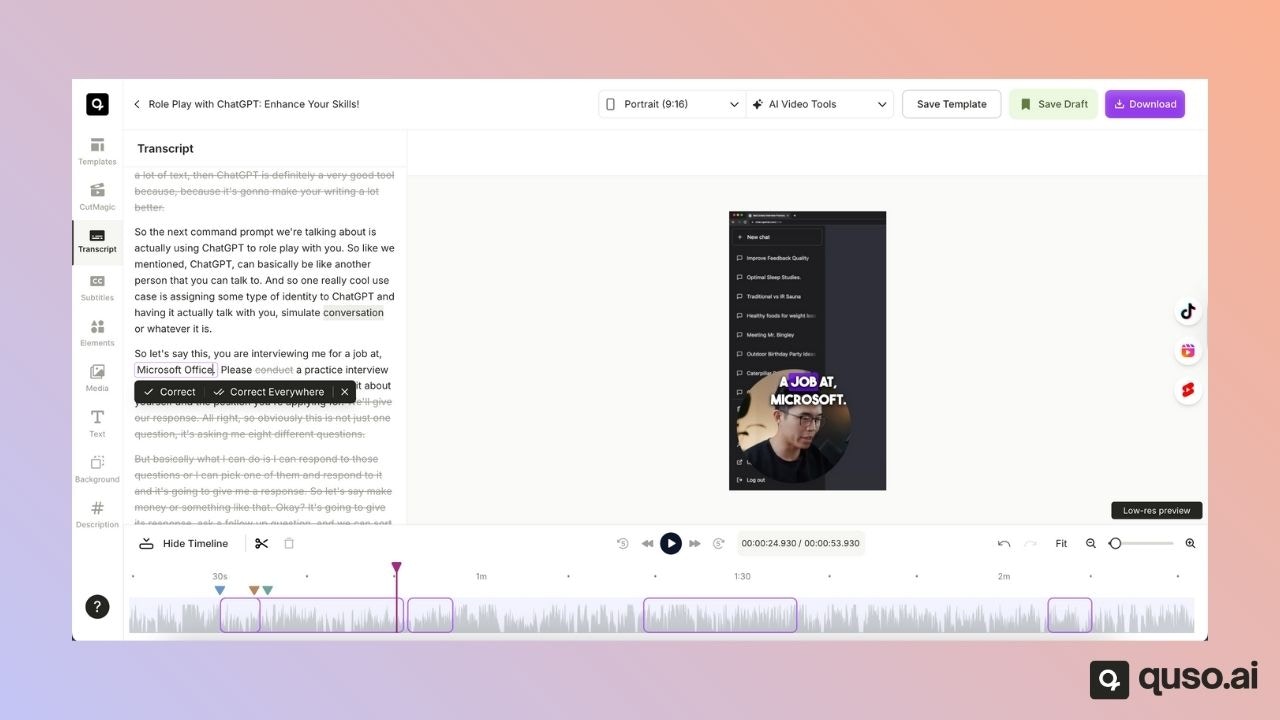
- Type the updated word or phrase
• Correct everywhere The Correct everywhere option is especially useful for fixing misspelled names or repeated errors across the entire transcript in one step.
🗑️ Remove a Word
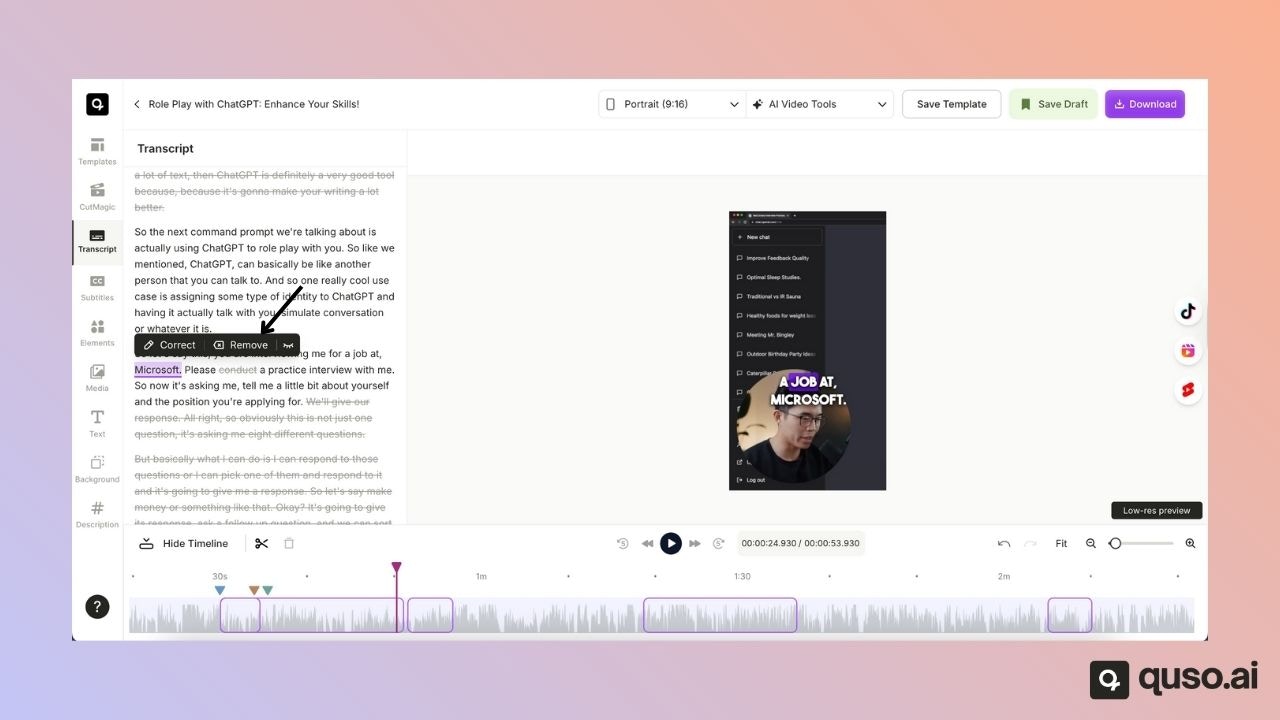
Removing a word removes it completely from both the transcript and the video audio. Steps:- Select the word
- Click Remove
🙈 Hide a Word from Captions
Hiding a word removes it only from the captions while keeping the video audio unchanged. Steps:- Select the word
- Click the Hide icon