Transcribe Video to Text: an editable transcript you correct yourself
Paste a link or upload a video file. quso.ai returns a word-level transcript in the clip review screen, where you correct names and terms, then copy the text or, on paid plans, download SRT captions from the editor. The free plan covers about 75 minutes of video a month, no card required. There is no TXT export on any plan.
Start free, no card requiredTrusted by 4M+ video creators
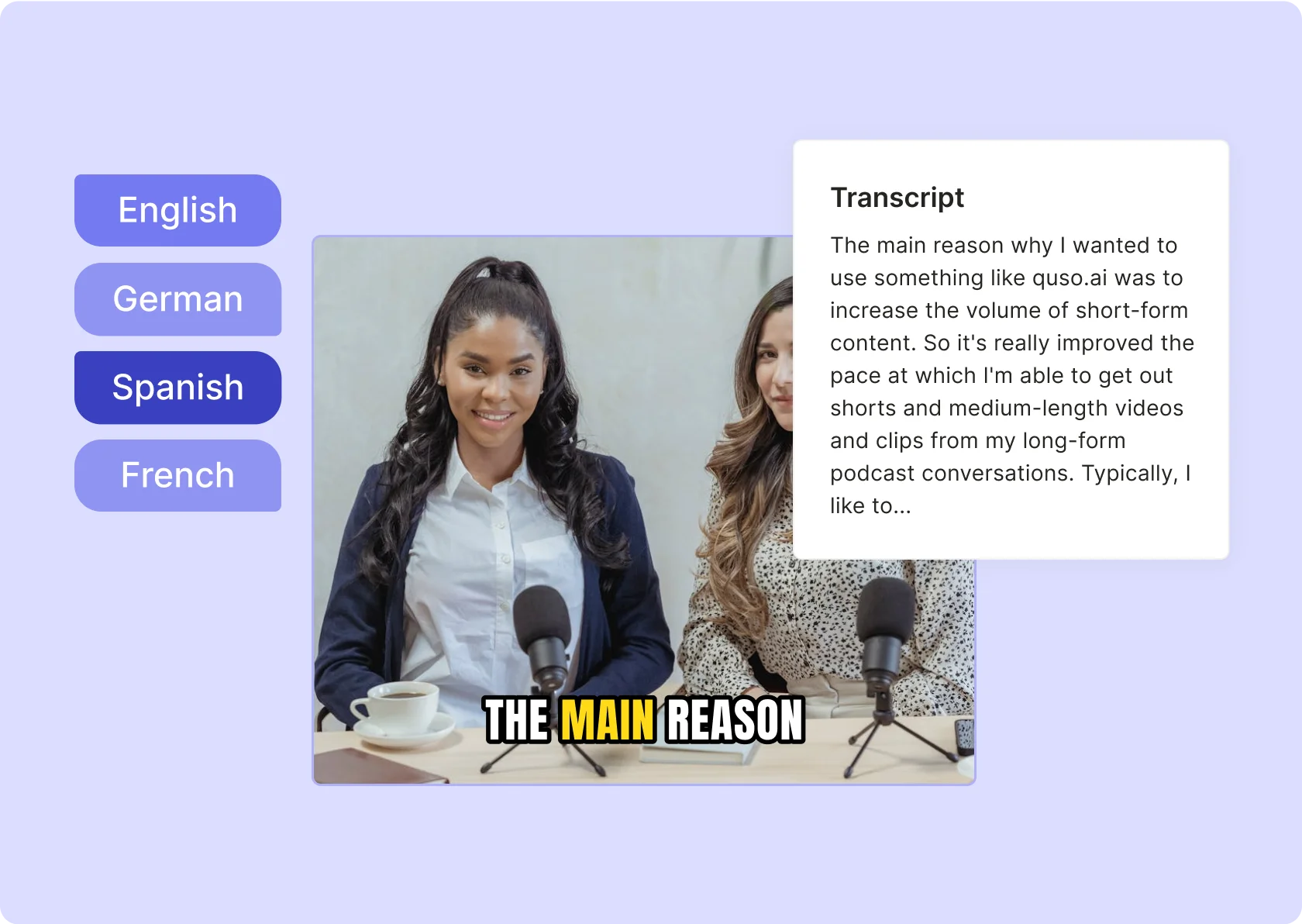
Why people use quso.ai to transcribe video
Software you run yourself, with no per-minute invoice
Sign up, import the video, and the transcript appears in the review screen, usually within a few minutes; a long recording takes longer. Each minute of video uses about one credit, and the free plan includes 75 credits a month. Nobody at quso.ai reads or edits the transcript.
A transcript you correct word by word
The transcript is editable in place. Fix a product name, an acronym, or a misheard number before you copy the text or cut a captioned clip from that passage. That review is the part the software leaves to you.
The same transcript feeds captions and clips
Select a passage of the transcript to cut a captioned clip from it, or ignore the clips and take only the text. Either way there is one upload, one transcript, and one place to correct it.
What transcribing video in quso.ai includes, and what it leaves out
Copy on any plan, SRT on paid plans, no TXT or DOCX export
English on the free plan, 19 languages on paid
Video files or links; audio goes through the AI Writer
How to transcribe a video to text with quso.ai
- Sign up and import the video. Paste a link (YouTube, Vimeo, Google Drive, Dropbox, Zoom, Loom, and others) or upload an mp4, webm, or mov from your computer, Google Drive, or Box. Uploads are capped at 5 GB on the free plan and 15 GB on paid plans.
- Wait for processing. It usually takes a few minutes, longer for a long recording. Each minute uses about one credit; the free plan includes 75 a month.
- Open the transcript in the review screen. It sits next to the candidate clips. Read it top to bottom before you touch anything else; the clips can wait.
- Correct names and terms word by word. Product names, acronyms, people's names, and spoken numbers are where the errors cluster. Edit them in place. If you also want video, select a passage to make a custom clip and choose a caption style.
- Get the text out. Copy the transcript to the clipboard on any plan and paste it into your document or CMS. On paid plans, download SRT captions from the Subtitle tab of the desktop editor. There is no TXT or DOCX export, so the paste is the export. Optionally, run the AI Writer on the same video, or on an audio file, for a summary, show notes, or timestamps, and copy those out too.
Frequently Asked Questions
Is it free to transcribe a video with quso.ai?+
What formats can I get the transcript in?+
Which languages can it transcribe?+
Can I transcribe an audio file?+
How accurate is the transcript?+
Transcribe Video to Text: an editable transcript you correct yourself
Start free, no card requiredA worked example: a 30-minute customer webinar into a help article
A support lead at a small software company records a 30-minute customer webinar on Zoom and pastes the Zoom link into quso.ai on Tuesday afternoon. Processing uses about 30 credits and finishes within a few minutes. The review screen opens with the word-level transcript on one side and candidate clips on the other.
She reads the transcript top to bottom. Two feature names are lowercased and one is split into two words; all three get fixed in place. A customer question asked from a laptop microphone came through with gaps, which she retypes from the recording. A price quoted mid-session as "twelve hundred" needs to read "$1,200" in the article, and the software will not make that call on its own. Once the text is clean, she copies it to the clipboard and pastes it into a draft help article, trimming the small talk and keeping the walkthrough. There is no TXT download, so the paste is the export.
Because the transcript is already there, she selects the four-minute setup walkthrough and cuts a captioned clip for the help center; the caption styles are the ones described on the AI subtitle generator page. On the free plan the clip renders at 720p with a watermark, and the team later moves to a paid plan for the SRT file its video host needs. The same review routine applies to any long recording; the sermon transcription page walks through a church version of it, and the guide on how to transcribe a video to text compares manual and software options.
This is an example, not a guarantee. A webinar with three people talking over each other, or a screen share with the presenter off mic, will need more correction than this one did.
Want the full workflow? This free tool is part of quso.ai's AI Subtitle Generator: clip, edit, caption, and schedule in one place.


quso.ai Research
The Short Form Video Performance Report
We measured 508,000 posts from 1,900 creators across 80 countries to separate what actually changes reach from what only sounds like it does.